

Prerequisites
- A Databricks workspace on GCP with Unity Catalog and Iceberg Managed Table enabled
- A GCP project with permissions to create GCS buckets
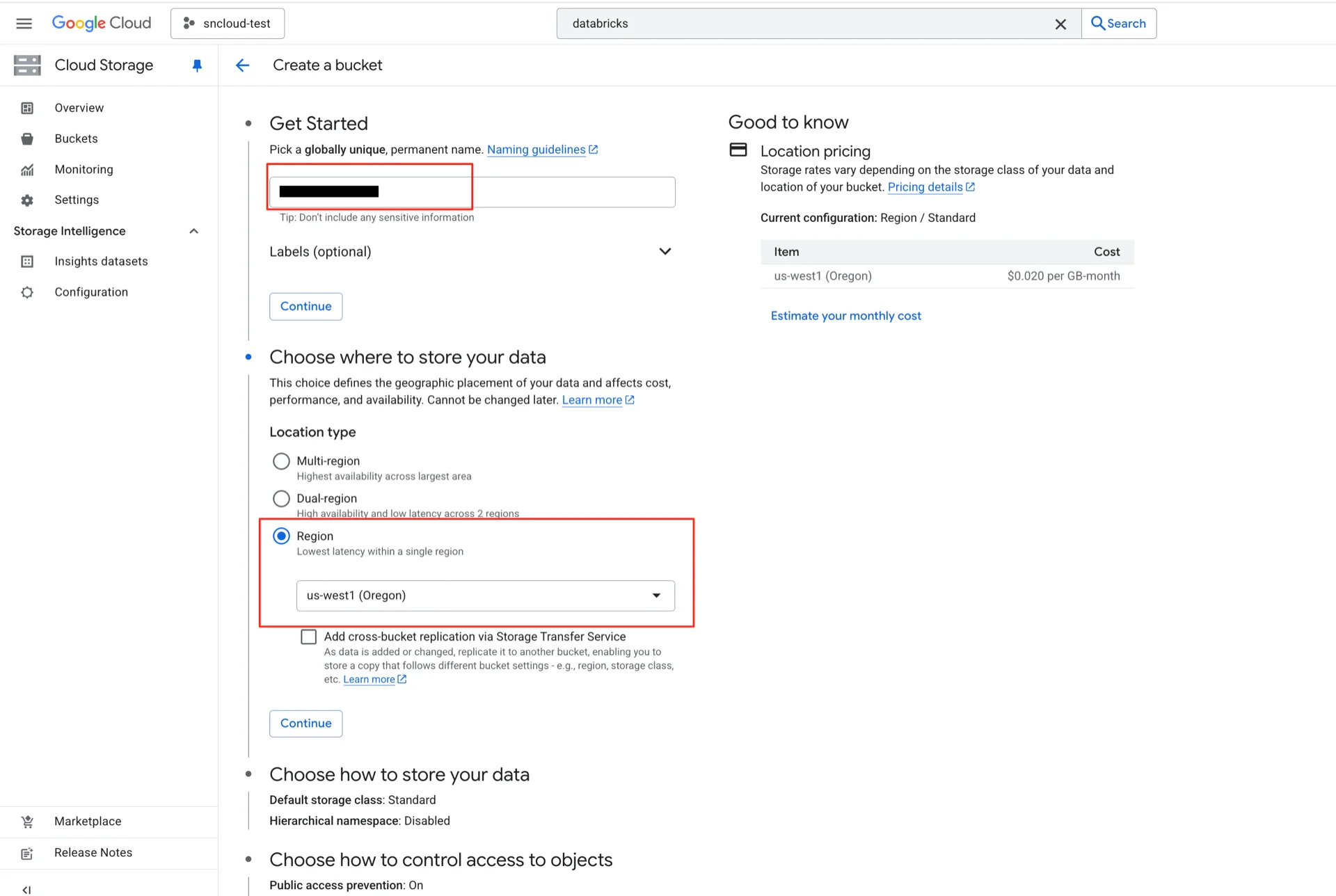
1. Create a GCS Bucket
Create a GCS bucket to use as the Unity Catalog storage location (for example,unity-catalog-iceberg-bucket).
Important: The bucket must be located in the same region as your Databricks workspace and your StreamNative Ursa cluster. Cross-region access introduces additional network traffic and latency.
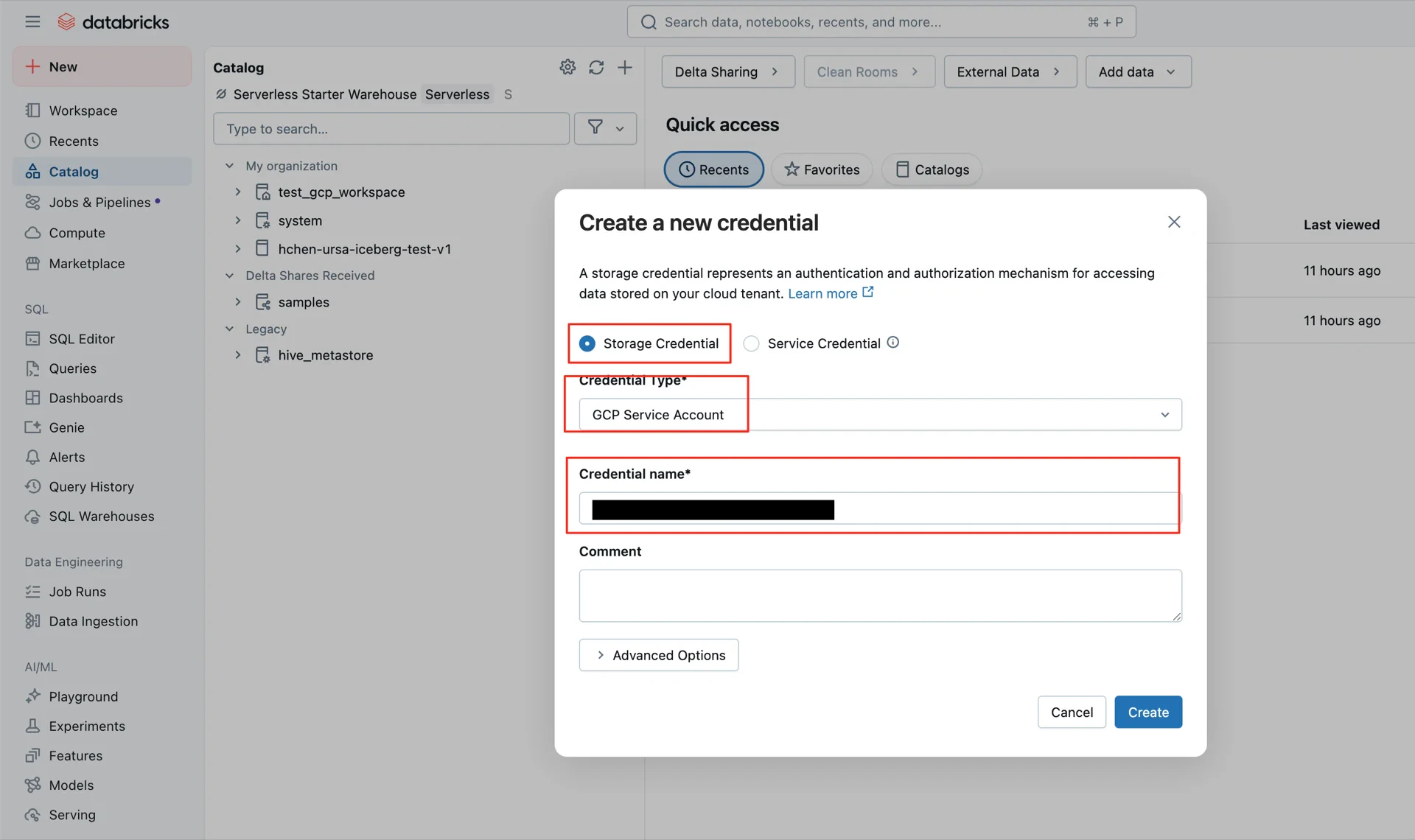
2. Create a Storage Credential in Unity Catalog
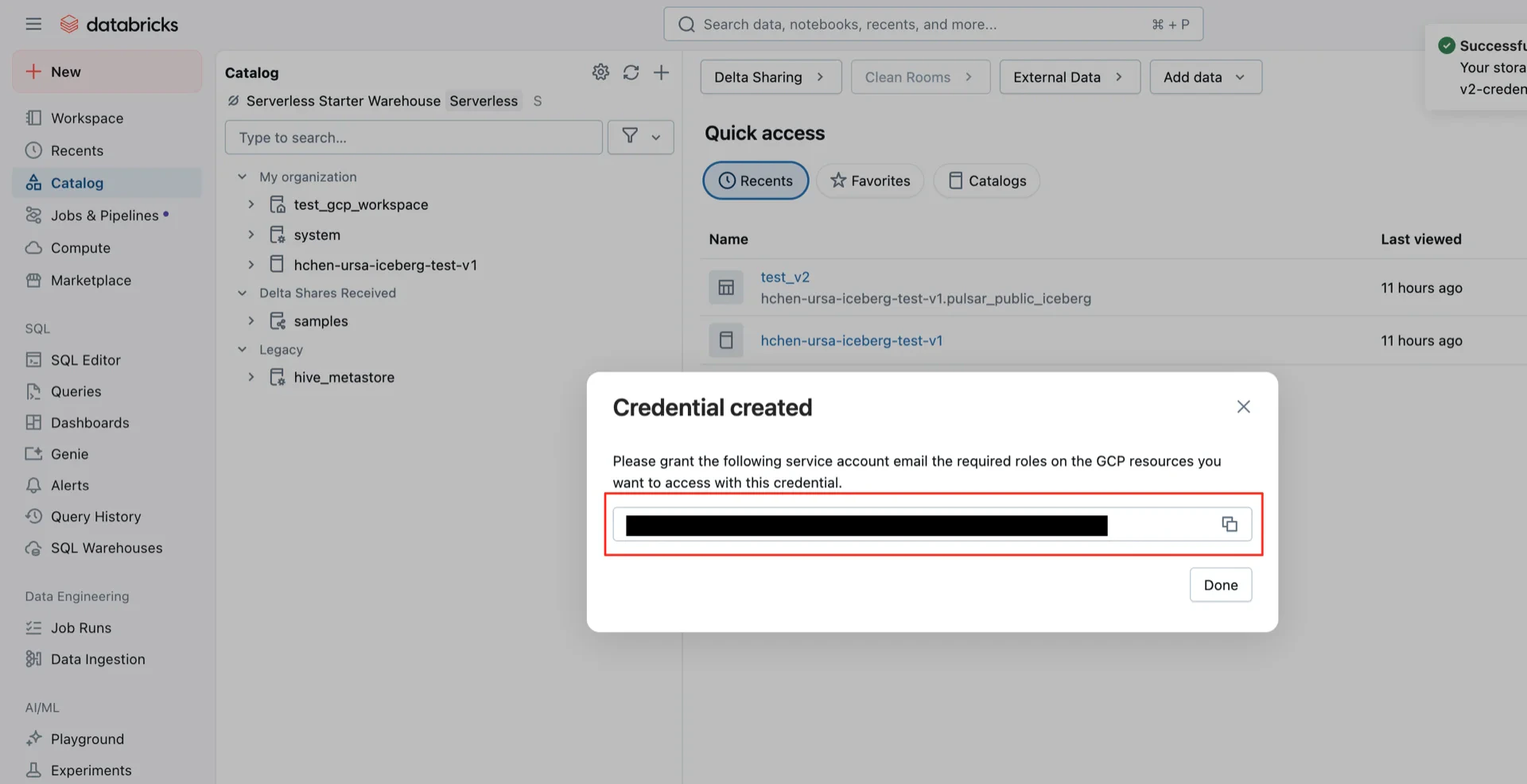
In the Databricks Catalog console, create a new storage credential. Databricks generates a service account that needs permissions on the bucket.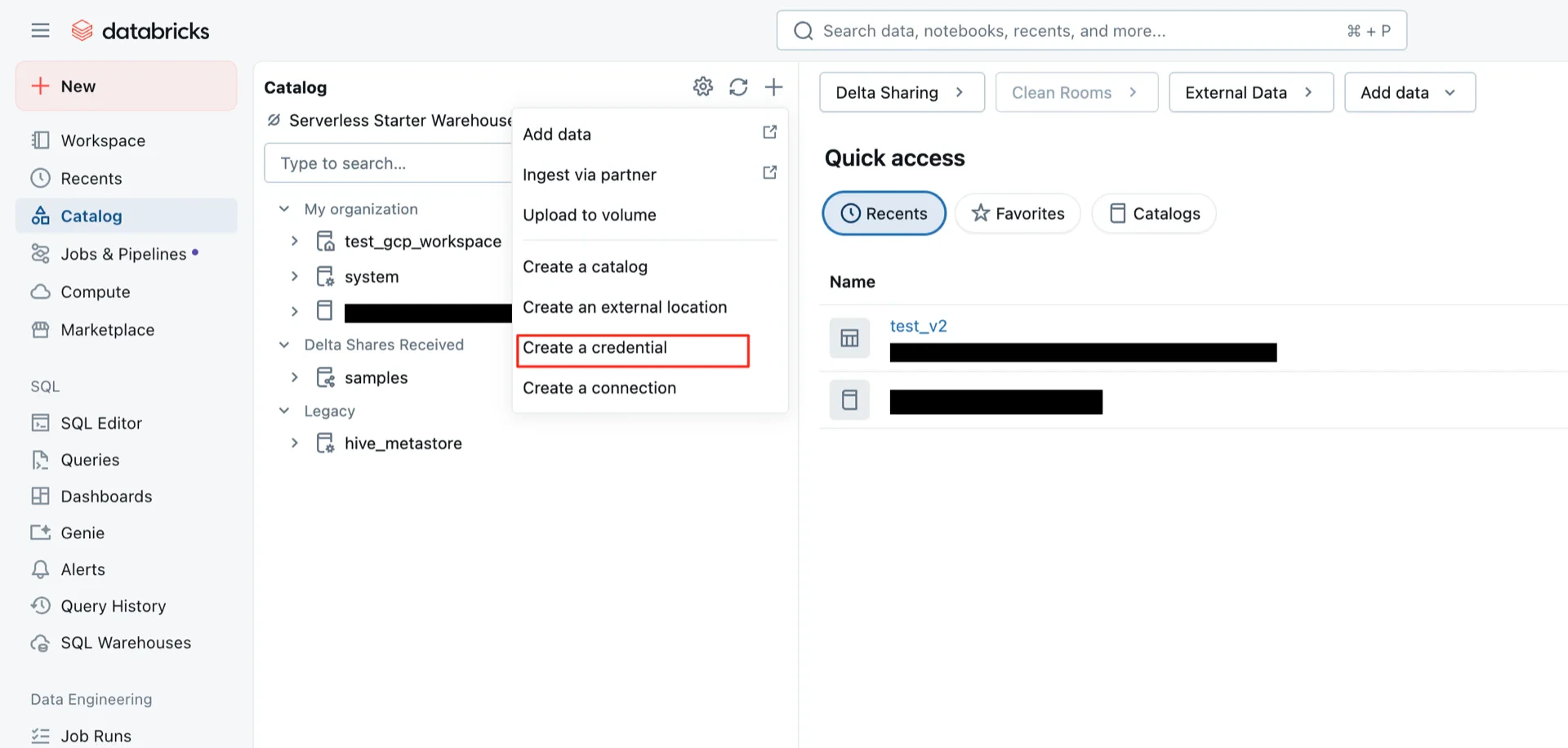
3. Grant GCS Permissions to the Service Account
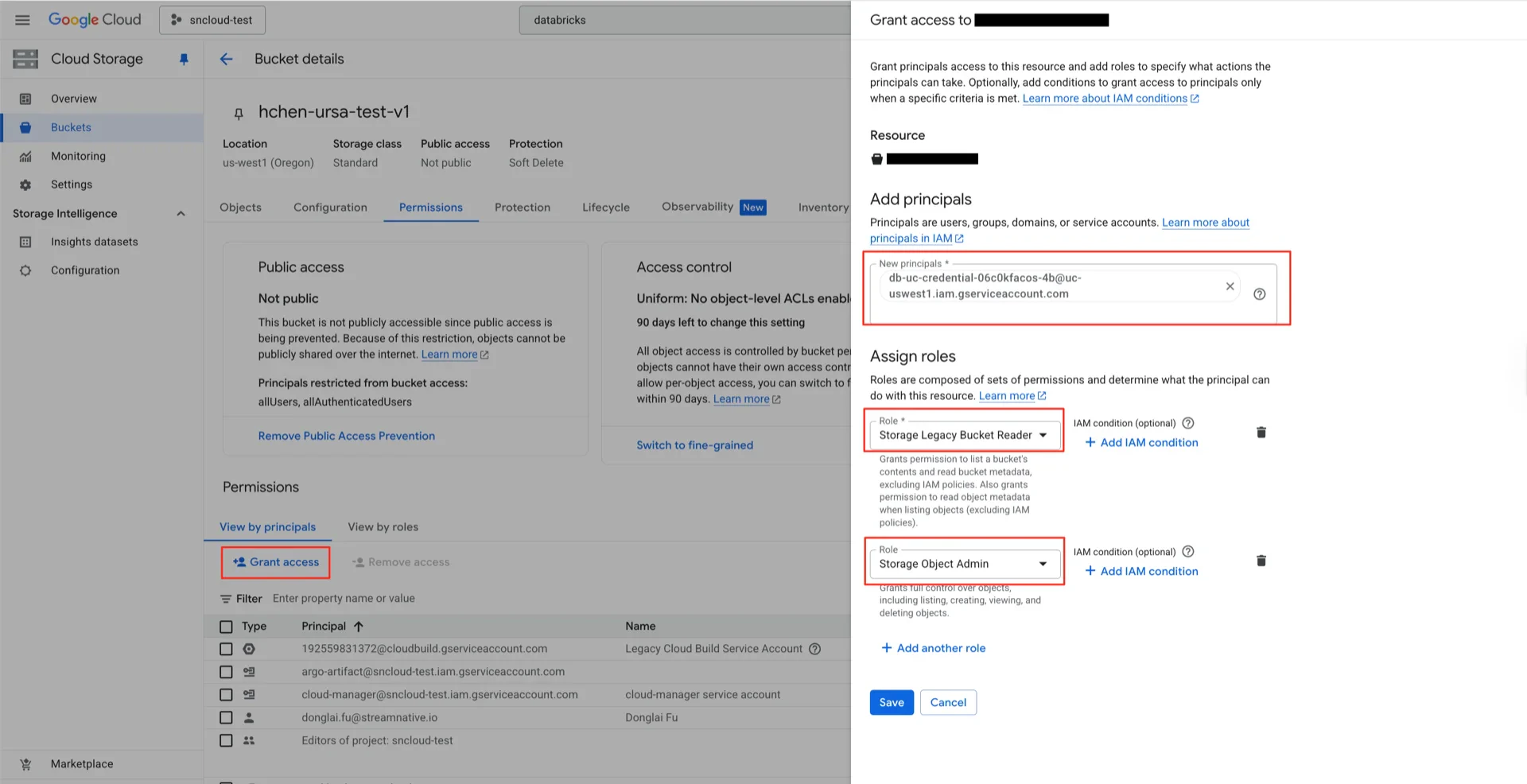
In the GCP console, navigate to the bucket’s Permissions tab and click Grant access.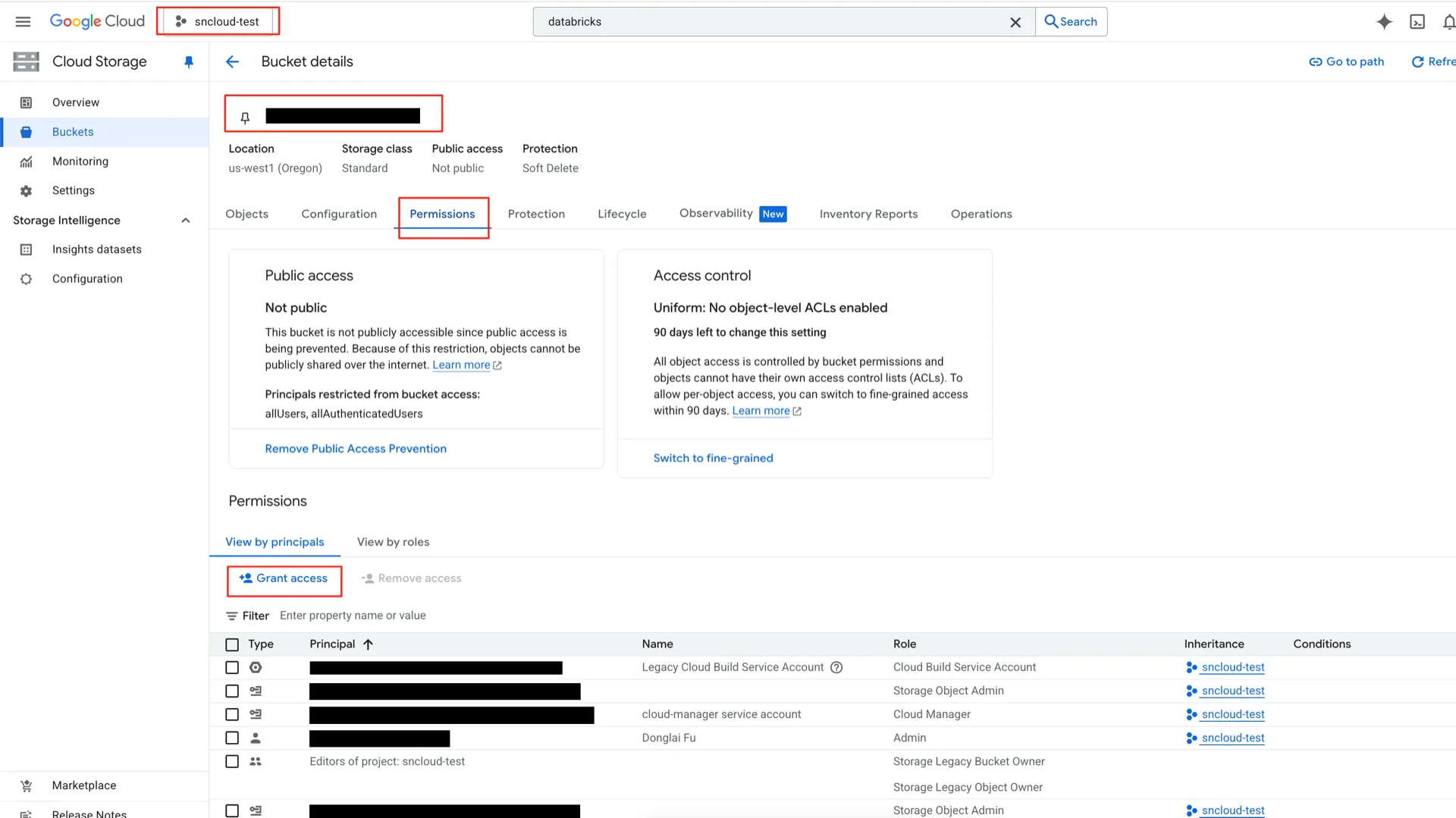
- Storage Legacy Bucket Reader
- Storage Object Admin
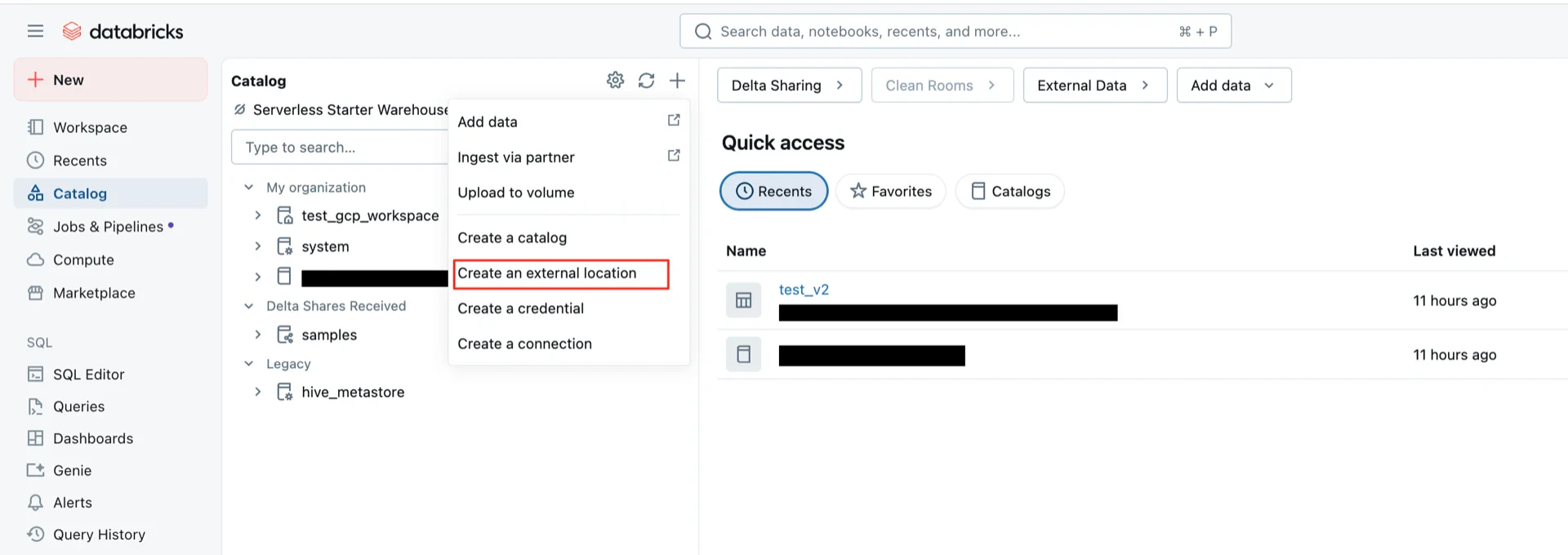
4. Create the External Location
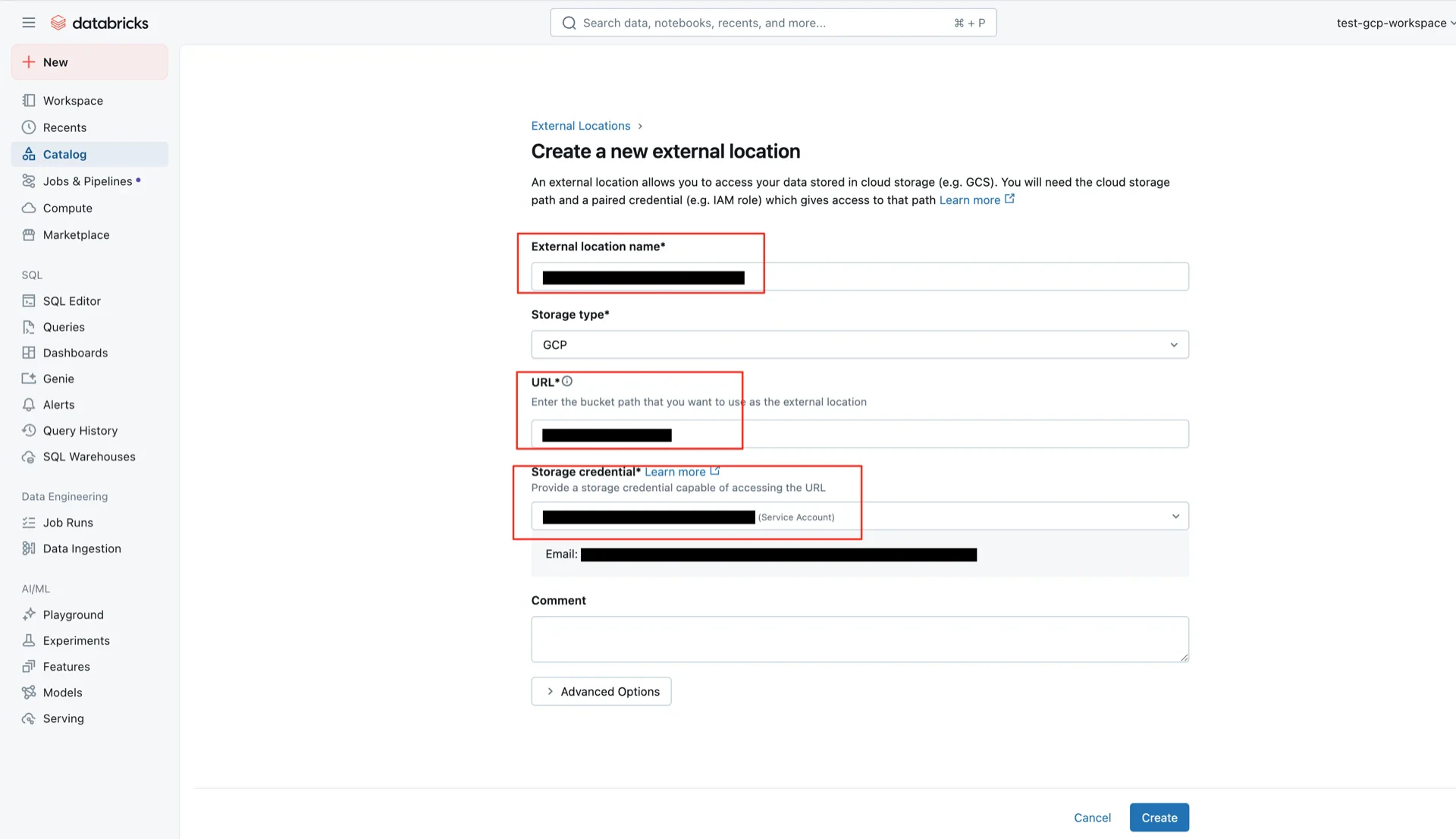
In the Databricks Catalog console, create an external location with the following settings:- External location name: any name
- URL: the GCS bucket path created in step 1
- Storage credential: the credential created in step 2
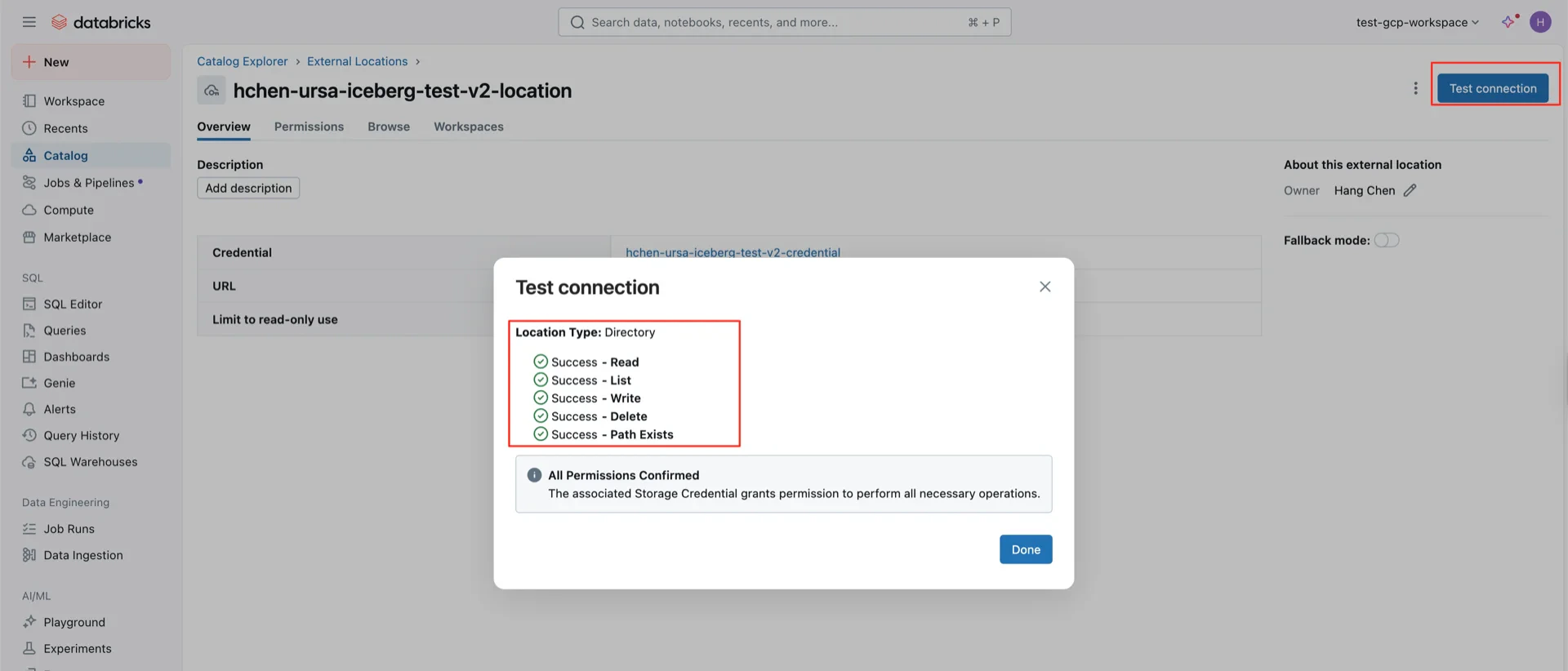
5. Create the Unity Catalog
Create a new Catalog with:- Type: Standard
- Storage location: the external location created in step 4 (a sub-path within this location may be specified)
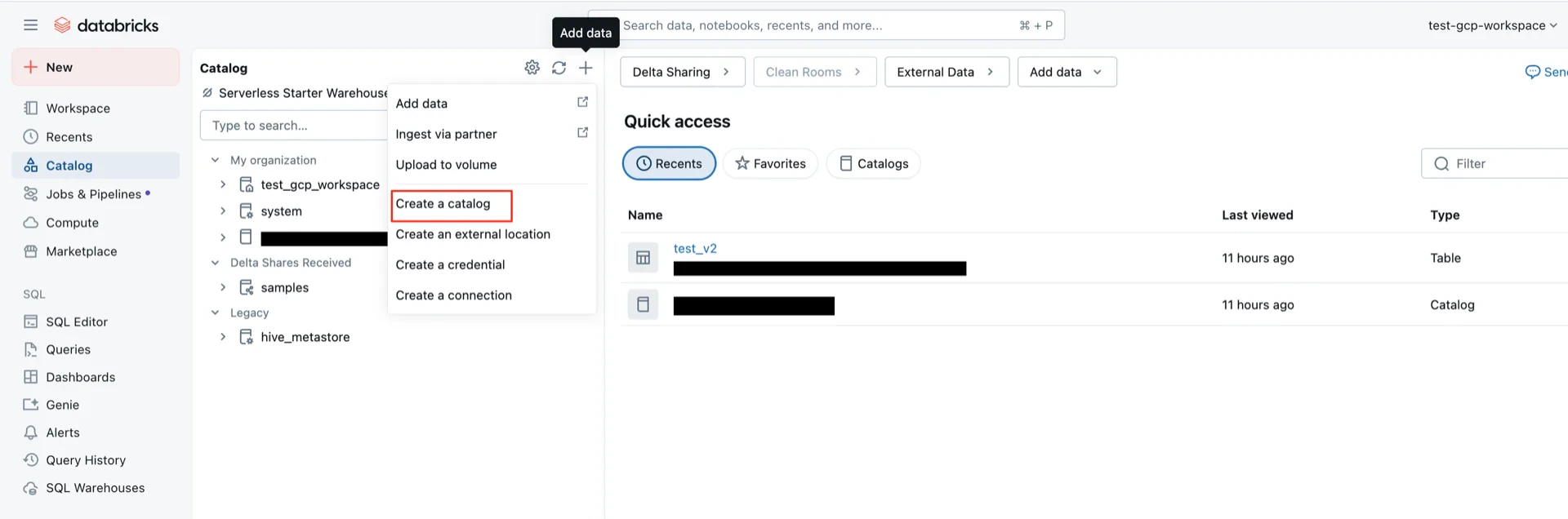
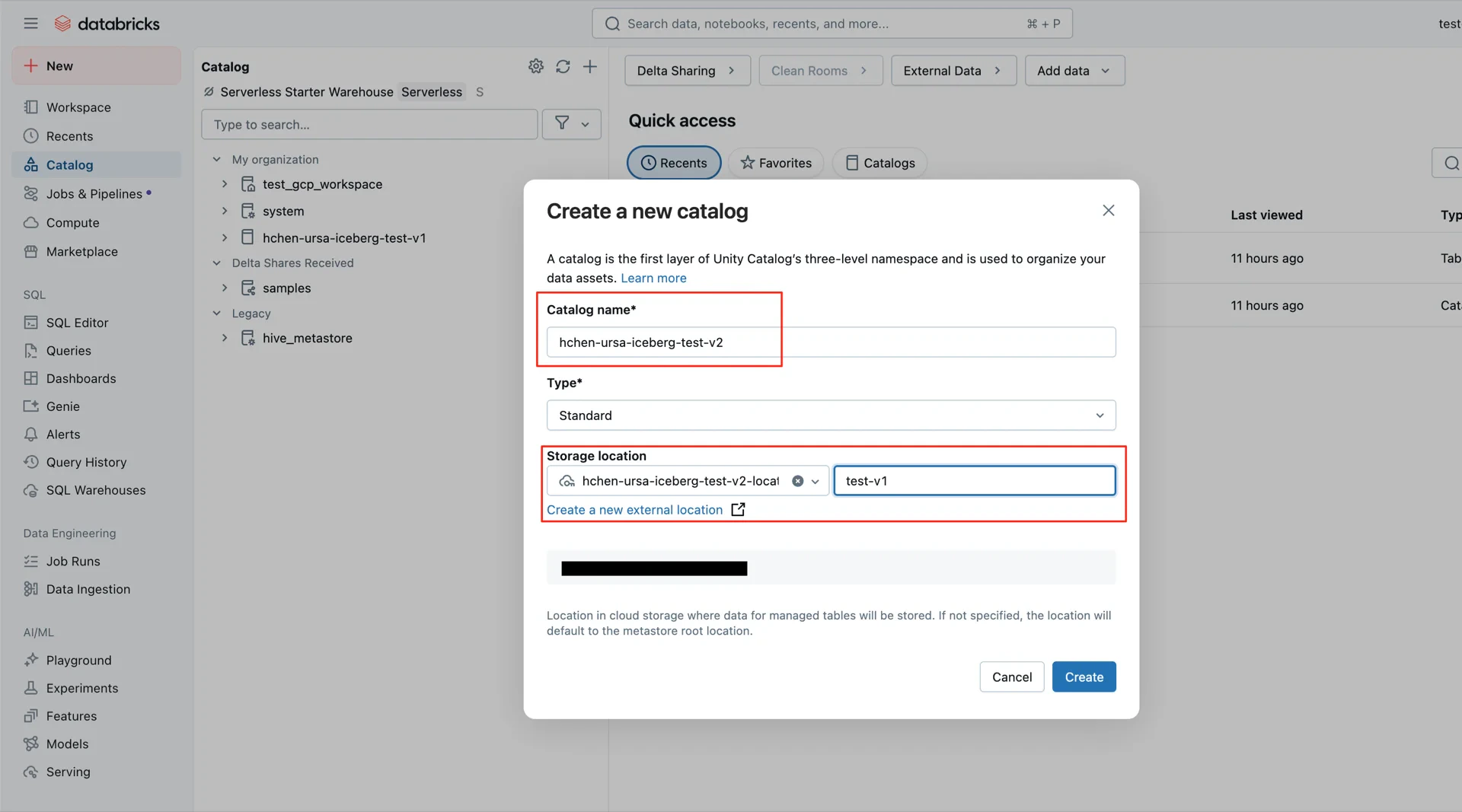
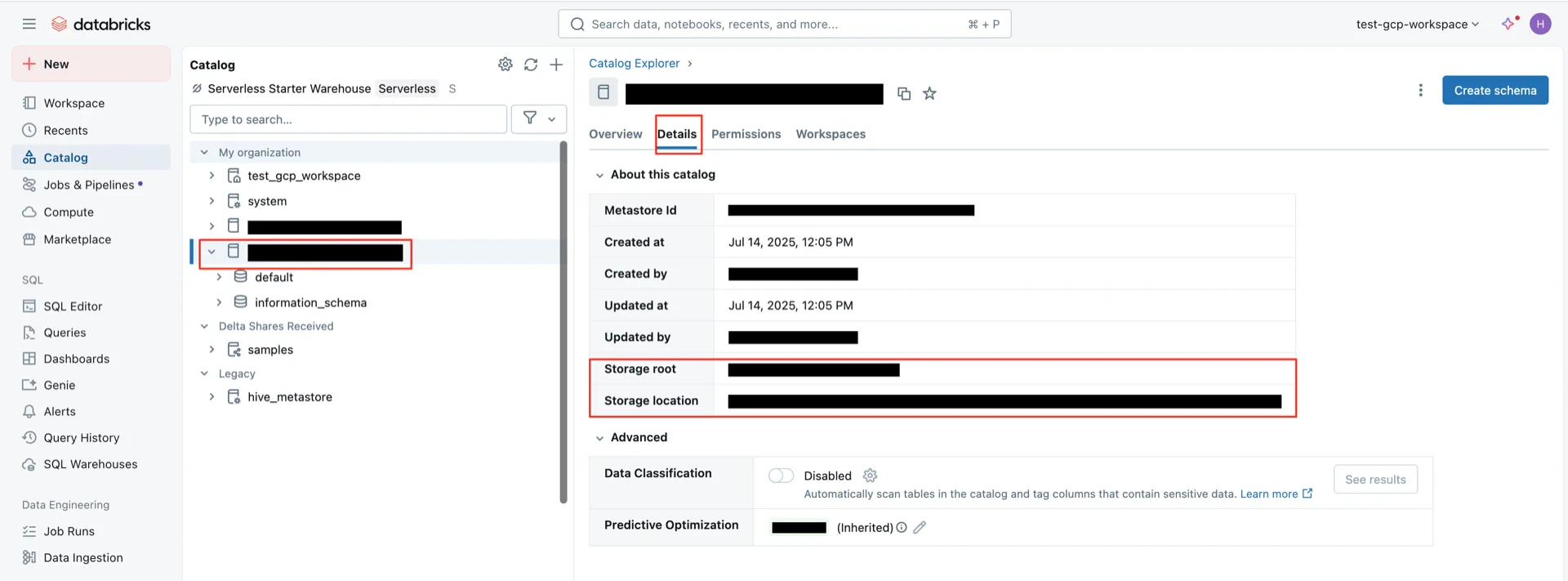
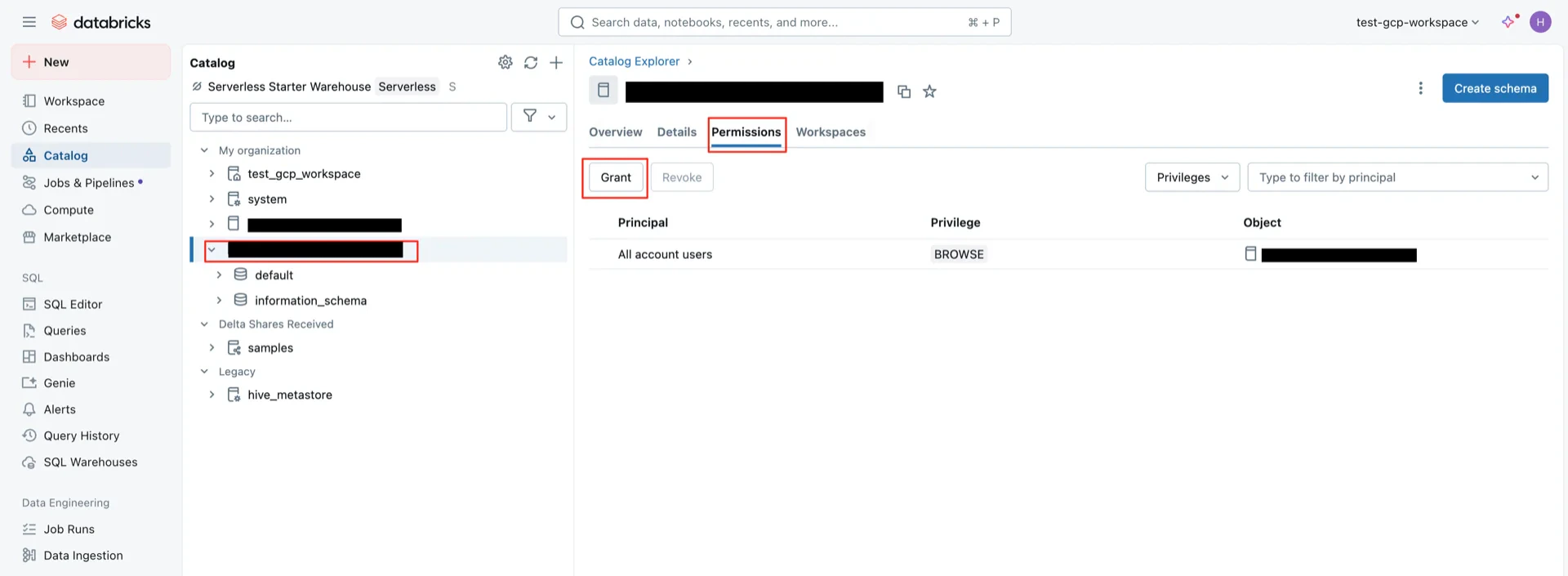
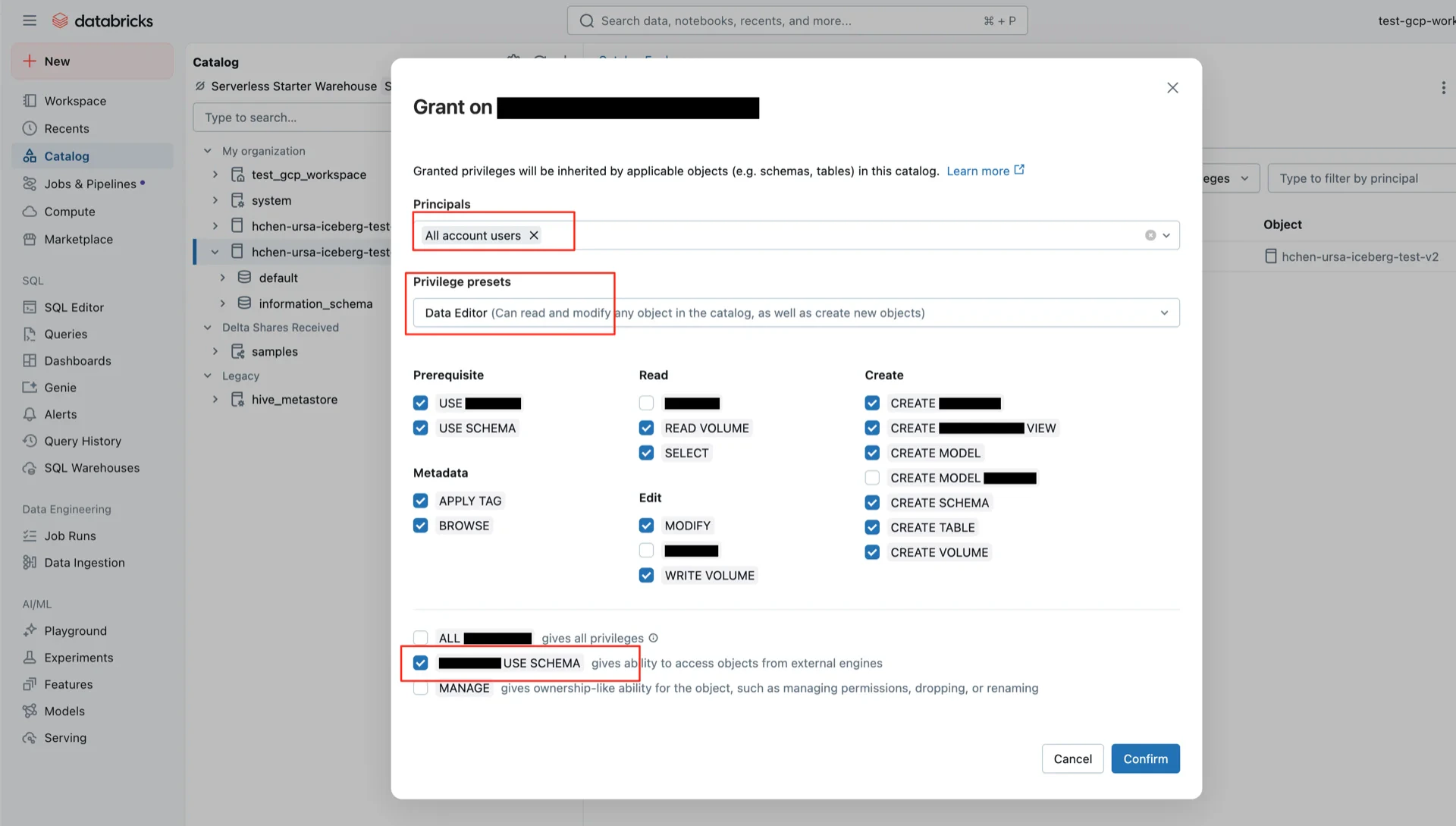
6. Grant Catalog Permissions
Grant permissions on the catalog. TheEXTERNAL_USE_SCHEMA permission is required for Iceberg Managed Tables in Unity Catalog.
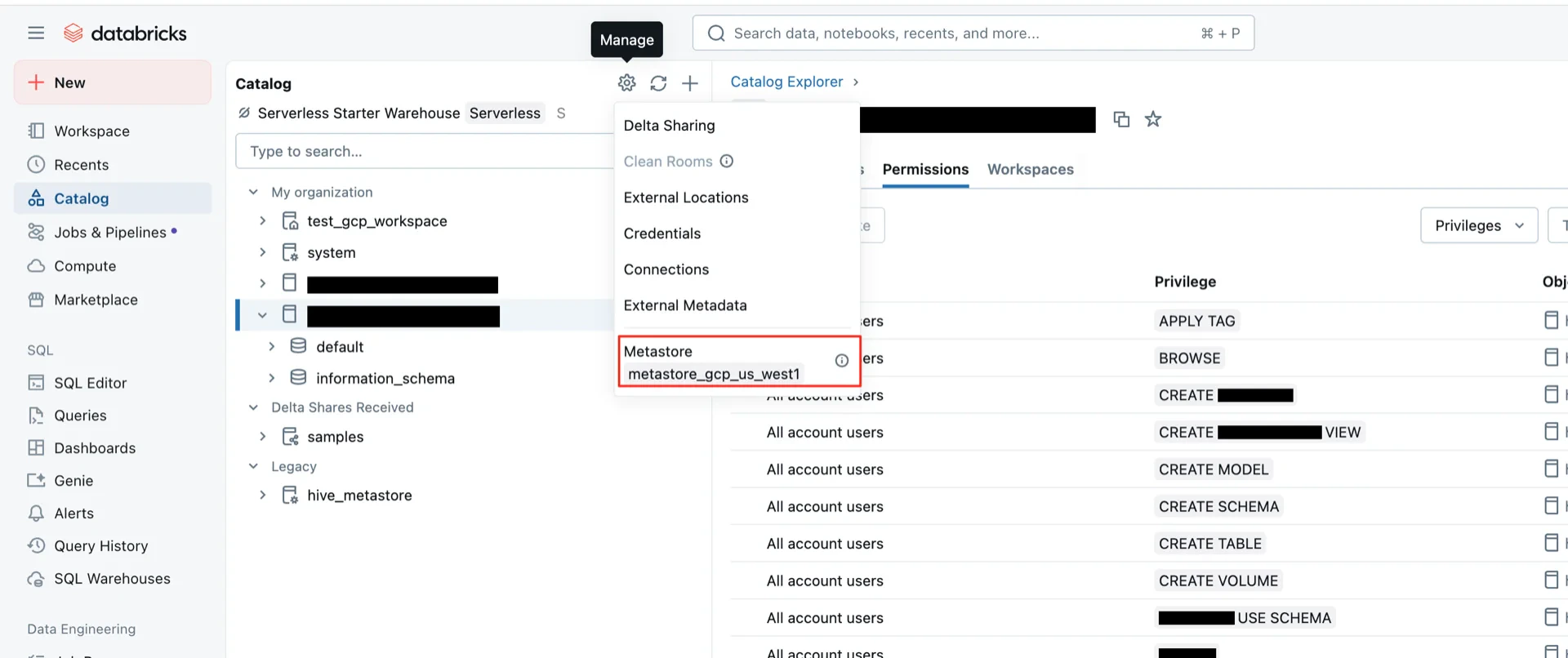
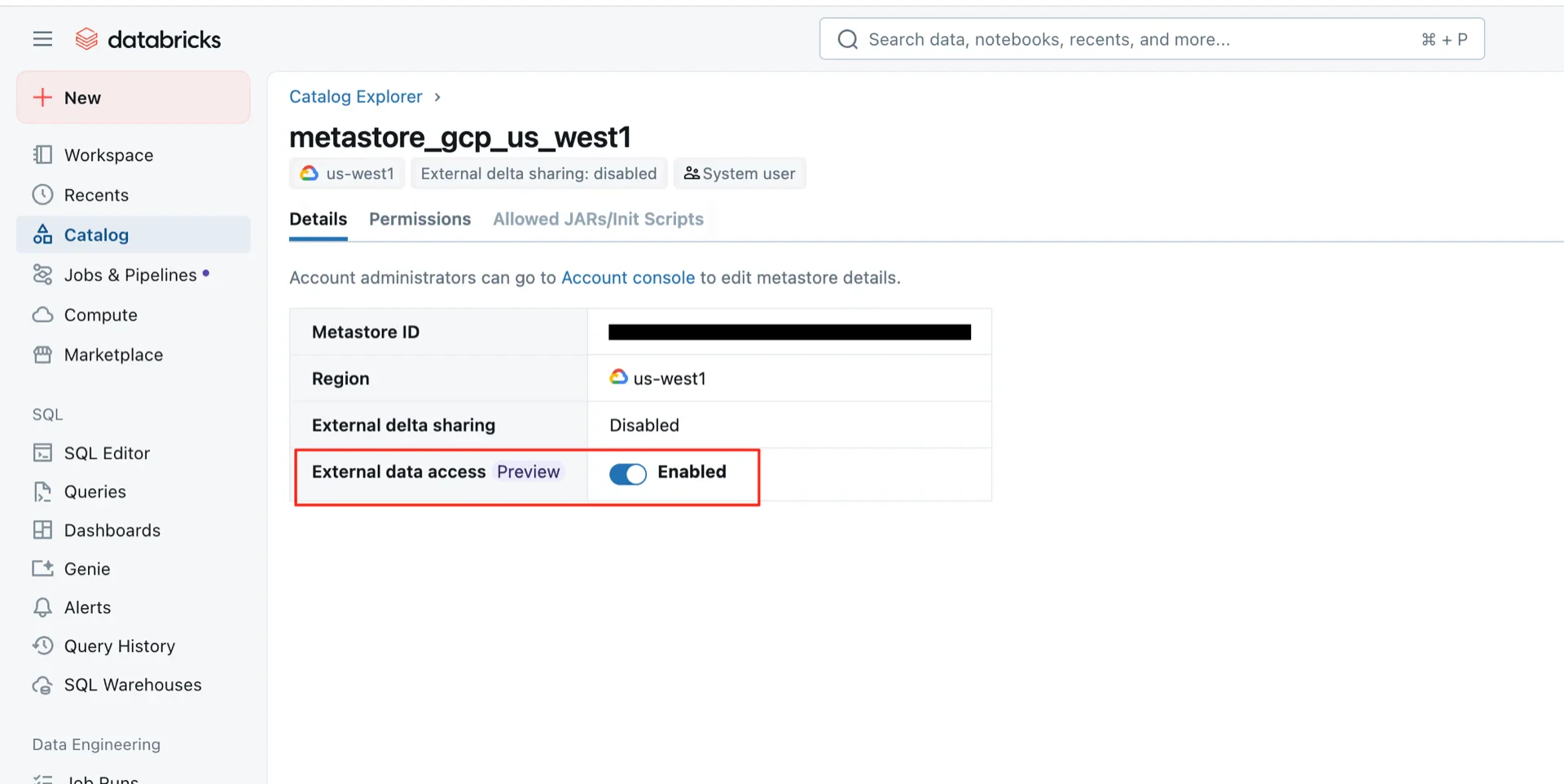
7. Enable External Data Access on the Metastore
Note: This action requires Databricks Account Admin privileges; without them, the Metastore entry is not visible.Enable External data access on the metastore. This step is required for Unity Catalog Iceberg Managed Tables.
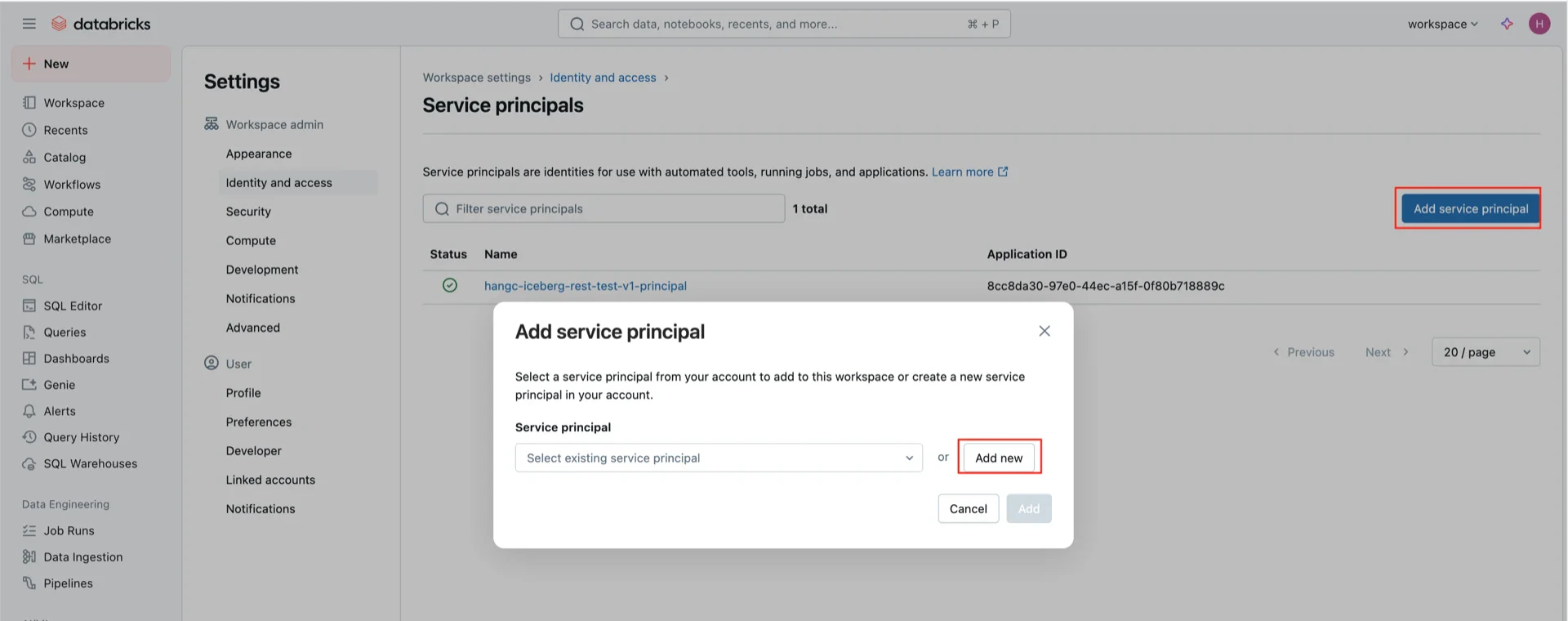
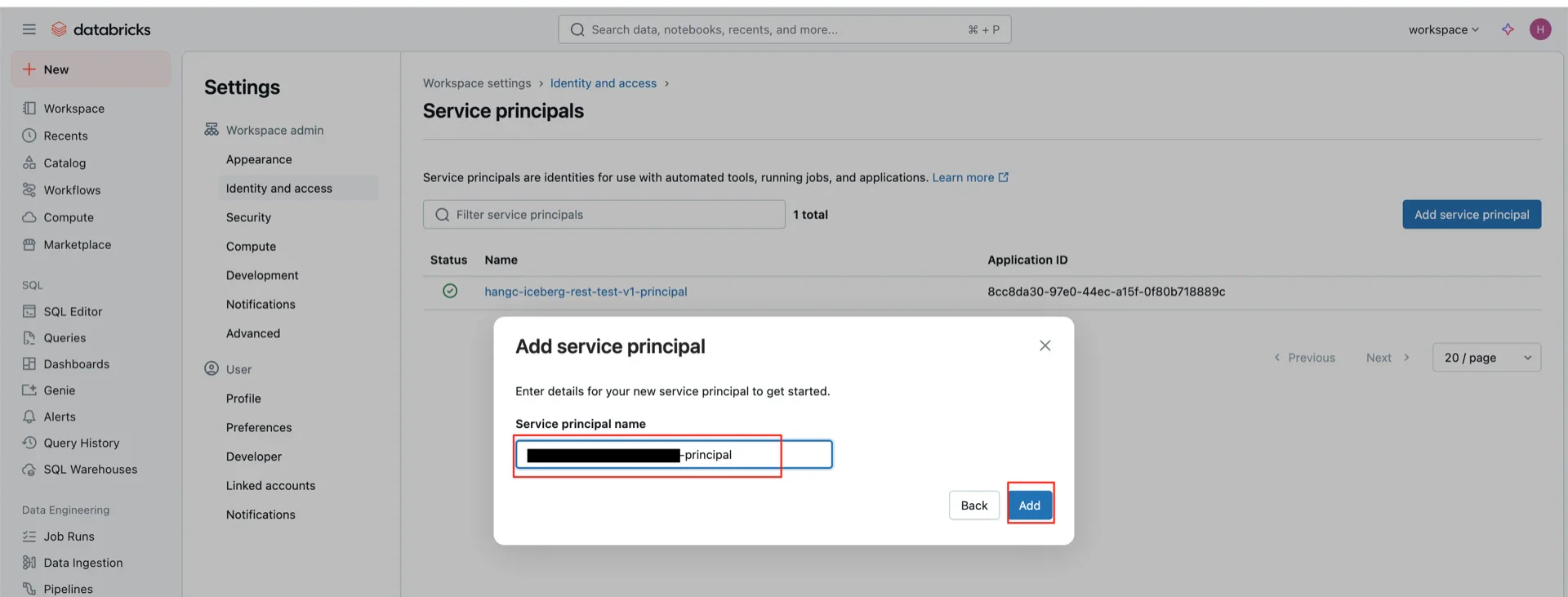
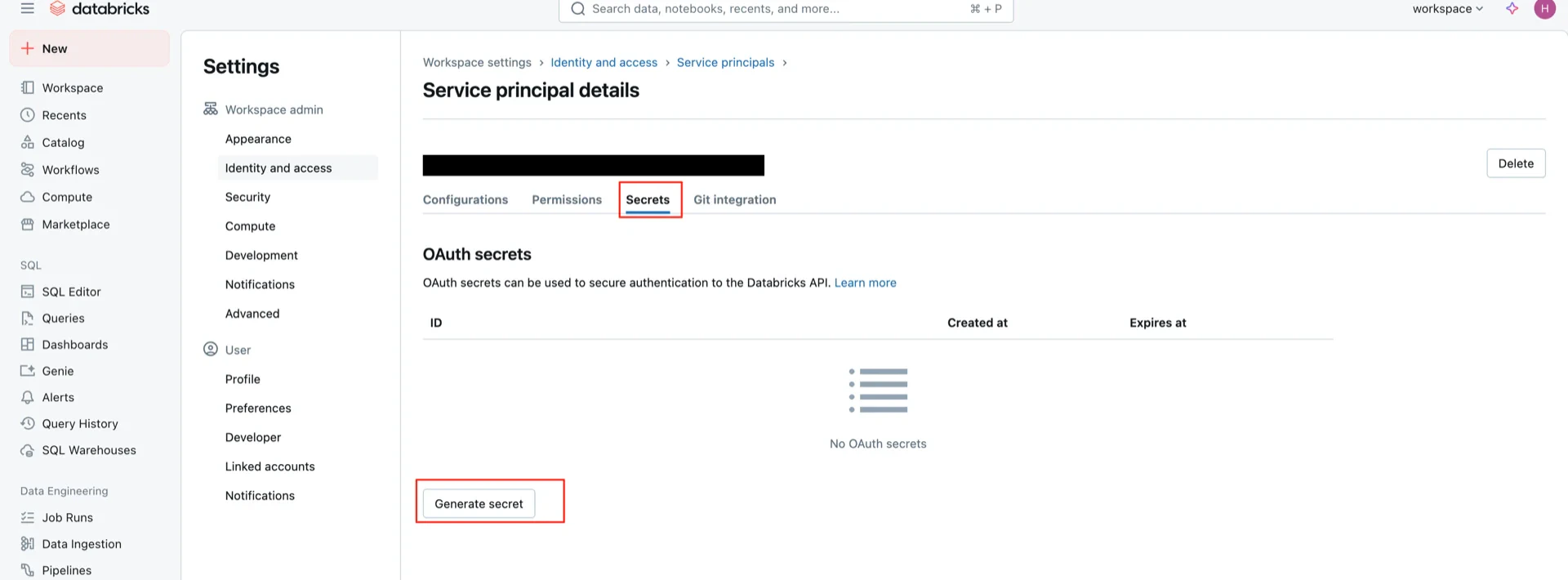
8. Create OAuth2 Credentials
Create an OAuth2 service principal that StreamNative Ursa will use to authenticate.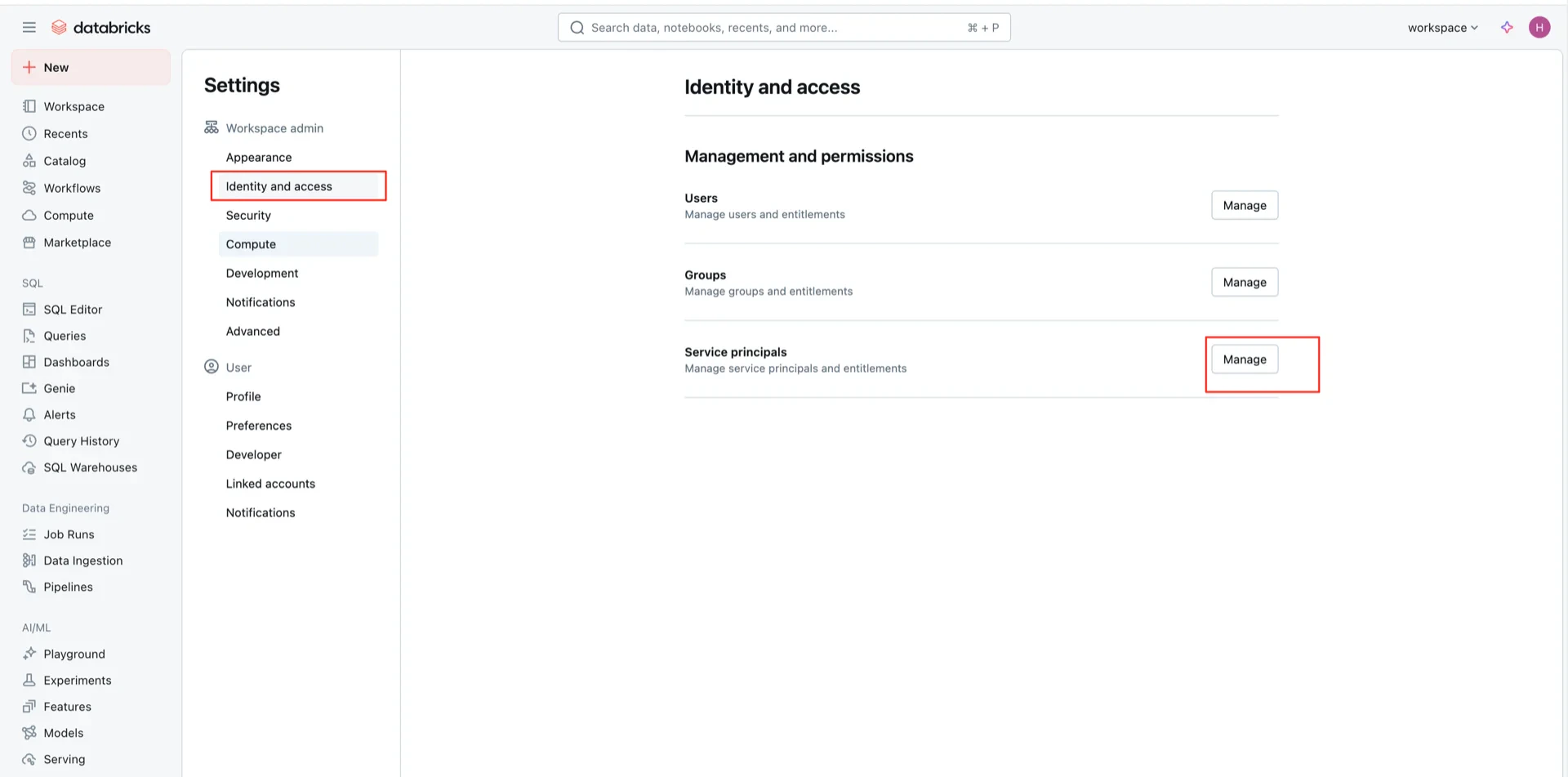
Catalog Information Summary
When the steps above are complete, collect the following values for the StreamNative Ursa compaction service:
For the next steps, see Register Lakehouse Catalogs.