

- Atomic writes across multiple topic partitions
- Atomic acknowledgments across multiple topic partitions
- All the operations made within one transaction either all succeed or all fail
- Consumers are ONLY allowed to read committed messages
- Currently, Transactions is only available for Java clients.
- This document assumes that you have created a StreamNative cluster and a service account, and have granted the service account the consume permission to the
persistent://pulsar/system/transaction_coordinator_assigntopic.
Quick start
This section describes how to use the Transaction API to send and receive messages.Prerequisites
- Java 1.8 or higher version
- Pulsar cluster 2.9.1 or higher version
Get the service URL of your StreamNative cluster
To get the service URL(s) of a StreamNative cluster, follow these steps.- StreamNative Console
- Navigate to the Cluster Dashboard page by switching to the cluster workspace.
- On the Cluster Dashboard page, click Details tab.
- You will see the available service URLs in the Access Points area.
- You can click Copy at the end of the row of the service URL that you want to use.
Get the OAuth2 credential file of your service account
To get an OAuth2 credential file of a service account through the StreamNative Console, follow these steps.- On the left navigation pane, click Service Accounts.
-
In the row of the service account you want to use, in the Key File column, click the Download icon to download the OAuth2 credential file to your local directory.
The OAuth2 credential file should be something like this:
Enable Transactions on your StreamNative cluster
- Log in to StreamNative Cloud Console.
- On the left navigation pane, in the Admin area, click Pulsar Clusters.
- Click Edit Cluster.
-
Select the Advanced tab. In the Features area, enable the Transaction option.
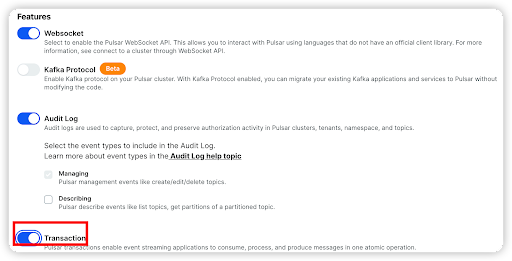
Use Transactions on your application
This example enables you to perform the following operations.- Create a Pulsar client and enable Transactions.
- Create three producers to produce messages with a transaction to one input topic (
input-topic) and two output topics (output-topic-1andoutput-topic-2). - Create three consumers to consume messages with a transaction from one input topic (input-topic) and two output topics (
output-topic-1andoutput-topic-2). - Commit the transaction after the consumers consume messages successfully.
serviceUrl: the broker service URL of your StreamNative cluster.issuerUrl: the URL of your OAuth2 authentication provider. You can get the value from your downloaded OAuth2 credential file.credentialsUrl: the path to your downloaded OAuth2 credential file. TheprivateKeyparameter supports the following pattern formats:file:///path/to/filefile:/path/to/filedata:application/json;base64,<base64-encoded value>
audience: theaudienceparameter is the Uniform Resource Name (URN), which is a combination of theurn:sn:pulsar, the organization name, and the Pulsar instance name, in this formaturn:sn:pulsar:<org_name>:<instance_name>.