

This document introduces the instructions for working with topics on StreamNative Console. The details may vary depending on the specific product and version number that you use.
Topic Overview
A topic is a named channel used to deliver messages published by producers to consumers. After creating a namespace, you can create one or more topics for the namespace. It’s recommended to have at least one partition per topic so that you can add more partitions in the future. If there are zero partitions (a non-partitioned topic), you will not be able to add more partitions to the topic after it’s created. As in other pub-sub systems, topics in Pulsar are named channels for transmitting messages from producers to consumers. Pulsar supports persistent and non-persistent topics. By default, a persistent topic is created if you don’t specify a topic type. With persistent topics, all messages are durably persisted on disks (if the broker is not standalone, messages are durably persisted on multiple disks), whereas data for non-persistent topics is not persisted to storage disks.Non-persistent topics
Pulsar also supports non-persistent topics, which are topics on which messages are never persisted to disk and live only in memory. When using non-persistent delivery, stopping a Pulsar broker or disconnecting a subscriber to a topic means that all in-transit messages are lost on that non-persistent topic. In non-persistent topics, brokers immediately deliver messages to all connected subscribers without persisting them in BookKeeper.Partitioned topics
Normal topics are served only by a single broker that limits the maximum throughput of the topic. Partitioned topics are a special type of topic handled by multiple brokers, allowing for higher throughput. A partitioned topic is actually implemented as N internal topics, where N is the number of partitions. When publishing messages to a partitioned topic, each message is routed to one of several brokers. The distribution of partitions across brokers is handled automatically by Pulsar. It’s recommended to have at least one partition per topic so that you can add more partitions in the future. If there are zero partitions (a non-partitioned topic), you will not be able to add more partitions to the topic after it is created.Create a topic
- StreamNative Console
To create a topic, follow these steps.
- Navigate to the desired Namespace Dashboard page by switching to the namespace workspace.
- On the left navigation pane, under Resources, click Topics.
-
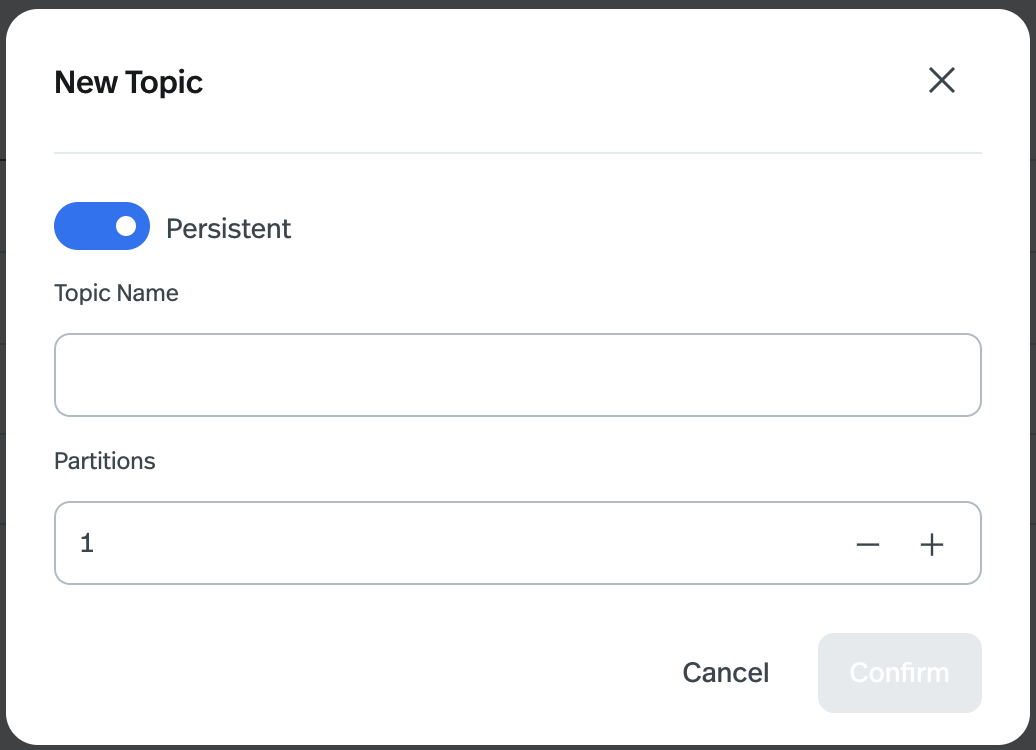
Click New Topic.
-
Configure the topic, as outlined in the following table.
- Click Confirm.
Currently, snctl does not support creating topics.
Manage topics
This section describes how to manage topics through the StreamNative Console.- For how to use snctl to manage topics, see snctl command reference.
- For how to use pulsarctl to manage topics, see pulsarctl command reference.
Perform basic operations for topics
- StreamNative Console
To perform basic operations for a topic, follow these steps.
- On the left navigation pane, under Resources, click Topics.
-
Click the topic name link to display detailed information about that topic. You will arrive to the Dashboard with general metrics information about the topic
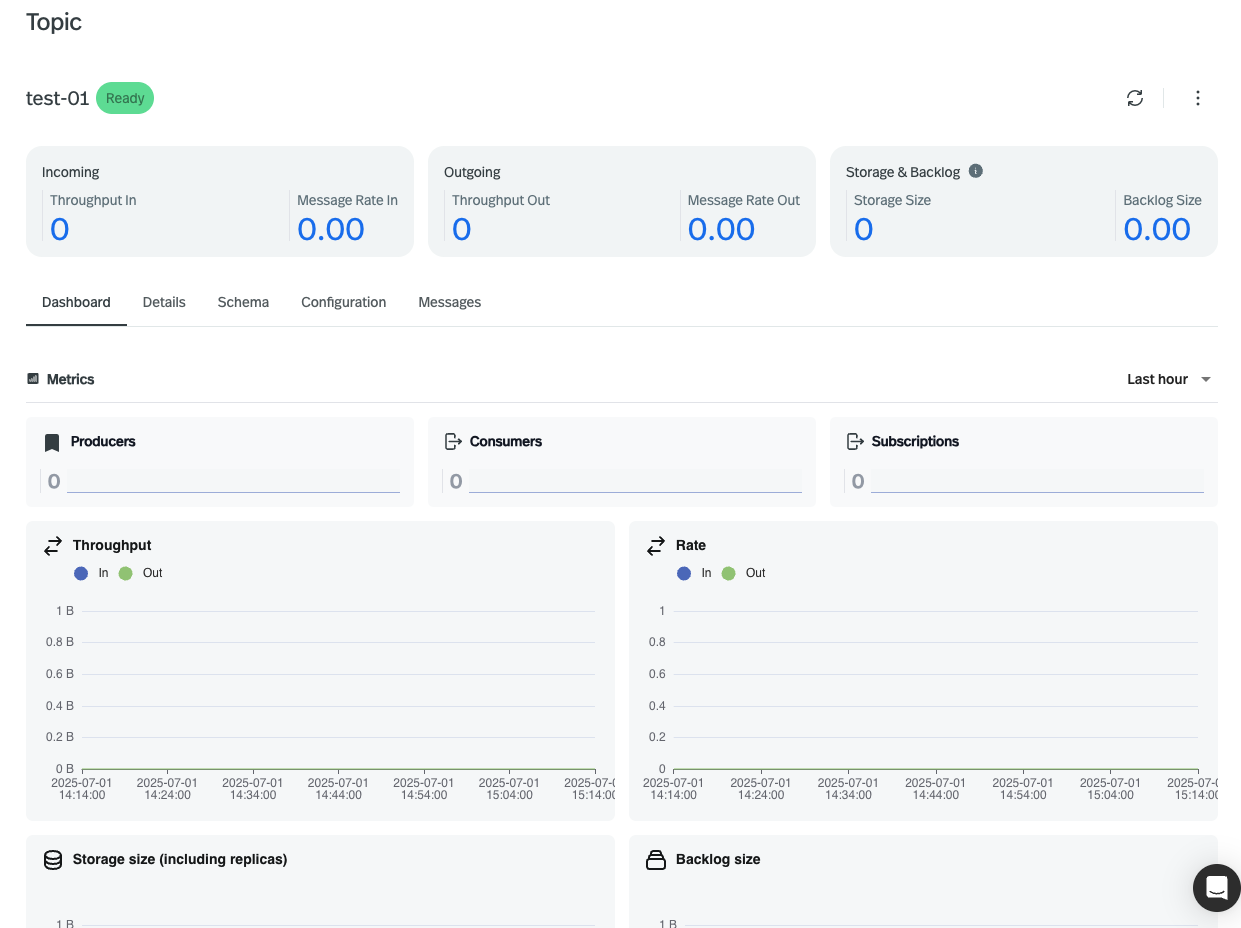
- Unload the topic: click Unload to unload the topic.
- Compact the topic: click Compact to compact the topic.
- Create new subscriptions: click New Subscription and a dialog box displays. Enter a name for the subscription and then click Confirm.
- Review other subscriptions
- Check detailed information about the topic: Cursors, Segments, Producers, Consumers or Stats
Create schema for topics
- StreamNative Console
Currently, only Avro, JSON and Protobuf schema are supported.
- On the left navigation pane, under Resources, click Topics.
- Click the topic name link.
-
Select the Schema tab. Click to Create a Pulsar schema.
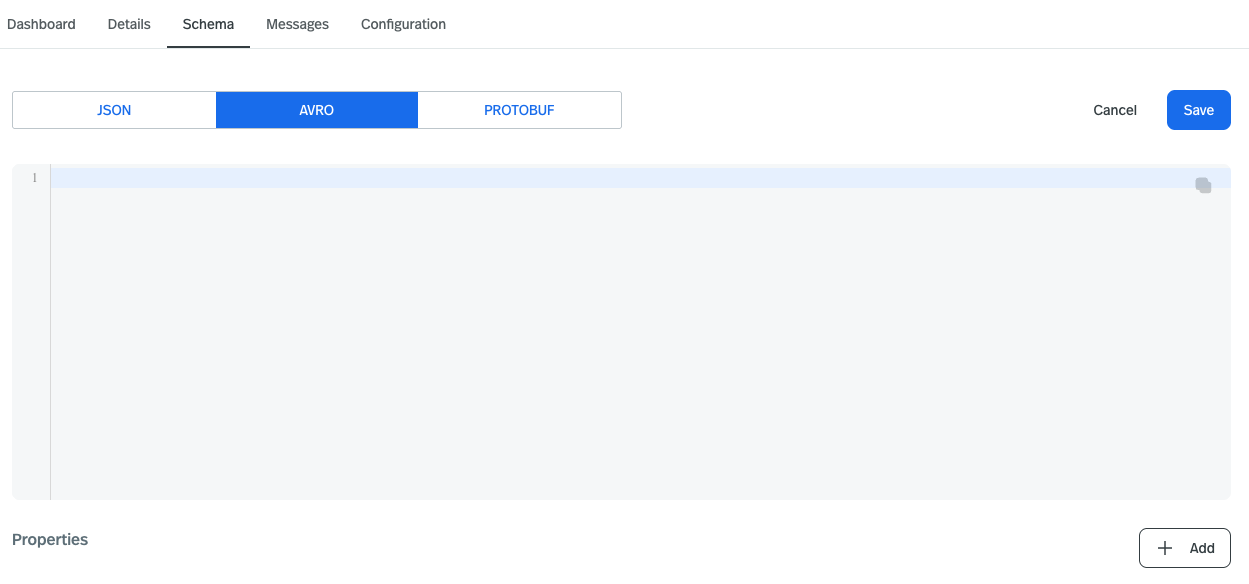
- Select a schema type.
- Configure the key and the value and then click Confirm.
Check messages
- StreamNative Console
- On the left navigation pane, under Resources, click Topics.
- Click the link of the topic name to display the dashboard about the topic.
- Select the MESSAGES tab, choose the partition and subscription to select the position to peek and the number of messages. Push Confirm to see the content of the messages.
-
Then you can check the information about messages in this topic.
Configure topic policies, authorization and replicated clusters
- StreamNative Console
To configure policies for topics, follow these steps.
- On the left navigation pane, under Resources, click Topics.
- Click the link of the topic name.
-
Select the CONFIGURATION tab and configure authorization policies for the topic.
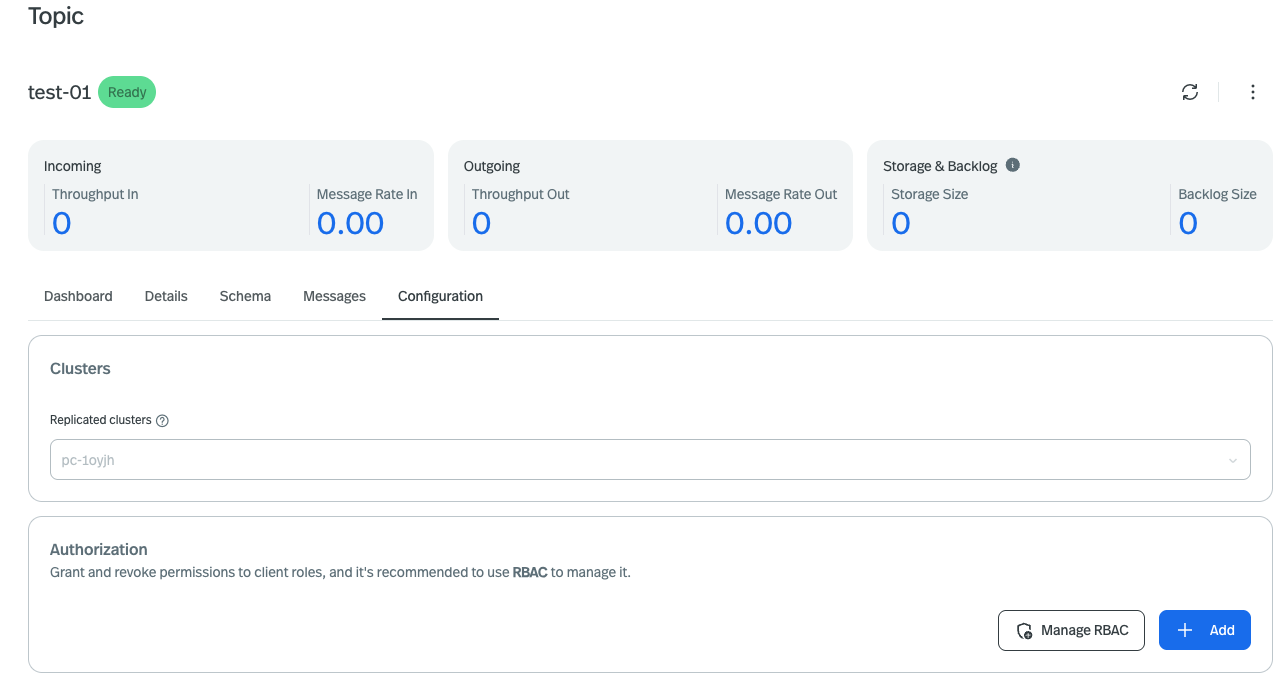
- There you can see the sections for replicate clusters, authorization and different policies
View topic statistics
- StreamNative Console
You can find the latest statistics for a topic and its connected producers and consumers on StreamNative Console, for example, whether the topic has received messages, whether there’s a backlog, and so on.To view the statistics of a topic, follow these steps.
- On the left navigation pane, under Resources, click Topics.
- Click the link of the topic name.
- Near the refresh there are 3 vertical dots where you can choose to see the stats.
- To view the latest stats to monitor your cluster in real time, click the symbol THREE VERTICAL DOTS and choose stats.
Delete topics
- StreamNative Console
To delete a topic, follow these steps.
- On the left navigation pane, under Resources, click Topics.
- Hover over the topic name. And a delete symbol will appear at the end of the line.
- Click over it.
- A dialog box displays asking, Are you sure you want to delete this?
- Enter the topic name and then click Confirm.
Related content
- Learn more information about managing topics using Pulsar Admin API, see Managing Topics.