

This connector is available as a built-in connector on StreamNative Cloud.
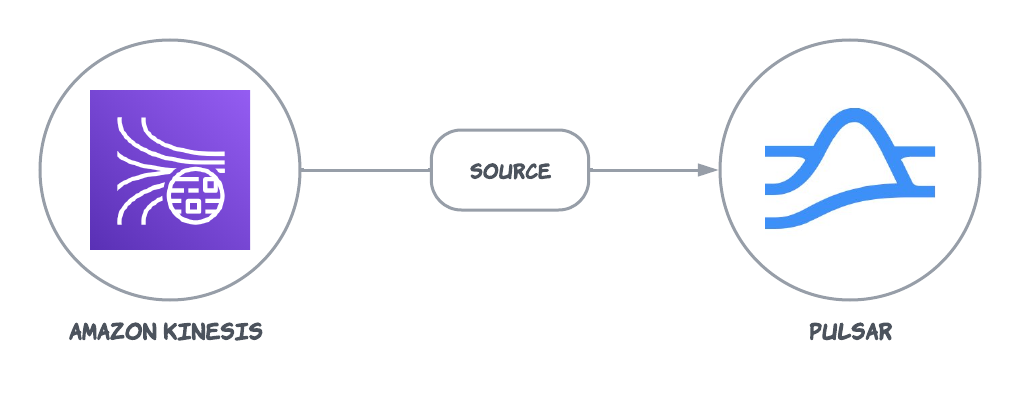
Currently, the Kinesis source connector only supports raw messages. If you use AWS Key Management Service (KMS) encrypted messages, the encrypted messages are sent to Pulsar directly. You need to manually decrypt the data on the consumer side of Pulsar.
Quick start
Prerequisites
The prerequisites for connecting an AWS Kinesis source connector to external systems include:- Create a Kinesis data stream in AWS.
- Create an AWS User and an
AccessKey(Please record the value ofAccessKeyand itsSecretKey). - Assign the following permissions to the AWS User:
- AmazonKinesisFullAccess
- CloudWatch:PutMetricData: it is required because AWS Kinesis client will periodically send metrics to CloudWatch.
- AmazonDynamoDBFullAccess: it is required because AWS Kinesis client will use DynamoDB store checkpoint status.
1. Create a connector
The following command shows how to use pulsarctl to create abuiltin connector. If you want to create a non-builtin connector,
you need to replace --source-type kinesis with --archive /path/to/pulsar-io-kinesis.nar. You can find the button to download the nar package at the beginning of the document.
If you are a StreamNative Cloud user, you need set up your environment first.
--source-config is the minimum necessary configuration for starting this connector, and it is a JSON string. You need to substitute the relevant parameters with your own.
If you want to configure more parameters, see Configuration Properties for reference.
You can also choose to use a variety of other tools to create a connector:
- pulsar-admin: The command arguments for
pulsar-adminare similar to those ofpulsarctl. You can find an example for StreamNative Cloud Doc. - RestAPI: You can find an example for StreamNative Cloud Doc.
- Terraform: You can find an example for StreamNative Cloud Doc.
- Function Mesh: The docker image can be found at the beginning of the document.
2. Send messages to Kinesis
The following example uses KPL to send data to Kinesis. For more details, see Writing to your Kinesis Data Stream Using the KPL
3. Show data using Pulsar client
If your connector is created on StreamNative Cloud, you need to authenticate your clients. See Build applications using Pulsar clients for more information.
Configuration Properties
This table outlines the properties of an AWS Kinesis source connector.Configure AwsCredentialProviderPlugin
AWS Kinesis source connector allows you to use three ways to connect to AWS Kinesis by configuringawsCredentialPluginName.
-
Leave
awsCredentialPluginNameempty to get the connector authenticated by passingaccessKeyandsecretKeyinawsCredentialPluginParam. -
Set
awsCredentialPluginNametoorg.apache.pulsar.io.aws.AwsDefaultProviderChainPluginto use the default AWS provider chain. With this option, you don’t need to configureawsCredentialPluginParam. For more information, see AWS documentation. -
Set
awsCredentialPluginNametoorg.apache.pulsar.io.aws.STSAssumeRoleProviderPluginto use the default AWS provider chain, and you need to configureroleArnandroleSessionNmaeinawsCredentialPluginParam. For more information, see AWS documentation