

This page provides instructions for setting up catalog integration with Google BigLake metastore for Apache Iceberg on Google Cloud Platform.
Introduction
StreamNative’s integration with Google BigLake metastore enables organizations to seamlessly deliver real-time data into governed, open lakehouse environments on Google Cloud Platform. By leveraging the Iceberg REST catalog protocol, this integration ensures strong schema enforcement, lineage tracking, and security—making streaming data AI- and analytics-ready while simplifying operations for data teams. StreamNative Cloud integrates with Google BigLake metastore to enable seamless streaming of Kafka topic data directly into Apache Iceberg tables using BigLake’s Iceberg REST Catalog support. This integration allows organizations to continuously land real-time streaming data into governed lakehouse tables without building complex ingestion pipelines. By combining StreamNative’s real-time data streaming capabilities with BigLake’s centralized metadata management and governance, customers can unify operational and analytical data architectures while leveraging open table formats for AI and analytics workloads.Prerequisites
Before initiating the integration of Google BigLake with StreamNative Cloud, please ensure the following prerequisites are fulfilled.- A Google Cloud Platform account with BigLake API enabled.
- A StreamNative Cloud account with an active cluster.
- A Google Cloud Storage bucket to be used as the warehouse location.
- Appropriate IAM permissions to create and manage BigLake resources.
Setup Google BigLake
Enable the BigLake API
Before creating managed Iceberg tables in BigLake metastore, you need to enable the BigLake API in your Google Cloud project.- Navigate to the Google Cloud Console.
- Select your project.
- Navigate to APIs & Services > Enable APIs and Services.
- Search for BigLake API and enable it.
Create a BigLake Catalog
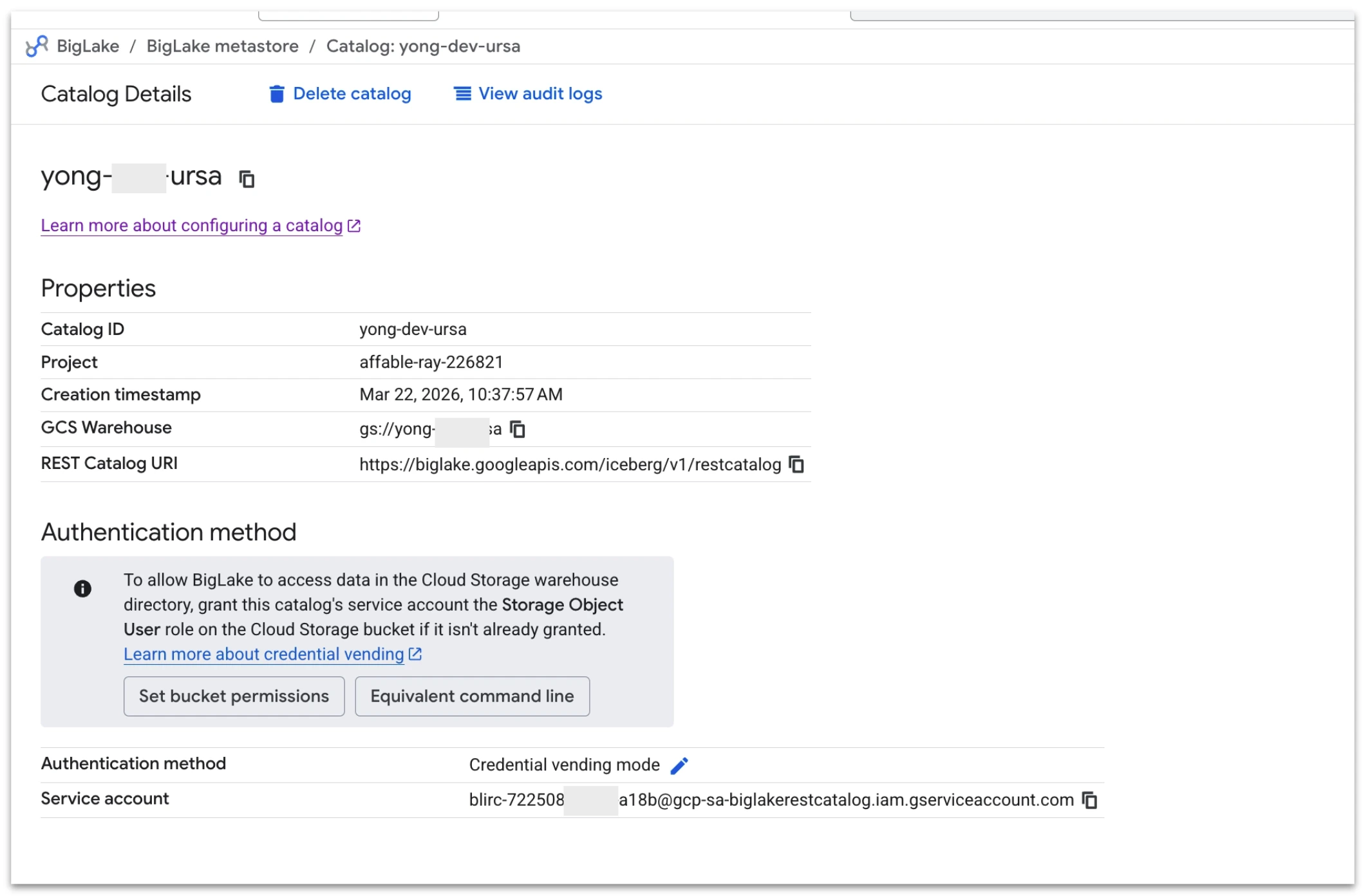
To enable streaming data from StreamNative Cloud into Apache Iceberg tables, you first create a catalog in Google BigLake metastore. When configuring the catalog, select a Cloud Storage bucket that resides in the same region as your StreamNative Pulsar or Kafka (Ursa-powered) cluster to avoid cross-region network traffic and associated latency or cost implications. It is important to note that BigLake currently maintains a 1:1 mapping between a catalog and a Cloud Storage bucket, meaning sub-directories within a bucket cannot be used to create multiple catalogs. During setup, choose Credential vending mode under authentication to allow BigLake to securely manage access to the storage location used for Iceberg tables.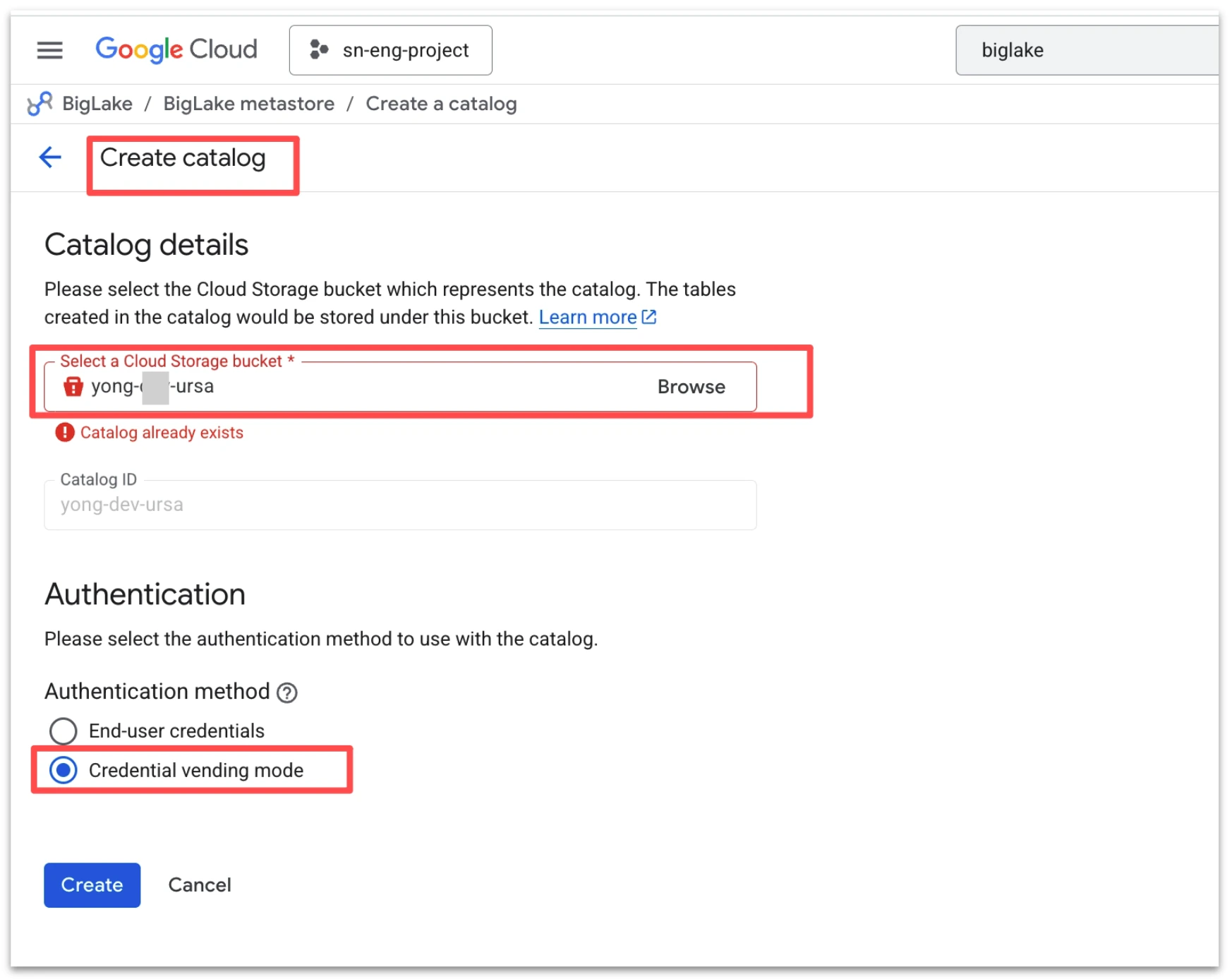
Create a StreamNative Cluster
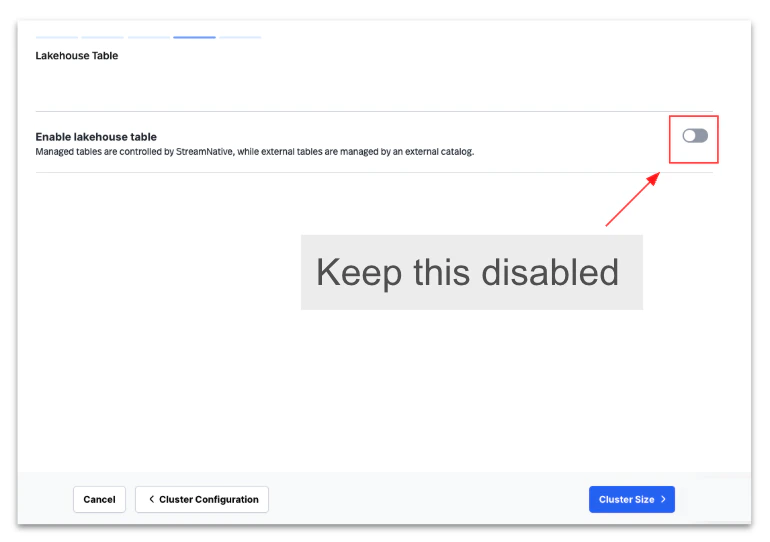
Create a StreamNative Cloud Kafka or Pulsar cluster using the Cost-Optimized profile without enabling Lakehouse storage during the initial setup.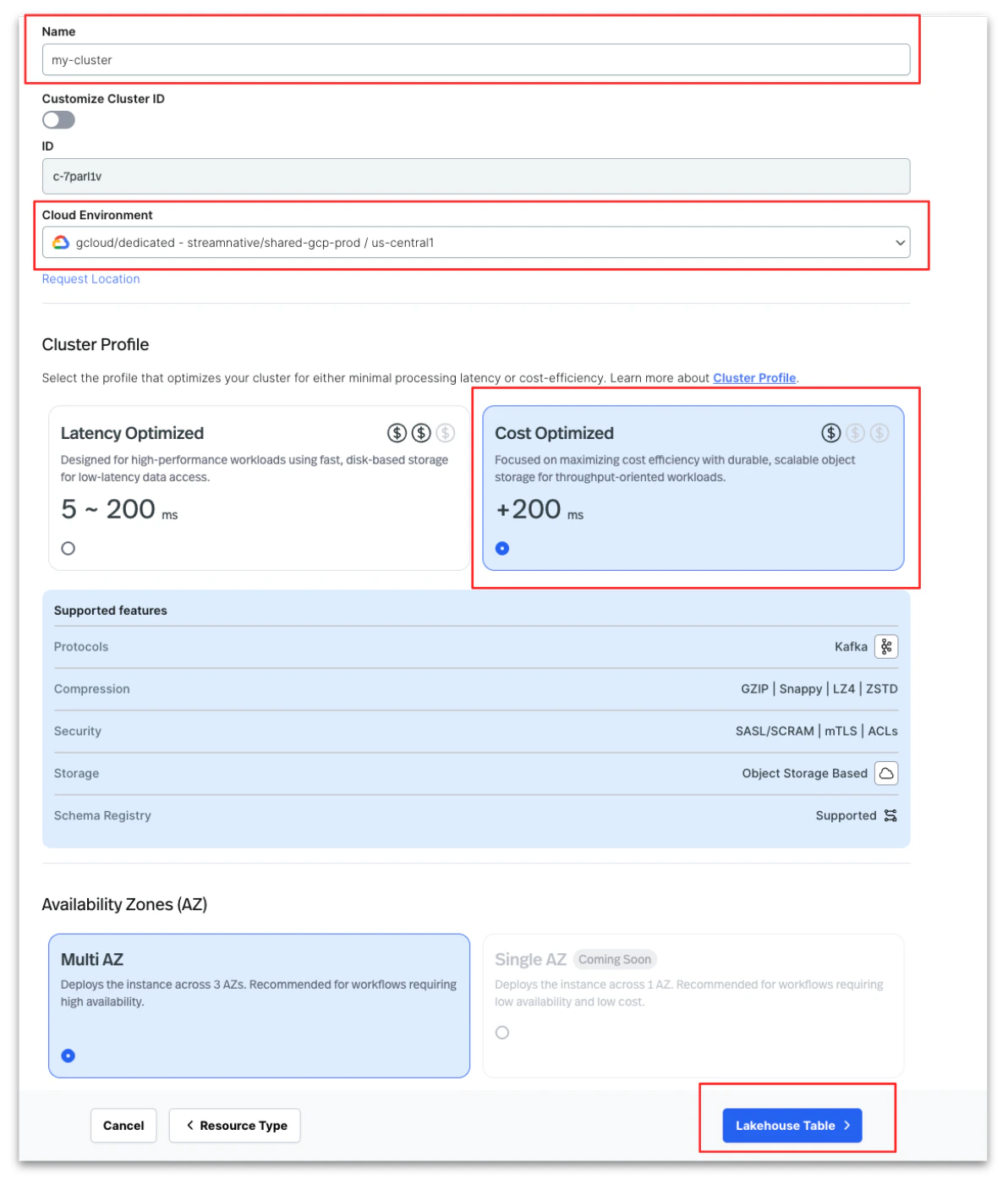
Register a BigLake catalog in StreamNative Cloud
Follow these steps to register a Google BigLake catalog in StreamNative Cloud:- Navigate to Organization Settings in the StreamNative Cloud console.
- Click Register Catalog to register a new catalog.
- Enter a Catalog Name.
- Select Google BigLake as the Catalog Provider.
- In the Google BigLake Details section:
- Enter your Google Cloud Project ID.
- Enter the Warehouse (GCS bucket) location.
- Click Register to complete the catalog registration.
Enable Lakehouse In Cluster
Follow these steps to enable Lakehouse Tables for an existing StreamNative Kafka cluster using a registered Google BigLake catalog:- Navigate to your existing Kafka cluster:
- Go to Instance.
- Select your Kafka Cluster.
- Click Configuration.
- Click Edit Cluster.
- Enable lakehouse integration:
- Turn on Enable Lakehouse Table.
- From the catalog dropdown, select the pre-registered BigLake catalog.
- Configure required Google Cloud permissions:
- Follow the instructions shown in the StreamNative Cloud UI to identify the Google IAM service account that requires access.
- Go to the Google Cloud Console.
- Grant the following roles to the IAM account:
- BigLake Editor
- Storage Object User
- Service Usage Consumer
- Save the IAM permissions in the Google Cloud Console.
- Return to StreamNative Cloud and continue the workflow to complete the lakehouse table enablement.
Verify the Integration
After enabling Lakehouse Tables, you can verify the integration by querying the Iceberg tables created by your StreamNative Kafka cluster using Apache Spark with the BigLake Iceberg catalog. Follow these high-level steps to validate the setup:- Configure Apache Spark to use the BigLake Iceberg catalog Configure your Spark session to connect to the BigLake metastore using the Iceberg REST catalog configuration provided by Google BigLake. This allows Spark to discover the Iceberg tables automatically created from your Kafka topics.
- Set up authentication Configure your Google Cloud authentication using a service account key or Application Default Credentials (ADC) with permissions to access BigLake and the associated GCS warehouse.
-
Connect Spark to the BigLake catalog
Add the required Iceberg and BigLake catalog configurations in your Spark session, including:
- Catalog type (Iceberg REST or BigLake Iceberg catalog)
- GCP project
- Warehouse bucket
- Authentication configuration
-
List the Iceberg tables
Once connected, list the namespaces and tables to confirm that the Kafka topics are visible as Iceberg tables:
- Verify that the namespace created by StreamNative appears.
- Confirm that topics are represented as Iceberg tables.
-
Run a validation query
Execute a simple Spark SQL query (for example, a
SELECT * LIMIT 10) against one of the Iceberg tables to confirm that streaming data from StreamNative is being written correctly into BigLake. - Confirm data freshness Produce some new messages into a Kafka topic and re-run your Spark query to verify that new records appear in the Iceberg table.