Prerequisites
Before deploying a connector to StreamNative Cloud, make sure the following prerequisites have been met:- A running external data system service.
- A running Pulsar Cluster on StreamNative Cloud and the required environment has been set up.
-
At least one of the required tools: snctl, pulsarctl,
pulsar-admin, or the Terraform module. For a quickstart of setting uppulsarctlandpulsar-admin, see set up client tools.
Create a built-in connector
Before creating a connector, it’s highly recommended to do the following:
- Check connector availability to ensure the version number of the connector you want to create is supported on StreamNative Cloud.
- Go to StreamNative Hub and find the connector-specific docs of your version for configuration reference.
test on Streamnative Cloud using different tools.
The builtin:// is followed by the name of the built-in connector, such as builtin://data-generator.
- snctl
- pulsarctl
- pulsar-admin
- Terraform
- Rest API
To create a data generator source connector named You should see the following output:If you want to verify whether the data generator source connector has been created successfully, run the following command:You should see the following output:
test, run the following command.Copy
Ask AI
snctl pulsar admin sources create --archive builtin://data-generator --destination-topic-name public/default/dg-test --source-config '{"sleepBetweenMessages": 60}' --name test --use-service-account
Copy
Ask AI
Created test successfully
Copy
Ask AI
snctl pulsar admin sources list
Copy
Ask AI
+---------------------+
| PULSAR SOURCES NAME |
+---------------------+
| test |
+---------------------+
If you want to create a sink connector, use the
snctl pulsar admin sinks create command.To create a data generator source connector named You should see the following output:If you want to verify whether the data generator source connector has been created successfully, run the following command:You should see the following output:
test, run the following command.Copy
Ask AI
pulsarctl sources create --archive builtin://data-generator --destination-topic-name public/default/dg-test --source-config '{"sleepBetweenMessages": 60}' --name test
Copy
Ask AI
Created test successfully
Copy
Ask AI
pulsarctl sources list
Copy
Ask AI
+---------------------+
| PULSAR SOURCES NAME |
+---------------------+
| test |
+---------------------+
If you want to create a sink connector, use the
pulsarctl sinks create command.To create a data generator source connector named Replace the placeholder variables with the actual values that you can get when setting up client tools.You should see the following output:
test, run the following command.Copy
Ask AI
./bin/pulsar-admin \
--admin-url "${WEB_SERVICE_URL}" \
--auth-plugin org.apache.pulsar.client.impl.auth.oauth2.AuthenticationOAuth2 \
--auth-params '{"privateKey":"file:///YOUR-KEY-FILE-PATH",
"issuerUrl":"https://auth.streamnative.cloud/",
"audience":"urn:sn:pulsar:${orgName}:${instanceName}}'
sources create --archive builtin://data-generator --destination-topic-name public/default/dg-test --source-config '{"sleepBetweenMessages": 60}' --name test
admin-url: the HTTP service URL of your Pulsar cluster.private_key: the path to the downloaded OAuth2 key file.audience: the Uniform Resource Name (URN), which is a combination of theurn:sn:pulsar, your organization name, and your Pulsar instance name.${orgName}: the name of your organization.${instanceName}: the name of your instance.
Copy
Ask AI
./bin/pulsar-admin sources list
Copy
Ask AI
[
"test"
]
To reduce the complexity of your command, you can add the above parameters with values into the
conf/client.conf file under the downloaded Pulsar release. Once it’s configured, you can run a simple command instead:Copy
Ask AI
./bin/pulsar-admin sources create --archive builtin://data-generator --destination-topic-name public/default/dg-test --source-config '{"sleepBetweenMessages": 60}' --name test
- Add the following content to your Terraform file:
Copy
Ask AI
terraform {
required_providers {
pulsar = {
version = "0.2.0"
source = "registry.terraform.io/streamnative/pulsar"
}
}
}
provider "pulsar" {
web_service_url = "${WEB_SERVICE_URL}"
audience = "urn:sn:pulsar:${orgName}:${instanceName}"
issuer_url = "https://auth.streamnative.cloud/"
key_file_path = "file:///YOUR-KEY-FILE-PATH"
api_version = 3
}
resource "pulsar_source" "test" {
provider = pulsar
name = "dg-test-tf"
tenant = "public"
namespace = "default"
archive = "builtin://data-generator"
destination_topic_name = "public/default/dg-test"
processing_guarantees = "ATMOST_ONCE"
configs = "{\"sleepBetweenMessages\":\"60\"}"
}
- Call the following commands in your Terraform file directory:
Copy
Ask AI
terraform init
# output
Terraform has been successfully initialized!
Copy
Ask AI
terraform apply
# output
Terraform used the selected providers to generate the following execution plan. Resource actions are indicated with the following symbols:
+ create
Terraform will perform the following actions:
# pulsar_source.test will be created
+ resource "pulsar_source" "test" {
+ archive = "builtin://data-generator"
+ classname = (known after apply)
+ configs = jsonencode(
{
+ sleepBetweenMessages = "60"
}
)
+ cpu = 1
+ destination_topic_name = "public/default/dg-test"
+ disk_mb = 10240
+ id = (known after apply)
+ name = "dg-test-tf"
+ namespace = "default"
+ parallelism = 1
+ processing_guarantees = "ATMOST_ONCE"
+ ram_mb = 1024
+ tenant = "public"
}
Plan: 1 to add, 0 to change, 0 to destroy.
Do you want to perform these actions?
Terraform will perform the actions described above.
Only 'yes' will be accepted to approve.
Enter a value: yes
pulsar_source.test: Creating...
pulsar_source.test: Creation complete after 1s [id=public/default/dg-test-tf]
Apply complete! Resources: 1 added, 0 changed, 0 destroyed.
You can use
snctl, pulsarctl or pulsar-admin to list the source connector submitted using Terraform.To create a data generator source connector named If you want to list the submitted connector for a double check, run the following command:
test, run the following command.Copy
Ask AI
curl -X POST https://${WEB_SERVICE_URL}/admin/v3/sources/{tenant}/{namespace}/test \
-H 'Authorization: Bearer <API Key>' \
-H "Content-Type: multipart/form-data" \
-F 'sourceConfig={"name": "test", "tenant": "public", "namespace": "default", "archive": "builtin://data-generator", "topicName": "public/default/dg-test", "configs": {"sleepBetweenMessages": "60"}};type=application/json'
Copy
Ask AI
curl -X GET https://pc-ae474868.aws-use2-dixie-snc.streamnative.test.aws.sn2.dev/admin/v3/sources/public/default \
--header 'Authorization: Bearer <API Key>'
["test"]
Pass sensitive configs to connector
Some connectors require sensitive information, such as passwords, token, to be passed to the connector. And you may not want to expose these sensitive information in the connector configuration. To solve this problem, you can use the following methods to pass sensitive information to the connector:-
Create a secret
For example, the AWS lambda sink connector requires the AWS access key and secret key to be passed to the connector.
You can create a secret in the console UI and pass the secret name to the connector configuration.
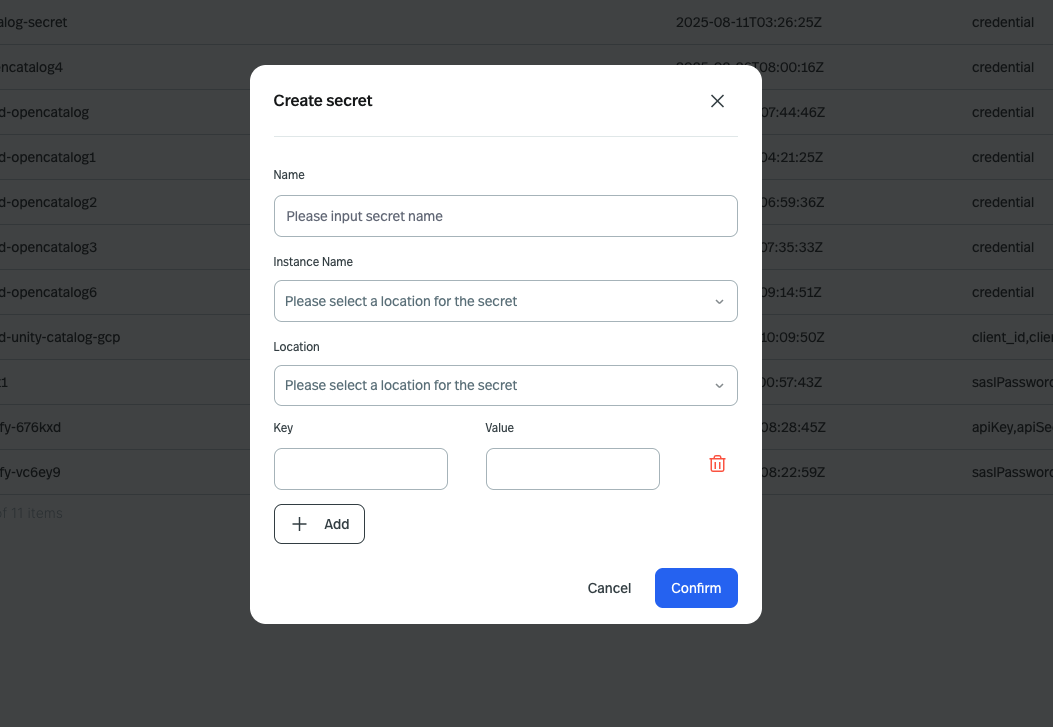
The
location should be the same as the region of your Pulsar cluster.The awsAccessKey and awsSecretKey is the field name, and the lambda-sink-secret can be any unique name you want to give to the secret.Only “sensitive” fields are able to load from secrets. You can get the list of sensitive fields from the connector configuration reference.
E.g. AWS lambda sink configurations
-
Pass secrets to the connector configuration
The following example shows how to create an AWS lambda sink connector named
teston Streamnative Cloud using different tools. Thebuiltin://is followed by the name of the built-in connector, such asbuiltin://data-generator.
- snctl
- pulsarctl
- pulsar-admin
- Terraform
- Rest API
To create an AWS lambda sink connector named You should see the following output:If you want to verify whether the AWS lambda sink connector has been created successfully, run the following command:You should see the following output:
test, run the following command.Copy
Ask AI
snctl pulsar admin sinks create --archive builtin://aws-lambda --inputs public/default/lambda-sink-test --sink-config '{"awsRegion": "us-west-2","lambdaFunctionName": "test-hello","payloadFormat": "V2"}' --secrets '{"awsAccessKey":{"path":"lambda-sink-secret","key":"awsAccessKey"},"awsSecretKey":{"path":"lambda-sink-secret","key":"awsSecretKey"}}' --name test --use-service-account
Copy
Ask AI
Created test successfully
The
awsAccessKey and awsSecretKey is the field name, and the lambda-sink-secret is the secret name you created in UI.Copy
Ask AI
snctl pulsar admin sinks list
Copy
Ask AI
+---------------------+
| PULSAR SINKS NAME |
+---------------------+
| test |
+---------------------+
To create an AWS lambda sink connector named You should see the following output:If you want to verify whether the AWS lambda sink connector has been created successfully, run the following command:You should see the following output:
test, run the following command.Copy
Ask AI
pulsarctl sinks create --archive builtin://aws-lambda --inputs public/default/lambda-sink-test --sink-config '{"awsRegion": "us-west-2","lambdaFunctionName": "test-hello","payloadFormat": "V2"}' --secrets '{"awsAccessKey":{"path":"lambda-sink-secret","key":"awsAccessKey"},"awsSecretKey":{"path":"lambda-sink-secret","key":"awsSecretKey"}}' --name test
Copy
Ask AI
Created test successfully
The
awsAccessKey and awsSecretKey is the field name, and the lambda-sink-secret is the secret name you created in UI.Copy
Ask AI
pulsarctl sinks list
Copy
Ask AI
+---------------------+
| PULSAR SINKS NAME |
+---------------------+
| test |
+---------------------+
To create an AWS lambda sink connector named Replace the placeholder variables with the actual values that you can get when setting up client tools.You should see the following output:
test, run the following command.Copy
Ask AI
./bin/pulsar-admin \
--admin-url "${WEB_SERVICE_URL}" \
--auth-plugin org.apache.pulsar.client.impl.auth.oauth2.AuthenticationOAuth2 \
--auth-params '{"privateKey":"file:///YOUR-KEY-FILE-PATH",
"issuerUrl":"https://auth.streamnative.cloud/",
"audience":"urn:sn:pulsar:${orgName}:${instanceName}}'
sinks create --archive builtin://aws-lambda --inputs public/default/lambda-sink-test --sink-config '{"awsRegion": "us-west-2","lambdaFunctionName": "test-hello","payloadFormat": "V2"}' --secrets '{"awsAccessKey":{"path":"lambda-sink-secret","key":"awsAccessKey"},"awsSecretKey":{"path":"lambda-sink-secret","key":"awsSecretKey"}}' --name test
admin-url: the HTTP service URL of your Pulsar cluster.private_key: the path to the downloaded OAuth2 key file.audience: the Uniform Resource Name (URN), which is a combination of theurn:sn:pulsar, your organization name, and your Pulsar instance name.${orgName}: the name of your organization.${instanceName}: the name of your instance.
Copy
Ask AI
./bin/pulsar-admin sinks list
Copy
Ask AI
[
"test"
]
The
awsAccessKey and awsSecretKey is the field name, and the lambda-sink-secret is the secret name you created in UI.To reduce the complexity of your command, you can add the above parameters with values into the
conf/client.conf file under the downloaded Pulsar release. Once it’s configured, you can run a simple command instead:Copy
Ask AI
./bin/pulsar-admin sinks create --archive builtin://aws-lambda --inputs public/default/lambda-sink-test --sink-config '{"awsRegion": "us-west-2","lambdaFunctionName": "test-hello","payloadFormat": "V2"}' --secrets '{"awsAccessKey":{"path":"lambda-sink-secret","key":"awsAccessKey"},"awsSecretKey":{"path":"lambda-sink-secret","key":"awsSecretKey"}}' --name test
- Add the following content to your Terraform file:
Copy
Ask AI
terraform {
required_providers {
pulsar = {
version = "0.2.0"
source = "registry.terraform.io/streamnative/pulsar"
}
}
}
provider "pulsar" {
web_service_url = "${WEB_SERVICE_URL}"
audience = "urn:sn:pulsar:${orgName}:${instanceName}"
issuer_url = "https://auth.streamnative.cloud/"
key_file_path = "file:///YOUR-KEY-FILE-PATH"
api_version = 3
}
resource "pulsar_sink" "test" {
provider = pulsar
name = "lambda-sink-test-tf"
tenant = "public"
namespace = "default"
archive = "builtin://aws-lambda"
auto_ack = true
cleanup_subscription = true
destination_topic_name = "public/default/lambda-sink-test"
processing_guarantees = "ATMOST_ONCE"
configs = "{\"awsRegion\":\"us-west-2\",\"lambdaFunctionName\":\"test-hello\",\"payloadFormat\":\"V2\"}"
secrets = "{\"awsAccessKey\":{\"path\":\"lambda-sink-secret\",\"key\":\"awsAccessKey\"},\"awsSecretKey\":{\"path\":\"lambda-sink-secret\",\"key\":\"awsSecretKey\"}}"
}
- Call the following commands in your Terraform file directory:
Copy
Ask AI
terraform init
# output
Terraform has been successfully initialized!
Copy
Ask AI
terraform apply
# output
Terraform used the selected providers to generate the following execution plan. Resource actions are indicated with the following symbols:
+ create
Terraform will perform the following actions:
# pulsar_sink.test will be created
+ resource "pulsar_sink" "test" {
+ archive = "builtin://aws-lambda"
+ auto_ack = true
+ classname = (known after apply)
+ cleanup_subscription = true
+ configs = jsonencode(
{
+ awsRegion = "us-west-2"
+ lambdaFunctionName = "test-hello"
+ payloadFormat = "V2"
}
)
+ cpu = 1
+ disk_mb = 10240
+ id = (known after apply)
+ inputs = [
+ "public/default/lambda-sink-test",
]
+ name = "lambda-sink-test-tf"
+ namespace = "default"
+ parallelism = 1
+ processing_guarantees = "ATMOST_ONCE"
+ ram_mb = 1024
+ retain_ordering = true
+ secrets = jsonencode(
{
+ awsAccessKey = {
+ key = "awsAccessKey"
+ path = "lambda-sink-secret"
}
+ awsSecretKey = {
+ key = "awsSecretKey"
+ path = "lambda-sink-secret"
}
}
)
+ subscription_position = "Earliest"
+ tenant = "public"
}
Plan: 1 to add, 0 to change, 0 to destroy.
Do you want to perform these actions?
Terraform will perform the actions described above.
Only 'yes' will be accepted to approve.
Enter a value: yes
pulsar_sink.test: Creating...
pulsar_sink.test: Creation complete after 5s [id=public/default/lambda-sink-test-tf]
Apply complete! Resources: 1 added, 0 changed, 0 destroyed.
The
awsAccessKey and awsSecretKey is the field name, and the lambda-sink-secret is the secret name you created in UI.You can use
snctl, pulsarctl or pulsar-admin to list the source connector submitted using Terraform.To create an AWS lambda sink connector named If you want to list the submitted connector for a double check, run the following command:
test, run the following command.Copy
Ask AI
curl -X POST https://${WEB_SERVICE_URL}/admin/v3/sinks/{tenant}/{namespace}/test \
-H 'Authorization: Bearer <API Key>' \
-H "Content-Type: multipart/form-data" \
-F 'sinkConfig={"name": "test", "tenant": "public", "namespace": "default", "archive": "builtin://aws-lambda", "inputs": ["public/default/lambda-sink-test"], "configs": {"awsRegion": "us-west-2","lambdaFunctionName": "test-hello", "payloadFormat": "V2"}, "secrets": {"awsAccessKey":{"path":"lambda-sink-secret","key":"awsAccessKey"},"awsSecretKey":{"path":"lambda-sink-secret","key":"awsSecretKey"}}};type=application/json'
Copy
Ask AI
curl -X GET https://pc-ae474868.aws-use2-dixie-snc.streamnative.test.aws.sn2.dev/admin/v3/sinks/public/default \
--header 'Authorization: Bearer <API Key>'
["test"]
The
awsAccessKey and awsSecretKey is the field name, and the lambda-sink-secret is the secret name you created in UI.Create a custom connector
Before creating a connector, it’s highly recommended to do the following:
- Check connector availability to ensure the version number of the connector you want to create is supported on StreamNative Cloud.
- Go to StreamNative Hub and find the connector-specific docs of your version for configuration reference.
Upload your connector file to Pulsar
- snctl
- Pulsarctl
- Pulsar-admin
Upload packagesYou should see the following output:
Copy
Ask AI
snctl pulsar admin packages upload sink://public/default/custom-connect@v1 \
--path /tmp/your-connector.jar \
--description "custom connector" \
--properties fileName=your-connector.jar
Copy
Ask AI
The package 'sink://public/default/custom-connect@v1' uploaded from path '/tmp/your-connector.jar' successfully
You can also upload your package to
source://${tenant}/${namespace}/${name}@{$version}, currently Pulsar Package Service supports below protocols:source://sink://function://
You need to set the context for Pulsarctl first:Upload packagesYou should see the following output:
Copy
Ask AI
# create a context
pulsarctl context set ${context-name} \
--admin-service-url ${admin-service-url} \
--issuer-endpoint ${issuerUrl} \
--audience urn:sn:pulsar:${orgName}:${instanceName} \
--key-file ${privateKey}
# activate oauth2
pulsarctl oauth2 activate
Replace the placeholder variables with the actual values that you can get when setting up client tools.
context-name: any name you wantadmin-service-url: the HTTP service URL of your Pulsar cluster.privateKey: the path to the downloaded OAuth2 key file.issuerUrl: the URL of the OAuth2 issuer.audience: the Uniform Resource Name (URN), which is a combination of theurn:sn:pulsar, your organization name, and your Pulsar instance name.${orgName}: the name of your organization.${instanceName}: the name of your instance.
Copy
Ask AI
pulsarctl packages upload sink://public/default/custom-connect@v1 \
--path /tmp/your-connector.jar \
--description "custom connector" \
--properties fileName=your-connector.jar
Copy
Ask AI
The package 'sink://public/default/custom-connect@v1' uploaded from path '/tmp/your-connector.jar' successfully
You can also upload your package to
source://${tenant}/${namespace}/${name}@{$version}, currently Pulsar Package Service supports below protocols:source://sink://function://
Copy
Ask AI
./bin/pulsar-admin \
--admin-url "${WEB_SERVICE_URL}" \
--auth-plugin org.apache.pulsar.client.impl.auth.oauth2.AuthenticationOAuth2 \
--auth-params '{"privateKey":"file://${privateKey}","issuerUrl":"${issuerUrl}","audience":"urn:sn:pulsar:${orgName}:${instanceName}}' \
packages upload sink://public/default/custom-connect@v1 \
--path /tmp/your-connector.jar \
--description "custom connector" \
--properties fileName=your-connector.jar
Replace the placeholder variables with the actual values that you can get when setting up client tools.
admin-url: the HTTP service URL of your Pulsar cluster.privateKey: the path to the downloaded OAuth2 key file.issuerUrl: the URL of the OAuth2 issuer.audience: the Uniform Resource Name (URN), which is a combination of theurn:sn:pulsar, your organization name, and your Pulsar instance name.${orgName}: the name of your organization.${instanceName}: the name of your instance.
Copy
Ask AI
The package 'sink://public/default/custom-connect@v1' uploaded from path '/tmp/your-connector.jar' successfully
You can also upload your package to
source://${tenant}/${namespace}/${name}@{$version}, currently Pulsar Package Service supports below protocols:source://sink://function://
archive argument to the package URL(like sink://public/default/custom-connect@v1) you uploaded.