

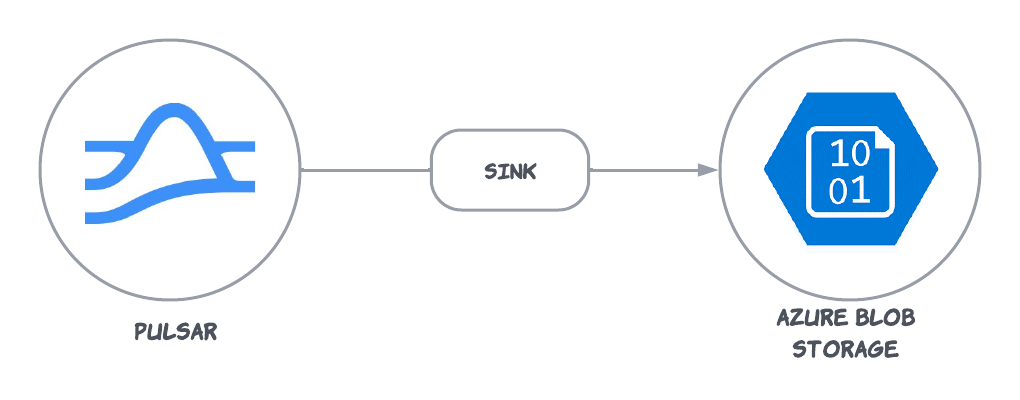
This connector is available as a built-in connector on StreamNative Cloud.
Quick start
Prerequisites
The prerequisites for connecting an Azure Blob Storage sink connector to external systems include:- Create Blob Storage container in Azure Cloud.
- Get Storage account
Connection string.
1. Create a connector
The following command shows how to use pulsarctl to create abuiltin connector. If you want to create a non-builtin connector,
you need to replace --sink-type cloud-storage-azure-blob with --archive /path/to/pulsar-io-cloud-storage.nar. You can find the button to download the nar package at the beginning of the document.
If you are a StreamNative Cloud user, you need set up your environment first.
--sink-config is the minimum necessary configuration for starting this connector, and it is a JSON string. You need to substitute the relevant parameters with your own.
If you want to configure more parameters, see Configuration Properties for reference.
You can also choose to use a variety of other tools to create a connector:
- pulsar-admin: The command arguments for
pulsar-adminare similar to those ofpulsarctl. You can find an example for StreamNative Cloud Doc. - RestAPI: You can find an example for StreamNative Cloud Doc.
- Terraform: You can find an example for StreamNative Cloud Doc.
- Function Mesh: The docker image can be found at the beginning of the document.
2. Send messages to the topic
If your connector is created on StreamNative Cloud, you need to authenticate your clients. See Build applications using Pulsar clients for more information.
3. Display data on Azure Blob Storage console
You can see the object at public/default/{{Your topic name}}-partition-0/xxxx.json on the Azure Blob Storage console. Download and open it, the content is:
Configuration Properties
Before using the Azure Blob Storage sink connector, you need to configure it. This table outlines the properties and the descriptions.
There are three methods to authenticate with Azure Blob Storage:
azureStorageAccountConnectionString: This method involves using the Azure Blob Storage connection string for authentication. It’s the simplest method as it only requires the connection string.azureStorageAccountSASToken: This method uses a Shared Access Signature (SAS) token for the Azure Blob Storage account. When using this method, you must also set theendpoint.azureStorageAccountNameandazureStorageAccountKey: This method uses the Azure Blob Storage account name and account key for authentication. Similar to the SAS token method, you must also set theendpointwhen using this method.
Advanced features
Data format types
Azure Blob Storage Sink Connector provides multiple output format options, including JSON, Avro, Bytes, or Parquet. The default format is JSON. With current implementation, there are some limitations for different formats: This table lists the Pulsar Schema types supported by the writers.*: The JSON writer will try to convert the data with aThis table lists the support ofStringorBytesschema to JSON-format data if convertable. **: The Protobuf schema is based on the Avro schema. It uses Avro as an intermediate format, so it may not provide the best effort conversion. ***: The ProtobufNative record holds the Protobuf descriptor and the message. When writing to Avro format, the connector uses avro-protobuf to do the conversion.
withMetadata configurations for different writer formats:
*: When usingParquetwithPROTOBUF_NATIVEformat, the connector will write the messages withDynamicMessageformat. WhenwithMetadatais set totrue, the connector will add__message_metadata__to the messages withPulsarIOCSCProtobufMessageMetadataformat. For example, if a messageUserhas the following schema:WhenwithMetadatais set totrue, the connector will write the messageDynamicMessagewith the following schema:
Dead-letter topics
To use a dead-letter topic, you need to setskipFailedMessages to false, and set --max-redeliver-count and --dead-letter-topic when submit the connector with the pulsar-admin CLI tool. For more info about dead-letter topics, see the Pulsar documentation.
If a message fails to be sent to the Azure Blob Storage and there is a dead-letter topic, the connector will send the message to the dead-letter topic.
Sink flushing only after batchTimeMs elapses
There is a scenario where the sink is only flushing whenever thebatchTimeMs has elapsed, even though there are many messages waiting to be processed.
The reason for this is that the sink will only acknowledge messages after they are flushed to the Azure Blob Storage but the broker stops sending messages when it reaches a certain limit of unacknowledged messages.
If this limit is lower or close to batchSize, the sink never receives enough messages to trigger a flush based on the amount of messages.
In this case please ensure the maxUnackedMessagesPerConsumer set in the broker configuration is sufficiently larger than the batchSize setting of the sink.
Partitioner Type
There are two types of partitioner:-
PARTITION: This is the default partitioning method based on Pulsar partitions. In other words, data is
partitioned according to the pre-existing partitions in Pulsar topics. For instance, a message for the
topic
public/default/my-topic-partition-0would be directed to the filepublic/default/my-topic-partition-0/xxx.json, wherexxxsignifies the earliest messageId(Format:ledgerId.entryId.batchIndex)/offset(Enable config:partitionerUseIndexAsOffset) in this file. -
TIME: Data is partitioned according to the time it was flushed. Using the previous message as an
example, if it was received on 2023-12-20, it would be directed
to
public/default/my-topic-partition-0/2023-12-20/xxx.json, wherexxxalso denotes the earliest messageId(Format:ledgerId.entryId.batchIndex)/offset(Enable config:partitionerUseIndexAsOffset) in this file.