

Diagnose duplicate references
Use an Iceberg client connected to the affected Unity Catalog REST endpoint to inspect the current snapshot. Record:- The fully qualified table name and current snapshot ID.
- The number of live data-file references and distinct file paths.
- Any file paths that have more than one live reference.
- The total row count and occurrence counts of affected records.
table.newScan().useSnapshot(snapshotId).planFiles() before splitting scan tasks. Use the same snapshot for file inspection and row verification so that concurrent writes do not change the data being compared.
Verify through the Iceberg REST catalog and reader that exposed the issue. Results from Databricks SQL alone might not reveal duplicate references in the Iceberg metadata.
Confirm the repair procedure with support
Share the diagnostic information with StreamNative or Databricks support before applying a metadata repair. Include the Iceberg client version and your Databricks compute type and version.The procedure below uses
spark.databricks.delta.managedIceberg.repair.forceRegenerateMetadata, a setting provided by Databricks support for this issue. Ask support to confirm that the setting and procedure apply to your table and runtime before using them. They are not a general-purpose deduplication procedure.Repair metadata with support guidance
1. Create Runtime 19 compute and prepare the Notebook
Use all-purpose compute running Databricks Runtime 19, as requested for this procedure. The screenshots use example workspace, compute, and table names; select your own resources. Create or select compute. If you already have compatible compute, use it. Otherwise, open Compute > All-purpose compute and select Create compute.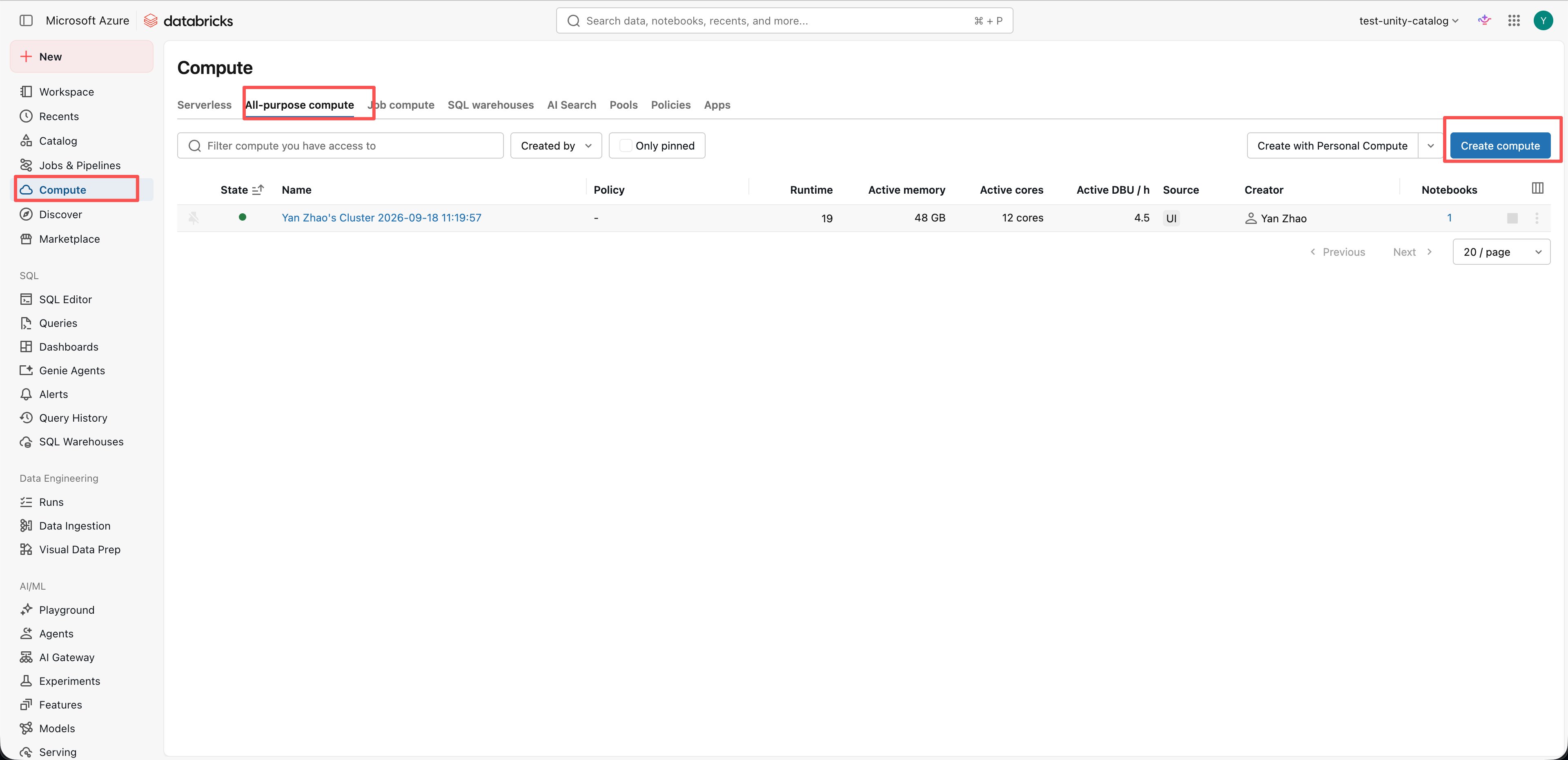
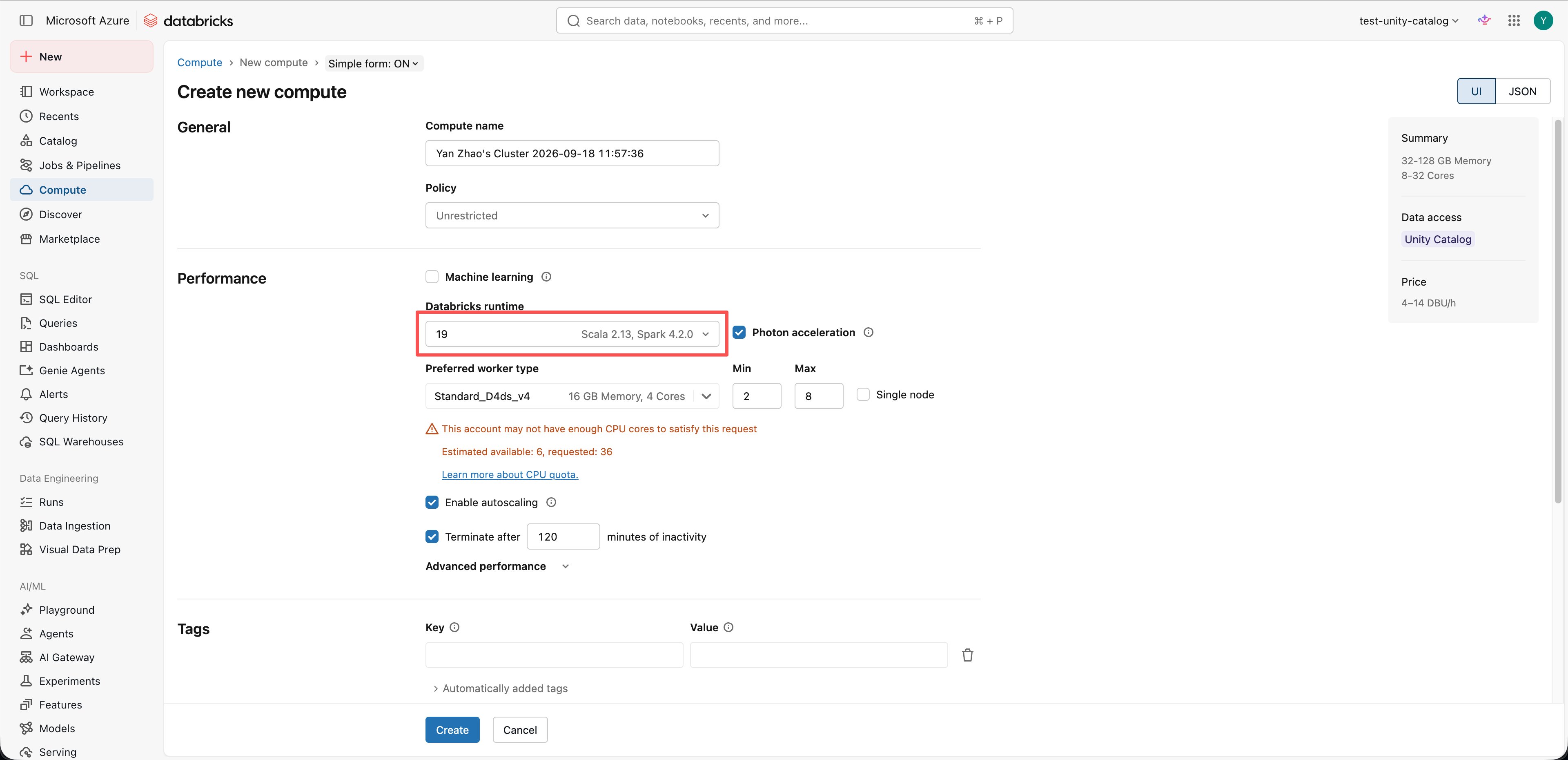
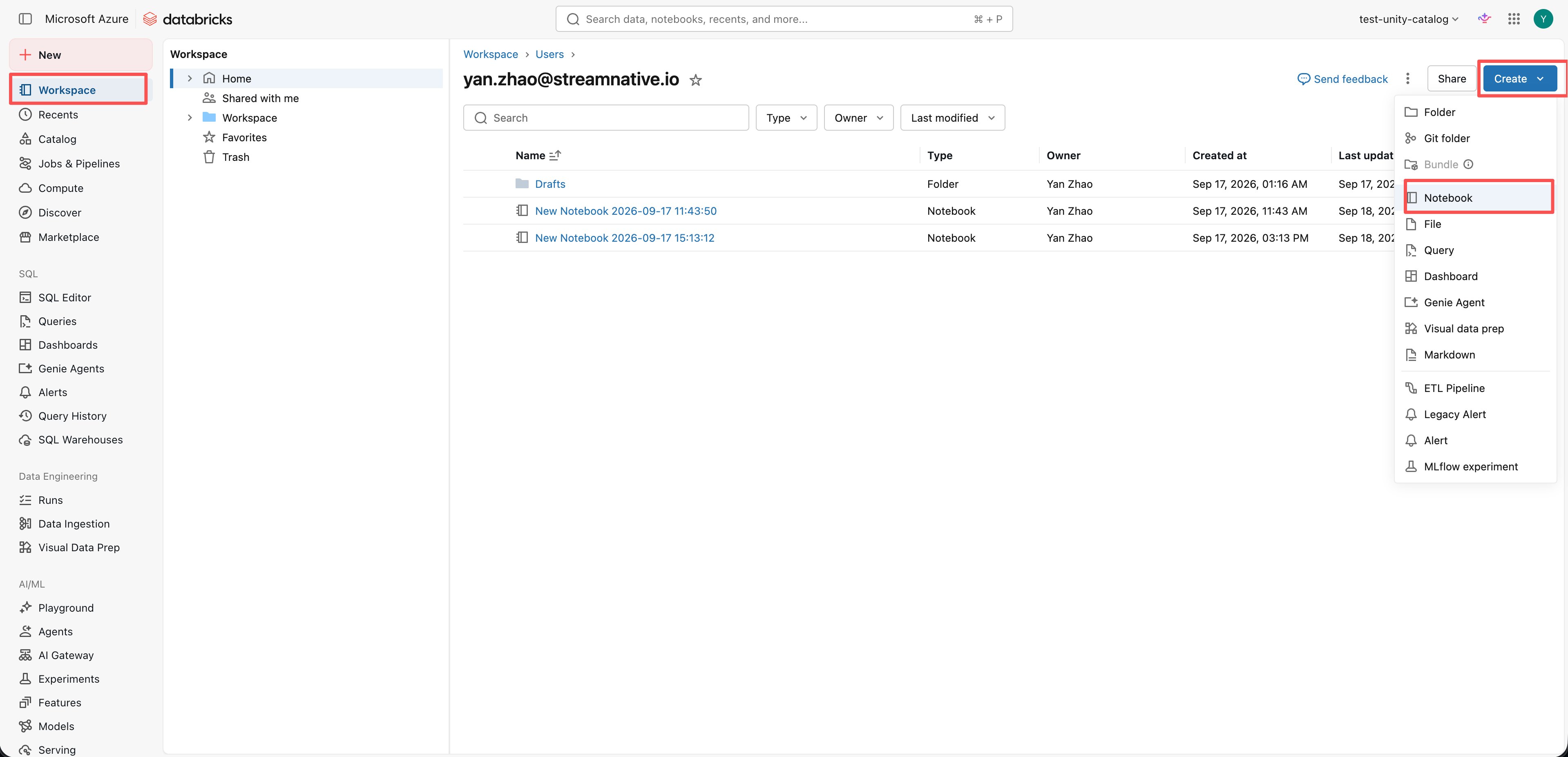
dbr_version identifies Runtime 19. A SQL warehouse version is not the runtime version of an all-purpose cluster.
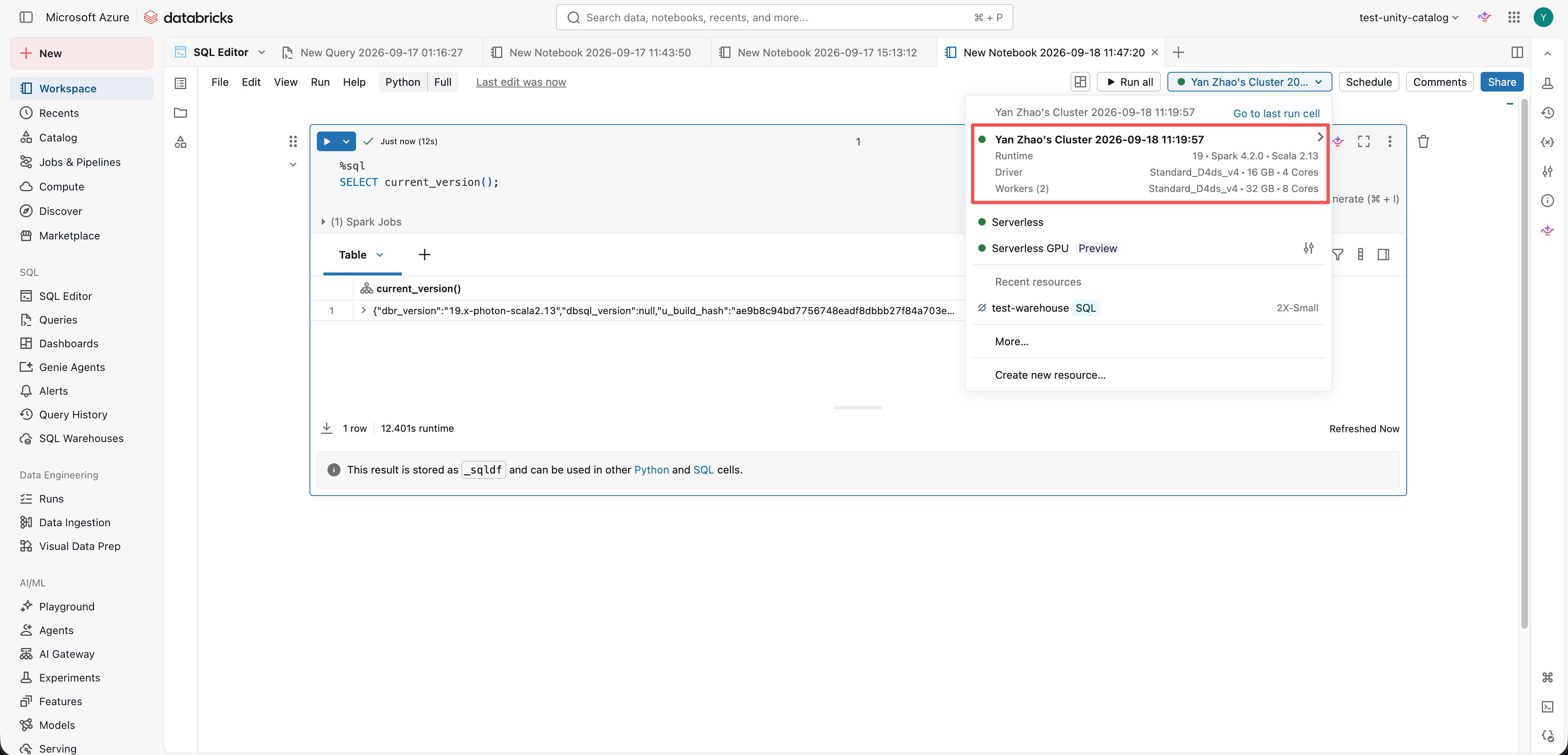
catalog_name, schema_name, and table_name with the affected table’s identifiers. Each example includes %sql so you can paste it into a separate Notebook cell and run it as SQL.
2. Enable metadata regeneration
After support confirms the procedure, run:3. Preview the repair
DRY RUN reports issues without applying repairs. For command semantics, see the Databricks FSCK command reference.
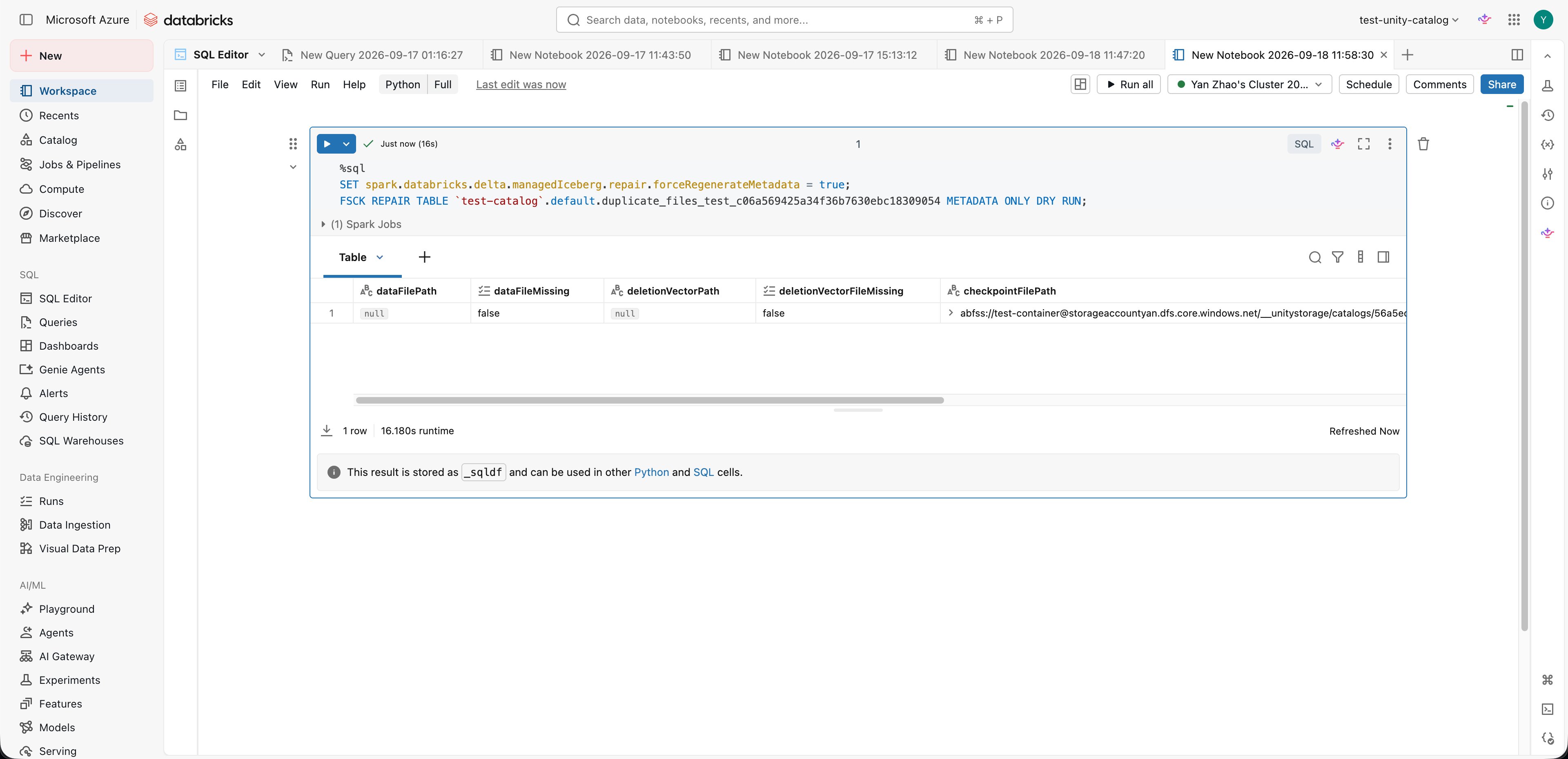
4. Apply the repair
When support confirms that you should proceed, run the command withoutDRY RUN:
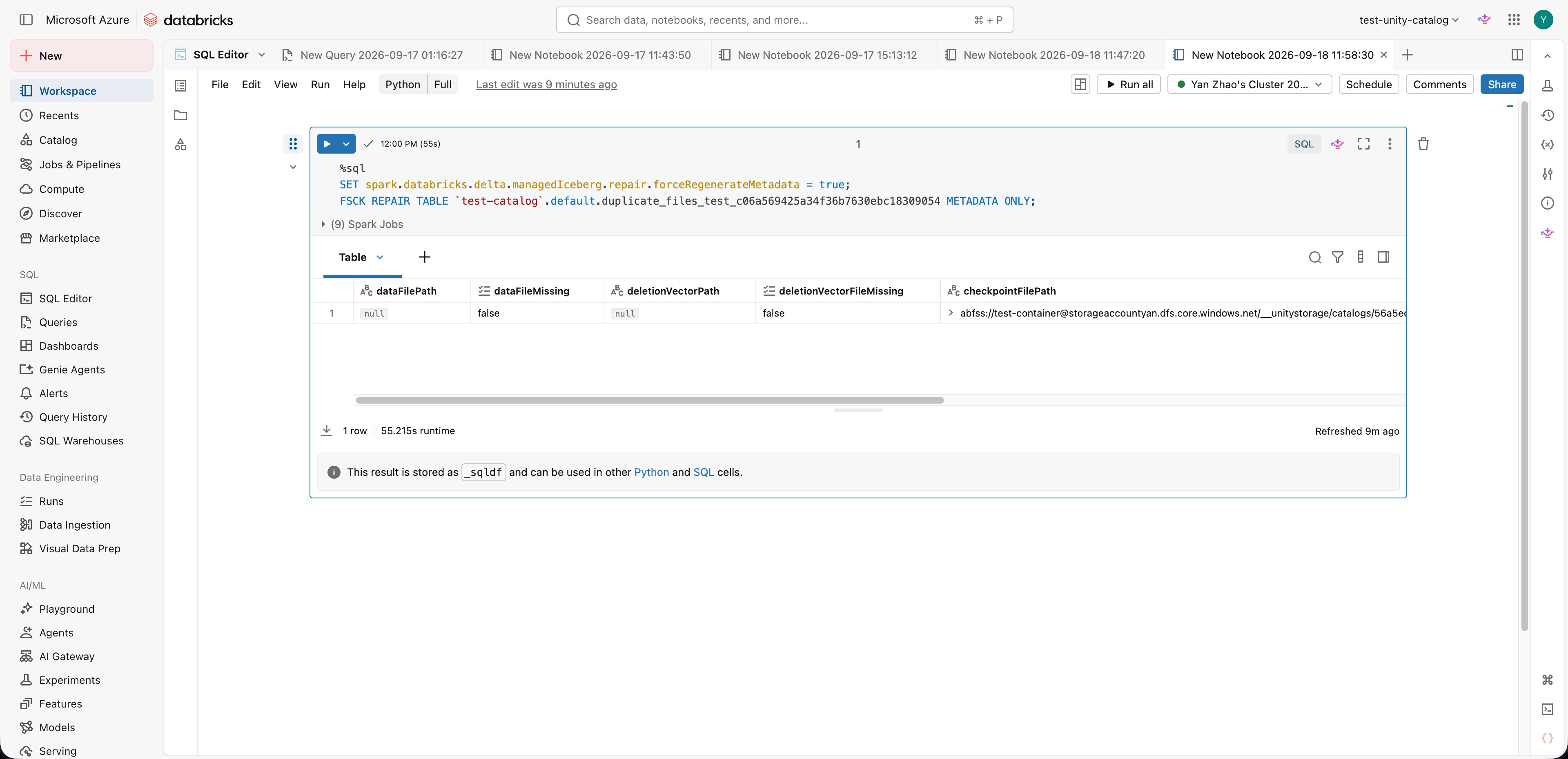
Verify the repair
Reload and refresh the table through the Iceberg REST catalog. Record the current snapshot ID, inspect that snapshot’s live file references, and read the affected records again. Confirm that:- No file path has duplicate live references in the current snapshot.
- Records affected by the duplicate references appear the expected number of times.
- Expected file paths and records remain available.
If duplicate references remain
Confirm that the repair targeted the same table inspected by the Iceberg client and that you ran the repair command withoutDRY RUN. Share these details with support:
- The fully qualified table name.
- The Databricks compute type, runtime version, and Iceberg client version.
- The exact SQL statements, outputs, and any error request IDs.
- The before-and-after snapshot IDs, duplicate file paths, and row counts.