

psql as an example, but you can use any PostgreSQL-compatible client.
Before you begin
You need:- A Ready SQL Workspace and SQL Catalog.
- The native PostgreSQL hostname published for the workspace.
- A SQL username and password.
- A PostgreSQL-compatible client that supports TLS and hostname verification.
Get the connection details
- In the Cloud Console, click SQL and open the SQL Workspace.
- Open the workspace Settings page.
- Copy the native PostgreSQL hostname. Do not derive or guess the hostname.
- Record the target database and username, and obtain the password through the approved credential workflow.
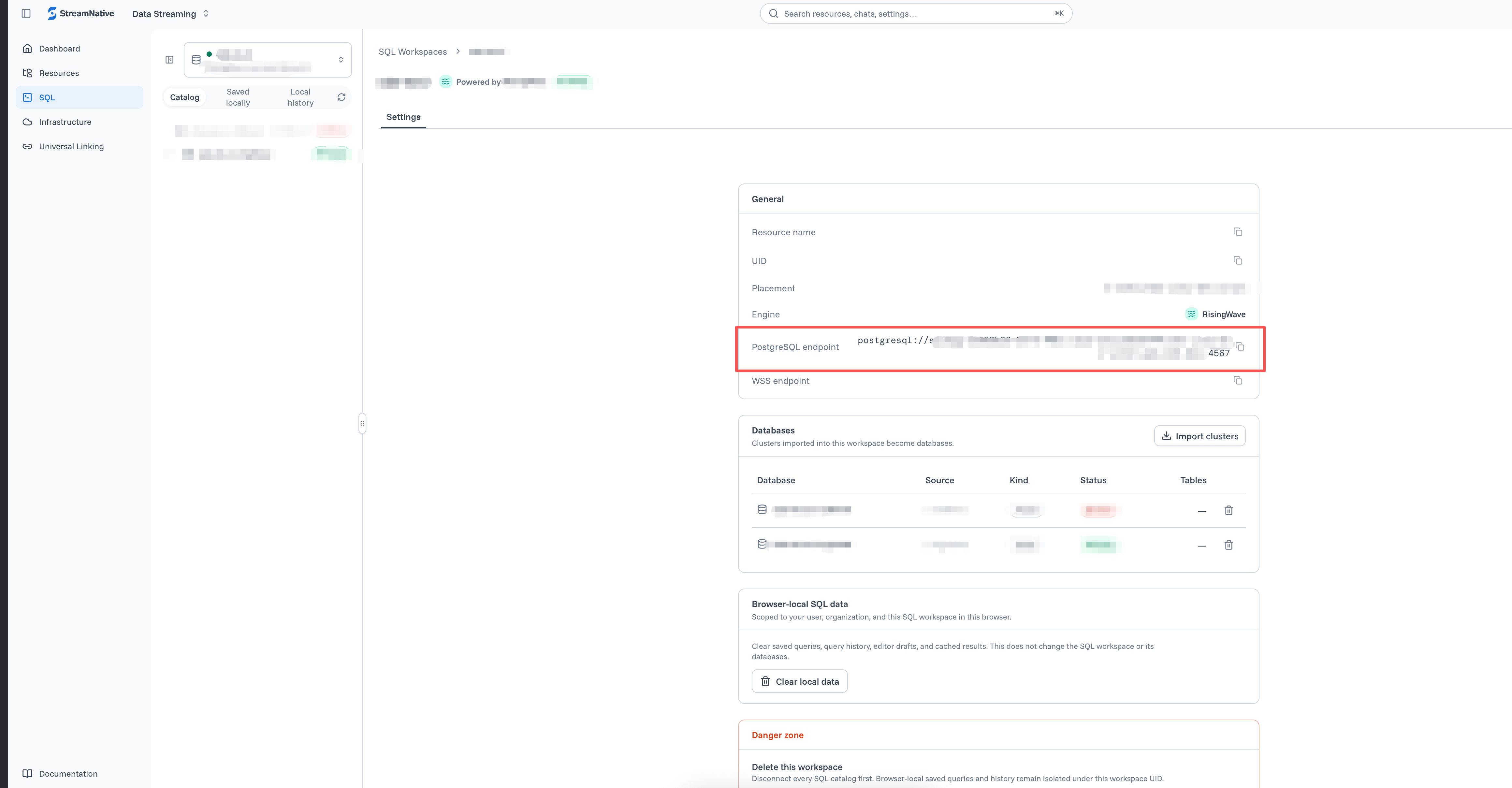
Copy the native PostgreSQL endpoint for a SQL Workspace.
Connection settings
Connect with psql
Run the following command. Omit the password so thatpsql prompts for it securely:
Verify CRUD operations
Use a uniquely named test table so that you do not affect an existing object:Use another PostgreSQL-compatible client
Clients such as DBeaver, DataGrip, pgAdmin, JDBC applications, andpsycopg use the same connection fields. Configure the published host, port 4567, database, username, password, and certificate-verifying TLS mode.
PostgreSQL wire compatibility does not mean that every PostgreSQL server feature is available. See SQL Workspace engine for the engine-specific SQL model.