

Cluster profiles
StreamNative provides two cluster profiles for Kafka clusters. Choose a profile based on your workload’s latency requirements and cost sensitivity.- Cost-Optimized
- Latency-Optimized
The Cost-Optimized profile uses the Ursa Engine with object storage (Amazon S3, Google Cloud Storage, or Azure Blob Storage) as the primary data persistence layer. This profile is ideal for workloads where throughput and cost efficiency matter more than ultra-low latency.Best for:
- Event streaming and data pipelines
- Log aggregation and analytics
- Change data capture (CDC)
- Long-term data retention
- Sub-second end-to-end latency (typically above 200 ms)
- Up to 95% lower storage cost compared to disk-based clusters
- Unlimited, elastic storage capacity
Deployment options
StreamNative offers Kafka clusters in Serverless, Dedicated, and BYOC deployment options.Serverless
Fully managed, elastic Kafka clusters on StreamNative infrastructure. Serverless Kafka is available in Private Preview in selected cloud providers and regions.
Dedicated
Fully managed clusters on StreamNative infrastructure with dedicated resources on AWS or Google Cloud. Supports multi-AZ high availability.
BYOC
Deploy clusters in your own cloud account on AWS, Google Cloud, or Microsoft Azure while StreamNative manages operations. Provides private networking and data sovereignty.
Serverless Kafka clusters are available in selected serverless cloud providers and regions. If Kafka is not available for your selected serverless environment, the Cloud Console disables Kafka cluster creation for that environment.
Create a Kafka cluster
Follow these steps to create a Kafka cluster using the StreamNative Console.Prerequisites
- A StreamNative Cloud account. If you do not have one, sign up.
- An organization in StreamNative Cloud. For details, see Organizations.
Steps
- Log in and create an organization (if you have not already). Log in to the StreamNative Console and create or select your organization.
- Create an instance. Navigate to Instances and click New. Select your deployment type (Serverless, Dedicated, or BYOC). Enter a name for your instance, select your preferred cloud provider and region, and then proceed.
-
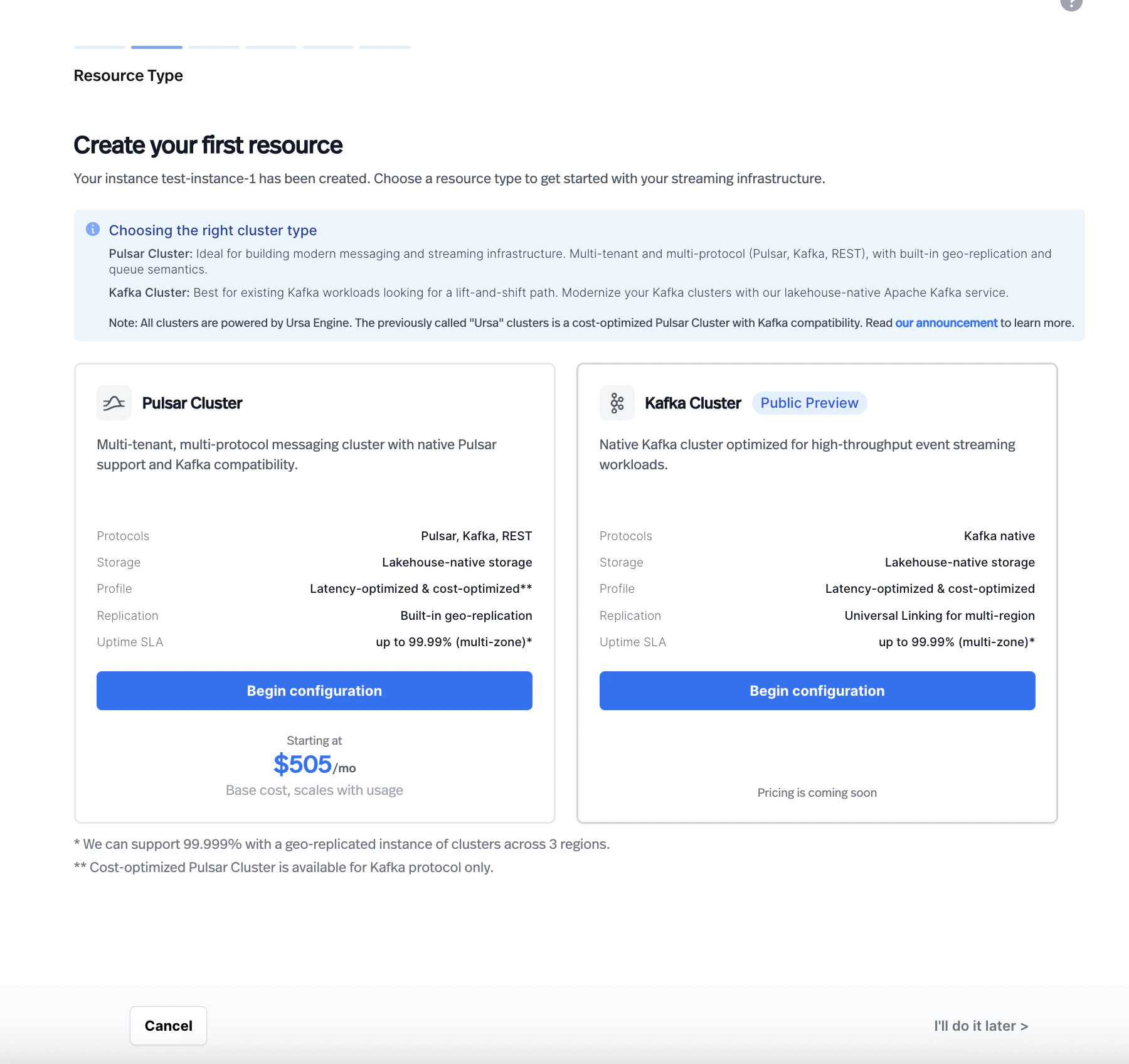
Choose a resource type. On the Resource Type page, select Kafka Cluster. The page displays a comparison between Pulsar Cluster and Kafka Cluster with their supported features.
-
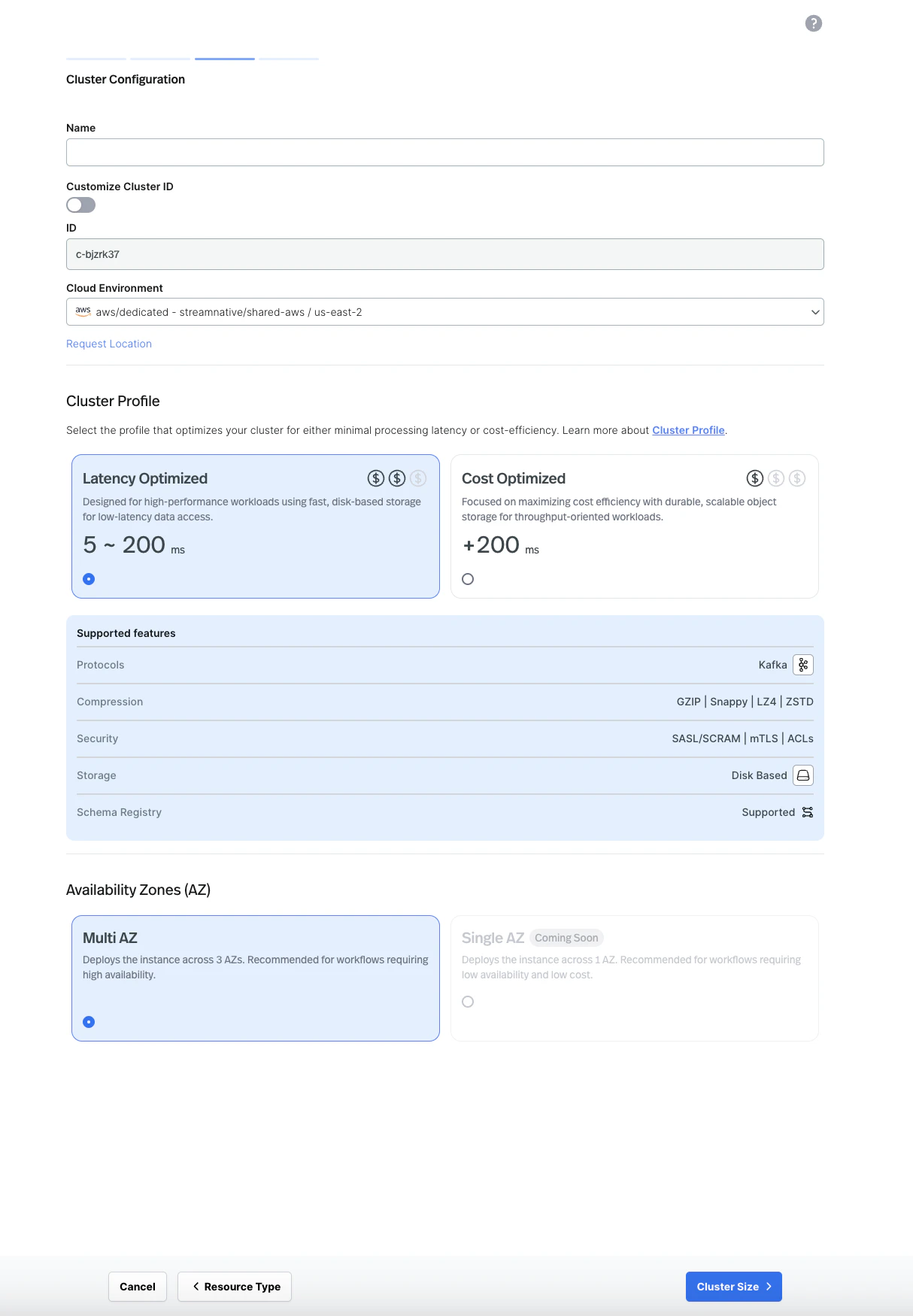
Configure the cluster. Enter a cluster name and select your cloud environment. For Dedicated and BYOC clusters, choose a cluster profile (Latency Optimized or Cost Optimized) and select your preferred availability zone configuration. Multi AZ is recommended for production workloads.
-
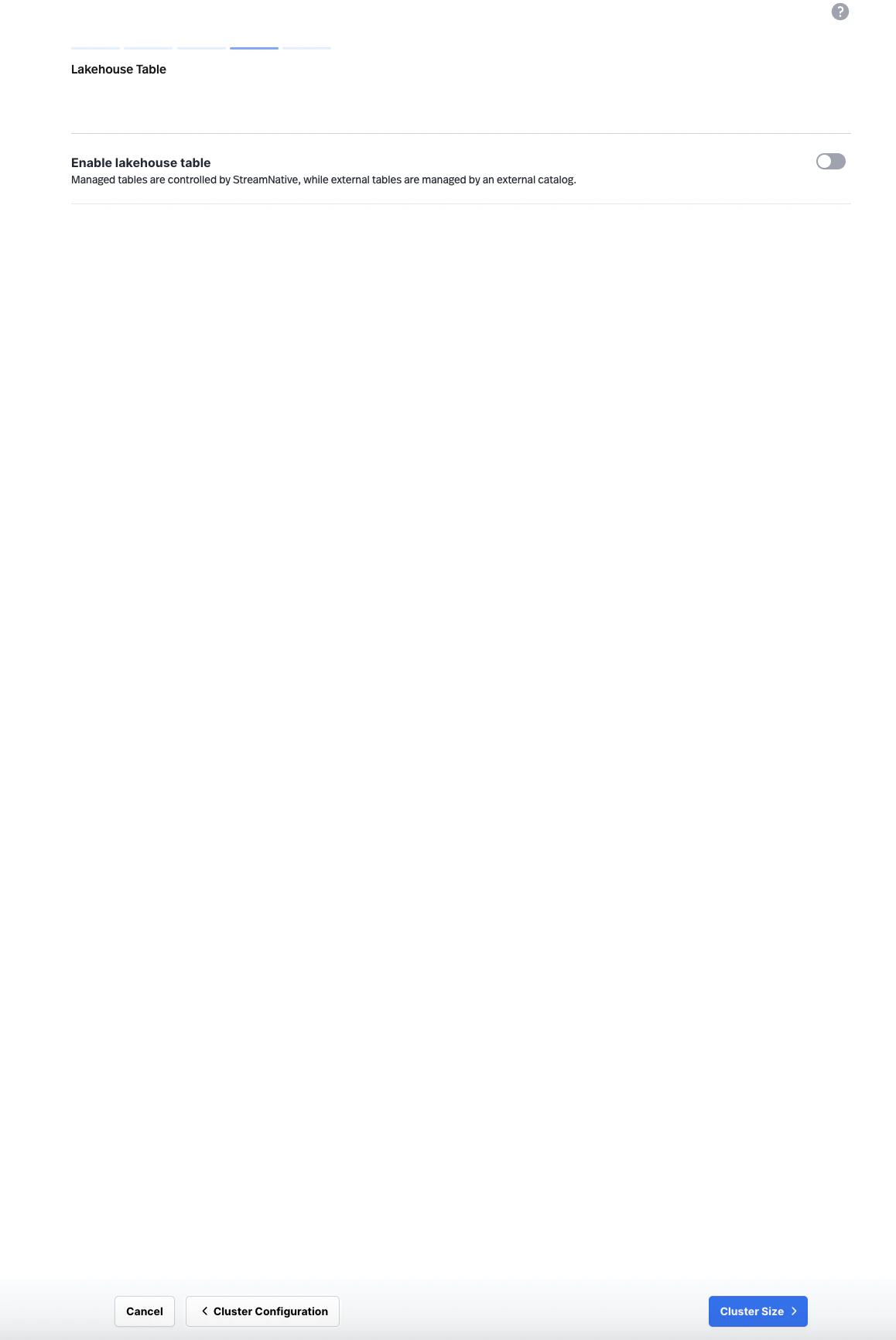
Configure lakehouse table (optional). On the Lakehouse Table page, optionally enable lakehouse table support for your cluster. This step is available for cluster types that support lakehouse table configuration.
-
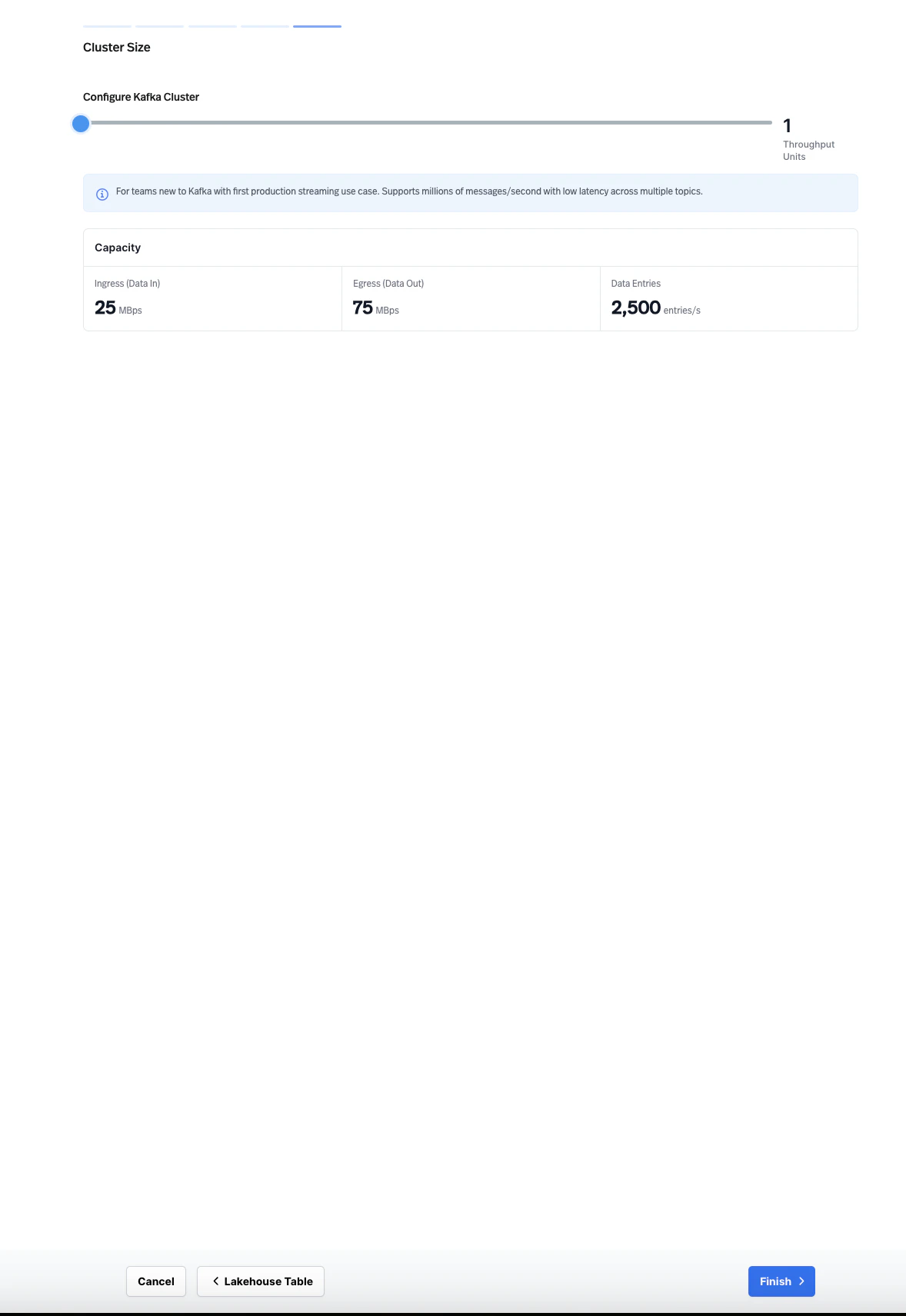
Set the cluster size. Configure the cluster size based on the selected deployment option.
- For Serverless Kafka clusters, StreamNative automatically manages capacity. The Cloud Console shows the current Serverless ETU capacity and limits. Self-service creation currently uses a 1 ETU base capacity, and the cluster scales automatically within Serverless limits.
- For Dedicated and BYOC Kafka clusters, configure the cluster size using Throughput Units. Each Throughput Unit provides a defined capacity for ingress (data in), egress (data out), and data entries per second. Adjust the slider to match your expected workload.
- Finish. Review and confirm your configuration to create the cluster.
Each StreamNative instance can support multiple clusters. However, Pulsar Clusters and Kafka Clusters cannot currently co-exist in the same instance.
Topic management
You can create and manage Kafka topics through the StreamNative Console, the Kafka CLI, or any Kafka AdminClient-compatible tool. You can use standard Kafka APIs to configure topics, partitions, and retention policies. When configuring topics, consider the following settings:- Partitions: Set the number of partitions based on your target parallelism and throughput. You can increase partitions after creation, but you cannot decrease them.
- Retention: Configure time-based or size-based retention policies to control how long messages are stored. On the Cost-Optimized profile, object storage provides cost-efficient long-term retention.
- Replication: StreamNative manages replication based on your cluster profile and availability zone configuration.
Consumer group management
StreamNative supports standard Kafka consumer groups. You can monitor and manage consumer groups through the StreamNative Console or Kafka CLI tools. Key operations include:- Viewing active consumer groups and their members
- Monitoring consumer lag per partition
- Resetting consumer group offsets
Kafka Queues with share groups
StreamNative Kafka Service supports Kafka Queues across both Latency-Optimized and Cost-Optimized profiles. Kafka Queues use the share groups consumption model, which lets multiple consumers cooperatively read records from the same partition instead of enforcing a strict 1:1 partition-to-consumer mapping. This unlocks queue-style task distribution, individual message acknowledgment and retry, and elastic consumer scaling beyond the partition count—useful for AI agent task orchestration, notification fan-out, image and document processing, job scheduling, and bursty async workers. To enable queue semantics, configure your Kafka client consumer with a share group ID; see Build Kafka Client Applications for client setup details.Scaling
How you scale a StreamNative Kafka cluster depends on its deployment option.- Serverless Kafka clusters scale automatically. You do not need to size or resize the cluster manually. Billing and capacity are based on Elastic Throughput Units (ETUs).
- Dedicated and BYOC Kafka clusters use Throughput Units for scaling. Each Throughput Unit provides a defined amount of ingress, egress, and data entry throughput. Adjust the number of Throughput Units to match your workload requirements.