> ## Documentation Index
> Fetch the complete documentation index at: https://docs.streamnative.io/llms.txt
> Use this file to discover all available pages before exploring further.
# Query with SQL Studio
> Browse managed topic sources and run SQL in the StreamNative Cloud Console.
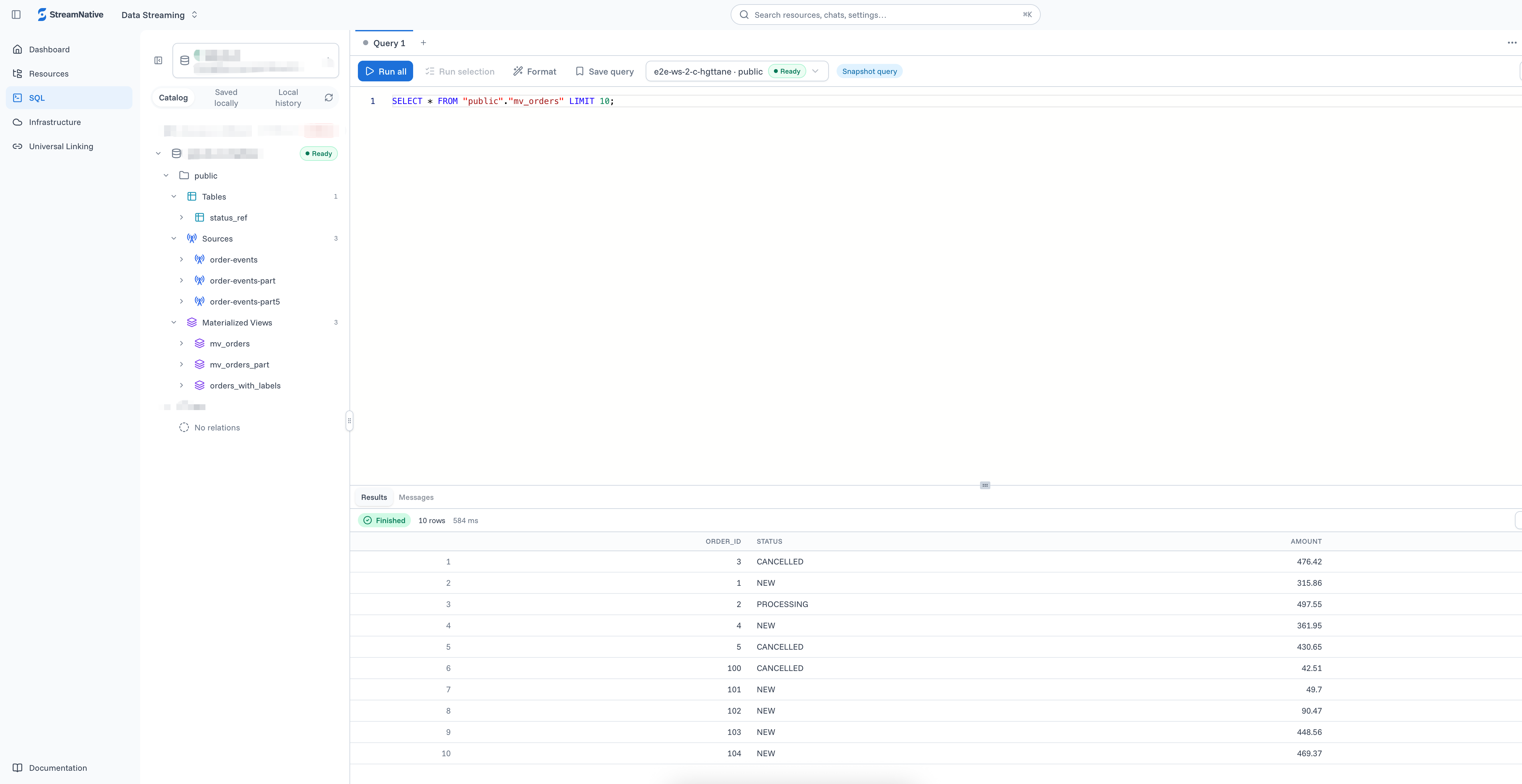
SQL Studio is the integrated browser interface for browsing SQLCatalog databases, writing SQL, and viewing results.
## Run a query
1. In the Cloud Console, open a **Ready** SQLWorkspace.
2. In SQL Studio, select a SQLCatalog database and schema.
3. Browse the catalog tree and find a managed topic source.
4. Enter a bounded query. Use the exact schema and source names and enclose both in double quotes. This example uses a Pulsar topic in `public/default`:
```sql theme={null}
SELECT *
FROM "public/default"."orders-topic"
LIMIT 100;
```
5. Click **Run**. You can select part of a script to run only that selection.
6. Review the result rows, execution status, and notices.
 ## Create a materialized view
Create a materialized view to maintain the result of a streaming query as new events arrive:
```sql theme={null}
CREATE MATERIALIZED VIEW orders_by_status AS
SELECT status, COUNT(*) AS order_count
FROM "public/default"."orders-topic"
GROUP BY status;
```
Query the maintained result:
```sql theme={null}
SELECT * FROM orders_by_status;
```
For joins, windows, watermarks, and other advanced processing, see [RisingWave](/sql/overview/engine/risingwave).
## Saved queries and history
During Private Preview, saved queries and query history are stored in your browser and scoped to your user, organization, and workspace. They are not synchronized across browsers or devices.
You can clear this browser-local data from the workspace's **Manage** page without changing the SQLWorkspace, its catalogs, or source data.
To use your own PostgreSQL-compatible tool, [connect with a PostgreSQL client](/sql/get-started/console/connect-postgresql-client).
## Create a materialized view
Create a materialized view to maintain the result of a streaming query as new events arrive:
```sql theme={null}
CREATE MATERIALIZED VIEW orders_by_status AS
SELECT status, COUNT(*) AS order_count
FROM "public/default"."orders-topic"
GROUP BY status;
```
Query the maintained result:
```sql theme={null}
SELECT * FROM orders_by_status;
```
For joins, windows, watermarks, and other advanced processing, see [RisingWave](/sql/overview/engine/risingwave).
## Saved queries and history
During Private Preview, saved queries and query history are stored in your browser and scoped to your user, organization, and workspace. They are not synchronized across browsers or devices.
You can clear this browser-local data from the workspace's **Manage** page without changing the SQLWorkspace, its catalogs, or source data.
To use your own PostgreSQL-compatible tool, [connect with a PostgreSQL client](/sql/get-started/console/connect-postgresql-client).