> ## Documentation Index
> Fetch the complete documentation index at: https://docs.streamnative.io/llms.txt
> Use this file to discover all available pages before exploring further.
# Connect with a PostgreSQL Client
> Connect a PostgreSQL-compatible client to a SQLWorkspace native endpoint.
Use the native PostgreSQL endpoint to query a SQLWorkspace. This guide uses `psql` as an example, but you can use any PostgreSQL-compatible client.
## Before you begin
You need:
* A **Ready** SQLWorkspace and SQLCatalog.
* The native PostgreSQL hostname published for the workspace.
* A SQL username and password.
* A PostgreSQL-compatible client that supports TLS and hostname verification.
## Get the connection details
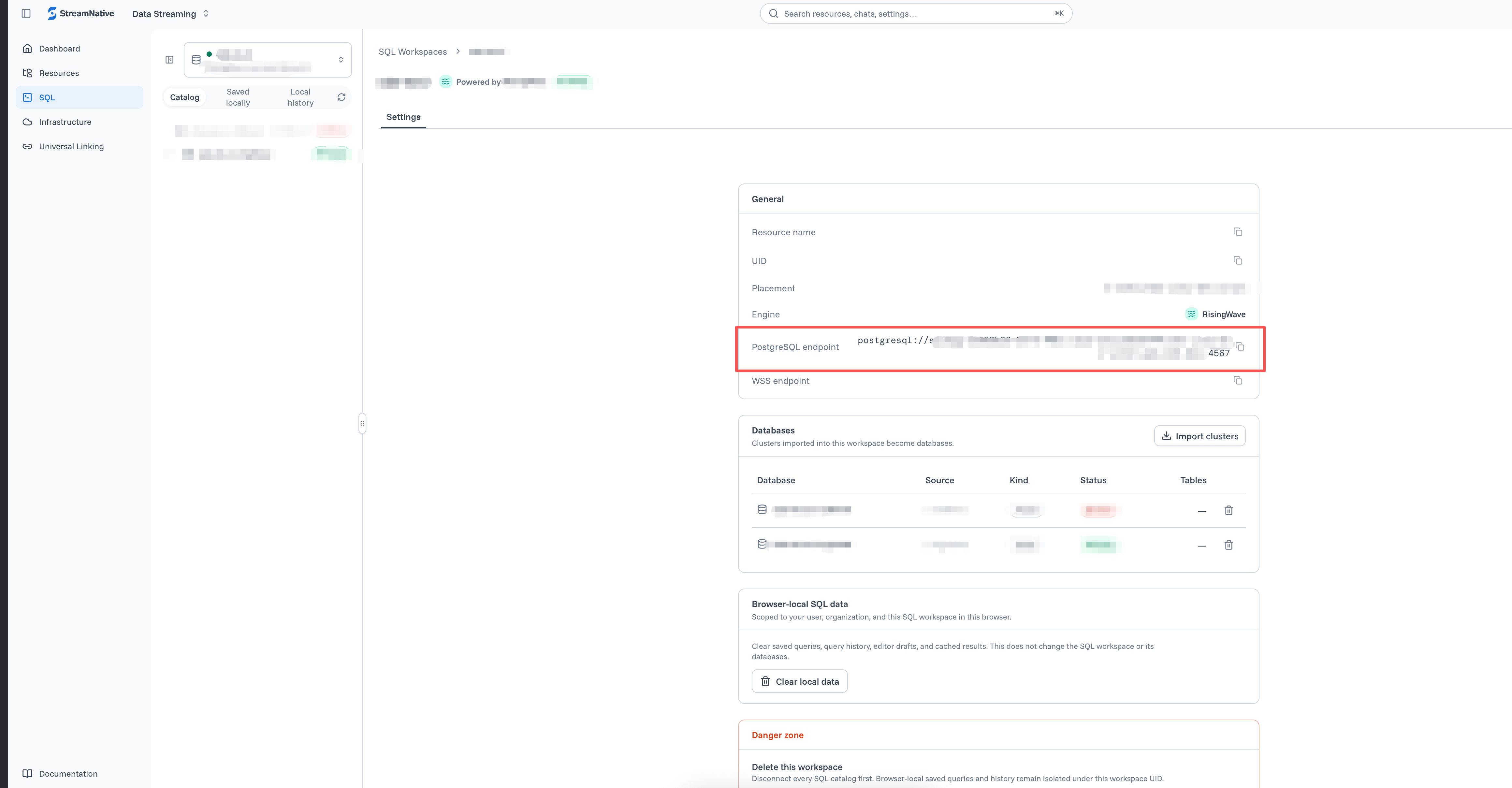
1. In the Cloud Console, click **SQL** and open the SQLWorkspace.
2. Open the workspace **Settings** page.
3. Copy the native PostgreSQL hostname. Do not derive or guess the hostname.
4. Record the target database and username, and obtain the password through the approved credential workflow.
 ## Connection settings
| Field | Value |
| -------- | ----------------------------------------------------------------- |
| Host | The native PostgreSQL hostname published for the SQLWorkspace |
| Port | `4567` |
| Database | The database created for the target SQLCatalog |
| Username | Your SQLWorkspace engine username |
| Password | The password for your SQLWorkspace engine identity |
| TLS mode | A certificate- and hostname-verifying mode, such as `verify-full` |
## Connect with psql
Run the following command. Omit the password so that `psql` prompts for it securely:
```bash theme={null}
psql "postgresql://@:4567/?sslmode=verify-full"
```
Do not put the password in the URI, shell history, application logs, or screenshots.
After connecting, inspect the session:
```text theme={null}
\conninfo
```
```sql theme={null}
SELECT current_database(), current_user, now();
```
## Verify CRUD operations
Use a uniquely named test table so that you do not affect an existing object:
```sql theme={null}
CREATE TABLE sqlworkspace_crud_test (
id INTEGER PRIMARY KEY,
note VARCHAR
);
INSERT INTO sqlworkspace_crud_test VALUES (1, 'created');
SELECT * FROM sqlworkspace_crud_test;
UPDATE sqlworkspace_crud_test
SET note = 'updated'
WHERE id = 1;
DELETE FROM sqlworkspace_crud_test
WHERE id = 1;
DROP TABLE sqlworkspace_crud_test;
```
Creating or deleting engine objects requires the corresponding engine privileges. During Private Preview, Organization Admin users (`org-admin`, or legacy `admin`) are synchronized as engine superusers.
## Use another PostgreSQL-compatible client
Clients such as DBeaver, DataGrip, pgAdmin, JDBC applications, and `psycopg` use the same connection fields. Configure the published host, port `4567`, database, username, password, and certificate-verifying TLS mode.
PostgreSQL wire compatibility does not mean that every PostgreSQL server feature is available. See [RisingWave](/sql/overview/engine/risingwave) for the engine-specific SQL model.
## Connection settings
| Field | Value |
| -------- | ----------------------------------------------------------------- |
| Host | The native PostgreSQL hostname published for the SQLWorkspace |
| Port | `4567` |
| Database | The database created for the target SQLCatalog |
| Username | Your SQLWorkspace engine username |
| Password | The password for your SQLWorkspace engine identity |
| TLS mode | A certificate- and hostname-verifying mode, such as `verify-full` |
## Connect with psql
Run the following command. Omit the password so that `psql` prompts for it securely:
```bash theme={null}
psql "postgresql://@:4567/?sslmode=verify-full"
```
Do not put the password in the URI, shell history, application logs, or screenshots.
After connecting, inspect the session:
```text theme={null}
\conninfo
```
```sql theme={null}
SELECT current_database(), current_user, now();
```
## Verify CRUD operations
Use a uniquely named test table so that you do not affect an existing object:
```sql theme={null}
CREATE TABLE sqlworkspace_crud_test (
id INTEGER PRIMARY KEY,
note VARCHAR
);
INSERT INTO sqlworkspace_crud_test VALUES (1, 'created');
SELECT * FROM sqlworkspace_crud_test;
UPDATE sqlworkspace_crud_test
SET note = 'updated'
WHERE id = 1;
DELETE FROM sqlworkspace_crud_test
WHERE id = 1;
DROP TABLE sqlworkspace_crud_test;
```
Creating or deleting engine objects requires the corresponding engine privileges. During Private Preview, Organization Admin users (`org-admin`, or legacy `admin`) are synchronized as engine superusers.
## Use another PostgreSQL-compatible client
Clients such as DBeaver, DataGrip, pgAdmin, JDBC applications, and `psycopg` use the same connection fields. Configure the published host, port `4567`, database, username, password, and certificate-verifying TLS mode.
PostgreSQL wire compatibility does not mean that every PostgreSQL server feature is available. See [RisingWave](/sql/overview/engine/risingwave) for the engine-specific SQL model.