> ## Documentation Index
> Fetch the complete documentation index at: https://docs.streamnative.io/llms.txt
> Use this file to discover all available pages before exploring further.
# Log in to StreamNative Console
StreamNative Console is a web-based GUI management and monitoring tool that helps Pulsar users manage tenants, namespaces, topics, subscriptions, and so on.
After [deploying StreamNative Platform](/private-cloud/v1/operating-streamnative-platform/deploy/sn-deploy) and a [Pulsar cluster](/private-cloud/v1/operating-streamnative-platform/deploy/sn-deploy#deploy-pulsar-clusters), you can log in to StreamNative Console to manage and monitor Pulsar resources.
This document guides you through logging in to StreamNative Console in any of the following situations:
* Authentication is disabled.
* Only vault-based authentication is enabled.
* Only OAuth2 authentication is enabled. StreamNative Platform supports the following OAuth2 authentication providers. You can configure one or more kinds of them.
* Google OAuth2 authentication
* Azure AD OAuth2 authentication
* Okta OAuth2 authentication
* Only JWT authentication is enabled.
In the following examples, the (`release name`) refers to the Helm chart release when you use the `sn-platform` Helm chart.
## Login for no authentication
By default, when authentication is disabled, an arbitrary username (`admin`) and an arbitrary password (`apachepulsar`) are initialized for StreamNative Console. You can use the initialized username and password to log in to StreamNative Console.
1. Execute the following command to expose the StreamNative Console service to a localhost address.
```bash theme={null}
kubectl port-forward -pulsar-streamnative-console-0 9527:9527 -n
```
2. Visit the StreamNative Console at `http://localhost:9527`.
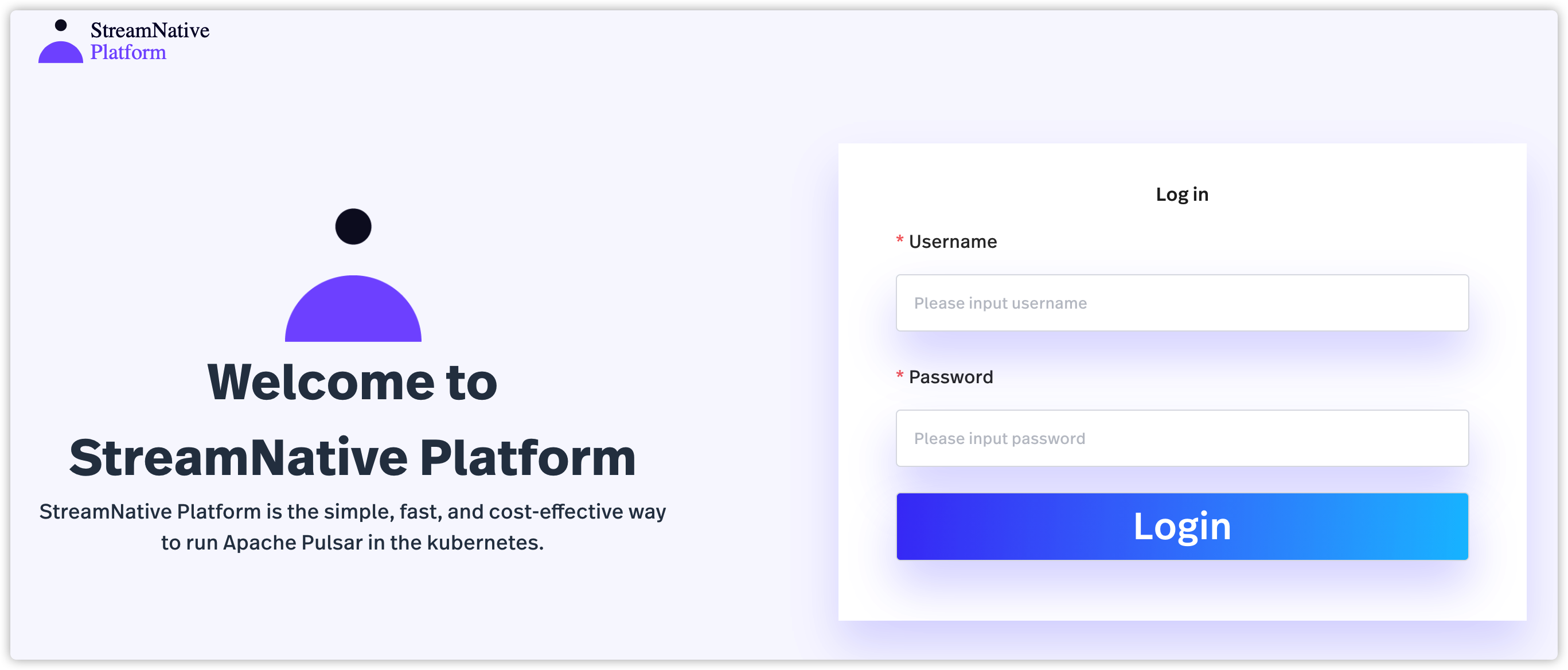
3. Enter the username and the password. Then, click **Login** to log in to StreamNative Console.
 ## Login for vault-based authentication
When only vault-based authentication is enabled, you can log in to StreamNative Console using a username and a password. By default, an `admin` user is created for StreamNative Console. You can also configure a specific user and password. For details, see [customize usernames and passwords](/private-cloud/v1/streamnative-console/streamnative-console#customize-the-username-and-password).
For security reasons, it is recommended to execute the following command to automatically generate the password.
```bash theme={null}
kubectl get secret -sn-platform-vault-console-admin-passwd -o=jsonpath='{.data.password}' -n | base64 --decode; echo
```
1. Execute the following command to expose the StreamNative Console service to a localhost address.
```bash theme={null}
kubectl port-forward -pulsar-streamnative-console-0 9527:9527 -n
```
2. Visit the StreamNative Console at `http://localhost:9527`.
3. Enter the username and the password. Then, click **Login** to log in to StreamNative Console.
## Login for OAuth2 authentication
This section describes how to log in to StreamNative Console when OAuth2 authentication is enabled.
### Login for Google OAuth2 authentication
This section describes how to log in to StreamNative Console using a Google account.
#### Prerequisites
To log in to StreamNative Console using a Google account, you need to enable Google OAuth2 login and configure related parameters. For details, see [configure login methods](/private-cloud/v1/streamnative-console/streamnative-console#configure-login-methods).
#### Steps
To log in to StreamNative Console using a Google account, follow these steps.
1. Execute the following command to expose the StreamNative Console service to a localhost address.
```bash theme={null}
kubectl port-forward -pulsar-streamnative-console-0 9527:9527 -n
```
2. Visit the StreamNative Console at `http://localhost:9527`.
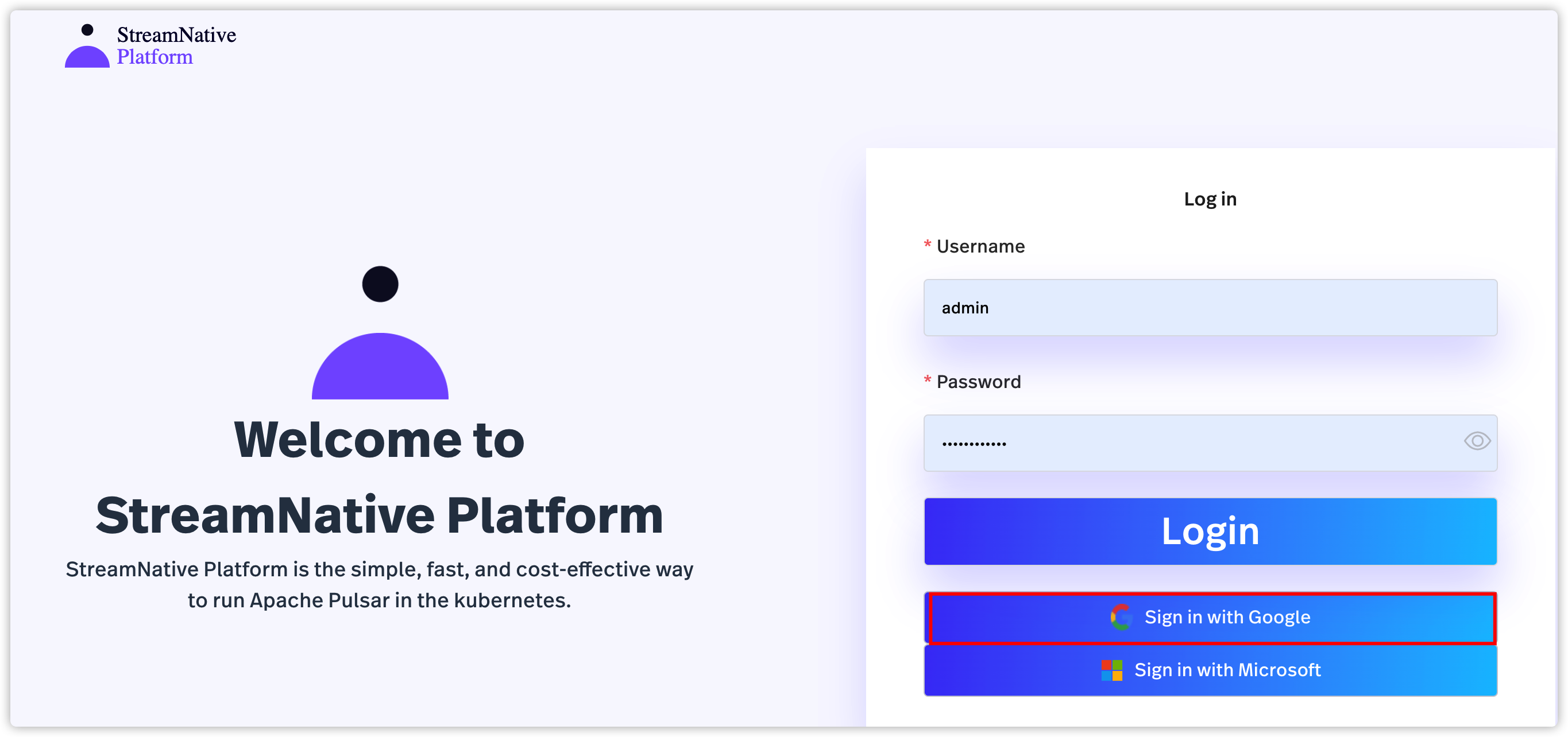
3. Click **Sign in with Google**.
## Login for vault-based authentication
When only vault-based authentication is enabled, you can log in to StreamNative Console using a username and a password. By default, an `admin` user is created for StreamNative Console. You can also configure a specific user and password. For details, see [customize usernames and passwords](/private-cloud/v1/streamnative-console/streamnative-console#customize-the-username-and-password).
For security reasons, it is recommended to execute the following command to automatically generate the password.
```bash theme={null}
kubectl get secret -sn-platform-vault-console-admin-passwd -o=jsonpath='{.data.password}' -n | base64 --decode; echo
```
1. Execute the following command to expose the StreamNative Console service to a localhost address.
```bash theme={null}
kubectl port-forward -pulsar-streamnative-console-0 9527:9527 -n
```
2. Visit the StreamNative Console at `http://localhost:9527`.
3. Enter the username and the password. Then, click **Login** to log in to StreamNative Console.
## Login for OAuth2 authentication
This section describes how to log in to StreamNative Console when OAuth2 authentication is enabled.
### Login for Google OAuth2 authentication
This section describes how to log in to StreamNative Console using a Google account.
#### Prerequisites
To log in to StreamNative Console using a Google account, you need to enable Google OAuth2 login and configure related parameters. For details, see [configure login methods](/private-cloud/v1/streamnative-console/streamnative-console#configure-login-methods).
#### Steps
To log in to StreamNative Console using a Google account, follow these steps.
1. Execute the following command to expose the StreamNative Console service to a localhost address.
```bash theme={null}
kubectl port-forward -pulsar-streamnative-console-0 9527:9527 -n
```
2. Visit the StreamNative Console at `http://localhost:9527`.
3. Click **Sign in with Google**.
 4. Enter your email and then click **Next**.
5. Enter your password and then click **Next**.
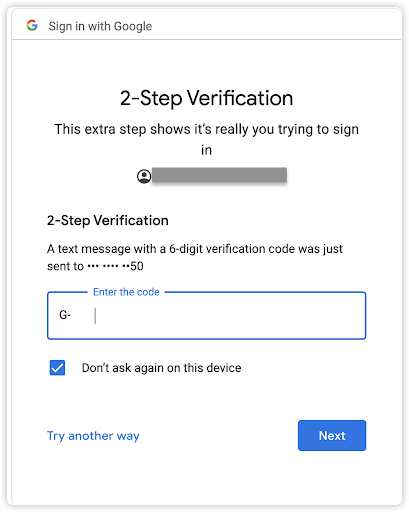
6. (Optional) If Two-Factor Authentication (2FA) is enabled, enter the verification code and then click **Next**.
4. Enter your email and then click **Next**.
5. Enter your password and then click **Next**.
6. (Optional) If Two-Factor Authentication (2FA) is enabled, enter the verification code and then click **Next**.
 ### Login for Azure AD OAuth2 authentication
This section describes how to log in to StreamNative Console using a Microsoft account.
#### Prerequisites
To log in to StreamNative Console using a Microsoft account, you need to enable Azure OAuth2 login and configure related parameters. For details, see [configure login methods](/private-cloud/v1/streamnative-console/streamnative-console#configure-login-methods).
#### Steps
To log in to StreamNative Console using a Microsoft account, follow these s teps.
1. Execute the following command to expose the StreamNative Console service to a localhost address.
```bash theme={null}
kubectl port-forward -pulsar-streamnative-console-0 9527:9527 -n
```
2. Visit the StreamNative Console at `http://localhost:9527`.
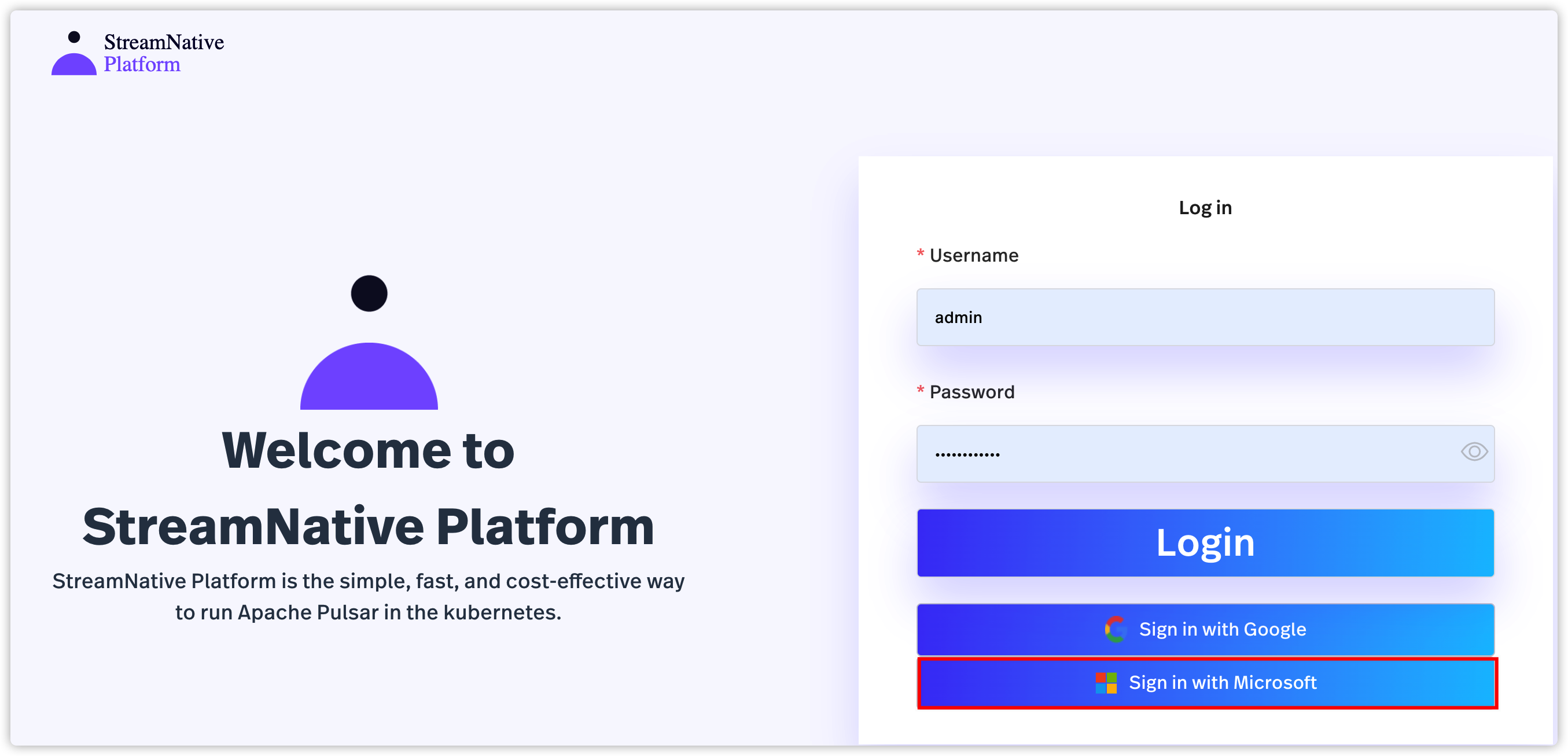
3. Click **Sign in with Microsoft**.
### Login for Azure AD OAuth2 authentication
This section describes how to log in to StreamNative Console using a Microsoft account.
#### Prerequisites
To log in to StreamNative Console using a Microsoft account, you need to enable Azure OAuth2 login and configure related parameters. For details, see [configure login methods](/private-cloud/v1/streamnative-console/streamnative-console#configure-login-methods).
#### Steps
To log in to StreamNative Console using a Microsoft account, follow these s teps.
1. Execute the following command to expose the StreamNative Console service to a localhost address.
```bash theme={null}
kubectl port-forward -pulsar-streamnative-console-0 9527:9527 -n
```
2. Visit the StreamNative Console at `http://localhost:9527`.
3. Click **Sign in with Microsoft**.
 4. Enter your email and then click **Next**.
5. Enter your password and then click **Sign in**.
### Login for Okta OAuth2 authentication
This section describes how to log in to StreamNative Console using Okta.
#### Prerequisites
To log in to StreamNative Console using Okta, you need to enable Okta login and configure related parameters. For details, see [configure login methods](/private-cloud/v1/streamnative-console/streamnative-console#configure-login-methods).
#### Steps
To log in to StreamNative Console using Okta,follow these steps.
1. Execute the following command to expose the StreamNative Console service to a localhost address.
```bash theme={null}
kubectl port-forward -pulsar-streamnative-console-0 9527:9527 -n
```
2. Visit the StreamNative Console at `http://localhost:9527`.
3. Click **Sign in with OKTA**.
4. Enter your email and then click **Next**.
5. Enter your password and then click **Sign in**.
### Login for Okta OAuth2 authentication
This section describes how to log in to StreamNative Console using Okta.
#### Prerequisites
To log in to StreamNative Console using Okta, you need to enable Okta login and configure related parameters. For details, see [configure login methods](/private-cloud/v1/streamnative-console/streamnative-console#configure-login-methods).
#### Steps
To log in to StreamNative Console using Okta,follow these steps.
1. Execute the following command to expose the StreamNative Console service to a localhost address.
```bash theme={null}
kubectl port-forward -pulsar-streamnative-console-0 9527:9527 -n
```
2. Visit the StreamNative Console at `http://localhost:9527`.
3. Click **Sign in with OKTA**.
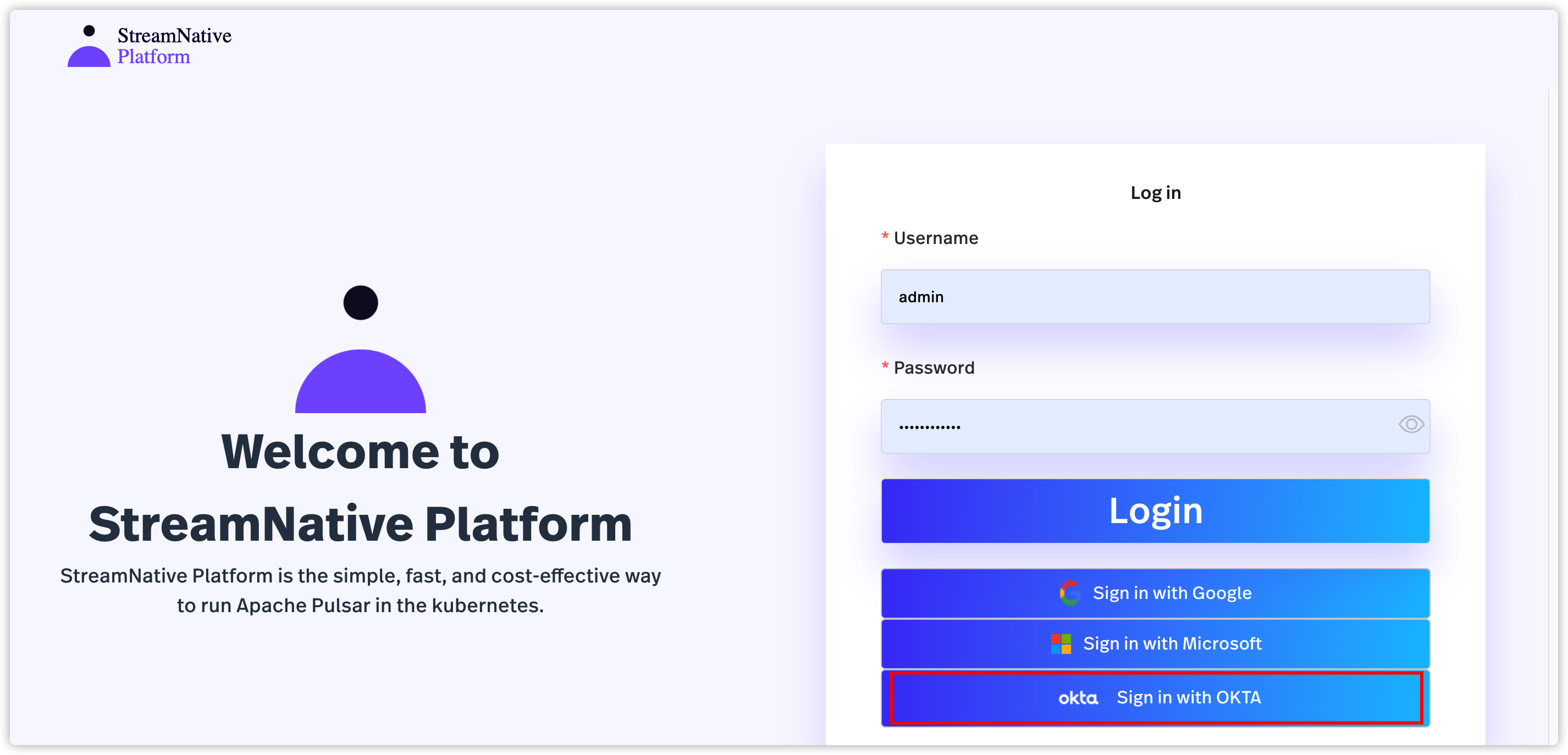 4. Enter your username and password.
5. Click **Sign in**.
## Login for JWT authentication
This section describes how to log in to StreamNative Console when JWT authentication is enabled.
### Prerequisites
* Prepare a running Pulsar cluster with JWT authentication enabled. For details about how to enable JWT authentication, see [configure JWT authentication](/private-cloud/v1/operating-streamnative-platform/security/jwt-auth).
* Enable JWT login and configure related parameters. For details, see [configure login methods](/private-cloud/v1/streamnative-console/streamnative-console#configure-login-methods).
### Steps
To log in to StreamNative Console using a JWT token, follow these steps.
1. Execute the following command to expose the StreamNative Console service to a localhost address.
```bash theme={null}
kubectl port-forward -pulsar-streamnative-console-0 9527:9527 -n
```
2. Visit the StreamNative Console at `http://localhost:9527`.
3. Click **Sign in with JWT**.
4. Enter your username and password.
5. Click **Sign in**.
## Login for JWT authentication
This section describes how to log in to StreamNative Console when JWT authentication is enabled.
### Prerequisites
* Prepare a running Pulsar cluster with JWT authentication enabled. For details about how to enable JWT authentication, see [configure JWT authentication](/private-cloud/v1/operating-streamnative-platform/security/jwt-auth).
* Enable JWT login and configure related parameters. For details, see [configure login methods](/private-cloud/v1/streamnative-console/streamnative-console#configure-login-methods).
### Steps
To log in to StreamNative Console using a JWT token, follow these steps.
1. Execute the following command to expose the StreamNative Console service to a localhost address.
```bash theme={null}
kubectl port-forward -pulsar-streamnative-console-0 9527:9527 -n
```
2. Visit the StreamNative Console at `http://localhost:9527`.
3. Click **Sign in with JWT**.
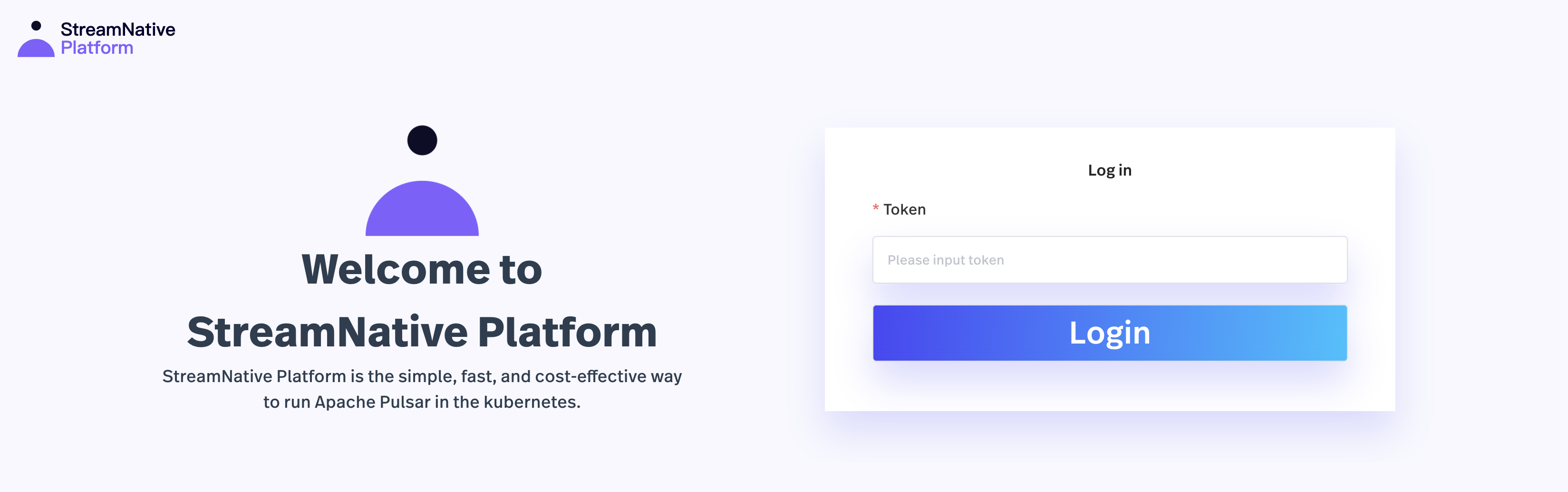 4. Enter your token and then click **Login**.
## Related topics
After logging into StreamNative Console, you can manage the following resources:
* [Service accounts](/private-cloud/v1/streamnative-console/service-account)
* [Users](/private-cloud/v1/streamnative-console/user)
* [Tenants](/cloud/manage-data-streams/tenant)
* [Namespaces](/cloud/manage-data-streams/namespace)
* [Topics](/cloud/manage-data-streams/topic)
4. Enter your token and then click **Login**.
## Related topics
After logging into StreamNative Console, you can manage the following resources:
* [Service accounts](/private-cloud/v1/streamnative-console/service-account)
* [Users](/private-cloud/v1/streamnative-console/user)
* [Tenants](/cloud/manage-data-streams/tenant)
* [Namespaces](/cloud/manage-data-streams/namespace)
* [Topics](/cloud/manage-data-streams/topic)