> ## Documentation Index
> Fetch the complete documentation index at: https://docs.streamnative.io/llms.txt
> Use this file to discover all available pages before exploring further.
# Get Started with Kafka Service
> Start producing and consuming messages with StreamNative Kafka Service in under 5 minutes.
Get started with StreamNative Kafka Service. This guide walks you through creating a Kafka cluster and producing your first message.
## Prerequisites
Before you begin, make sure you have the following:
* A [StreamNative Cloud account](https://console.streamnative.cloud/?defaultMethod=signup). If you do not have one, sign up for a free trial.
* A supported web browser (Chrome, Firefox, Safari, or Edge).
* [Apache Kafka CLI tools](https://kafka.apache.org/downloads) (v3.1.0 or later) installed on your local machine.
## Step 1: Log in to StreamNative Cloud Console
Navigate to the [StreamNative Cloud Console](https://console.streamnative.cloud) and sign in with your credentials.
## Step 2: Create a Kafka cluster
Create an organization, an instance, and a Kafka cluster powered by the Ursa Engine.
1. In the upper-right corner, click your profile icon and select **Organizations**.
2. Click **Create Organization** and enter a name for your organization.
3. On the left navigation pane, click **Dashboard**.
4. On the **Instances** card, click **New**, then select your deployment type (**Dedicated** or **BYOC**).
5. Enter a name for your instance, select your preferred cloud provider and region, and proceed to the next step.
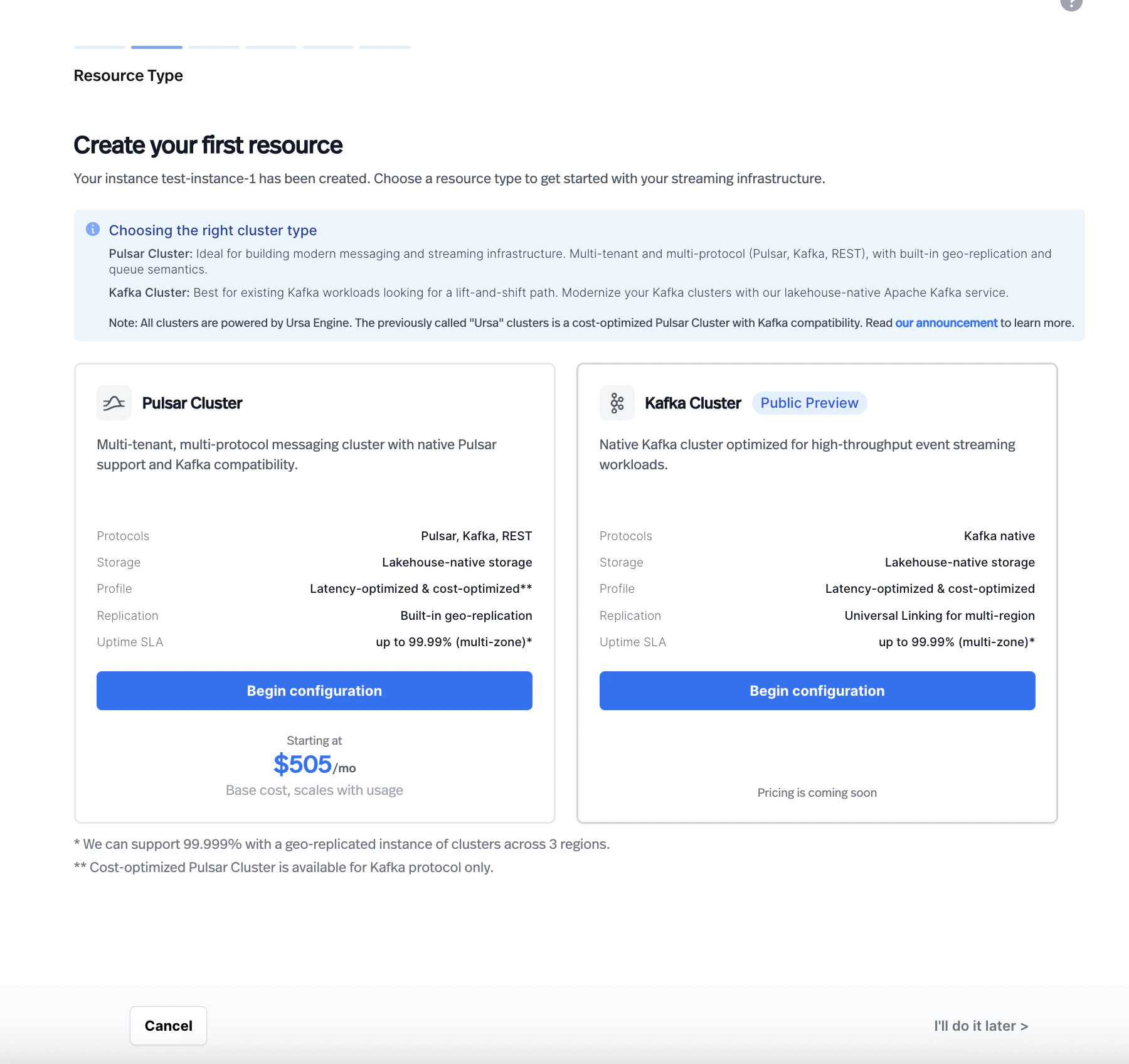
6. On the **Resource Type** page, select **Kafka Cluster**.
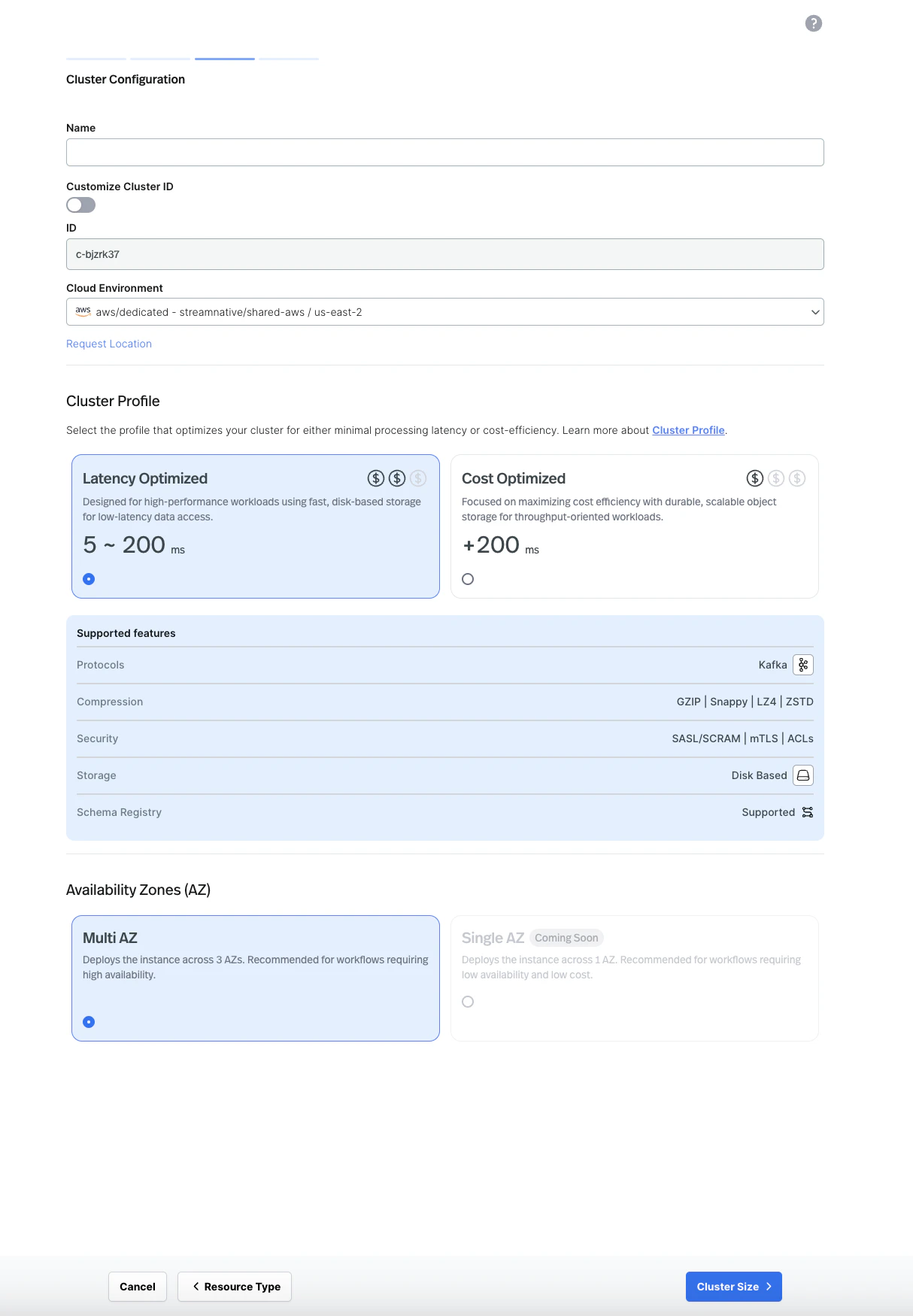
 7. Enter a name for your cluster, select your cloud environment, and choose a cluster profile (**Latency Optimized** or **Cost Optimized**). Select your availability zone configuration.
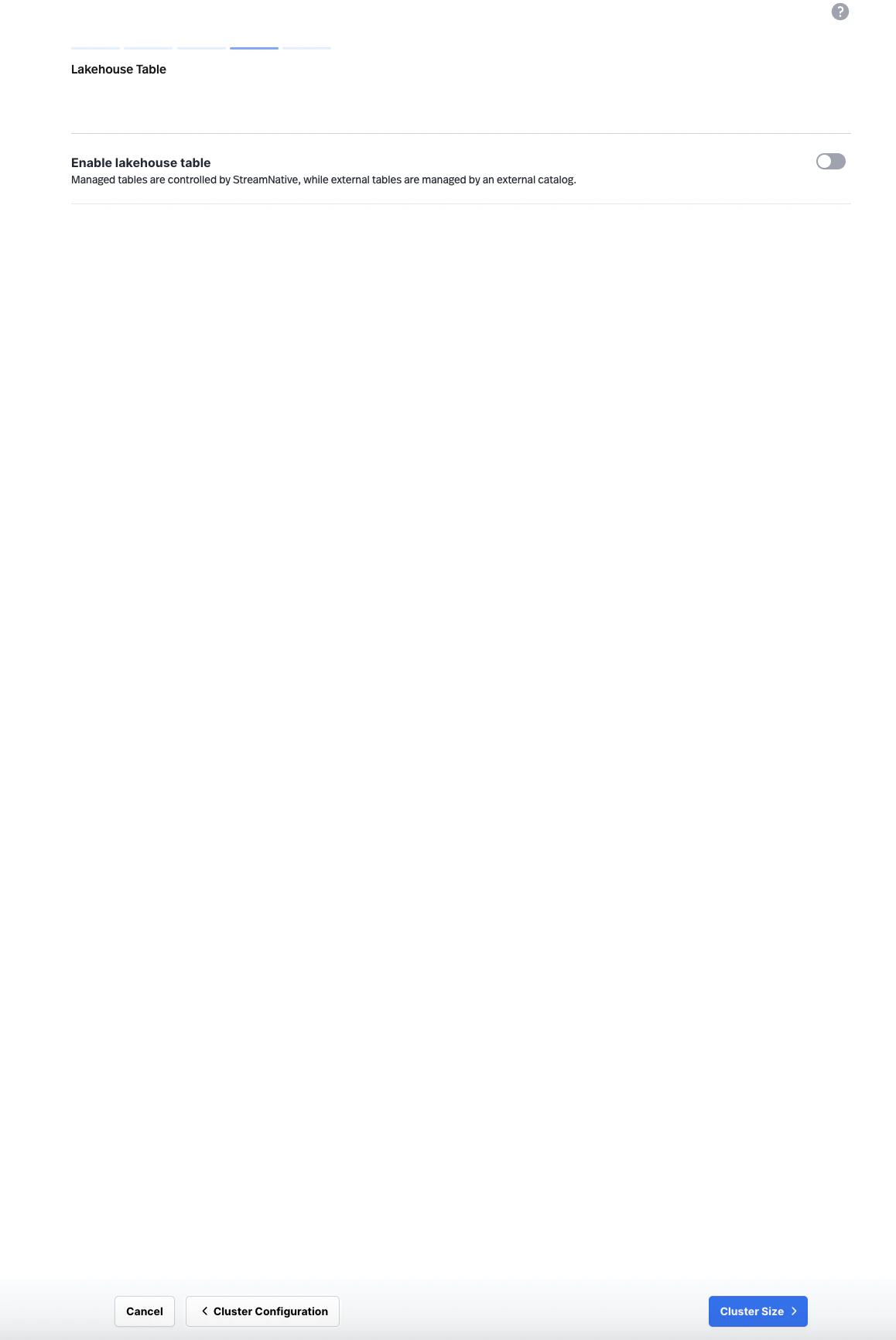
 8. Optionally configure lakehouse table settings, then proceed to **Cluster Size**.
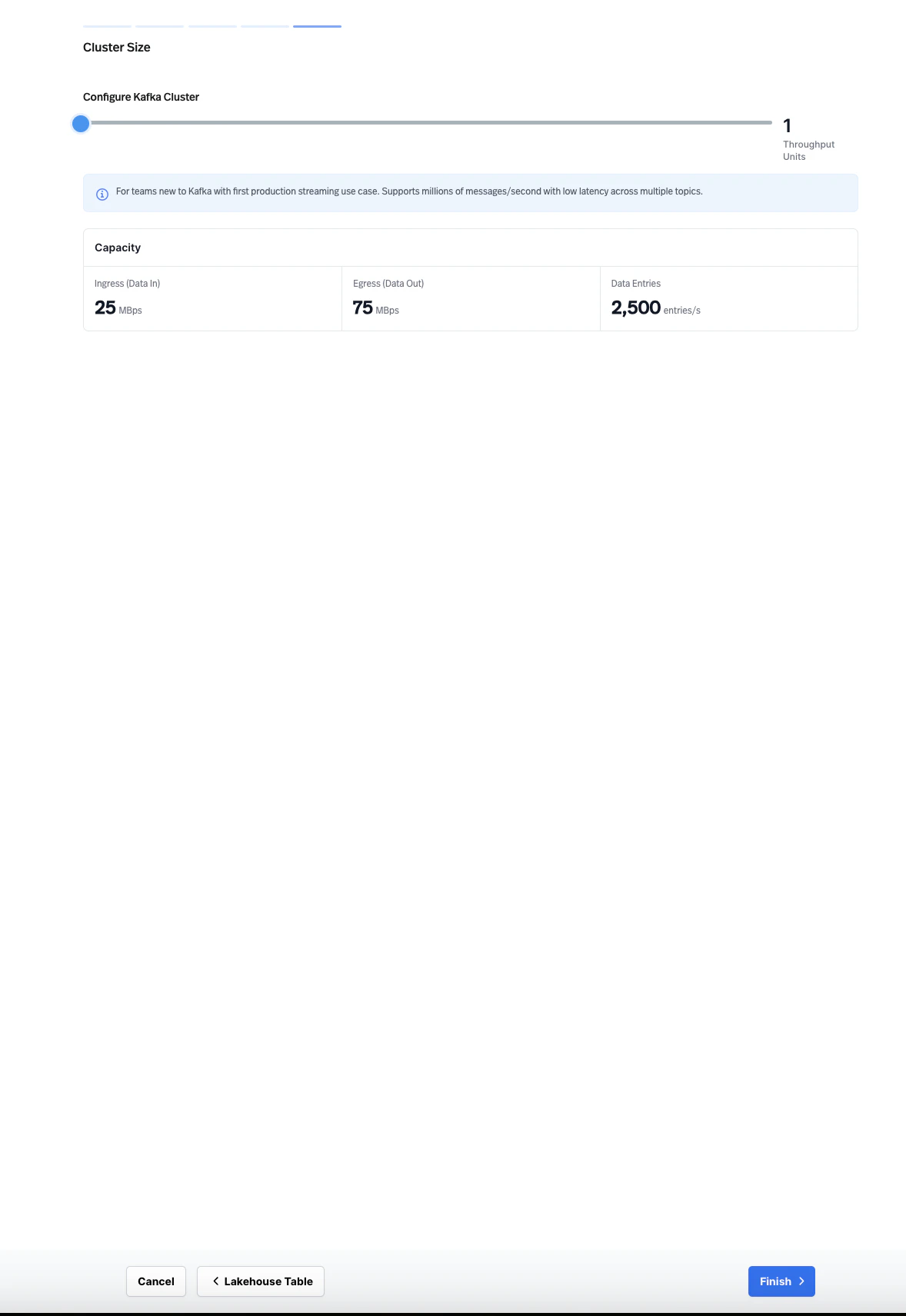
 9. Configure the cluster size using the **Throughput Units** slider to match your expected workload, then click **Finish**.
 Wait for the cluster to finish provisioning. The cluster is ready when all components show a healthy status.
For detailed instructions on configuring Kafka clusters, including advanced options and profile selection, see [Create a Kafka Cluster](/kafka/kafka-cluster-guide).
## Step 3: Create a service account and API key
Create a service account and generate an API key for authenticating your Kafka clients.
1. On the left navigation pane, click **Service Accounts**.
2. Click **Create Service Account**, enter a name, and click **Confirm**.
3. Select the service account you created, then click the **API Keys** tab.
4. Click **Create API Key**, copy the generated key, and store it securely.
Grant your service account `produce` and `consume` permissions on the topics you plan to use. Navigate to **Admin > Topics**, select your topic, and assign the appropriate permissions to your service account.
## Step 4: Produce and consume messages
Use the Kafka CLI tools to produce and consume messages on your cluster.
First, create a configuration file named `kafka.properties` with your connection details:
```properties theme={null}
security.protocol=SASL_SSL
sasl.mechanism=PLAIN
sasl.jaas.config=org.apache.kafka.common.security.plain.PlainLoginModule required \
username="public/default" \
password="token:YOUR_API_KEY";
```
Replace `YOUR_API_KEY` with the API key you generated in the previous step.
Your bootstrap server endpoint follows this format:
```
-..streamnative.cloud:9093
```
```bash Producer theme={null}
kafka-console-producer.sh \
--bootstrap-server -..streamnative.cloud:9093 \
--producer.config kafka.properties \
--topic my-first-topic
```
```bash Consumer theme={null}
kafka-console-consumer.sh \
--bootstrap-server -..streamnative.cloud:9093 \
--consumer.config kafka.properties \
--topic my-first-topic \
--from-beginning \
--group my-consumer-group
```
1. Open a terminal and start the consumer. The consumer waits for messages on the `my-first-topic` topic.
2. Open a second terminal and start the producer.
3. Type a message in the producer terminal (for example, `Hello, Kafka!`) and press **Enter**.
4. Verify that the message appears in the consumer terminal.
The `--from-beginning` flag tells the consumer to read from the earliest offset in the partition. The `--group` flag assigns the consumer to the `my-consumer-group` consumer group, which tracks the offsets for your consumer.
## Next steps
Connect your applications using Kafka client libraries for Java, Python, Go, Node.js, and more.
Check supported Kafka APIs, client versions, and feature compatibility.
Migrate your existing Kafka workloads to StreamNative Kafka Service with zero code changes.
Wait for the cluster to finish provisioning. The cluster is ready when all components show a healthy status.
For detailed instructions on configuring Kafka clusters, including advanced options and profile selection, see [Create a Kafka Cluster](/kafka/kafka-cluster-guide).
## Step 3: Create a service account and API key
Create a service account and generate an API key for authenticating your Kafka clients.
1. On the left navigation pane, click **Service Accounts**.
2. Click **Create Service Account**, enter a name, and click **Confirm**.
3. Select the service account you created, then click the **API Keys** tab.
4. Click **Create API Key**, copy the generated key, and store it securely.
Grant your service account `produce` and `consume` permissions on the topics you plan to use. Navigate to **Admin > Topics**, select your topic, and assign the appropriate permissions to your service account.
## Step 4: Produce and consume messages
Use the Kafka CLI tools to produce and consume messages on your cluster.
First, create a configuration file named `kafka.properties` with your connection details:
```properties theme={null}
security.protocol=SASL_SSL
sasl.mechanism=PLAIN
sasl.jaas.config=org.apache.kafka.common.security.plain.PlainLoginModule required \
username="public/default" \
password="token:YOUR_API_KEY";
```
Replace `YOUR_API_KEY` with the API key you generated in the previous step.
Your bootstrap server endpoint follows this format:
```
-..streamnative.cloud:9093
```
```bash Producer theme={null}
kafka-console-producer.sh \
--bootstrap-server -..streamnative.cloud:9093 \
--producer.config kafka.properties \
--topic my-first-topic
```
```bash Consumer theme={null}
kafka-console-consumer.sh \
--bootstrap-server -..streamnative.cloud:9093 \
--consumer.config kafka.properties \
--topic my-first-topic \
--from-beginning \
--group my-consumer-group
```
1. Open a terminal and start the consumer. The consumer waits for messages on the `my-first-topic` topic.
2. Open a second terminal and start the producer.
3. Type a message in the producer terminal (for example, `Hello, Kafka!`) and press **Enter**.
4. Verify that the message appears in the consumer terminal.
The `--from-beginning` flag tells the consumer to read from the earliest offset in the partition. The `--group` flag assigns the consumer to the `my-consumer-group` consumer group, which tracks the offsets for your consumer.
## Next steps
Connect your applications using Kafka client libraries for Java, Python, Go, Node.js, and more.
Check supported Kafka APIs, client versions, and feature compatibility.
Migrate your existing Kafka workloads to StreamNative Kafka Service with zero code changes.