> ## Documentation Index
> Fetch the complete documentation index at: https://docs.streamnative.io/llms.txt
> Use this file to discover all available pages before exploring further.
> The SQS source connector is used to consume messages from Pulsar topics and publish them to AWS SQS.
# Sqs sink
This connector is available as a built-in connector on StreamNative Cloud.
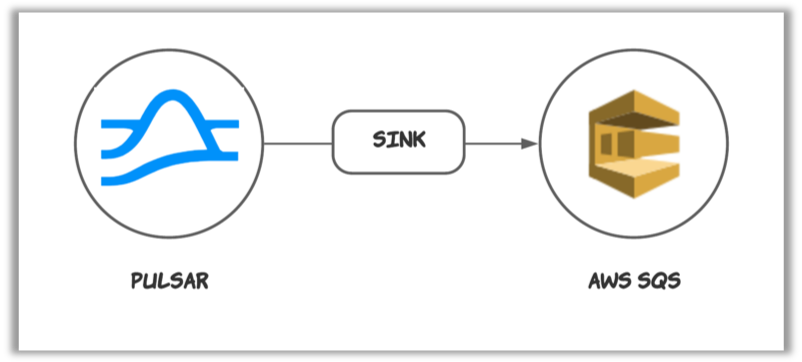
The [AWS Simple Queue Service (SQS)](https://aws.amazon.com/sqs/?nc1=h_ls) sink connector pulls data from Pulsar topics and persists data to AWS SQS.
 ## Quick start
### Prerequisites
The prerequisites for connecting an AWS SQS sink connector to external systems include:
1. Create SQS in AWS.
2. Create the [AWS User](https://docs.aws.amazon.com/IAM/latest/UserGuide/id_users_create.html) and create `AccessKey`(Please record `AccessKey` and `SecretAccessKey`).
3. Assign the following permissions to the AWS User:
* sqs:CreateQueue
* sqs:SendMessage
### 1. Create a connector
The following command shows how to use [pulsarctl](https://github.com/streamnative/pulsarctl) to create a `builtin` connector. If you want to create a `non-builtin` connector,
you need to replace `--sink-type sqs` with `--archive /path/to/pulsar-io-sqs.nar`. You can find the button to download the `nar` package at the beginning of the document.
If you are a StreamNative Cloud user, you need [set up your environment](https://docs.streamnative.io/docs/connector-setup) first.
```bash theme={null}
pulsarctl sinks create \
--sink-type sqs \
--name sqs-sink \
--tenant public \
--namespace default \
--inputs "Your topic name" \
--parallelism 1 \
--sink-config \
'{
"awsRegion": "Your aws sqs region",
"queueName": "Your AWS SQS name",
"awsCredentialPluginParam": "{\"accessKey\":\"Your AWS access key\",\"secretKey\":\"Your AWS secret access key\"}"
}'
```
The `--sink-config` is the minimum necessary configuration for starting this connector, and it is a JSON string. You need to substitute the relevant parameters with your own.
If you want to configure more parameters, see [Configuration Properties](#configuration-properties) for reference.
You can also choose to use a variety of other tools to create a connector:
* [pulsar-admin](https://pulsar.apache.org/docs/3.1.x/io-use/): The command arguments for `pulsar-admin` are similar to those of `pulsarctl`. You can find an example for [StreamNative Cloud Doc](https://docs.streamnative.io/docs/connector-create#create-a-built-in-connector).
* [RestAPI](https://pulsar.apache.org/sink-rest-api/?version=3.1.1): You can find an example for [StreamNative Cloud Doc](https://docs.streamnative.io/docs/connector-create#create-a-built-in-connector).
* [Terraform](https://github.com/hashicorp/terraform): You can find an example for [StreamNative Cloud Doc](https://docs.streamnative.io/docs/connector-create#create-a-built-in-connector).
* [Function Mesh](https://functionmesh.io/docs/connectors/run-connector): The docker image can be found at the beginning of the document.
### 2. Send messages to the topic
If your connector is created on StreamNative Cloud, you need to authenticate your clients. See [Build applications using Pulsar clients](https://docs.streamnative.io/docs/qs-connect#jumpstart-for-beginners) for more information.
```java theme={null}
PulsarClient client = PulsarClient.builder()
.serviceUrl("{{Your Pulsar URL}}")
.build();
Producer producer = client.newProducer(Schema.STRING)
.topic("{{Your topic name}}")
.create();
String message = "test-message";
MessageId msgID = producer.send(message);
System.out.println("Publish " + message + " and message ID " + msgID);
producer.flush();
producer.close();
client.close();
```
### 3. Show data on AWS SQS
You can use the following simple code to receive messages from AWS SQS.
```java theme={null}
public static void main(String[] args) {
AmazonSQS client = AmazonSQSClientBuilder.standard()
.withCredentials(new AWSStaticCredentialsProvider(
new BasicAWSCredentials("Your access key", "Your secret key")))
.withRegion("Your AWS SQS region").build();
String queueUrl = client.getQueueUrl(new GetQueueUrlRequest("Your SQS name")).getQueueUrl();
ReceiveMessageResult receiveMessageResult = client.receiveMessage(queueUrl);
for (Message message : receiveMessageResult.getMessages()) {
System.out.println("Receive msg: " + message.getBody());
}
client.shutdown();
}
// Output
// Receive msg: `{"value" : "test-message"}`
```
## Configuration Properties
Before using the AWS SQS sink connector, you need to configure it. This table outlines the properties and the
Descriptions of an AWS SQS sink connector.
| Name | Type | Required | Sensitive | Default | Description |
| -------------------------- | ------ | -------- | --------- | -------------------- | ------------------------------------------------------------------------------------------------------------------------------------------------------------------------------------------------------------------------------------------------------------------------------------------------------------------------------------- |
| `awsRegion` | String | true | false | " " (empty string) | Supported AWS region. For example, us-west-1, us-west-2. |
| `queueName` | String | true | false | " " (empty string) | The name of the SQS queue that messages should be read from or written to. |
| `awsCredentialPluginName` | String | false | false | " " (empty string) | The fully-qualified class name of implementation of [AwsCredentialProviderPlugin](https://github.com/apache/pulsar/blob/master/pulsar-io/aws/src/main/java/org/apache/pulsar/io/aws/AwsCredentialProviderPlugin.java). For more information, see \[Configure AwsCredentialProviderPlugin]\(###Configure AwsCredentialProviderPlugin). |
| `awsCredentialPluginParam` | String | false | true | " " (empty string) | The JSON parameter to initialize `awsCredentialsProviderPlugin`. For more information, see \[Configure AwsCredentialProviderPlugin]\(###Configure AwsCredentialProviderPlugin). |
| `awsEndpoint` | String | false | false | " " (empty string) | AWS SQS end-point URL. You can find it at [AWS SQS Service endpoints](https://docs.aws.amazon.com/general/latest/gr/sqs-service.html#sqs_region). |
| `fifoMessageGroupIdSource` | String | false | false | `topicPartitionName` | Source for `MessageGroupId` when FIFO is enabled. Supported: `topicPartitionName`, `messageKey`. FIFO is detected automatically when `queueName` ends with `.fifo`. |
| `metadataFields` | String | false | false | "pulsar.key" | The metadata fields to be sent to the SQS message attributes. Valid values are 'pulsar.topic, pulsar.key, pulsar.partitionIndex, pulsar.sequence, pulsar.properties.`{{Your properties key}}`, pulsar.eventTime' |
### Configure AwsCredentialProviderPlugin
AWS SQS sink connector allows you to use three ways to connect to AWS SQS by configuring `awsCredentialPluginName`.
* Leave `awsCredentialPluginName` empty to get the connector authenticated by passing `accessKey` and `secretKey` in `awsCredentialPluginParam`.
```json theme={null}
`{"accessKey":"Your access key","secretKey":"Your secret key"}`
```
* Set `awsCredentialPluginName` to `org.apache.pulsar.io.aws.AwsDefaultProviderChainPlugin` to use the default AWS provider chain. With this option, you don't need to configure `awsCredentialPluginParam`. For more information, see [AWS documentation](https://docs.aws.amazon.com/sdk-for-java/v1/developer-guide/credentials.html#credentials-default).
* Set `awsCredentialPluginName` to `org.apache.pulsar.io.aws.STSAssumeRoleProviderPlugin` to use the [default AWS provider chain](https://docs.aws.amazon.com/sdk-for-java/v1/developer-guide/credentials.html#credentials-default), and you need to configure `roleArn` and `roleSessionNmae` in `awsCredentialPluginParam`. For more information, see [AWS documentation](https://docs.aws.amazon.com/STS/latest/APIReference/API_AssumeRole.html).
```json theme={null}
`{"roleArn": "arn...", "roleSessionName": "name"}`
```
## Advanced features
### Schema Support
The AWS SQS sink connector supports the following schema types: `Primitive Schema`, `Avro Schema`, and `JSON Schema`.
#### Primitive Schema
For the primitive type, the payload format is as follows:
```JSON theme={null}
{
"value": "test-value"
}
// or
{
"value": true
}
// or
{
"value": 1234
}
// or
{
"value": "2023-10-17"
}
// or
{
"value": "MjAyMy0xMC0xNw==" // bytes(base64-encoded)
}
```
The value types include: Number, Boolean, and String. Here's a table indicating the conversion type for each Primitive
Schema Type:
| Primitive Schema Type | JSON Conversion Type | Example |
| ---------------------------------------- | ---------------------------------------------------- | --------------------------------------------------------- |
| Boolean | Boolean | true |
| INT8, INT16, INT32, INT64, FLOAT, DOUBLE | Number | 1234 |
| STRING | String | "Hello" |
| BYTES | Base64-encoded String | "SGVsbG8=" (base64-encoded version of the string "Hello") |
| DATE, TIME, TIMESTAMP | ISO 8601 String (yyy-MM-dd'T'HH:mm:ss.SSSXXX) | '2023-10-30T06:13:48.123+08:00' |
| LocalDate | ISO 8601 String (yyyy-MM-dd) | '2023-10-17' |
| LocalTime | ISO 8601 String (HH:mm:ss.SSSSSSSSS) | '04:30:33.123456789' |
| LocalDateTime | ISO 8601 String (yyyy-MM-dd'T'HH:mm:ss.SSSSSSSSS) | '2023-10-17T04:30:33.123456789' |
| Instant | ISO 8601 String (yyyy-MM-dd'T'HH:mm:ss.SSSSSSSSSXXX) | '2023-10-30T06:13:48.123456789+08:00' |
#### Struct Schema (Avro Schema and JSON Schema)
For the struct schema types `JSON` and `AVRO`, the value is converted into a JSON object. The conversion rules outlined
in the `Primitive schema section` are applied to all primitive type fields within this value object. Nested objects are
also supported.
Here is an example:
```JSON theme={null}
{
"stringField": "hello",
"timeField": "2023-10-17T08:22:11.263Z",
"numberField": 100,
"valueField": "test-value"
}
```
Here are the rules for handling the logical type of the Avro based struct schema (`AVRO` and `JSON`):
| Logical Type | JSON Conversion Type | Example |
| ---------------------------- | ------------------------------------------------ | ---------------------------------- |
| `time-millis`, `time-micros` | ISO 8601 String (HH:mm:ss.SSS) | '13:48:41.123' |
| `timestamp-millis` | ISO 8601 String (yyy-MM-dd'T'HH:mm:ss.SSSXXX) | '2023-10-30T06:13:48.123+08:00' |
| `timestamp-micros` | ISO 8601 String (yyy-MM-dd'T'HH:mm:ss.SSSSSSXXX) | '2023-10-30T06:13:48.123456+08:00' |
| `local-timestamp-millis` | ISO 8601 String (yyyy-MM-dd'T'HH:mm:ss.SSS) | '2023-10-29T22:13:48.123' |
| `local-timestamp-micros` | ISO 8601 String (yyyy-MM-dd'T'HH:mm:ss.SSSSSS) | '2023-10-29T22:13:48.123456' |
### Metadata Support
SQS sink connector will put metadata of Pulsar into SQS `message attributes`. SQS message attributes accommodate various data types such as String, Number, Binary, and so forth.
The supported metadata fields of Pulsar are:
* `topic`: The `string` type of source topic name
* `key`: The `string` type of the message key.
* `partitionIndex`: The `number` type of the topic partition index of the topic.
* `sequence`: The `number` type of the sequence ID.
* `properties`: This is a map, and will unfold this map, placing each key-value pair into the SQS `message attribute`. The type of the key is `string`, and the type of the value is `string`.
* `eventTime`: The event time of the message in the [ISO 8601 format](https://www.w3.org/TR/NOTE-datetime)
* `messageId`: The string representation of a message ID. eg, `"1:1:-1:-1"`
You can get metadata form `message attributes`, for examples:
```yaml theme={null}
"pulsar.topic": "test-topic"
"pulsar.key": "test-key"
"pulsar.partitionsIndex": 1
"pulsar.sequence": 100
"pulsar.properties.key1": "test-properties.value1"
"pulsar.properties.key2": "test-properties.value2"
"pulsar.eventTime": "2023-10-17T04:30:33.123456789"
"pulsar.messageId": "1:1:-1:-1"
```
Users can choose the metadata fields through the `metaDataField` configuration. It is a `string` in which multiple fields are separated by commas. And this connector will verify that the number of metadata cannot exceed 10.
For examples:
```yaml theme={null}
config:
metaDataField: 'pulsar.topic, pulsar.key, pulsar.partitionIndex, pulsar.sequence, pulsar.properties.key1'
```
### FIFO Support
Note: Enabling FIFO mode will lower the sink's throughput in exchange for strict ordering guarantees
* Detection: When `queueName` ends with `.fifo`, the connector treats the queue as FIFO.
* MessageGroupId: Controlled by `fifoMessageGroupIdSource`.
* `topicPartitionName` (default): Uses full Pulsar topic name (including `-partition-x`) to preserve per-partition order.
* `messageKey`: Uses Pulsar `key`, suitable for non-partitioned topics requiring key-based ordering.
* MessageDeduplicationId: Always uses Pulsar `messageId`.
* Standard queues: If not FIFO, the connector does not set FIFO-specific fields.
## Quick start
### Prerequisites
The prerequisites for connecting an AWS SQS sink connector to external systems include:
1. Create SQS in AWS.
2. Create the [AWS User](https://docs.aws.amazon.com/IAM/latest/UserGuide/id_users_create.html) and create `AccessKey`(Please record `AccessKey` and `SecretAccessKey`).
3. Assign the following permissions to the AWS User:
* sqs:CreateQueue
* sqs:SendMessage
### 1. Create a connector
The following command shows how to use [pulsarctl](https://github.com/streamnative/pulsarctl) to create a `builtin` connector. If you want to create a `non-builtin` connector,
you need to replace `--sink-type sqs` with `--archive /path/to/pulsar-io-sqs.nar`. You can find the button to download the `nar` package at the beginning of the document.
If you are a StreamNative Cloud user, you need [set up your environment](https://docs.streamnative.io/docs/connector-setup) first.
```bash theme={null}
pulsarctl sinks create \
--sink-type sqs \
--name sqs-sink \
--tenant public \
--namespace default \
--inputs "Your topic name" \
--parallelism 1 \
--sink-config \
'{
"awsRegion": "Your aws sqs region",
"queueName": "Your AWS SQS name",
"awsCredentialPluginParam": "{\"accessKey\":\"Your AWS access key\",\"secretKey\":\"Your AWS secret access key\"}"
}'
```
The `--sink-config` is the minimum necessary configuration for starting this connector, and it is a JSON string. You need to substitute the relevant parameters with your own.
If you want to configure more parameters, see [Configuration Properties](#configuration-properties) for reference.
You can also choose to use a variety of other tools to create a connector:
* [pulsar-admin](https://pulsar.apache.org/docs/3.1.x/io-use/): The command arguments for `pulsar-admin` are similar to those of `pulsarctl`. You can find an example for [StreamNative Cloud Doc](https://docs.streamnative.io/docs/connector-create#create-a-built-in-connector).
* [RestAPI](https://pulsar.apache.org/sink-rest-api/?version=3.1.1): You can find an example for [StreamNative Cloud Doc](https://docs.streamnative.io/docs/connector-create#create-a-built-in-connector).
* [Terraform](https://github.com/hashicorp/terraform): You can find an example for [StreamNative Cloud Doc](https://docs.streamnative.io/docs/connector-create#create-a-built-in-connector).
* [Function Mesh](https://functionmesh.io/docs/connectors/run-connector): The docker image can be found at the beginning of the document.
### 2. Send messages to the topic
If your connector is created on StreamNative Cloud, you need to authenticate your clients. See [Build applications using Pulsar clients](https://docs.streamnative.io/docs/qs-connect#jumpstart-for-beginners) for more information.
```java theme={null}
PulsarClient client = PulsarClient.builder()
.serviceUrl("{{Your Pulsar URL}}")
.build();
Producer producer = client.newProducer(Schema.STRING)
.topic("{{Your topic name}}")
.create();
String message = "test-message";
MessageId msgID = producer.send(message);
System.out.println("Publish " + message + " and message ID " + msgID);
producer.flush();
producer.close();
client.close();
```
### 3. Show data on AWS SQS
You can use the following simple code to receive messages from AWS SQS.
```java theme={null}
public static void main(String[] args) {
AmazonSQS client = AmazonSQSClientBuilder.standard()
.withCredentials(new AWSStaticCredentialsProvider(
new BasicAWSCredentials("Your access key", "Your secret key")))
.withRegion("Your AWS SQS region").build();
String queueUrl = client.getQueueUrl(new GetQueueUrlRequest("Your SQS name")).getQueueUrl();
ReceiveMessageResult receiveMessageResult = client.receiveMessage(queueUrl);
for (Message message : receiveMessageResult.getMessages()) {
System.out.println("Receive msg: " + message.getBody());
}
client.shutdown();
}
// Output
// Receive msg: `{"value" : "test-message"}`
```
## Configuration Properties
Before using the AWS SQS sink connector, you need to configure it. This table outlines the properties and the
Descriptions of an AWS SQS sink connector.
| Name | Type | Required | Sensitive | Default | Description |
| -------------------------- | ------ | -------- | --------- | -------------------- | ------------------------------------------------------------------------------------------------------------------------------------------------------------------------------------------------------------------------------------------------------------------------------------------------------------------------------------- |
| `awsRegion` | String | true | false | " " (empty string) | Supported AWS region. For example, us-west-1, us-west-2. |
| `queueName` | String | true | false | " " (empty string) | The name of the SQS queue that messages should be read from or written to. |
| `awsCredentialPluginName` | String | false | false | " " (empty string) | The fully-qualified class name of implementation of [AwsCredentialProviderPlugin](https://github.com/apache/pulsar/blob/master/pulsar-io/aws/src/main/java/org/apache/pulsar/io/aws/AwsCredentialProviderPlugin.java). For more information, see \[Configure AwsCredentialProviderPlugin]\(###Configure AwsCredentialProviderPlugin). |
| `awsCredentialPluginParam` | String | false | true | " " (empty string) | The JSON parameter to initialize `awsCredentialsProviderPlugin`. For more information, see \[Configure AwsCredentialProviderPlugin]\(###Configure AwsCredentialProviderPlugin). |
| `awsEndpoint` | String | false | false | " " (empty string) | AWS SQS end-point URL. You can find it at [AWS SQS Service endpoints](https://docs.aws.amazon.com/general/latest/gr/sqs-service.html#sqs_region). |
| `fifoMessageGroupIdSource` | String | false | false | `topicPartitionName` | Source for `MessageGroupId` when FIFO is enabled. Supported: `topicPartitionName`, `messageKey`. FIFO is detected automatically when `queueName` ends with `.fifo`. |
| `metadataFields` | String | false | false | "pulsar.key" | The metadata fields to be sent to the SQS message attributes. Valid values are 'pulsar.topic, pulsar.key, pulsar.partitionIndex, pulsar.sequence, pulsar.properties.`{{Your properties key}}`, pulsar.eventTime' |
### Configure AwsCredentialProviderPlugin
AWS SQS sink connector allows you to use three ways to connect to AWS SQS by configuring `awsCredentialPluginName`.
* Leave `awsCredentialPluginName` empty to get the connector authenticated by passing `accessKey` and `secretKey` in `awsCredentialPluginParam`.
```json theme={null}
`{"accessKey":"Your access key","secretKey":"Your secret key"}`
```
* Set `awsCredentialPluginName` to `org.apache.pulsar.io.aws.AwsDefaultProviderChainPlugin` to use the default AWS provider chain. With this option, you don't need to configure `awsCredentialPluginParam`. For more information, see [AWS documentation](https://docs.aws.amazon.com/sdk-for-java/v1/developer-guide/credentials.html#credentials-default).
* Set `awsCredentialPluginName` to `org.apache.pulsar.io.aws.STSAssumeRoleProviderPlugin` to use the [default AWS provider chain](https://docs.aws.amazon.com/sdk-for-java/v1/developer-guide/credentials.html#credentials-default), and you need to configure `roleArn` and `roleSessionNmae` in `awsCredentialPluginParam`. For more information, see [AWS documentation](https://docs.aws.amazon.com/STS/latest/APIReference/API_AssumeRole.html).
```json theme={null}
`{"roleArn": "arn...", "roleSessionName": "name"}`
```
## Advanced features
### Schema Support
The AWS SQS sink connector supports the following schema types: `Primitive Schema`, `Avro Schema`, and `JSON Schema`.
#### Primitive Schema
For the primitive type, the payload format is as follows:
```JSON theme={null}
{
"value": "test-value"
}
// or
{
"value": true
}
// or
{
"value": 1234
}
// or
{
"value": "2023-10-17"
}
// or
{
"value": "MjAyMy0xMC0xNw==" // bytes(base64-encoded)
}
```
The value types include: Number, Boolean, and String. Here's a table indicating the conversion type for each Primitive
Schema Type:
| Primitive Schema Type | JSON Conversion Type | Example |
| ---------------------------------------- | ---------------------------------------------------- | --------------------------------------------------------- |
| Boolean | Boolean | true |
| INT8, INT16, INT32, INT64, FLOAT, DOUBLE | Number | 1234 |
| STRING | String | "Hello" |
| BYTES | Base64-encoded String | "SGVsbG8=" (base64-encoded version of the string "Hello") |
| DATE, TIME, TIMESTAMP | ISO 8601 String (yyy-MM-dd'T'HH:mm:ss.SSSXXX) | '2023-10-30T06:13:48.123+08:00' |
| LocalDate | ISO 8601 String (yyyy-MM-dd) | '2023-10-17' |
| LocalTime | ISO 8601 String (HH:mm:ss.SSSSSSSSS) | '04:30:33.123456789' |
| LocalDateTime | ISO 8601 String (yyyy-MM-dd'T'HH:mm:ss.SSSSSSSSS) | '2023-10-17T04:30:33.123456789' |
| Instant | ISO 8601 String (yyyy-MM-dd'T'HH:mm:ss.SSSSSSSSSXXX) | '2023-10-30T06:13:48.123456789+08:00' |
#### Struct Schema (Avro Schema and JSON Schema)
For the struct schema types `JSON` and `AVRO`, the value is converted into a JSON object. The conversion rules outlined
in the `Primitive schema section` are applied to all primitive type fields within this value object. Nested objects are
also supported.
Here is an example:
```JSON theme={null}
{
"stringField": "hello",
"timeField": "2023-10-17T08:22:11.263Z",
"numberField": 100,
"valueField": "test-value"
}
```
Here are the rules for handling the logical type of the Avro based struct schema (`AVRO` and `JSON`):
| Logical Type | JSON Conversion Type | Example |
| ---------------------------- | ------------------------------------------------ | ---------------------------------- |
| `time-millis`, `time-micros` | ISO 8601 String (HH:mm:ss.SSS) | '13:48:41.123' |
| `timestamp-millis` | ISO 8601 String (yyy-MM-dd'T'HH:mm:ss.SSSXXX) | '2023-10-30T06:13:48.123+08:00' |
| `timestamp-micros` | ISO 8601 String (yyy-MM-dd'T'HH:mm:ss.SSSSSSXXX) | '2023-10-30T06:13:48.123456+08:00' |
| `local-timestamp-millis` | ISO 8601 String (yyyy-MM-dd'T'HH:mm:ss.SSS) | '2023-10-29T22:13:48.123' |
| `local-timestamp-micros` | ISO 8601 String (yyyy-MM-dd'T'HH:mm:ss.SSSSSS) | '2023-10-29T22:13:48.123456' |
### Metadata Support
SQS sink connector will put metadata of Pulsar into SQS `message attributes`. SQS message attributes accommodate various data types such as String, Number, Binary, and so forth.
The supported metadata fields of Pulsar are:
* `topic`: The `string` type of source topic name
* `key`: The `string` type of the message key.
* `partitionIndex`: The `number` type of the topic partition index of the topic.
* `sequence`: The `number` type of the sequence ID.
* `properties`: This is a map, and will unfold this map, placing each key-value pair into the SQS `message attribute`. The type of the key is `string`, and the type of the value is `string`.
* `eventTime`: The event time of the message in the [ISO 8601 format](https://www.w3.org/TR/NOTE-datetime)
* `messageId`: The string representation of a message ID. eg, `"1:1:-1:-1"`
You can get metadata form `message attributes`, for examples:
```yaml theme={null}
"pulsar.topic": "test-topic"
"pulsar.key": "test-key"
"pulsar.partitionsIndex": 1
"pulsar.sequence": 100
"pulsar.properties.key1": "test-properties.value1"
"pulsar.properties.key2": "test-properties.value2"
"pulsar.eventTime": "2023-10-17T04:30:33.123456789"
"pulsar.messageId": "1:1:-1:-1"
```
Users can choose the metadata fields through the `metaDataField` configuration. It is a `string` in which multiple fields are separated by commas. And this connector will verify that the number of metadata cannot exceed 10.
For examples:
```yaml theme={null}
config:
metaDataField: 'pulsar.topic, pulsar.key, pulsar.partitionIndex, pulsar.sequence, pulsar.properties.key1'
```
### FIFO Support
Note: Enabling FIFO mode will lower the sink's throughput in exchange for strict ordering guarantees
* Detection: When `queueName` ends with `.fifo`, the connector treats the queue as FIFO.
* MessageGroupId: Controlled by `fifoMessageGroupIdSource`.
* `topicPartitionName` (default): Uses full Pulsar topic name (including `-partition-x`) to preserve per-partition order.
* `messageKey`: Uses Pulsar `key`, suitable for non-partitioned topics requiring key-based ordering.
* MessageDeduplicationId: Always uses Pulsar `messageId`.
* Standard queues: If not FIFO, the connector does not set FIFO-specific fields.