> ## Documentation Index
> Fetch the complete documentation index at: https://docs.streamnative.io/llms.txt
> Use this file to discover all available pages before exploring further.
> BigQuery Connector integrates Apache Pulsar with Google BigQuery.
# Google bigquery source
This connector is available as a built-in connector on StreamNative Cloud.
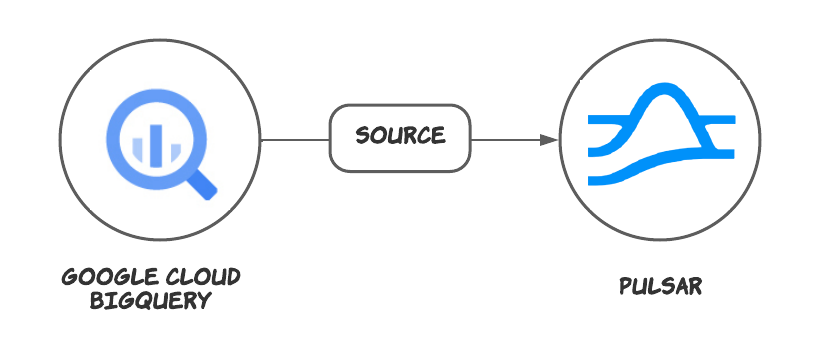
The [Google Cloud BigQuery](https://cloud.google.com/bigquery) Source Connector feeds data from Google Cloud BigQuery tables and writes data to Pulsar topics.
 ## Quick start
### Prerequisites
The prerequisites for connecting an Google BigQuery source connector to external systems include:
1. Create GoogleBigQuery, DataSet and Table in Google Cloud. You can set the schema of the table, and this connector will convert the Avro schema to Pulsar.
2. Create the [Gcloud ServiceAccount](https://cloud.google.com/iam/docs/service-accounts-create) and create a public key certificate.
3. Create the [Gcloud Role](https://cloud.google.com/iam/docs/creating-custom-roles), ensure the Google Cloud role have the following permissions to the Google [BigQuery API](https://cloud.google.com/bigquery/docs/access-control):
```text theme={null}
- bigquery.readsessions.create
- bigquery.readsessions.getData
- bigquery.readsessions.update
- bigquery.jobs.create
- bigquery.tables.get
- bigquery.tables.getData
```
4. Grant the service account the above role permissions.
### 1. Write data to Google Bigquery
You can use SQL to insert some data to a table. For examples:
```sql theme={null}
INSERT INTO `{{Your dataset name}}.{{Your table name}}` (message, info)
VALUES
("message-1", "This is a message-1."),
("message-2", "This is a message-2."),
("message-3", "This is a message-3."),
("message-4", "This is a message-4."),
("message-5", "This is a message-5."),
("message-6", "This is a message-6."),
("message-7", "This is a message-7."),
("message-8", "This is a message-8."),
("message-9", "This is a message-9."),
("message-10", "This is a message-10.");
```
This connector will create a snapshot of BigQueryTable to synchronize data when it starts, so you must make sure that there is data in the table before starting the connector.
In other words, it will only synchronize the data before the start-up, and once the data synchronization is complete, the current implementation will not discover new data to synchronize.
### 2. Create a connector
The following command shows how to use [pulsarctl](https://github.com/streamnative/pulsarctl) to create a `builtin` connector. If you want to create a `non-builtin` connector,
you need to replace `--source-type bigquery` with `--archive /path/to/pulsar-io-bigquery.nar`. You can find the button to download the `nar` package at the beginning of the document.
If you are a StreamNative Cloud user, you need [set up your environment](https://docs.streamnative.io/docs/connector-setup) first.
```bash theme={null}
pulsarctl sources create \
--source-type bigquery \
--name bigquery-source \
--tenant public \
--namespace default \
--destination-topic-name "Your topic name" \
--parallelism 1 \
--batch-source-config '{"discoveryTriggererClassName": "org.apache.pulsar.ecosystem.io.bigquery.source.BigQueryOnceTrigger"}' \
--source-config \
'{
"projectId": "Your BigQuery project Id",
"datasetName": "Your Bigquery DataSet name",
"tableName": "Your Bigquery Table name",
"credentialJsonString": "Public key certificate you created above"
}'
```
The `--source-config` is the minimum necessary configuration for starting this connector, and it is a JSON string. You need to substitute the relevant parameters with your own.
If you want to configure more parameters, see [Configuration Properties](#configuration-properties) for reference.
You can also choose to use a variety of other tools to create a connector:
* [pulsar-admin](https://pulsar.apache.org/docs/3.1.x/io-use/): The command arguments for `pulsar-admin` are similar to those of `pulsarctl`. You can find an example for [StreamNative Cloud Doc](https://docs.streamnative.io/docs/connector-create#create-a-built-in-connector).
* [RestAPI](https://pulsar.apache.org/source-rest-api/?version=3.1.1): You can find an example for [StreamNative Cloud Doc](https://docs.streamnative.io/docs/connector-create#create-a-built-in-connector).
* [Terraform](https://github.com/hashicorp/terraform): You can find an example for [StreamNative Cloud Doc](https://docs.streamnative.io/docs/connector-create#create-a-built-in-connector).
* [Function Mesh](https://functionmesh.io/docs/connectors/run-connector): The docker image can be found at the beginning of the document.
### 3. Show data by Pulsar Consumer
If your connector is created on StreamNative Cloud, you need to authenticate your clients. See [Build applications using Pulsar clients](https://docs.streamnative.io/docs/qs-connect#jumpstart-for-beginners) for more information.
This connector will register the Google BigQuery table schema to pulsar. You can use `AUTO_CONSUMER` to consume the data. For example:
```java theme={null}
public static void main(String[] args) {
PulsarClient client = PulsarClient.builder()
.serviceUrl("{{Your Pulsar URL}}")
.build();
Consumer consumer = client.newConsumer(Schema.AUTO_CONSUME())
.topic("{{The topic name that you specified when you created the connector}}")
.subscriptionName(subscription)
.subscriptionInitialPosition(SubscriptionInitialPosition.Earliest)
.subscribe();
for (int i = 0; i < 10; i++) {
Message message = consumer.receive(10, TimeUnit.SECONDS);
GenericRecord value = message.getValue();
for (Field field : value.getFields()) {
Object fieldValue = value.getField(field);
System.out.print(field.getName() + ":" + fieldValue + " ");
}
System.out.println();
consumer.acknowledge(message);
}
client.close();
}
// output
// message:message-1 info:This is a message-1.
// message:message-2 info:This is a message-2.
// message:message-3 info:This is a message-3.
// message:message-4 info:This is a message-4.
// message:message-5 info:This is a message-5.
// message:message-6 info:This is a message-6.
// message:message-7 info:This is a message-7.
// message:message-8 info:This is a message-8.
// message:message-9 info:This is a message-9.
// message:message-10 info:This is a message-10.
```
## Configuration Properties
Before using the Google Cloud BigQuery source connector, you need to configure it. This table outlines the properties and the descriptions.
| Name | Type | Required | Sensitive | Default | Description | |
| --------------------------- | ------- | -------- | --------- | ----------------- | ------------------------------------------------------------------------------------------------------------------------------------------------------------------------------------------------------------------------------------------------------------------------------------------------------------------------------------------------------------------------------- | - |
| `projectId` | String | Yes | false | "" (empty string) | The Google BigQuery project ID. | |
| `datasetName` | String | Yes | false | "" (empty string) | The Google BigQuery dataset name. | |
| `tableName` | String | Yes | false | "" (empty string) | The Google BigQuery table name. | |
| `credentialJsonString` | String | No | true | "" (empty string) | The authentication JSON key. Set the environment variable `GOOGLE_APPLICATION_CREDENTIALS` to the path of the JSON file that contains your service account key when the `credentialJsonString` is set to an empty string. For details, see the [Google documentation](https://cloud.google.com/bigquery/docs/quickstarts/quickstart-client-libraries#before-you-begin). | |
| `maxParallelism` | int | No | false | 1 | The maximum parallelism for reading. In fact, the number may be less if the BigQuery source connector deems the data small enough. | |
| `forceUpdate` | Boolean | No | false | false | "if forceUpdate=true,a new session will be created. The connector will transmit the data again. | |
| `queueSize` | int | No | false | 10000 | The buffer queue size of the source. It is used for storing records before they are sent to Pulsar topics. By default, it is set to `10000`. | |
| `sql` | String | No | false | "" (empty string) | The SQL query on BigQuery. The computed result is saved in a temporary table. The temporary table has a configurable expiration time, and the BigQuery source connector automatically deletes the temporary table when the data is transferred completely. The `projectId` and `datasetName` gets values from the configuration file, and the `tableName` is generated by UUID. | |
| `expirationTimeInMinutes` | int | No | false | 1440 | The expiration time in minutes until the table is expired and auto-deleted. | |
| `selectedFields` | String | No | false | "" (empty string) | Names of the fields in the table that should be read. | |
| `filters` | String | No | false | "" (empty string) | A list of clauses that can filter the result of the table. | |
| `checkpointIntervalSeconds` | int | No | false | 60 | The checkpoint interval (in units of seconds). By default, it is set to 60s. | |
## Quick start
### Prerequisites
The prerequisites for connecting an Google BigQuery source connector to external systems include:
1. Create GoogleBigQuery, DataSet and Table in Google Cloud. You can set the schema of the table, and this connector will convert the Avro schema to Pulsar.
2. Create the [Gcloud ServiceAccount](https://cloud.google.com/iam/docs/service-accounts-create) and create a public key certificate.
3. Create the [Gcloud Role](https://cloud.google.com/iam/docs/creating-custom-roles), ensure the Google Cloud role have the following permissions to the Google [BigQuery API](https://cloud.google.com/bigquery/docs/access-control):
```text theme={null}
- bigquery.readsessions.create
- bigquery.readsessions.getData
- bigquery.readsessions.update
- bigquery.jobs.create
- bigquery.tables.get
- bigquery.tables.getData
```
4. Grant the service account the above role permissions.
### 1. Write data to Google Bigquery
You can use SQL to insert some data to a table. For examples:
```sql theme={null}
INSERT INTO `{{Your dataset name}}.{{Your table name}}` (message, info)
VALUES
("message-1", "This is a message-1."),
("message-2", "This is a message-2."),
("message-3", "This is a message-3."),
("message-4", "This is a message-4."),
("message-5", "This is a message-5."),
("message-6", "This is a message-6."),
("message-7", "This is a message-7."),
("message-8", "This is a message-8."),
("message-9", "This is a message-9."),
("message-10", "This is a message-10.");
```
This connector will create a snapshot of BigQueryTable to synchronize data when it starts, so you must make sure that there is data in the table before starting the connector.
In other words, it will only synchronize the data before the start-up, and once the data synchronization is complete, the current implementation will not discover new data to synchronize.
### 2. Create a connector
The following command shows how to use [pulsarctl](https://github.com/streamnative/pulsarctl) to create a `builtin` connector. If you want to create a `non-builtin` connector,
you need to replace `--source-type bigquery` with `--archive /path/to/pulsar-io-bigquery.nar`. You can find the button to download the `nar` package at the beginning of the document.
If you are a StreamNative Cloud user, you need [set up your environment](https://docs.streamnative.io/docs/connector-setup) first.
```bash theme={null}
pulsarctl sources create \
--source-type bigquery \
--name bigquery-source \
--tenant public \
--namespace default \
--destination-topic-name "Your topic name" \
--parallelism 1 \
--batch-source-config '{"discoveryTriggererClassName": "org.apache.pulsar.ecosystem.io.bigquery.source.BigQueryOnceTrigger"}' \
--source-config \
'{
"projectId": "Your BigQuery project Id",
"datasetName": "Your Bigquery DataSet name",
"tableName": "Your Bigquery Table name",
"credentialJsonString": "Public key certificate you created above"
}'
```
The `--source-config` is the minimum necessary configuration for starting this connector, and it is a JSON string. You need to substitute the relevant parameters with your own.
If you want to configure more parameters, see [Configuration Properties](#configuration-properties) for reference.
You can also choose to use a variety of other tools to create a connector:
* [pulsar-admin](https://pulsar.apache.org/docs/3.1.x/io-use/): The command arguments for `pulsar-admin` are similar to those of `pulsarctl`. You can find an example for [StreamNative Cloud Doc](https://docs.streamnative.io/docs/connector-create#create-a-built-in-connector).
* [RestAPI](https://pulsar.apache.org/source-rest-api/?version=3.1.1): You can find an example for [StreamNative Cloud Doc](https://docs.streamnative.io/docs/connector-create#create-a-built-in-connector).
* [Terraform](https://github.com/hashicorp/terraform): You can find an example for [StreamNative Cloud Doc](https://docs.streamnative.io/docs/connector-create#create-a-built-in-connector).
* [Function Mesh](https://functionmesh.io/docs/connectors/run-connector): The docker image can be found at the beginning of the document.
### 3. Show data by Pulsar Consumer
If your connector is created on StreamNative Cloud, you need to authenticate your clients. See [Build applications using Pulsar clients](https://docs.streamnative.io/docs/qs-connect#jumpstart-for-beginners) for more information.
This connector will register the Google BigQuery table schema to pulsar. You can use `AUTO_CONSUMER` to consume the data. For example:
```java theme={null}
public static void main(String[] args) {
PulsarClient client = PulsarClient.builder()
.serviceUrl("{{Your Pulsar URL}}")
.build();
Consumer consumer = client.newConsumer(Schema.AUTO_CONSUME())
.topic("{{The topic name that you specified when you created the connector}}")
.subscriptionName(subscription)
.subscriptionInitialPosition(SubscriptionInitialPosition.Earliest)
.subscribe();
for (int i = 0; i < 10; i++) {
Message message = consumer.receive(10, TimeUnit.SECONDS);
GenericRecord value = message.getValue();
for (Field field : value.getFields()) {
Object fieldValue = value.getField(field);
System.out.print(field.getName() + ":" + fieldValue + " ");
}
System.out.println();
consumer.acknowledge(message);
}
client.close();
}
// output
// message:message-1 info:This is a message-1.
// message:message-2 info:This is a message-2.
// message:message-3 info:This is a message-3.
// message:message-4 info:This is a message-4.
// message:message-5 info:This is a message-5.
// message:message-6 info:This is a message-6.
// message:message-7 info:This is a message-7.
// message:message-8 info:This is a message-8.
// message:message-9 info:This is a message-9.
// message:message-10 info:This is a message-10.
```
## Configuration Properties
Before using the Google Cloud BigQuery source connector, you need to configure it. This table outlines the properties and the descriptions.
| Name | Type | Required | Sensitive | Default | Description | |
| --------------------------- | ------- | -------- | --------- | ----------------- | ------------------------------------------------------------------------------------------------------------------------------------------------------------------------------------------------------------------------------------------------------------------------------------------------------------------------------------------------------------------------------- | - |
| `projectId` | String | Yes | false | "" (empty string) | The Google BigQuery project ID. | |
| `datasetName` | String | Yes | false | "" (empty string) | The Google BigQuery dataset name. | |
| `tableName` | String | Yes | false | "" (empty string) | The Google BigQuery table name. | |
| `credentialJsonString` | String | No | true | "" (empty string) | The authentication JSON key. Set the environment variable `GOOGLE_APPLICATION_CREDENTIALS` to the path of the JSON file that contains your service account key when the `credentialJsonString` is set to an empty string. For details, see the [Google documentation](https://cloud.google.com/bigquery/docs/quickstarts/quickstart-client-libraries#before-you-begin). | |
| `maxParallelism` | int | No | false | 1 | The maximum parallelism for reading. In fact, the number may be less if the BigQuery source connector deems the data small enough. | |
| `forceUpdate` | Boolean | No | false | false | "if forceUpdate=true,a new session will be created. The connector will transmit the data again. | |
| `queueSize` | int | No | false | 10000 | The buffer queue size of the source. It is used for storing records before they are sent to Pulsar topics. By default, it is set to `10000`. | |
| `sql` | String | No | false | "" (empty string) | The SQL query on BigQuery. The computed result is saved in a temporary table. The temporary table has a configurable expiration time, and the BigQuery source connector automatically deletes the temporary table when the data is transferred completely. The `projectId` and `datasetName` gets values from the configuration file, and the `tableName` is generated by UUID. | |
| `expirationTimeInMinutes` | int | No | false | 1440 | The expiration time in minutes until the table is expired and auto-deleted. | |
| `selectedFields` | String | No | false | "" (empty string) | Names of the fields in the table that should be read. | |
| `filters` | String | No | false | "" (empty string) | A list of clauses that can filter the result of the table. | |
| `checkpointIntervalSeconds` | int | No | false | 60 | The checkpoint interval (in units of seconds). By default, it is set to 60s. | |