> ## Documentation Index
> Fetch the complete documentation index at: https://docs.streamnative.io/llms.txt
> Use this file to discover all available pages before exploring further.
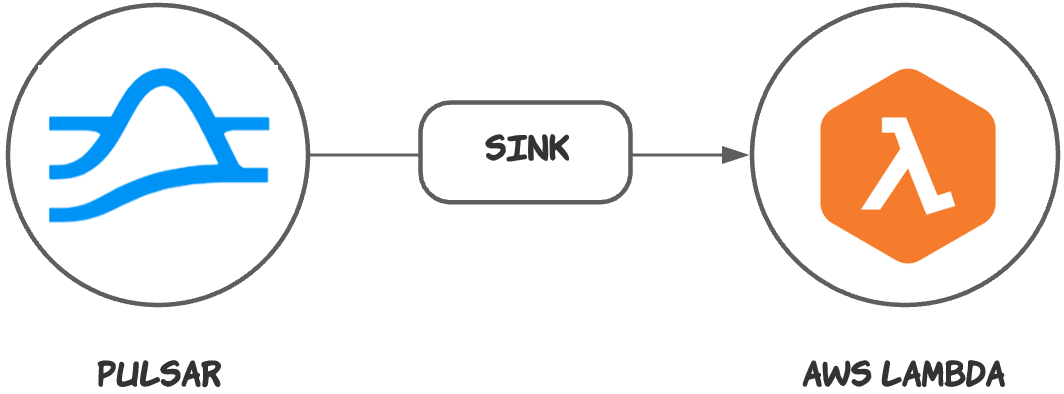
> The AWS Lambda sink connector allows you to send messages from Apache Pulsar to AWS Lambda.
# Aws lambda sink
This connector is available as a built-in connector on StreamNative Cloud.
The [AWS Lambda](https://aws.amazon.com/lambda/) sink connector is
a [Pulsar IO connector](http://pulsar.apache.org/docs/en/next/io-overview/) for pulling messages from Pulsar topics to
AWS Lambda to invoke Lambda functions.
 ## Quick start
### Prerequisites
The prerequisites for connecting an AWS Lambda sink connector to external systems include:
1. Create a AWS Lambda function in AWS: [https://docs.aws.amazon.com/lambda/latest/dg/getting-started.html](https://docs.aws.amazon.com/lambda/latest/dg/getting-started.html)
2. Create the [AWS User](https://docs.aws.amazon.com/IAM/latest/UserGuide/id_users_create.html) and create `AccessKey`(
Please record `AccessKey` and `SecretAccessKey`).
3. Assign permissions to AWS User, and ensure they have the following permissions to the AWS Lambda. For details,
see [permissions for AWS Lambda](https://docs.aws.amazon.com/lambda/latest/dg/lambda-permissions.html)
```json theme={null}
{
"Version": "2012-10-17",
"Statement": [
{
"Effect": "Allow",
"Action": [
"lambda:InvokeFunction",
"lambda:GetFunction"
],
"Resource": "*"
}
]
}
```
### 1. Create a connector
The following command shows how to use [pulsarctl](https://github.com/streamnative/pulsarctl) to create a `builtin` connector. If you want to create a `non-builtin` connector,
you need to replace `--sink-type aws-lambda` with `--archive /path/to/pulsar-io-aws-lambda.nar`. You can find the button to download the `nar` package at the beginning of the document.
If you are a StreamNative Cloud user, you need [set up your environment](https://docs.streamnative.io/docs/connector-setup) first.
```bash theme={null}
pulsarctl sinks create \
--sink-type aws-lambda \
--name aws-lambda-sink \
--tenant public \
--namespace default \
--inputs "Your topic name" \
--parallelism 1 \
--sink-config \
'{
"awsAccessKey": "Your AWS access key",
"awsSecretKey": "Your AWS secret key",
"awsRegion": "Your AWS region",
"lambdaFunctionName": "Your AWS function name"
"payloadFormat": "V2"
}'
```
The `--sink-config` is the minimum necessary and recommended configuration for starting this connector, and it is a JSON string. You need to substitute the relevant parameters with your own.
If you want to configure more parameters, see [Configuration Properties](#configuration-properties) for reference.
You can also choose to use a variety of other tools to create a connector:
* [pulsar-admin](https://pulsar.apache.org/docs/3.1.x/io-use/): The command arguments for `pulsar-admin` are similar to those of `pulsarctl`. You can find an example for [StreamNative Cloud Doc](https://docs.streamnative.io/docs/connector-create#create-a-built-in-connector).
* [RestAPI](https://pulsar.apache.org/sink-rest-api/?version=3.1.1): You can find an example for [StreamNative Cloud Doc](https://docs.streamnative.io/docs/connector-create#create-a-built-in-connector).
* [Terraform](https://github.com/hashicorp/terraform): You can find an example for [StreamNative Cloud Doc](https://docs.streamnative.io/docs/connector-create#create-a-built-in-connector).
* [Function Mesh](https://functionmesh.io/docs/connectors/run-connector): The docker image can be found at the beginning of the document.
### 2. Send messages to the topic
If your connector is created on StreamNative Cloud, you need to authenticate your clients.
See [Build applications using Pulsar clients](https://docs.streamnative.io/docs/qs-connect#jumpstart-for-beginners) for
more information.
```java theme={null}
PulsarClient client = PulsarClient.builder()
.serviceUrl("{{Your Pulsar URL}}")
.build();
Producer producer = client.newProducer(Schema.STRING)
.topic("{{Your topic name}}")
.create();
String message = "Hello, AWS Lambda";
MessageId msgID = producer.send(message);
System.out.println("Publish " + message + " and message ID " + msgID);
producer.flush();
producer.close();
client.close();
```
You can also send the message using the command line:
```sh theme={null}
$ bin/pulsar-client produce pulsar-topic-name --messages "Hello, AWS Lambda"
```
### 3. Inspect messages in AWS Lambda
Once you have sent messages to your Pulsar topic, the AWS Lambda sink connector should automatically forward them to the
specified AWS Lambda function. To verify that your messages have been correctly received by AWS Lambda, you can inspect
the logs in the AWS Management Console.
Here are the steps to inspect messages in AWS Lambda:
1. Log in to your AWS Management Console.
2. Navigate to the AWS Lambda service by clicking on "Services" at the top of the page and then typing "Lambda" into the
search bar.
3. Once you're in the AWS Lambda service, locate and click on the name of the Lambda function you specified when setting
up your connector.
4. Once you've opened your function, click on the "Monitoring" tab.
5. In the "Monitoring" tab, click on "View logs in CloudWatch". This will redirect you to the AWS CloudWatch service,
where you can view the log streams for your function.
6. In CloudWatch, select the most recent log stream to view the most recent logs. If your connector is correctly
forwarding messages, you should see log entries corresponding to the execution of your function with the messages you
sent.
Remember, the logs may take a few minutes to appear in CloudWatch due to the nature of distributed systems and potential
network latencies.
If you do not see your messages in the logs, make sure that your AWS Lambda function is correctly logging incoming
events. You may need to modify your function to explicitly log the event data it receives.
By regularly checking the CloudWatch logs for your AWS Lambda function, you can ensure that your Pulsar AWS Lambda sink
connector is correctly forwarding messages and troubleshoot any issues that may arise.
## Configuration Properties
Before using the AWS Lambda sink connector, you need to configure it. This table outlines the properties and the
descriptions.
| Name | Type | Required | Sensitive | Default | Description |
| -------------------------- | ------- | -------- | --------- | -------------------------------------------------------- | ------------------------------------------------------------------------------------------------------------------------------------------------------------------------------------------------------------------------------------ |
| `awsEndpoint` | String | false | false | " " (empty string) | The AWS Lambda endpoint URL. It can be found at [AWS Lambda endpoints and quotas](https://docs.aws.amazon.com/general/latest/gr/lambda-service.html). |
| `awsRegion` | String | true | false | " " (empty string) | The supported AWS region. For example, `us-west-1`, `us-west-2`. |
| `awsAccessKey` | String | false | true | " " (empty string) | The AWS access key. See here for how to get it: [Managing Access Keys for IAM Users](https://docs.aws.amazon.com/IAM/latest/UserGuide/id_credentials_access-keys.html). |
| `awsSecretKey` | String | false | true | " " (empty string) | The AWS secret key. See here for how to get it: [Managing Access Keys for IAM Users](https://docs.aws.amazon.com/IAM/latest/UserGuide/id_credentials_access-keys.html). |
| `lambdaFunctionName` | String | true | false | " " (empty string) | The Lambda function that should be invoked by the messages. |
| `awsCredentialPluginName` | String | false | false | " " (empty string) | The fully-qualified class name of the `AwsCredentialProviderPlugin` implementation. |
| `awsCredentialPluginParam` | String | false | true | " " (empty string) | The JSON parameters to initialize `AwsCredentialsProviderPlugin`. |
| `synchronousInvocation` | Boolean | false | false | true |
## Quick start
### Prerequisites
The prerequisites for connecting an AWS Lambda sink connector to external systems include:
1. Create a AWS Lambda function in AWS: [https://docs.aws.amazon.com/lambda/latest/dg/getting-started.html](https://docs.aws.amazon.com/lambda/latest/dg/getting-started.html)
2. Create the [AWS User](https://docs.aws.amazon.com/IAM/latest/UserGuide/id_users_create.html) and create `AccessKey`(
Please record `AccessKey` and `SecretAccessKey`).
3. Assign permissions to AWS User, and ensure they have the following permissions to the AWS Lambda. For details,
see [permissions for AWS Lambda](https://docs.aws.amazon.com/lambda/latest/dg/lambda-permissions.html)
```json theme={null}
{
"Version": "2012-10-17",
"Statement": [
{
"Effect": "Allow",
"Action": [
"lambda:InvokeFunction",
"lambda:GetFunction"
],
"Resource": "*"
}
]
}
```
### 1. Create a connector
The following command shows how to use [pulsarctl](https://github.com/streamnative/pulsarctl) to create a `builtin` connector. If you want to create a `non-builtin` connector,
you need to replace `--sink-type aws-lambda` with `--archive /path/to/pulsar-io-aws-lambda.nar`. You can find the button to download the `nar` package at the beginning of the document.
If you are a StreamNative Cloud user, you need [set up your environment](https://docs.streamnative.io/docs/connector-setup) first.
```bash theme={null}
pulsarctl sinks create \
--sink-type aws-lambda \
--name aws-lambda-sink \
--tenant public \
--namespace default \
--inputs "Your topic name" \
--parallelism 1 \
--sink-config \
'{
"awsAccessKey": "Your AWS access key",
"awsSecretKey": "Your AWS secret key",
"awsRegion": "Your AWS region",
"lambdaFunctionName": "Your AWS function name"
"payloadFormat": "V2"
}'
```
The `--sink-config` is the minimum necessary and recommended configuration for starting this connector, and it is a JSON string. You need to substitute the relevant parameters with your own.
If you want to configure more parameters, see [Configuration Properties](#configuration-properties) for reference.
You can also choose to use a variety of other tools to create a connector:
* [pulsar-admin](https://pulsar.apache.org/docs/3.1.x/io-use/): The command arguments for `pulsar-admin` are similar to those of `pulsarctl`. You can find an example for [StreamNative Cloud Doc](https://docs.streamnative.io/docs/connector-create#create-a-built-in-connector).
* [RestAPI](https://pulsar.apache.org/sink-rest-api/?version=3.1.1): You can find an example for [StreamNative Cloud Doc](https://docs.streamnative.io/docs/connector-create#create-a-built-in-connector).
* [Terraform](https://github.com/hashicorp/terraform): You can find an example for [StreamNative Cloud Doc](https://docs.streamnative.io/docs/connector-create#create-a-built-in-connector).
* [Function Mesh](https://functionmesh.io/docs/connectors/run-connector): The docker image can be found at the beginning of the document.
### 2. Send messages to the topic
If your connector is created on StreamNative Cloud, you need to authenticate your clients.
See [Build applications using Pulsar clients](https://docs.streamnative.io/docs/qs-connect#jumpstart-for-beginners) for
more information.
```java theme={null}
PulsarClient client = PulsarClient.builder()
.serviceUrl("{{Your Pulsar URL}}")
.build();
Producer producer = client.newProducer(Schema.STRING)
.topic("{{Your topic name}}")
.create();
String message = "Hello, AWS Lambda";
MessageId msgID = producer.send(message);
System.out.println("Publish " + message + " and message ID " + msgID);
producer.flush();
producer.close();
client.close();
```
You can also send the message using the command line:
```sh theme={null}
$ bin/pulsar-client produce pulsar-topic-name --messages "Hello, AWS Lambda"
```
### 3. Inspect messages in AWS Lambda
Once you have sent messages to your Pulsar topic, the AWS Lambda sink connector should automatically forward them to the
specified AWS Lambda function. To verify that your messages have been correctly received by AWS Lambda, you can inspect
the logs in the AWS Management Console.
Here are the steps to inspect messages in AWS Lambda:
1. Log in to your AWS Management Console.
2. Navigate to the AWS Lambda service by clicking on "Services" at the top of the page and then typing "Lambda" into the
search bar.
3. Once you're in the AWS Lambda service, locate and click on the name of the Lambda function you specified when setting
up your connector.
4. Once you've opened your function, click on the "Monitoring" tab.
5. In the "Monitoring" tab, click on "View logs in CloudWatch". This will redirect you to the AWS CloudWatch service,
where you can view the log streams for your function.
6. In CloudWatch, select the most recent log stream to view the most recent logs. If your connector is correctly
forwarding messages, you should see log entries corresponding to the execution of your function with the messages you
sent.
Remember, the logs may take a few minutes to appear in CloudWatch due to the nature of distributed systems and potential
network latencies.
If you do not see your messages in the logs, make sure that your AWS Lambda function is correctly logging incoming
events. You may need to modify your function to explicitly log the event data it receives.
By regularly checking the CloudWatch logs for your AWS Lambda function, you can ensure that your Pulsar AWS Lambda sink
connector is correctly forwarding messages and troubleshoot any issues that may arise.
## Configuration Properties
Before using the AWS Lambda sink connector, you need to configure it. This table outlines the properties and the
descriptions.
| Name | Type | Required | Sensitive | Default | Description |
| -------------------------- | ------- | -------- | --------- | -------------------------------------------------------- | ------------------------------------------------------------------------------------------------------------------------------------------------------------------------------------------------------------------------------------ |
| `awsEndpoint` | String | false | false | " " (empty string) | The AWS Lambda endpoint URL. It can be found at [AWS Lambda endpoints and quotas](https://docs.aws.amazon.com/general/latest/gr/lambda-service.html). |
| `awsRegion` | String | true | false | " " (empty string) | The supported AWS region. For example, `us-west-1`, `us-west-2`. |
| `awsAccessKey` | String | false | true | " " (empty string) | The AWS access key. See here for how to get it: [Managing Access Keys for IAM Users](https://docs.aws.amazon.com/IAM/latest/UserGuide/id_credentials_access-keys.html). |
| `awsSecretKey` | String | false | true | " " (empty string) | The AWS secret key. See here for how to get it: [Managing Access Keys for IAM Users](https://docs.aws.amazon.com/IAM/latest/UserGuide/id_credentials_access-keys.html). |
| `lambdaFunctionName` | String | true | false | " " (empty string) | The Lambda function that should be invoked by the messages. |
| `awsCredentialPluginName` | String | false | false | " " (empty string) | The fully-qualified class name of the `AwsCredentialProviderPlugin` implementation. |
| `awsCredentialPluginParam` | String | false | true | " " (empty string) | The JSON parameters to initialize `AwsCredentialsProviderPlugin`. |
| `synchronousInvocation` | Boolean | false | false | true |
- `true`: invoke a Lambda function synchronously.
- `false`: invoke a Lambda function asynchronously. |
| `payloadFormat` | String | false | false | "V1" | The format of the payload to be sent to the lambda function. Valid values are "V1" and "V2". "V1" is the default value. |
| `metadataFields` | String | false | false | "topic,key,partitionIndex,sequence,properties,eventTime" | The metadata fields to be sent to the lambda function. Valid values are `topic,key,partitionIndex,sequence,properties,eventTime,publishTime`, This configuration only takes effect when using the V2 data format (payloadFormat=V2). |
| `batchMaxSize` | Integer | false | false | 10 | The maximum number of records to send to the lambda function in a single batch. This configuration only takes effect when using the V2 data format (payloadFormat=V2). |
| `batchMaxBytesSize` | Integer | false | false | 262144 | The maximum size of the payload to send to the lambda function in a single batch. This configuration only takes effect when using the V2 data format (payloadFormat=V2). |
| `batchMaxTimeMs` | Integer | false | false | 5000 | The maximum wait time for batching in milliseconds. This configuration only takes effect when using the V2 data format (payloadFormat=V2). |
## Advanced features
### Payload Format
The payload refers to the actual data that the AWS Lambda sink connector sends to the AWS Lambda function. The AWS
Lambda sink connector supports two payload formats: `V1` and `V2`. It is strongly recommended for you to utilize
the `V2` payload format.
The `V2` payload format provides a more standardized method for managing message data, with added support for schema
conversion and batching.
#### V1 Payload Format
The `V1` payload format is the default payload format. It incorporates three types of data formats, all of which are
represented as JSON objects.
* **Serialization of the Record Object**: Initially, the sink connector attempts to convert the Record object into a
JSON object.
* **Conversion from the Message Value**: If the conversion of the `Record` object into a JSON object encounters an
exception, the connector will attempt to convert the message value itself into a JSON object. The format of this data
entirely depends on how the user has set the message value. It can take any form specified by the user.
* **The JSON Object Containing Metadata and the Value with String Type**: If the message value is not a valid JSON, the
connector will construct a JSON object that includes the message metadata and the message value. If a metadata field
does not exist, it will not be included in the JSON object.
Here is an example of the V1 format payload:
```json theme={null}
{
sourceRecord: {
...
value: 'aGVsbG8=',
key: {
empty: true,
present: false
},
...
},
value: 'aGVsbG8=',
schema: {
schemaInfo: {
name: 'Bytes',
schema: '',
type: 'BYTES',
timestamp: 0,
properties: {},
schemaDefinition: ''
},
nativeSchema: {
empty: true,
present: false
}
},
...
}
```
#### V2 Payload Format
The payload in the `V2` format consists of an array of JSON objects, each representing a message. Each message includes
metadata fields and a value, with the value being either a JSON object or a primitive JSON value.
Here is an example of the V2 payload format:
```json theme={null}
[
{
"topic": "my-topic-1",
"key": "my-key",
...
"value": {
"my-field": 123
}
},
{
"topic": "my-topic-2",
"key": "my-key",
...
"value": "test-value"
}
]
```
### Schema Support
The AWS Lambda sink connector supports the following schema types: `Primitive Schema`, `Avro Schema`, and `JSON Schema`.
#### Primitive Schema
For the primitive type, the payload format is as follows:
```JSON theme={null}
[
{
"topic": "my-topic-1",
"key": "my-key",
...
"value": 123
},
{
"topic": "my-topic-2",
"key": "my-key",
...
"value": "test-value"
},
{
"topic": "my-topic-3",
"key": "my-key",
...
"value": true
}
]
```
The value types include: Number, Boolean, and String. Here's a table indicating the conversion type for each Primitive
Schema Type:
| Primitive Schema Type | JSON Conversion Type | Example |
| ---------------------------------------- | ---------------------------------------------------- | --------------------------------------------------------- |
| Boolean | Boolean | true |
| INT8, INT16, INT32, INT64, FLOAT, DOUBLE | Number | 1234 |
| STRING | String | "Hello" |
| BYTES | Base64-encoded String | "SGVsbG8=" (base64-encoded version of the string "Hello") |
| DATE, TIME, TIMESTAMP | ISO 8601 String (yyy-MM-dd'T'HH:mm:ss.SSSXXX) | '2023-10-30T06:13:48.123+08:00' |
| LocalDate | ISO 8601 String (yyyy-MM-dd) | '2023-10-17' |
| LocalTime | ISO 8601 String (HH:mm:ss.SSSSSSSSS) | '04:30:33.123456789' |
| LocalDateTime | ISO 8601 String (yyyy-MM-dd'T'HH:mm:ss.SSSSSSSSS) | '2023-10-17T04:30:33.123456789' |
| Instant | ISO 8601 String (yyyy-MM-dd'T'HH:mm:ss.SSSSSSSSSXXX) | '2023-10-30T06:13:48.123456789+08:00' |
#### Struct Schema (Avro Schema and JSON Schema)
For the struct schema types `JSON` and `AVRO`, the value is converted into a JSON object. The conversion rules outlined
in the `Primitive schema section` are applied to all primitive type fields within this value object. Nested objects are
also supported.
Here is an example:
```JSON theme={null}
[
{
"topic": "my-topic",
"key": "my-key",
...
"value": {
"message": "hello",
"time": "2023-10-17T08:22:11.263Z"
}
}
]
```
Here are the rules for handling the logical type of the Avro based struct schema (`AVRO` and `JSON`):
| Logical Type | JSON Conversion Type | Example |
| ---------------------------- | ------------------------------------------------ | ---------------------------------- |
| `time-millis`, `time-micros` | ISO 8601 String (HH:mm:ss.SSS) | '13:48:41.123' |
| `timestamp-millis` | ISO 8601 String (yyy-MM-dd'T'HH:mm:ss.SSSXXX) | '2023-10-30T06:13:48.123+08:00' |
| `timestamp-micros` | ISO 8601 String (yyy-MM-dd'T'HH:mm:ss.SSSSSSXXX) | '2023-10-30T06:13:48.123456+08:00' |
| `local-timestamp-millis` | ISO 8601 String (yyyy-MM-dd'T'HH:mm:ss.SSS) | '2023-10-29T22:13:48.123' |
| `local-timestamp-micros` | ISO 8601 String (yyyy-MM-dd'T'HH:mm:ss.SSSSSS) | '2023-10-29T22:13:48.123456' |
#### Metadata
You can select the metadata fields through the `metaDataField` configuration. The supported metadata fields include:
* `topic`: The source topic name
* `key`: The string type key
* `partitionIndex`: The partition index of the topic
* `sequence`: The sequence ID of the message
* `properties`: The String to String map
* `eventTime`: The event time of the message in the [ISO 8601 format](https://www.w3.org/TR/NOTE-datetime)
* `messageId`: The string representation of a message ID. e.g., '1:1:-1:-1'
#### Batch Support
The AWS Lambda sink connector supports combining multiple messages into a single Lambda invocation for delivery. Each
batch is a V2 format payload that contains multiple messages. The batching support only works when using the V2 format.
You can use the following configurations to control the batch sink policy:
* `batchMaxSize`: The maximum number of records to send to the Lambda function in a single batch.
* `batchMaxBytesSize`: The maximum size of the payload to send to the Lambda function in a single batch.
* `batchMaxTimeMs`: The maximum wait time for batching in milliseconds.
You can simply set `batchMaxSize` to `1` to disable batching.
Please note that AWS Lambda has a payload quota
limit: [AWS Lambda Payload Quotas](https://docs.aws.amazon.com/lambda/latest/dg/gettingstarted-limits.html). The byte
size of a batch should not exceed this quota limit.