> ## Documentation Index
> Fetch the complete documentation index at: https://docs.streamnative.io/llms.txt
> Use this file to discover all available pages before exploring further.
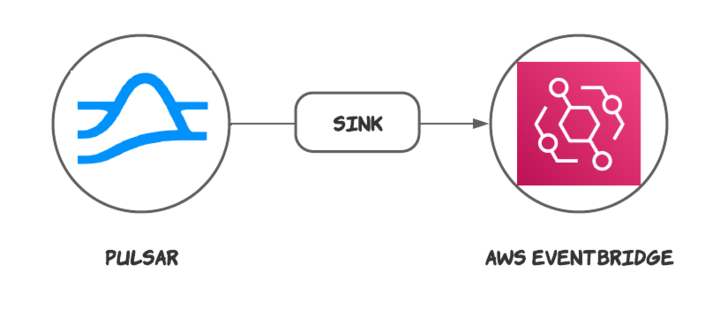
> This connector allows you to make sink connections from Pulsar to AWS EventBridge.
# Aws eventbridge sink
This connector is available as a built-in connector on StreamNative Cloud.
The [Amazon EventBridge](https://aws.amazon.com/eventbridge/) sink connector pulls data from Pulsar topics and persists
data to Amazon EventBridge.
 ## Quick start
### Prerequisites
The prerequisites for connecting an AWS EventBridge sink connector to external systems include:
1. Create EventBridge and EventBus in AWS.
2. Create the [AWS User](https://docs.aws.amazon.com/IAM/latest/UserGuide/id_users_create.html) and create `AccessKey`(Please record `AccessKey` and `SecretAccessKey`).
3. Assign permissions to AWS User, and ensure they have the `PutEvents` permissions to the AWS EventBus. For details, see [permissions for event buses](https://docs.aws.amazon.com/eventbridge/latest/userguide/eb-event-bus-perms.html)
```json theme={null}
{
"Version": "2012-10-17",
"Statement": [
{
"Sid": "AllowAccountToPutEvents",
"Effect": "Allow",
"Principal": {
"AWS": ""
},
"Action": "events:PutEvents",
"Resource": "{EventBusArn}"
}
]
}
```
* You can set permissions directly for this user. With this method, when you create a connector, you only need to configure `accessKey` and `secretAccessKey`.
* Or you can use [Security Token Service](https://docs.aws.amazon.com/STS/latest/APIReference/welcome.html), this [video](https://www.youtube.com/watch?v=dqF4VJCska4) explains how to use STS on AWS.
With this method, when you create a connector, in addition to configuring `accessKey` and `secretAccessKey`, you also need to configure `role` and `roleSessionName`.
4. Create a [Rule](https://docs.aws.amazon.com/eventbridge/latest/userguide/eb-create-rule.html) in EventBridge.
* The data structure sent to Event Bridge is described \[here]\(## Metadata mapping), and you can create **event pattern** based on this structure.
* Set the target according to your needs. If you're testing this connector, you can set the target to [Cloud Watch](https://docs.aws.amazon.com/AmazonCloudWatch/latest/monitoring/WhatIsCloudWatch.html).
### 1. Create a connector
The following command shows how to use [pulsarctl](https://github.com/streamnative/pulsarctl) to create a `builtin` connector. If you want to create a `non-builtin` connector,
you need to replace `--sink-type aws-eventbridge` with `--archive /path/to/pulsar-io-aws-eventbridge.nar`. You can find the button to download the `nar` package at the beginning of the document.
If you are a StreamNative Cloud user, you need [set up your environment](https://docs.streamnative.io/docs/connector-setup) first.
```bash theme={null}
pulsarctl sinks create \
--sink-type aws-eventbridge \
--name aws-eventbridge-sink \
--tenant public \
--namespace default \
--inputs "Your topic name" \
--parallelism 1 \
--sink-config \
'{
"accessKeyId": "Your AWS access key",
"secretAccessKey": "Your AWS secret access key",
"region": "Your event bridge region",
"eventBusName": "Your eventbus name"
}'
```
The `--sink-config` is the minimum necessary configuration for starting this connector, and it is a JSON string. You need to substitute the relevant parameters with your own.
If you want to configure more parameters, see [Configuration Properties](#configuration-properties) for reference.
You can also choose to use a variety of other tools to create a connector:
* [pulsar-admin](https://pulsar.apache.org/docs/3.1.x/io-use/): The command arguments for `pulsar-admin` are similar to those of `pulsarctl`. You can find an example for [StreamNative Cloud Doc](https://docs.streamnative.io/docs/connector-create#create-a-built-in-connector).
* [RestAPI](https://pulsar.apache.org/sink-rest-api/?version=3.1.1): You can find an example for [StreamNative Cloud Doc](https://docs.streamnative.io/docs/connector-create#create-a-built-in-connector).
* [Terraform](https://github.com/hashicorp/terraform): You can find an example for [StreamNative Cloud Doc](https://docs.streamnative.io/docs/connector-create#create-a-built-in-connector).
* [Function Mesh](https://functionmesh.io/docs/connectors/run-connector): The docker image can be found at the beginning of the document.
### 2. Send messages to the topic
If your connector is created on StreamNative Cloud, you need to authenticate your clients. See [Build applications using Pulsar clients](https://docs.streamnative.io/docs/qs-connect#jumpstart-for-beginners) for more information.
```java theme={null}
PulsarClient client = PulsarClient.builder()
.serviceUrl("{{Your Pulsar URL}}")
.build();
Producer producer = client.newProducer(Schema.STRING)
.topic("{{Your topic name}}")
.create();
String message = "{\"msg\": \"msg-data\"}";
MessageId msgID = producer.send(message);
System.out.println("Publish " + message + " and message ID " + msgID);
producer.flush();
producer.close();
client.close();
```
### 3. Show data on AWS EventBridge
The connector will send the following format of JSON event to EventBridge.
```json theme={null}
{
"version": "0",
"id": "6a7e8feb-b491-4cf7-a9f1-bf3703467718",
"detail-type": "{{Your topic name}}",
"source": "{{Your connector name}}",
"account": "111122223333",
"time": "2017-12-22T18:43:48Z",
"region": "us-west-1",
"resources": [
"arn:aws:ec2:us-west-1:123456789012:instance/i-1234567890abcdef0"
],
"detail": {
"data": {
"msg": "msg-data"
},
"message_id": "124:191:0"
}
}
```
## Configuration Properties
Before using the AWS EventBridge sink connector, you need to configure it. This table outlines the properties and the
descriptions.
| Name | Type | Required | Sensitive | Default | Description |
| ----------------------- | ------ | -------- | --------- | ----------------- | ------------------------------------------------------------------------------------------------------------------------------------------------------------------------------------------------------------------------------------------ |
| `accessKeyId` | String | yes | true | "" (empty string) | The AWS EventBridge [access key ID.](https://docs.aws.amazon.com/IAM/latest/UserGuide/id_credentials_access-keys.html) |
| `secretAccessKey` | String | yes | true | "" (empty string) | The AWS EventBridge [secret access key.](https://docs.aws.amazon.com/IAM/latest/UserGuide/id_credentials_access-keys.html) |
| `region` | String | yes | false | "" (empty string) | The region where AWS EventBridge service is located. [All AWS region](https://sdk.amazonaws.com/java/api/latest/software/amazon/awssdk/regions/Region.html) |
| `eventBusName` | String | yes | false | "" (empty string) | The Event Bus name. |
| `role` | String | false | false | "" (empty string) | The AWS STS [roleArn](https://docs.aws.amazon.com/STS/latest/APIReference/API_AssumeRole.html). Example: arn:aws:iam::598203581484:role/test-role |
| `roleSessionName` | String | false | false | "" (empty string) | The AWS role session name, Name it yourself. |
| `stsEndpoint` | String | false | false | "" (empty string) | The AWS STS endpoint. By default, the default STS endpoint: [https://sts.amazonaws.com](https://sts.amazonaws.com) is used. See [Amazon documentation](https://docs.aws.amazon.com/STS/latest/APIReference/welcome.html) for more details. |
| `stsRegion` | String | false | false | "" (empty string) | The AWS STS region, By default, the 'region' config or env region is used. |
| `eventBusResourceName` | String | no | false | "" (empty string) | The Event Bus ARN (AWS Resource Name). Example: `arn:aws:events:ap-northeast-1:598263551484:event-bus/my_eventbus` |
| `metaDataField` | String | no | false | "" (empty string) | The metadata fields added to the event. Multiple fields are separated with commas. Optional values: `schema_version`, `partition`, `event_time`, `publish_time`, `message_id`, `sequence_id`, `producer_name`, `key`, and `properties`. |
| `batchPendingQueueSize` | int | no | false | 1000 | Pending queue size. This value must be greater than `batchMaxSize`. |
| `batchMaxSize` | int | no | false | 10 | Maximum number of batch messages. The number must be less than or equal to 10 (AWS EventBridge required). |
| `batchMaxBytesSize` | long | no | false | 640 | Maximum number of batch bytes payload size. This value cannot be greater than 512KB. |
| `batchMaxTimeMs` | long | no | false | 5000 | Batch max wait time: milliseconds. |
| `maxRetryCount` | long | no | false | 100 | Maximum number of retries to send events, when put events failed. |
| `intervalRetryTimeMs` | long | no | false | 1000 | The interval time(milliseconds) for each retry, when the put events failed. |
> For details about this connector's advanced features and configurations, see [Advanced features](#advanced-features).
## Advanced features
### Delivery guarantees
The AWS EventBridge sink connector provides two delivery guarantees: **at-most-once** and **at-least-once**.
Currently, the **effectively-once** delivery guarantee is not supported, because Amazon EventBridge cannot offer the support of the Sink downstream system.
### Data convert
In AWS EventBridge, all events
is [JSON format](https://docs.aws.amazon.com/eventbridge/latest/userguide/eb-events.html).
Pulsar supports multiple schema types. When receiving the data from Pulsar, the AWS EventBridge sink connectors
recognize it and convert it to a JSON string according to the following table:
| Pulsar Schema | Convert to JSON | Note |
| -------------- | --------------- | ------------------------------------------------------------------------------------------------------------------------------------------ |
| Primitive | ✔\* | Just support primitive type is string and data is JSON format. |
| Avro | ✔ | Take advantage of toolkit conversions |
| Json | ✔ | Just send it directly |
| Protobuf | X | The Protobuf schema is based on the Avro schema. It uses Avro as an intermediate format, so it may not provide the best effort conversion. |
| ProtobufNative | ✔ | Take advantage of toolkit conversions |
In EventBridge, the user data is in the `detail$data` field.
```json theme={null}
{
"version": "0",
"id": "6a7e8feb-b491-4cf7-a9f1-bf3703467718",
"detail": {
"data": {
"instance-id": " i-1234567890abcdef0",
"state": "terminated"
}
}
}
```
### Metadata mapping
In EventBridge, a complete event contains
many [system fields](https://docs.aws.amazon.com/eventbridge/latest/userguide/eb-events.html#eb-custom-event). These
system fields can help you to configure the rule.
An **Event** containing event data:
```json theme={null}
{
"version": "0",
"id": "6a7e8feb-b491-4cf7-a9f1-bf3703467718",
"source-type": "test-aws-event-bridge-sink-connector",
"detail-type": "topic_name_test_1",
"source": "aws.ec2",
"account": "111122223333",
"time": "2017-12-22T18:43:48Z",
"region": "us-west-1",
"resources": [
"arn:aws:ec2:us-west-1:123456789012:instance/i-1234567890abcdef0"
],
"detail": {
"data": {
"instance-id": " i-1234567890abcdef0",
"state": "terminated"
}
}
}
```
This connector maps the following fields:
* sourceType: The default value is `${{Connector Name}}`.
* detailType: The default value is `${{Topic Name}}`.
And, this connector supports setting the metadata of Pulsar to every **Event** (set in the **detail** field).
You can select the desired metadata through the following configuration:
```jsx theme={null}
#
optional: schema_version | partition | event_time | publish_time
#
message_id | sequence_id | producer_name | key | properties
metaDataField = event_time, message_id
```
An **Event** containing metadata :
```json theme={null}
{
"version": "0",
"id": "6a7e8feb-b491-4cf7-a9f1-bf3703467718",
"source-type": "test-aws-event-bridge-sink-connector",
"detail-type": "topic_name_test_1",
"source": "aws.ec2",
"account": "111122223333",
"time": "2017-12-22T18:43:48Z",
"region": "us-west-1",
"resources": [
"arn:aws:ec2:us-west-1:123456789012:instance/i-1234567890abcdef0"
],
"detail": {
"data": {
"instance-id": " i-1234567890abcdef0",
"state": "terminated"
},
"event_time": 789894645625,
"message_id": "1,1,1"
}
}
```
### Parallelism
You can configure the parallelism of Sink execution by using the scheduling mechanism of the Function, and multiple
sink instances will be scheduled to run on different worker nodes. Multiple sinks will consume messages together
according to the configured subscription mode.
Since EventBus doesn't need to guarantee sequentiality, the connectors support the `shared` subscription model.
To increase the write throughput, you can configure the following:
```jsx theme={null}
parallelism = 4
```
> When `retainOrdering` is set to `false`, the `Shared` subscription mode is used.
### Batch Put
AWS EventBridge connectors support batch put events, which are mainly controlled by the following three parameters:
* **batchSize**: When the buffered message is larger than batchSize, it will trigger flush (put) events. `0` means no
trigger.
* **maxBatchBytes**: When the buffered message data size is larger than maxBatchBytes, it will trigger flush pending events.
This value should be less than 256000 and greater than 0, The default value is 640.
* **batchTimeMs**: When the interval from the last flush exceeds `batchTimeMs`, it will trigger flush pending
events. `0` means no trigger.
In addition to these three parameters that control flush
behavior, [in AWS EventBridge](https://docs.aws.amazon.com/eventbridge/latest/userguide/eb-putevent-size.html), batches
larger than 256KB per write are not allowed. So, when the buffered message is larger than 256KB, it will trigger a
flush.
### Retry Put
In AWS Event Bridge, about Handling failures with PutEvents, It suggests retrying each error
message [until it succeeds](https://docs.aws.amazon.com/eventbridge/latest/userguide/eb-putevents.html).
This connector will provide two flow configs for the controller's retry strategy:
```jsx theme={null}
maxRetryCount: 100 // Maximum retry send event count, when event send failed.
intervalRetryTimeMs: 1000 //The interval time(milliseconds) for each retry, when event send failed.
```
## More Links
* [GitHub Repo](https://github.com/streamnative/pulsar-io-aws-eventbridge)
* [Announcing the Amazon EventBridge Sink Connector for Apache Pulsar](https://streamnative.io/blog/announcing-the-amazon-eventbridge-sink-connector-for-apache-pulsar)
* [Amazon EventBridge connector is now integrated with StreamNative Cloud](https://streamnative.io/blog/amazon-eventbridge-connector-is-now-integrated-with-streamnative-cloud)
## Quick start
### Prerequisites
The prerequisites for connecting an AWS EventBridge sink connector to external systems include:
1. Create EventBridge and EventBus in AWS.
2. Create the [AWS User](https://docs.aws.amazon.com/IAM/latest/UserGuide/id_users_create.html) and create `AccessKey`(Please record `AccessKey` and `SecretAccessKey`).
3. Assign permissions to AWS User, and ensure they have the `PutEvents` permissions to the AWS EventBus. For details, see [permissions for event buses](https://docs.aws.amazon.com/eventbridge/latest/userguide/eb-event-bus-perms.html)
```json theme={null}
{
"Version": "2012-10-17",
"Statement": [
{
"Sid": "AllowAccountToPutEvents",
"Effect": "Allow",
"Principal": {
"AWS": ""
},
"Action": "events:PutEvents",
"Resource": "{EventBusArn}"
}
]
}
```
* You can set permissions directly for this user. With this method, when you create a connector, you only need to configure `accessKey` and `secretAccessKey`.
* Or you can use [Security Token Service](https://docs.aws.amazon.com/STS/latest/APIReference/welcome.html), this [video](https://www.youtube.com/watch?v=dqF4VJCska4) explains how to use STS on AWS.
With this method, when you create a connector, in addition to configuring `accessKey` and `secretAccessKey`, you also need to configure `role` and `roleSessionName`.
4. Create a [Rule](https://docs.aws.amazon.com/eventbridge/latest/userguide/eb-create-rule.html) in EventBridge.
* The data structure sent to Event Bridge is described \[here]\(## Metadata mapping), and you can create **event pattern** based on this structure.
* Set the target according to your needs. If you're testing this connector, you can set the target to [Cloud Watch](https://docs.aws.amazon.com/AmazonCloudWatch/latest/monitoring/WhatIsCloudWatch.html).
### 1. Create a connector
The following command shows how to use [pulsarctl](https://github.com/streamnative/pulsarctl) to create a `builtin` connector. If you want to create a `non-builtin` connector,
you need to replace `--sink-type aws-eventbridge` with `--archive /path/to/pulsar-io-aws-eventbridge.nar`. You can find the button to download the `nar` package at the beginning of the document.
If you are a StreamNative Cloud user, you need [set up your environment](https://docs.streamnative.io/docs/connector-setup) first.
```bash theme={null}
pulsarctl sinks create \
--sink-type aws-eventbridge \
--name aws-eventbridge-sink \
--tenant public \
--namespace default \
--inputs "Your topic name" \
--parallelism 1 \
--sink-config \
'{
"accessKeyId": "Your AWS access key",
"secretAccessKey": "Your AWS secret access key",
"region": "Your event bridge region",
"eventBusName": "Your eventbus name"
}'
```
The `--sink-config` is the minimum necessary configuration for starting this connector, and it is a JSON string. You need to substitute the relevant parameters with your own.
If you want to configure more parameters, see [Configuration Properties](#configuration-properties) for reference.
You can also choose to use a variety of other tools to create a connector:
* [pulsar-admin](https://pulsar.apache.org/docs/3.1.x/io-use/): The command arguments for `pulsar-admin` are similar to those of `pulsarctl`. You can find an example for [StreamNative Cloud Doc](https://docs.streamnative.io/docs/connector-create#create-a-built-in-connector).
* [RestAPI](https://pulsar.apache.org/sink-rest-api/?version=3.1.1): You can find an example for [StreamNative Cloud Doc](https://docs.streamnative.io/docs/connector-create#create-a-built-in-connector).
* [Terraform](https://github.com/hashicorp/terraform): You can find an example for [StreamNative Cloud Doc](https://docs.streamnative.io/docs/connector-create#create-a-built-in-connector).
* [Function Mesh](https://functionmesh.io/docs/connectors/run-connector): The docker image can be found at the beginning of the document.
### 2. Send messages to the topic
If your connector is created on StreamNative Cloud, you need to authenticate your clients. See [Build applications using Pulsar clients](https://docs.streamnative.io/docs/qs-connect#jumpstart-for-beginners) for more information.
```java theme={null}
PulsarClient client = PulsarClient.builder()
.serviceUrl("{{Your Pulsar URL}}")
.build();
Producer producer = client.newProducer(Schema.STRING)
.topic("{{Your topic name}}")
.create();
String message = "{\"msg\": \"msg-data\"}";
MessageId msgID = producer.send(message);
System.out.println("Publish " + message + " and message ID " + msgID);
producer.flush();
producer.close();
client.close();
```
### 3. Show data on AWS EventBridge
The connector will send the following format of JSON event to EventBridge.
```json theme={null}
{
"version": "0",
"id": "6a7e8feb-b491-4cf7-a9f1-bf3703467718",
"detail-type": "{{Your topic name}}",
"source": "{{Your connector name}}",
"account": "111122223333",
"time": "2017-12-22T18:43:48Z",
"region": "us-west-1",
"resources": [
"arn:aws:ec2:us-west-1:123456789012:instance/i-1234567890abcdef0"
],
"detail": {
"data": {
"msg": "msg-data"
},
"message_id": "124:191:0"
}
}
```
## Configuration Properties
Before using the AWS EventBridge sink connector, you need to configure it. This table outlines the properties and the
descriptions.
| Name | Type | Required | Sensitive | Default | Description |
| ----------------------- | ------ | -------- | --------- | ----------------- | ------------------------------------------------------------------------------------------------------------------------------------------------------------------------------------------------------------------------------------------ |
| `accessKeyId` | String | yes | true | "" (empty string) | The AWS EventBridge [access key ID.](https://docs.aws.amazon.com/IAM/latest/UserGuide/id_credentials_access-keys.html) |
| `secretAccessKey` | String | yes | true | "" (empty string) | The AWS EventBridge [secret access key.](https://docs.aws.amazon.com/IAM/latest/UserGuide/id_credentials_access-keys.html) |
| `region` | String | yes | false | "" (empty string) | The region where AWS EventBridge service is located. [All AWS region](https://sdk.amazonaws.com/java/api/latest/software/amazon/awssdk/regions/Region.html) |
| `eventBusName` | String | yes | false | "" (empty string) | The Event Bus name. |
| `role` | String | false | false | "" (empty string) | The AWS STS [roleArn](https://docs.aws.amazon.com/STS/latest/APIReference/API_AssumeRole.html). Example: arn:aws:iam::598203581484:role/test-role |
| `roleSessionName` | String | false | false | "" (empty string) | The AWS role session name, Name it yourself. |
| `stsEndpoint` | String | false | false | "" (empty string) | The AWS STS endpoint. By default, the default STS endpoint: [https://sts.amazonaws.com](https://sts.amazonaws.com) is used. See [Amazon documentation](https://docs.aws.amazon.com/STS/latest/APIReference/welcome.html) for more details. |
| `stsRegion` | String | false | false | "" (empty string) | The AWS STS region, By default, the 'region' config or env region is used. |
| `eventBusResourceName` | String | no | false | "" (empty string) | The Event Bus ARN (AWS Resource Name). Example: `arn:aws:events:ap-northeast-1:598263551484:event-bus/my_eventbus` |
| `metaDataField` | String | no | false | "" (empty string) | The metadata fields added to the event. Multiple fields are separated with commas. Optional values: `schema_version`, `partition`, `event_time`, `publish_time`, `message_id`, `sequence_id`, `producer_name`, `key`, and `properties`. |
| `batchPendingQueueSize` | int | no | false | 1000 | Pending queue size. This value must be greater than `batchMaxSize`. |
| `batchMaxSize` | int | no | false | 10 | Maximum number of batch messages. The number must be less than or equal to 10 (AWS EventBridge required). |
| `batchMaxBytesSize` | long | no | false | 640 | Maximum number of batch bytes payload size. This value cannot be greater than 512KB. |
| `batchMaxTimeMs` | long | no | false | 5000 | Batch max wait time: milliseconds. |
| `maxRetryCount` | long | no | false | 100 | Maximum number of retries to send events, when put events failed. |
| `intervalRetryTimeMs` | long | no | false | 1000 | The interval time(milliseconds) for each retry, when the put events failed. |
> For details about this connector's advanced features and configurations, see [Advanced features](#advanced-features).
## Advanced features
### Delivery guarantees
The AWS EventBridge sink connector provides two delivery guarantees: **at-most-once** and **at-least-once**.
Currently, the **effectively-once** delivery guarantee is not supported, because Amazon EventBridge cannot offer the support of the Sink downstream system.
### Data convert
In AWS EventBridge, all events
is [JSON format](https://docs.aws.amazon.com/eventbridge/latest/userguide/eb-events.html).
Pulsar supports multiple schema types. When receiving the data from Pulsar, the AWS EventBridge sink connectors
recognize it and convert it to a JSON string according to the following table:
| Pulsar Schema | Convert to JSON | Note |
| -------------- | --------------- | ------------------------------------------------------------------------------------------------------------------------------------------ |
| Primitive | ✔\* | Just support primitive type is string and data is JSON format. |
| Avro | ✔ | Take advantage of toolkit conversions |
| Json | ✔ | Just send it directly |
| Protobuf | X | The Protobuf schema is based on the Avro schema. It uses Avro as an intermediate format, so it may not provide the best effort conversion. |
| ProtobufNative | ✔ | Take advantage of toolkit conversions |
In EventBridge, the user data is in the `detail$data` field.
```json theme={null}
{
"version": "0",
"id": "6a7e8feb-b491-4cf7-a9f1-bf3703467718",
"detail": {
"data": {
"instance-id": " i-1234567890abcdef0",
"state": "terminated"
}
}
}
```
### Metadata mapping
In EventBridge, a complete event contains
many [system fields](https://docs.aws.amazon.com/eventbridge/latest/userguide/eb-events.html#eb-custom-event). These
system fields can help you to configure the rule.
An **Event** containing event data:
```json theme={null}
{
"version": "0",
"id": "6a7e8feb-b491-4cf7-a9f1-bf3703467718",
"source-type": "test-aws-event-bridge-sink-connector",
"detail-type": "topic_name_test_1",
"source": "aws.ec2",
"account": "111122223333",
"time": "2017-12-22T18:43:48Z",
"region": "us-west-1",
"resources": [
"arn:aws:ec2:us-west-1:123456789012:instance/i-1234567890abcdef0"
],
"detail": {
"data": {
"instance-id": " i-1234567890abcdef0",
"state": "terminated"
}
}
}
```
This connector maps the following fields:
* sourceType: The default value is `${{Connector Name}}`.
* detailType: The default value is `${{Topic Name}}`.
And, this connector supports setting the metadata of Pulsar to every **Event** (set in the **detail** field).
You can select the desired metadata through the following configuration:
```jsx theme={null}
#
optional: schema_version | partition | event_time | publish_time
#
message_id | sequence_id | producer_name | key | properties
metaDataField = event_time, message_id
```
An **Event** containing metadata :
```json theme={null}
{
"version": "0",
"id": "6a7e8feb-b491-4cf7-a9f1-bf3703467718",
"source-type": "test-aws-event-bridge-sink-connector",
"detail-type": "topic_name_test_1",
"source": "aws.ec2",
"account": "111122223333",
"time": "2017-12-22T18:43:48Z",
"region": "us-west-1",
"resources": [
"arn:aws:ec2:us-west-1:123456789012:instance/i-1234567890abcdef0"
],
"detail": {
"data": {
"instance-id": " i-1234567890abcdef0",
"state": "terminated"
},
"event_time": 789894645625,
"message_id": "1,1,1"
}
}
```
### Parallelism
You can configure the parallelism of Sink execution by using the scheduling mechanism of the Function, and multiple
sink instances will be scheduled to run on different worker nodes. Multiple sinks will consume messages together
according to the configured subscription mode.
Since EventBus doesn't need to guarantee sequentiality, the connectors support the `shared` subscription model.
To increase the write throughput, you can configure the following:
```jsx theme={null}
parallelism = 4
```
> When `retainOrdering` is set to `false`, the `Shared` subscription mode is used.
### Batch Put
AWS EventBridge connectors support batch put events, which are mainly controlled by the following three parameters:
* **batchSize**: When the buffered message is larger than batchSize, it will trigger flush (put) events. `0` means no
trigger.
* **maxBatchBytes**: When the buffered message data size is larger than maxBatchBytes, it will trigger flush pending events.
This value should be less than 256000 and greater than 0, The default value is 640.
* **batchTimeMs**: When the interval from the last flush exceeds `batchTimeMs`, it will trigger flush pending
events. `0` means no trigger.
In addition to these three parameters that control flush
behavior, [in AWS EventBridge](https://docs.aws.amazon.com/eventbridge/latest/userguide/eb-putevent-size.html), batches
larger than 256KB per write are not allowed. So, when the buffered message is larger than 256KB, it will trigger a
flush.
### Retry Put
In AWS Event Bridge, about Handling failures with PutEvents, It suggests retrying each error
message [until it succeeds](https://docs.aws.amazon.com/eventbridge/latest/userguide/eb-putevents.html).
This connector will provide two flow configs for the controller's retry strategy:
```jsx theme={null}
maxRetryCount: 100 // Maximum retry send event count, when event send failed.
intervalRetryTimeMs: 1000 //The interval time(milliseconds) for each retry, when event send failed.
```
## More Links
* [GitHub Repo](https://github.com/streamnative/pulsar-io-aws-eventbridge)
* [Announcing the Amazon EventBridge Sink Connector for Apache Pulsar](https://streamnative.io/blog/announcing-the-amazon-eventbridge-sink-connector-for-apache-pulsar)
* [Amazon EventBridge connector is now integrated with StreamNative Cloud](https://streamnative.io/blog/amazon-eventbridge-connector-is-now-integrated-with-streamnative-cloud)