> ## Documentation Index
> Fetch the complete documentation index at: https://docs.streamnative.io/llms.txt
> Use this file to discover all available pages before exploring further.
# Work with Secrets
StreamNative Cloud Secrets allow you to store and manage sensitive data such as passwords, tokens, and private keys. A Secret may contain numerous keys. You can create Secrets and refer to them for computing purposes (such as Pulsar connectors and Pulsar Functions).
## Create Secrets
The per-secret size is up to 1 Mebibyte (MiB).
To create a Secret using the StreamNative Cloud Console, follow these steps.
1. On the left navigation pane, in the **Admin** area, click **Secrets**.
2. Click **Create Secret**.
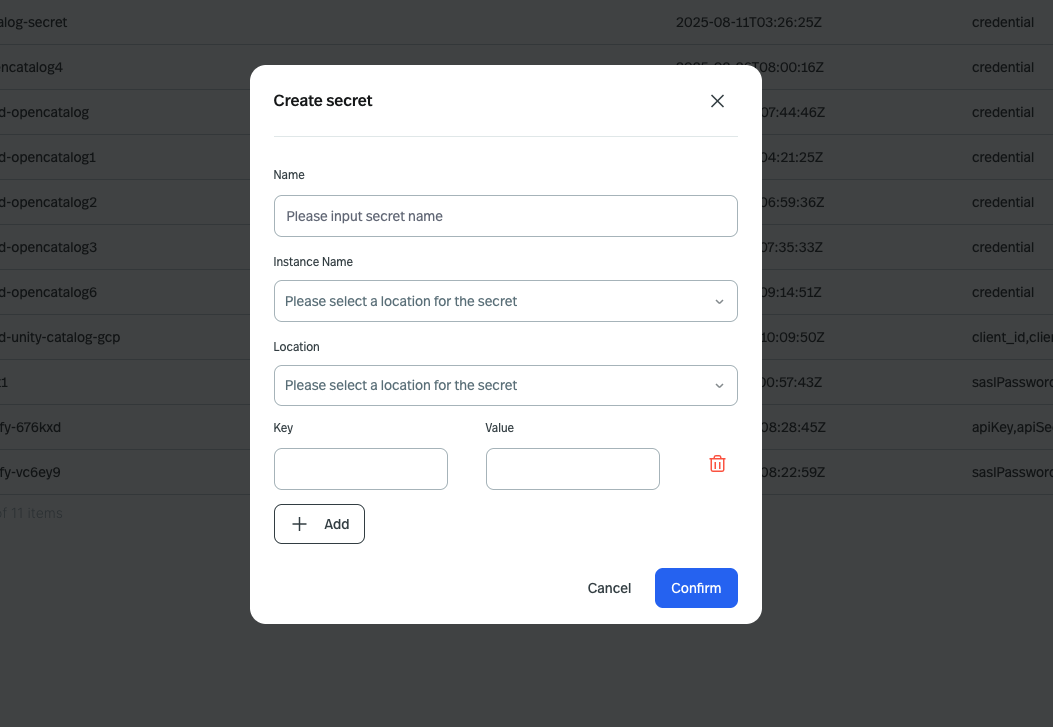 3. Configure the Secret.
* Name: enter the Secret name. The Secret name is unique across an organization. A secret name can contain any combination of lowercase letters (a-z), numbers (0-9), and hyphens (-).|
* Instance Name : select an Instance
* Location: select a Pulsar cluster location for the Secret.
* Key: enter the key for the Secret. Each key must consist of alphanumeric characters, '-', '\_' or '.'. The serialized form of the Secret data is a [base64 encoded string](https://tools.ietf.org/html/rfc4648#section-4), representing the arbitrary (possibly non-string) data value here.
* Value: enter the value for the Secret. Each value must consist of alphanumeric characters, '-', '\_' or '.'.
4. Click **Confirm**.
To create a Secret using the REST API, follow these steps.
1. [Create a service account](/cloud/security/authentication/service-accounts/service-accounts).
2. Get a token of the service account.
import GetToken from '/snippets/get-token.mdx';
3. [Get names of your organization, instance, and cluster](/cloud/clusters/manage-clusters/cluster#check-cluster-details-through-streamnative-cloud-console).
4. Create a Secret.
This example creates a Secret named `secret-test`, substituting the token, instance name, cluster location, and the organization name respectively.
```bash theme={null}
curl -X "POST" 'https://console.streamnative.cloud/cloud-api/apis/cloud.streamnative.io/v1alpha1/namespaces//secrets/' \
-H 'Authorization: Bearer ' \
-H 'Content-Type: application/json' \
--data '{
"instanceName":"your_instance_name",
"location":"your_cluster_location",
"data":{"just":"a test"},
"metadata": {
"name": "secret-test",
"namespace": "your_organization_name"
}
}'
```
## Use Secrets
After [creating a Secret](/cloud/security/secret#create-secrets), you can use it when submitting a function or connector.
1. Enable your function/connector to access the Secret.
```java theme={null}
public class ExampleFunction implements Function {
@Override
public String process(String input, Context context) {
String secretValue = context.getSecret("SECRET1"); # access secret value with the name you need; this name will be set during submission
System.out.println(secretValue) # You should never log or print the secret value in a production environment.
}
}
```
```python theme={null}
from pulsar import Function
class GetSecretValueFunction(Function):
def process(self, input, context):
secret_value = context.get_secret("SECRET1")
print(secret_value)
```
2. Submit the function/connector referring to the Secret.
The following is an example of using the `pulsar-admin` CLI tool.
```bash theme={null}
./bin/pulsar-admin functions create \
--jar /pf-examples/pf-examples-jar-with-dependencies.jar \
--classname io.streamnative.function.SecretFunction \
--inputs public/default/secret-test \
--output public/default/test-output \
--name SecretTest \
--secrets '{"SECRET1": {"path": "lambda-sink-secret", "key": "awsAccessKey"}}'
```
* The `SECRET1` in the `--secrets` parameter is the name you used in your function or connector code to access the Secret value.
* The `path` in the `--secrets` parameter is the Secret name you created.
* The `key` in the `--secrets` parameter is the key you used in the Secret.
## Delete Secrets
To delete a Secret, follow these steps.
1. On the left navigation pane, in the **Admin** area, click **Secrets**.
2. Click **Delete Secret**. A dialog box displays, asking *Are you sure you want to delete?*
3. Enter the Secret name and then click **Delete Secret**.
3. Configure the Secret.
* Name: enter the Secret name. The Secret name is unique across an organization. A secret name can contain any combination of lowercase letters (a-z), numbers (0-9), and hyphens (-).|
* Instance Name : select an Instance
* Location: select a Pulsar cluster location for the Secret.
* Key: enter the key for the Secret. Each key must consist of alphanumeric characters, '-', '\_' or '.'. The serialized form of the Secret data is a [base64 encoded string](https://tools.ietf.org/html/rfc4648#section-4), representing the arbitrary (possibly non-string) data value here.
* Value: enter the value for the Secret. Each value must consist of alphanumeric characters, '-', '\_' or '.'.
4. Click **Confirm**.
To create a Secret using the REST API, follow these steps.
1. [Create a service account](/cloud/security/authentication/service-accounts/service-accounts).
2. Get a token of the service account.
import GetToken from '/snippets/get-token.mdx';
3. [Get names of your organization, instance, and cluster](/cloud/clusters/manage-clusters/cluster#check-cluster-details-through-streamnative-cloud-console).
4. Create a Secret.
This example creates a Secret named `secret-test`, substituting the token, instance name, cluster location, and the organization name respectively.
```bash theme={null}
curl -X "POST" 'https://console.streamnative.cloud/cloud-api/apis/cloud.streamnative.io/v1alpha1/namespaces//secrets/' \
-H 'Authorization: Bearer ' \
-H 'Content-Type: application/json' \
--data '{
"instanceName":"your_instance_name",
"location":"your_cluster_location",
"data":{"just":"a test"},
"metadata": {
"name": "secret-test",
"namespace": "your_organization_name"
}
}'
```
## Use Secrets
After [creating a Secret](/cloud/security/secret#create-secrets), you can use it when submitting a function or connector.
1. Enable your function/connector to access the Secret.
```java theme={null}
public class ExampleFunction implements Function {
@Override
public String process(String input, Context context) {
String secretValue = context.getSecret("SECRET1"); # access secret value with the name you need; this name will be set during submission
System.out.println(secretValue) # You should never log or print the secret value in a production environment.
}
}
```
```python theme={null}
from pulsar import Function
class GetSecretValueFunction(Function):
def process(self, input, context):
secret_value = context.get_secret("SECRET1")
print(secret_value)
```
2. Submit the function/connector referring to the Secret.
The following is an example of using the `pulsar-admin` CLI tool.
```bash theme={null}
./bin/pulsar-admin functions create \
--jar /pf-examples/pf-examples-jar-with-dependencies.jar \
--classname io.streamnative.function.SecretFunction \
--inputs public/default/secret-test \
--output public/default/test-output \
--name SecretTest \
--secrets '{"SECRET1": {"path": "lambda-sink-secret", "key": "awsAccessKey"}}'
```
* The `SECRET1` in the `--secrets` parameter is the name you used in your function or connector code to access the Secret value.
* The `path` in the `--secrets` parameter is the Secret name you created.
* The `key` in the `--secrets` parameter is the key you used in the Secret.
## Delete Secrets
To delete a Secret, follow these steps.
1. On the left navigation pane, in the **Admin** area, click **Secrets**.
2. Click **Delete Secret**. A dialog box displays, asking *Are you sure you want to delete?*
3. Enter the Secret name and then click **Delete Secret**.