> ## Documentation Index
> Fetch the complete documentation index at: https://docs.streamnative.io/llms.txt
> Use this file to discover all available pages before exploring further.
# Organizations in StreamNative Cloud
In StreamNative Cloud, the Organization resource is the root node in the StreamNative Cloud resource hierarchy. If you have an [annual commitment](/cloud/billing/billing-overview#annual-commitments), there is a 1:1 relationship between one organization and one annual commitment.
Organizations might contain:
* One to many [users](/cloud/security/authentication/user-accounts)
* Zero to many [service accounts](/cloud/security/authentication/service-accounts/service-accounts)
* Zero to many [instances](/cloud/clusters/manage-instances/instance)
When you first sign up for StreamNative Cloud, a new organization is created simultaneously with the first user account that belongs to that organization. When you invite another user to StreamNative Cloud, the invited user is added to the existing organization. You can create other organizations as needed.
## Organization settings
In the upper-right corner of the StreamNative Cloud Console, click your Profile and select **Organizations** to check the organizations you belong to.
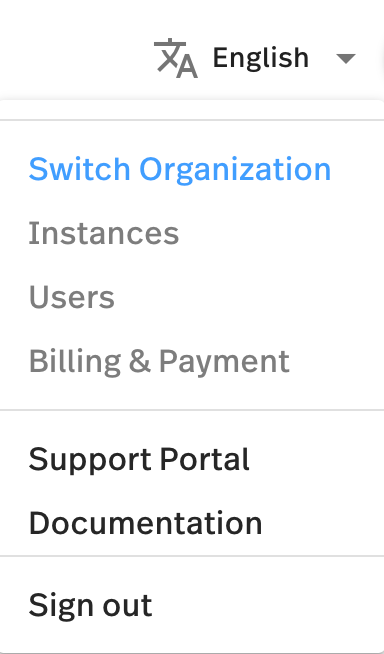 In addition, you can perform the following operations:
* Create more organizations: click **Create organization** to add one or more organizations.
* Search for existing organizations: enter an organization's name in the **Search organization** field, and then press **Enter** to search for a specific organization.
### Cloud Organization ID
Each organization in StreamNative Cloud is uniquely identified by a Cloud Organization ID.
You can find the Cloud Organization ID from the query parameter `org` of any StreamNative Cloud Console URL.
### Organization profile
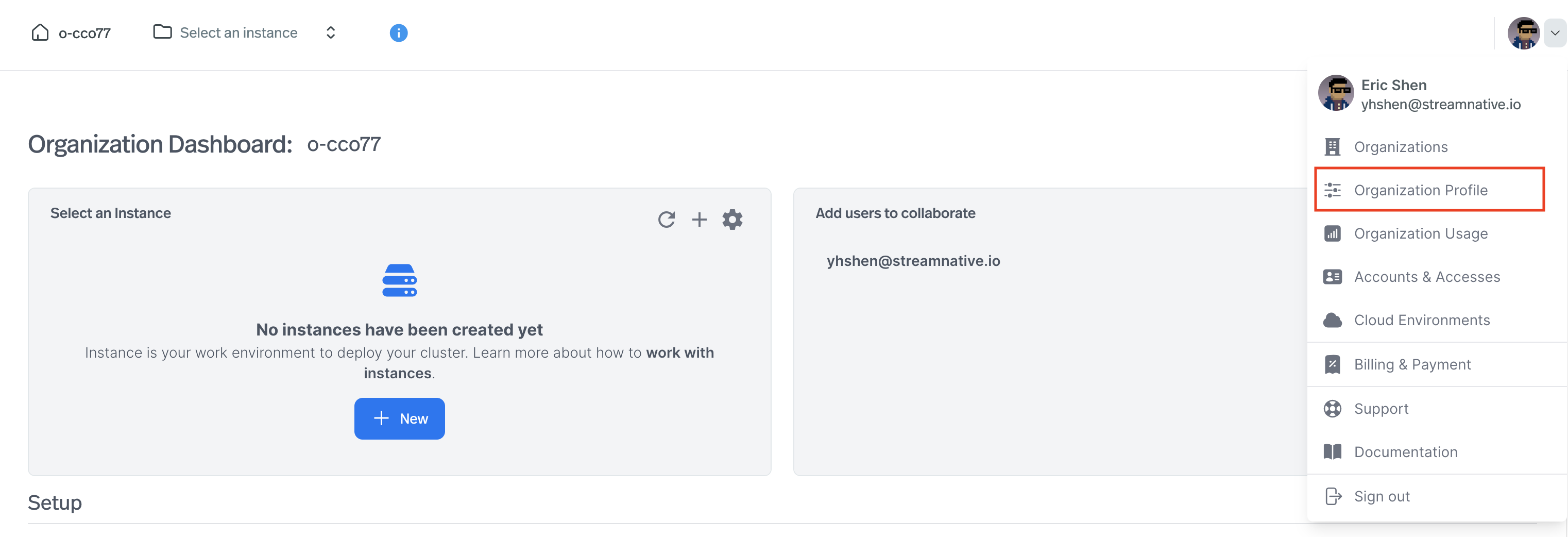
Organization profile page allows you to change the organization name, set the contact emails for billing and technical. You can get into the Organization profile page from the upper-right corner of the StreamNative Cloud Console:
In addition, you can perform the following operations:
* Create more organizations: click **Create organization** to add one or more organizations.
* Search for existing organizations: enter an organization's name in the **Search organization** field, and then press **Enter** to search for a specific organization.
### Cloud Organization ID
Each organization in StreamNative Cloud is uniquely identified by a Cloud Organization ID.
You can find the Cloud Organization ID from the query parameter `org` of any StreamNative Cloud Console URL.
### Organization profile
Organization profile page allows you to change the organization name, set the contact emails for billing and technical. You can get into the Organization profile page from the upper-right corner of the StreamNative Cloud Console:
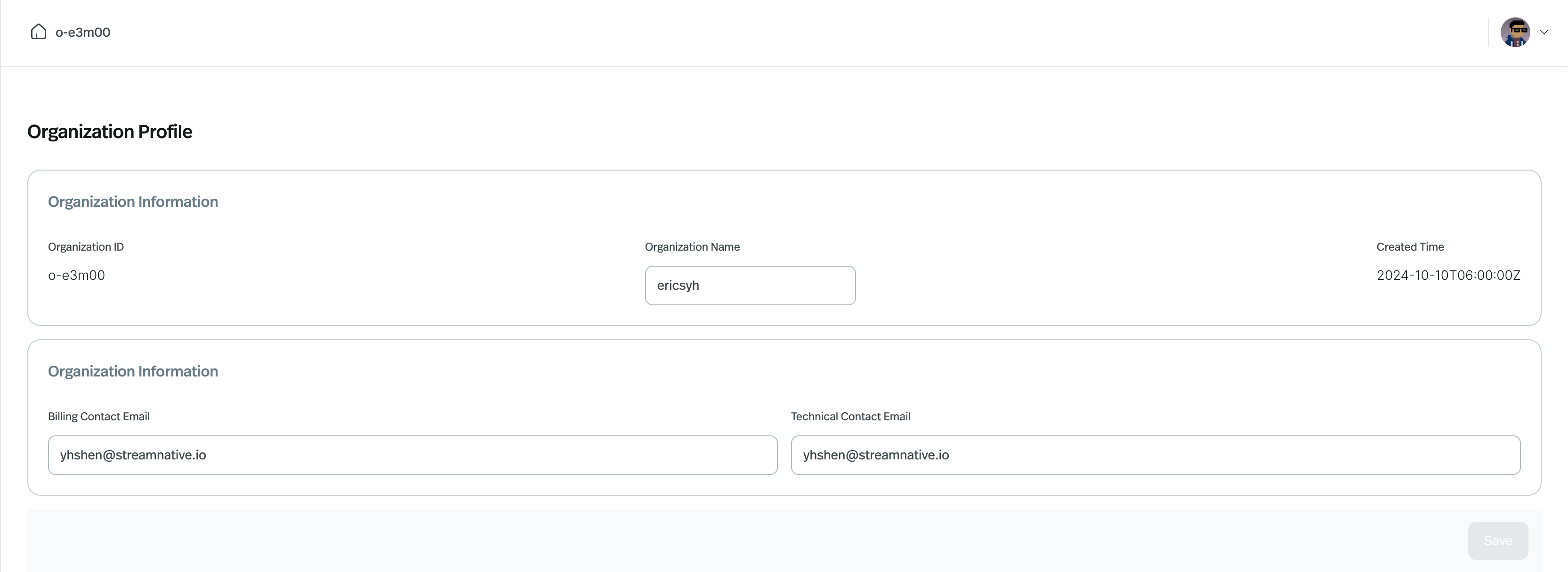
 On the Organization profile page, you can update the below informations:
* **Organization name**: this will change the organization display name on the StreamNative Cloud.
* **Billing contact email**: organization's billing email is where StreamNative Cloud sends billing notification and other billing-related communication.
* **Technical contact email**: organization's technical email is where StreamNative Cloud sends cluster notification and other technical-related communication.
On the Organization profile page, you can update the below informations:
* **Organization name**: this will change the organization display name on the StreamNative Cloud.
* **Billing contact email**: organization's billing email is where StreamNative Cloud sends billing notification and other billing-related communication.
* **Technical contact email**: organization's technical email is where StreamNative Cloud sends cluster notification and other technical-related communication.
 ## Manage Multiple Organizations
Usually, a combination of instances and role-based access control (RBAC) should be used to isolate different projects, teams, or other use cases instead of creating separate organizations. Depending on your requirements, you can optionally create multiple organizations in StreamNative Cloud. Some of the benefits include the following:
* You can create separate organizations to provide isolation for different business units (for example, projects and teams) without requiring the sharing of billing, adminstration, or anything else between them in the future.
* If your current organization pays using a cloud service provider's marketplace, and you need to create resources in a different cloud provider, then creating a new organization is an option.
Note that an alternatively to consider is that you might be able to convert your existing organization to paying StreamNative directly, which allows creation of resources in any mix of cloud providers. To learn more, contact your StreamNative sales representative.
* Users can seamlessly switch between organizations they belong to.
### Limitations
The current implementation of multiple organizations support has the following limitations:
* To create an organization, you need to use the StreamNative Cloud console. For details, see [Create an organization](#create-an-organization).
* StreamNative Cloud resources cannot be moved between organizations. Resources (for example, clusters, connectors, and functions) cannot be moved from one organization to a different one.
### Create an organization
To create an organization, follow these steps.
1. In the upper-right corner of the StreamNative Cloud Console, click your Profile and select **Organizations**.
2. Click **Create organization** and a dialog box displays.
3. Enter the organization name and then click **Confirm**. An organization name must be less than 12 characters and can contain any combination of lowercase letters (a-z), numbers (0-9), and hyphens (-). An organization is created successfully, as shown below.
## Manage Multiple Organizations
Usually, a combination of instances and role-based access control (RBAC) should be used to isolate different projects, teams, or other use cases instead of creating separate organizations. Depending on your requirements, you can optionally create multiple organizations in StreamNative Cloud. Some of the benefits include the following:
* You can create separate organizations to provide isolation for different business units (for example, projects and teams) without requiring the sharing of billing, adminstration, or anything else between them in the future.
* If your current organization pays using a cloud service provider's marketplace, and you need to create resources in a different cloud provider, then creating a new organization is an option.
Note that an alternatively to consider is that you might be able to convert your existing organization to paying StreamNative directly, which allows creation of resources in any mix of cloud providers. To learn more, contact your StreamNative sales representative.
* Users can seamlessly switch between organizations they belong to.
### Limitations
The current implementation of multiple organizations support has the following limitations:
* To create an organization, you need to use the StreamNative Cloud console. For details, see [Create an organization](#create-an-organization).
* StreamNative Cloud resources cannot be moved between organizations. Resources (for example, clusters, connectors, and functions) cannot be moved from one organization to a different one.
### Create an organization
To create an organization, follow these steps.
1. In the upper-right corner of the StreamNative Cloud Console, click your Profile and select **Organizations**.
2. Click **Create organization** and a dialog box displays.
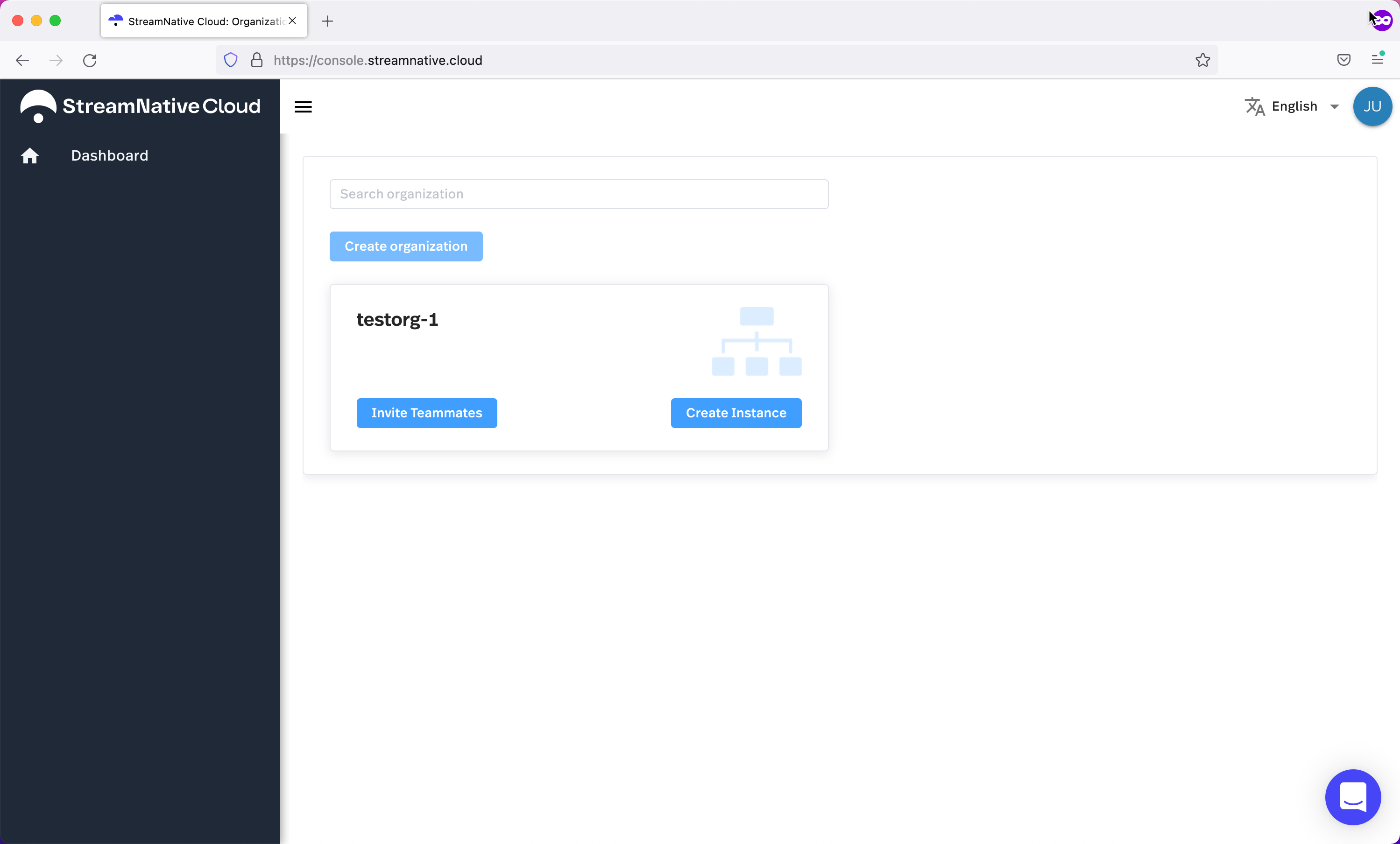
3. Enter the organization name and then click **Confirm**. An organization name must be less than 12 characters and can contain any combination of lowercase letters (a-z), numbers (0-9), and hyphens (-). An organization is created successfully, as shown below.
 ### Sign in to an organization
To sign in to a specific organization,
1. Go to the StreamNative Cloud Console at [https://console.streamnative.cloud](https://console.streamnative.cloud).
2. Sign in to StreamNative Cloud.
You are signed in to the last organization you signed in to unless this is the first time signing in on your web browser. For the first time, you are signed in to your default organization, which is the first organization you become a member of.
To sign in to a different organization, follow the procedure in [Switch between organizations](#switch-between-organizations).
To sign in to a specific organization using the [StreamNative CLI (`snctl`)](/tools/cli/snctl/snctl-overview), use the following commands:
1. Configure the target organization as the default organization.
```bash theme={null}
snctl config set --organization
```
2. Log in as a user
```bash theme={null}
snctl auth login
```
To find the Cloud Organization ID, see [Cloud Organization ID](/cloud/security/access/resource-hierarchy/organizations#cloud-organization-id).
Create a bookmark in your web browswer for each organization you belong to. For the link, save the StreamNative Cloud Console URL with the query parameter for the organization ID (`org`), like this:
```
https://console.streamnative.cloud?org=
```
You can find the organization ID (`org`) value from the query parameter `org` of any StreamNative Cloud Console URL.
### Switch between organizations
If you are a user who is a member of two or more organizations, you can switch between organizations using the StreamNative Cloud Console or StreamNative Cloud CLI. When you switch between organizations, you are signed out the current organization and signed in to the new organization.
To switch to a different organization using the StreamNative Cloud Console:
1. In the upper-right corner of the StreamNative Cloud Console, click your Profile and select **Organizations**.
2. Find the name of the organization that you want to switch and click the Organization name. You are signed in to the organization you selected.
You have switched to the organization you selected.
To switch between organizations using the StreamNative CLI (`snctl`), reconfigure `snctl` to specify the organization you want to switch to as the default organization.
1. Configure the target organization as the default organization.
```bash theme={null}
snctl config set --organization
```
2. Log in as a user
```bash theme={null}
snctl auth login
```
To find the Cloud Organization ID, see [Cloud Organization ID](/cloud/security/access/resource-hierarchy/organizations#cloud-organization-id).
### Leave an organization
If you no longer need to belong to an organization, you can be removed from an organization. Please reach out to the other users in the organization you want to leave, they can remove you from it. If you are the only user, you cannot remove yourself from the organization - contact [StreamNative Support](https://support.streamnative.io/hc/en-us/requests/new) and they can remove you from the organization.
### Delete an organization
Currently, you can't delete an organization through either the StreamNative Cloud Console or CLI. If you need to delete an organization, please [submit a ticket](https://support.streamnative.io/hc/en-us/requests/new).
### Manage users across organizations
To collaborate in `Example Org 1` with a team member who belongs to a different StreamNative Cloud organization (`Example Org 2`), you can invite the user to your organization. Users can switch back and forth between organizations they belong to.
### Sign in to an organization
To sign in to a specific organization,
1. Go to the StreamNative Cloud Console at [https://console.streamnative.cloud](https://console.streamnative.cloud).
2. Sign in to StreamNative Cloud.
You are signed in to the last organization you signed in to unless this is the first time signing in on your web browser. For the first time, you are signed in to your default organization, which is the first organization you become a member of.
To sign in to a different organization, follow the procedure in [Switch between organizations](#switch-between-organizations).
To sign in to a specific organization using the [StreamNative CLI (`snctl`)](/tools/cli/snctl/snctl-overview), use the following commands:
1. Configure the target organization as the default organization.
```bash theme={null}
snctl config set --organization
```
2. Log in as a user
```bash theme={null}
snctl auth login
```
To find the Cloud Organization ID, see [Cloud Organization ID](/cloud/security/access/resource-hierarchy/organizations#cloud-organization-id).
Create a bookmark in your web browswer for each organization you belong to. For the link, save the StreamNative Cloud Console URL with the query parameter for the organization ID (`org`), like this:
```
https://console.streamnative.cloud?org=
```
You can find the organization ID (`org`) value from the query parameter `org` of any StreamNative Cloud Console URL.
### Switch between organizations
If you are a user who is a member of two or more organizations, you can switch between organizations using the StreamNative Cloud Console or StreamNative Cloud CLI. When you switch between organizations, you are signed out the current organization and signed in to the new organization.
To switch to a different organization using the StreamNative Cloud Console:
1. In the upper-right corner of the StreamNative Cloud Console, click your Profile and select **Organizations**.
2. Find the name of the organization that you want to switch and click the Organization name. You are signed in to the organization you selected.
You have switched to the organization you selected.
To switch between organizations using the StreamNative CLI (`snctl`), reconfigure `snctl` to specify the organization you want to switch to as the default organization.
1. Configure the target organization as the default organization.
```bash theme={null}
snctl config set --organization
```
2. Log in as a user
```bash theme={null}
snctl auth login
```
To find the Cloud Organization ID, see [Cloud Organization ID](/cloud/security/access/resource-hierarchy/organizations#cloud-organization-id).
### Leave an organization
If you no longer need to belong to an organization, you can be removed from an organization. Please reach out to the other users in the organization you want to leave, they can remove you from it. If you are the only user, you cannot remove yourself from the organization - contact [StreamNative Support](https://support.streamnative.io/hc/en-us/requests/new) and they can remove you from the organization.
### Delete an organization
Currently, you can't delete an organization through either the StreamNative Cloud Console or CLI. If you need to delete an organization, please [submit a ticket](https://support.streamnative.io/hc/en-us/requests/new).
### Manage users across organizations
To collaborate in `Example Org 1` with a team member who belongs to a different StreamNative Cloud organization (`Example Org 2`), you can invite the user to your organization. Users can switch back and forth between organizations they belong to.