> ## Documentation Index
> Fetch the complete documentation index at: https://docs.streamnative.io/llms.txt
> Use this file to discover all available pages before exploring further.
# Work with pfSQL on Cloud Console
This feature is currently in alpha. If you want to try it out or have any questions, [submit a ticket](https://support.streamnative.io/hc/en-us/requests/new) to the support team.
This section describes how to work with pfSQL on StremNative Cloud's Cloud Console. You can create and delete a query.
## Prerequisites
To fully use the feature provided by pfSQL, you will need to follow [Set up your environment](/cloud/process/pulsar-functions/function-setup) to set up your Pulsar Functions environment first.
## Create a query
1. On the left navigation pane, click pfSQL.
2. On the pfSQL page, click New.
1. Enter a query name with a description.
2. Select a service account from the drop-down list.
3. In the Query area, enter your query.
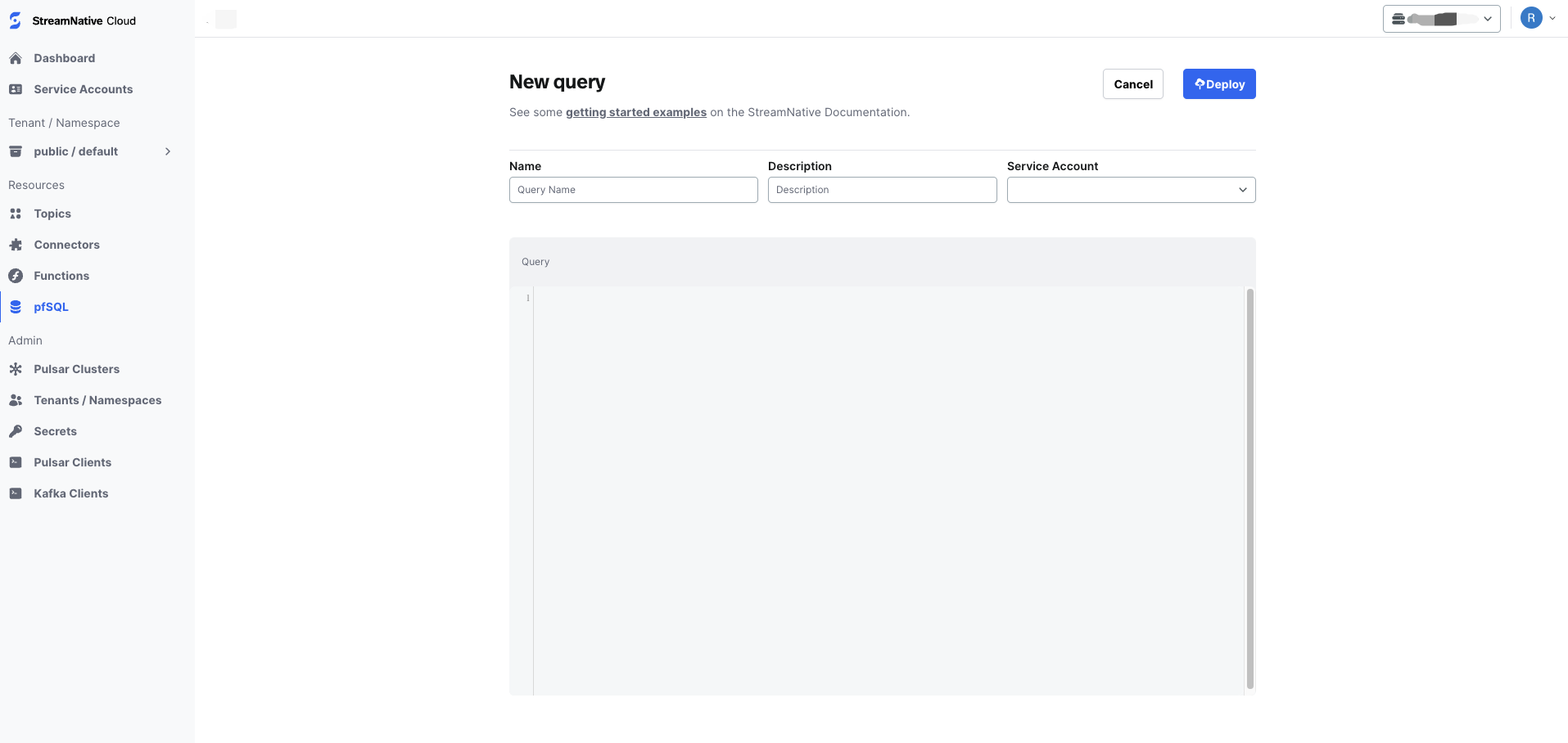 3. Click Deploy.
By default, a newly created query is in running status. You can continue to pause/resume it based on your needs.
## Delete a query
1. On the left navigation pane, click pfSQL.
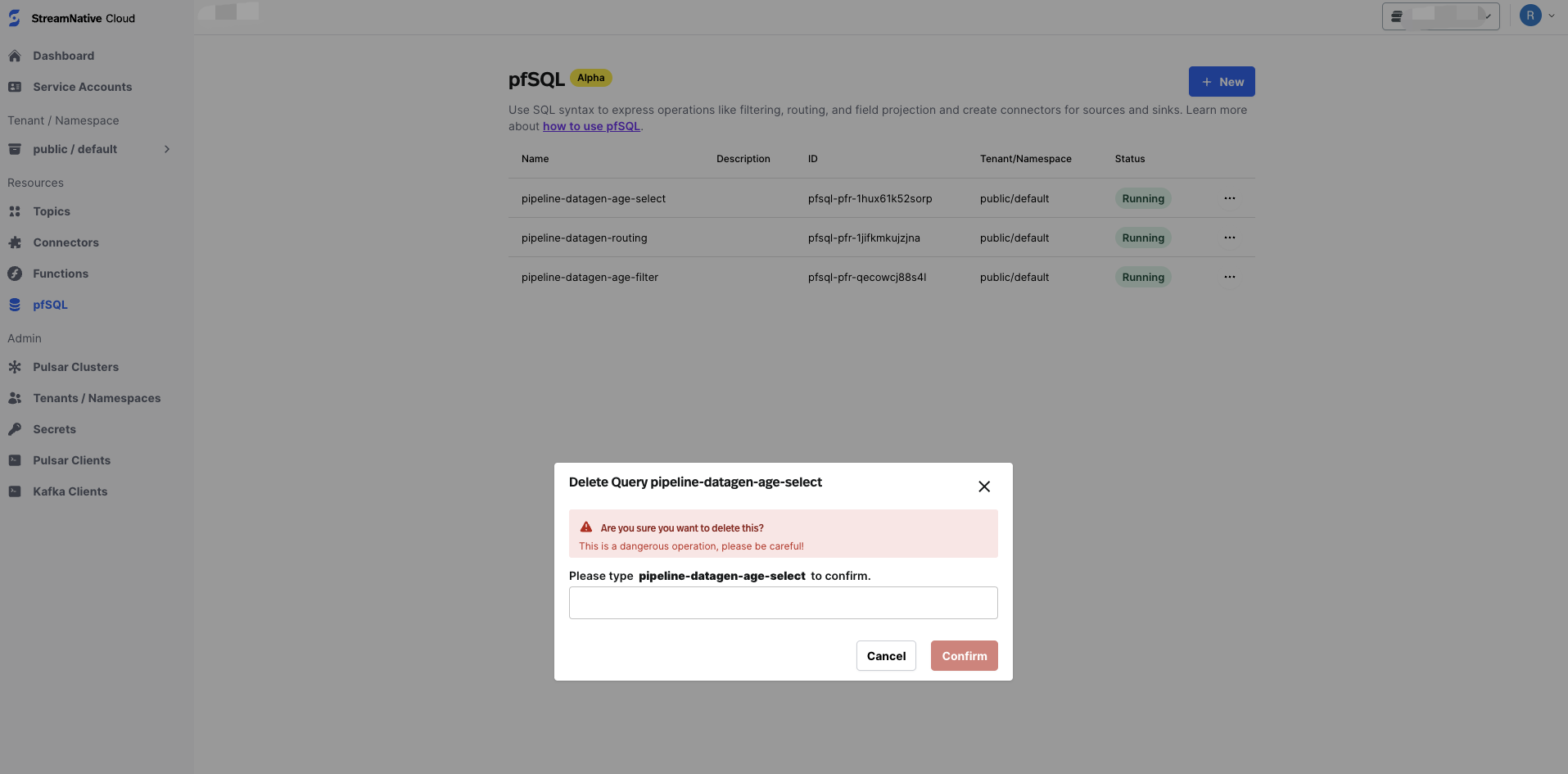
2. On the pfSQL page, click the Ellipsis (...) icon in the row of the target query and select Delete.
3. Type the query name to confirm and click Confirm.
3. Click Deploy.
By default, a newly created query is in running status. You can continue to pause/resume it based on your needs.
## Delete a query
1. On the left navigation pane, click pfSQL.
2. On the pfSQL page, click the Ellipsis (...) icon in the row of the target query and select Delete.
3. Type the query name to confirm and click Confirm.
 ## Troubleshoot a query
1. On the left navigation pane, click pfSQL.
## Troubleshoot a query
1. On the left navigation pane, click pfSQL.
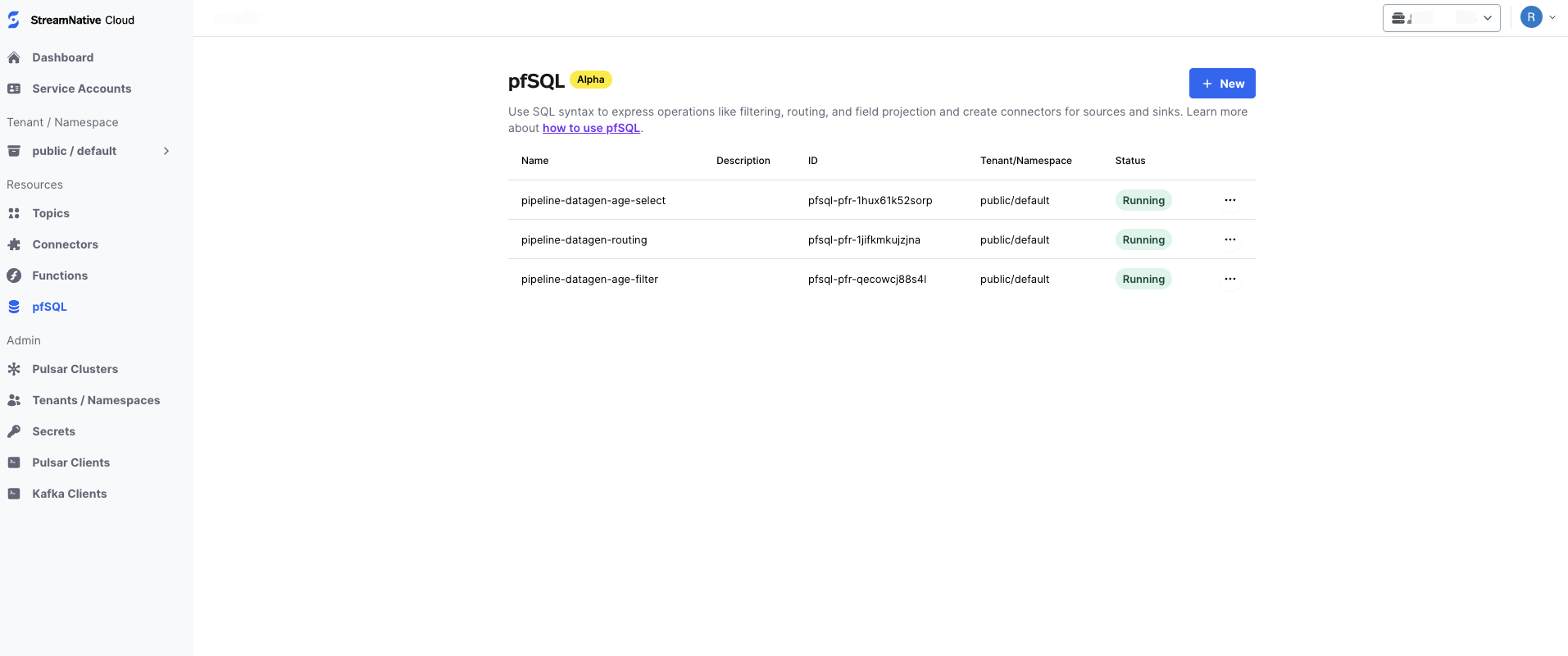 2. On the pfSQL page, click the target query to enter its overview page.
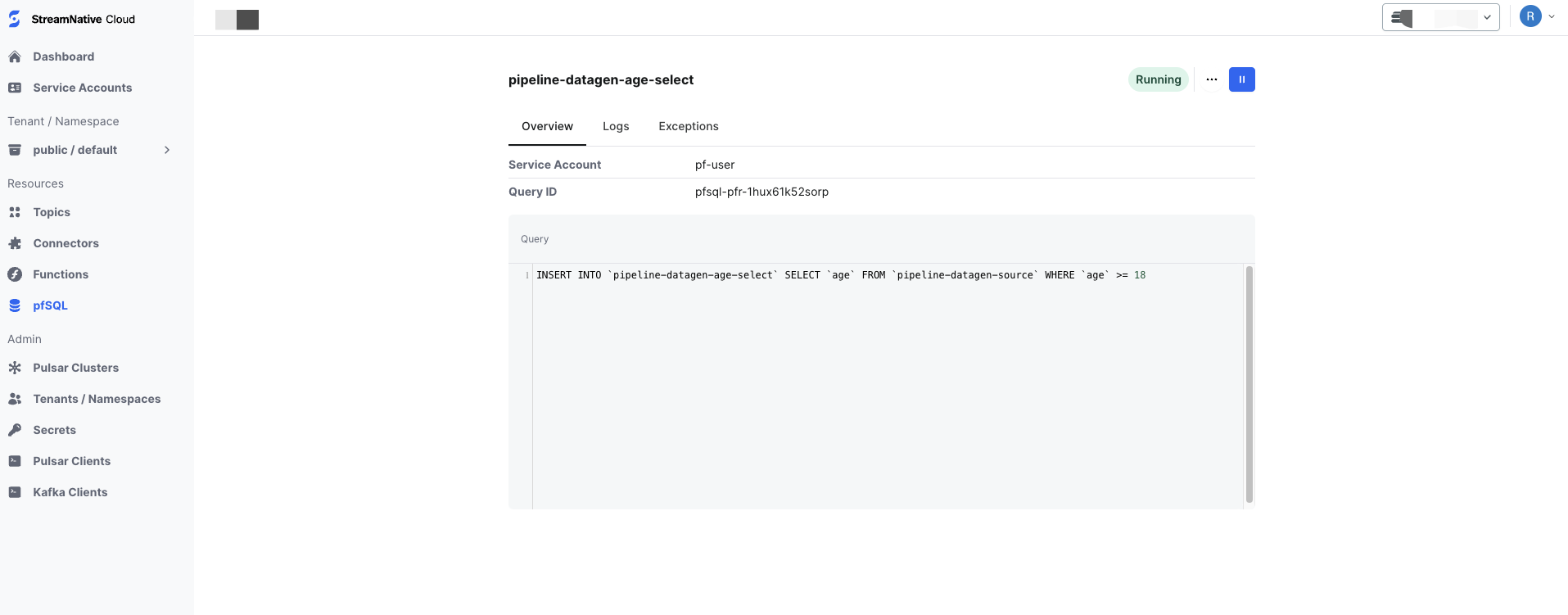 3. Click the Logs tab to check out more details.
## What's next
* [Work with pfSQL CLI](/cloud/process/pfsql/pfsql-work-with-cli)
* [Get started with pfSQL](/cloud/process/pfsql/pfsql-get-started)
* [Understand pfSQL](/cloud/process/pfsql/pfsql-understand)
* [Built-in UDFs](/cloud/process/pfsql/pfsql-built-in-udfs)
3. Click the Logs tab to check out more details.
## What's next
* [Work with pfSQL CLI](/cloud/process/pfsql/pfsql-work-with-cli)
* [Get started with pfSQL](/cloud/process/pfsql/pfsql-get-started)
* [Understand pfSQL](/cloud/process/pfsql/pfsql-understand)
* [Built-in UDFs](/cloud/process/pfsql/pfsql-built-in-udfs)