> ## Documentation Index
> Fetch the complete documentation index at: https://docs.streamnative.io/llms.txt
> Use this file to discover all available pages before exploring further.
# Work with Topics in StreamNative Cloud
This document introduces the instructions for working with topics on StreamNative Console. The details may vary depending on the specific product and version number that you use.
## Topic Overview
A **topic** is a named channel used to deliver messages published by producers to consumers. After creating a namespace, you can create one or more topics for the namespace. It's recommended to have at least one partition per topic so that you can add more partitions in the future. If there are zero partitions (a non-partitioned topic), you will not be able to add more partitions to the topic after it's created.
As in other pub-sub systems, topics in Pulsar are named channels for transmitting messages from producers to consumers. Pulsar supports persistent and non-persistent topics. By default, a persistent topic is created if you don't specify a topic type. With persistent topics, all messages are durably persisted on disks (if the broker is not standalone, messages are durably persisted on multiple disks), whereas data for non-persistent topics is not persisted to storage disks.
### Non-persistent topics
Pulsar also supports non-persistent topics, which are topics on which messages are never persisted to disk and live only in memory. When using non-persistent delivery, stopping a Pulsar broker or disconnecting a subscriber to a topic means that all in-transit messages are lost on that non-persistent topic. In non-persistent topics, brokers immediately deliver messages to all connected subscribers without persisting them in BookKeeper.
### Partitioned topics
Normal topics are served only by a single broker that limits the maximum throughput of the topic. Partitioned topics are a special type of topic handled by multiple brokers, allowing for higher throughput.
A partitioned topic is actually implemented as N internal topics, where N is the number of partitions. When publishing messages to a partitioned topic, each message is routed to one of several brokers. The distribution of partitions across brokers is handled automatically by Pulsar.
It's recommended to have at least one partition per topic so that you can add more partitions in the future. If there are zero partitions (a non-partitioned topic), you will not be able to add more partitions to the topic after it is created.
## Create a topic
To create a topic, follow these steps.
1. Navigate to the desired **Namespace Dashboard** page by [switching to the namespace workspace](/cloud/get-started/cloud-console#switch-a-namespace).
2. On the left navigation pane, under **Resources**, click **Topics**.
3. Click **New Topic**.
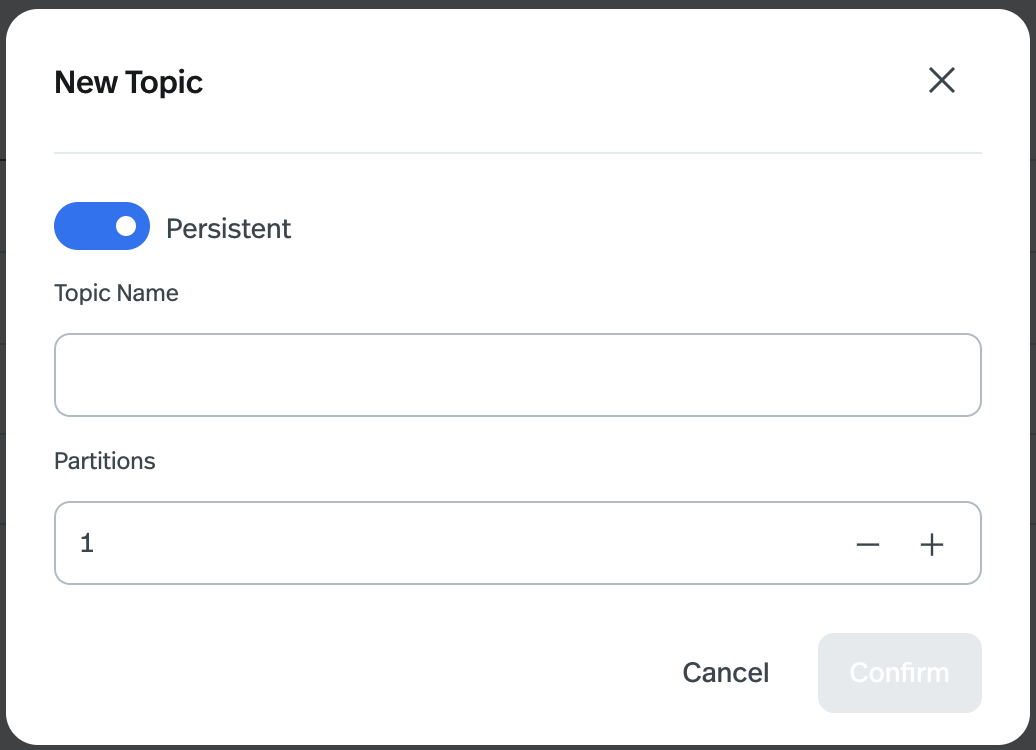 4. Configure the topic, as outlined in the following table.
| Item | Description |
| ---------- | ------------------------------------------------------------------------------------------------------------------------------------------------------------------------------------------------------------------------------------------------------------------------------ |
| Persistent | Configure the type of the topic.
4. Configure the topic, as outlined in the following table.
| Item | Description |
| ---------- | ------------------------------------------------------------------------------------------------------------------------------------------------------------------------------------------------------------------------------------------------------------------------------ |
| Persistent | Configure the type of the topic.
- Persistent: messages in a persistent topic are durably persisted on the storage disk.
- Non-persistent: messages in a non-persistent topic are not persisted on the storage disk.
By default, it is set to *Persistent*. |
| Topic Name | Enter a name for the topic. It is a string of up to 40 characters, supporting lowercase letters (a-z), numeric characters (0-9), and the special character hyphen (-). |
| Partitions | (Optional) Configure the number of partitions for a partitioned topic. You can have from 1 up to 100 partitions per topic. It's recommended to have at least 1 partition. |
5. Click **Confirm**.
Currently, snctl does not support creating topics.
## Manage topics
This section describes how to manage topics through the StreamNative Console.
* For how to use snctl to manage topics, see [snctl command reference](https://doc-references.streamnative.io/snctl/latest/index.html#pulsar).
* For how to use pulsarctl to manage topics, see [pulsarctl command reference](https://doc-references.streamnative.io/pulsarctl/latest/index.html#topics).
### Perform basic operations for topics
To perform basic operations for a topic, follow these steps.
1. On the left navigation pane, under **Resources**, click **Topics**.
2. Click the topic name link to display detailed information about that topic. You will arrive to the Dashboard with general metrics information about the topic
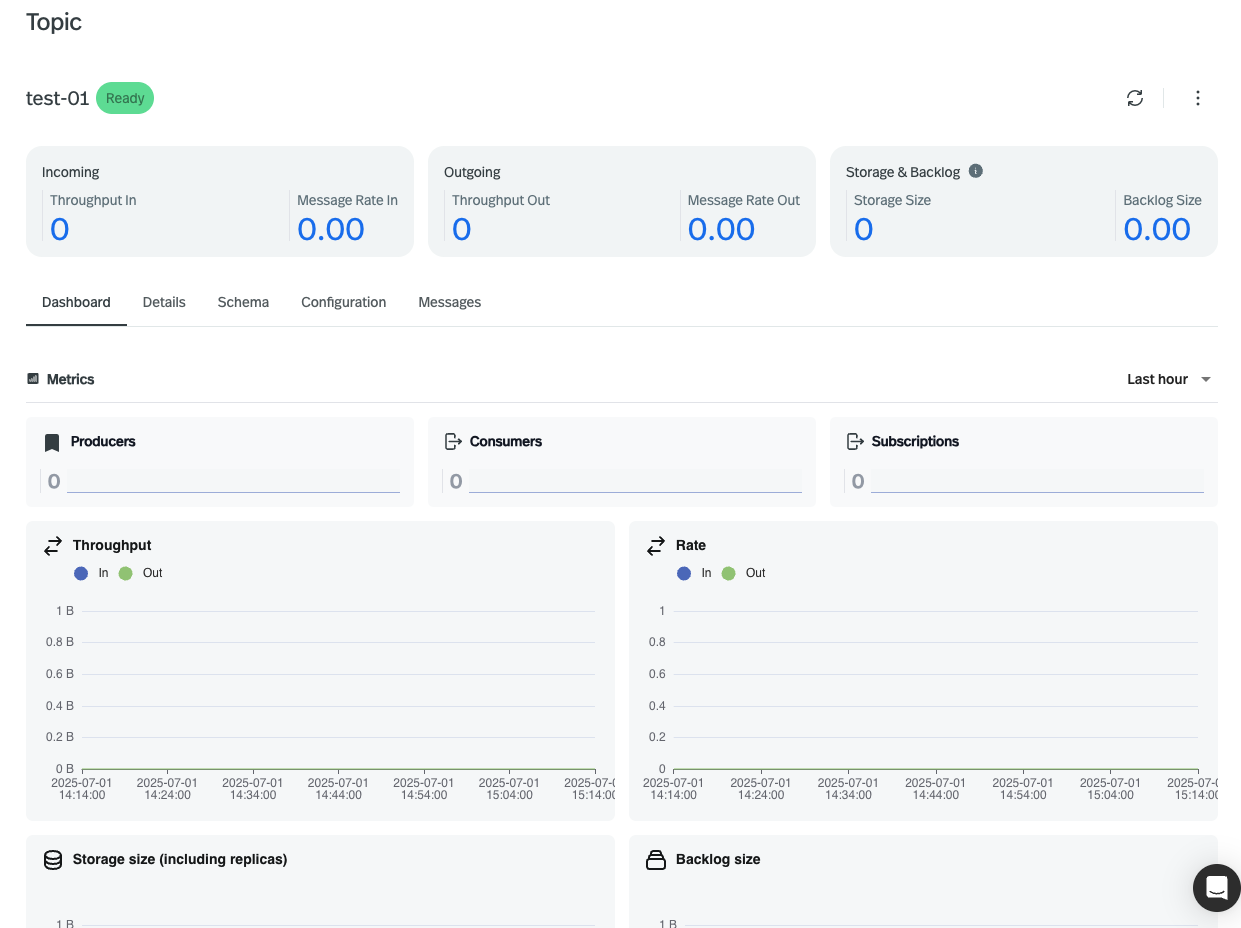 If you go on the detail tabs you can perform the following operations over the partitions:
* Unload the topic: click **Unload** to unload the topic.
* Compact the topic: click **Compact** to compact the topic.
* Create new subscriptions: click **New Subscription** and a dialog box displays. Enter a name for the subscription and then click **Confirm**.
* Review other subscriptions
* Check detailed information about the topic: Cursors, Segments, Producers, Consumers or Stats
If you go on the detail tabs you can perform the following operations over the partitions:
* Unload the topic: click **Unload** to unload the topic.
* Compact the topic: click **Compact** to compact the topic.
* Create new subscriptions: click **New Subscription** and a dialog box displays. Enter a name for the subscription and then click **Confirm**.
* Review other subscriptions
* Check detailed information about the topic: Cursors, Segments, Producers, Consumers or Stats
### Create schema for topics
Currently, only Avro, JSON and Protobuf schema are supported.
To configure schema for topics, follow these steps.
1. On the left navigation pane, under **Resources**, click **Topics**.
2. Click the topic name link.
3. Select the **Schema** tab. Click to Create a Pulsar schema.
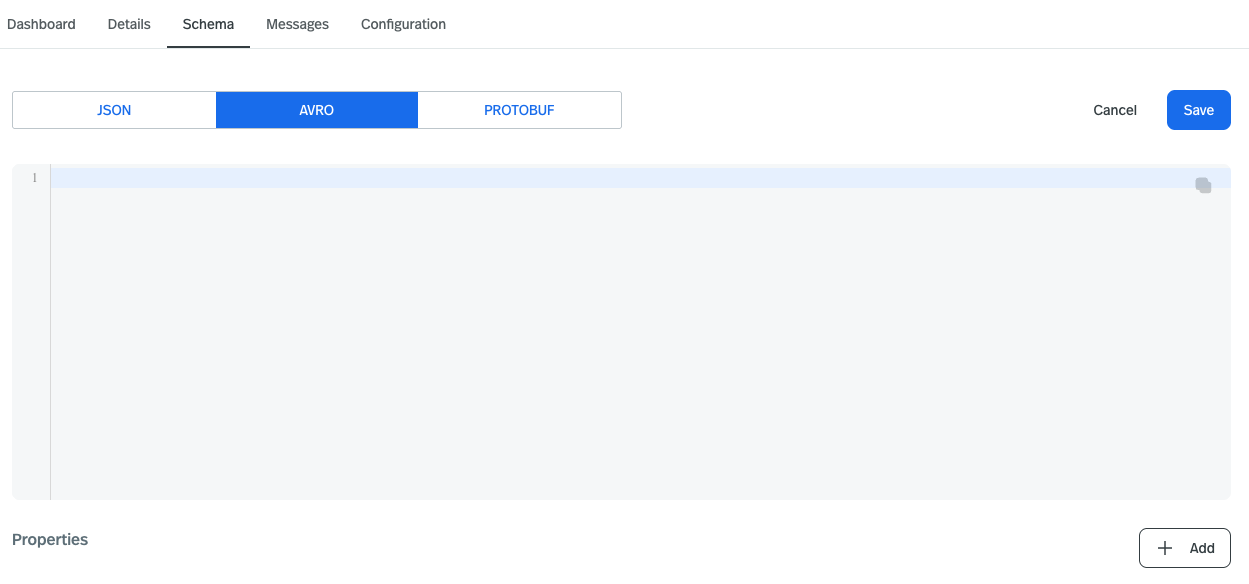 4. Select a schema type.
5. Configure the key and the value and then click **Confirm**.
### Check messages
1. On the left navigation pane, under **Resources**, click **Topics**.
2. Click the link of the topic name to display the dashboard about the topic.
3. Select the **MESSAGES** tab, choose the partition and subscription to select the position to peek and the number of messages. Push Confirm to see the content of the messages.
4. Then you can check the information about messages in this topic.
| Item | Description |
| ---------- | ---------------------- |
| Message ID | Internal Message ID |
| Message | Content of the message |
| Properties | The message properties |
4. Select a schema type.
5. Configure the key and the value and then click **Confirm**.
### Check messages
1. On the left navigation pane, under **Resources**, click **Topics**.
2. Click the link of the topic name to display the dashboard about the topic.
3. Select the **MESSAGES** tab, choose the partition and subscription to select the position to peek and the number of messages. Push Confirm to see the content of the messages.
4. Then you can check the information about messages in this topic.
| Item | Description |
| ---------- | ---------------------- |
| Message ID | Internal Message ID |
| Message | Content of the message |
| Properties | The message properties |
### Configure topic policies, authorization and replicated clusters
To configure policies for topics, follow these steps.
1. On the left navigation pane, under **Resources**, click **Topics**.
2. Click the link of the topic name.
3. Select the **CONFIGURATION** tab and configure authorization policies for the topic.
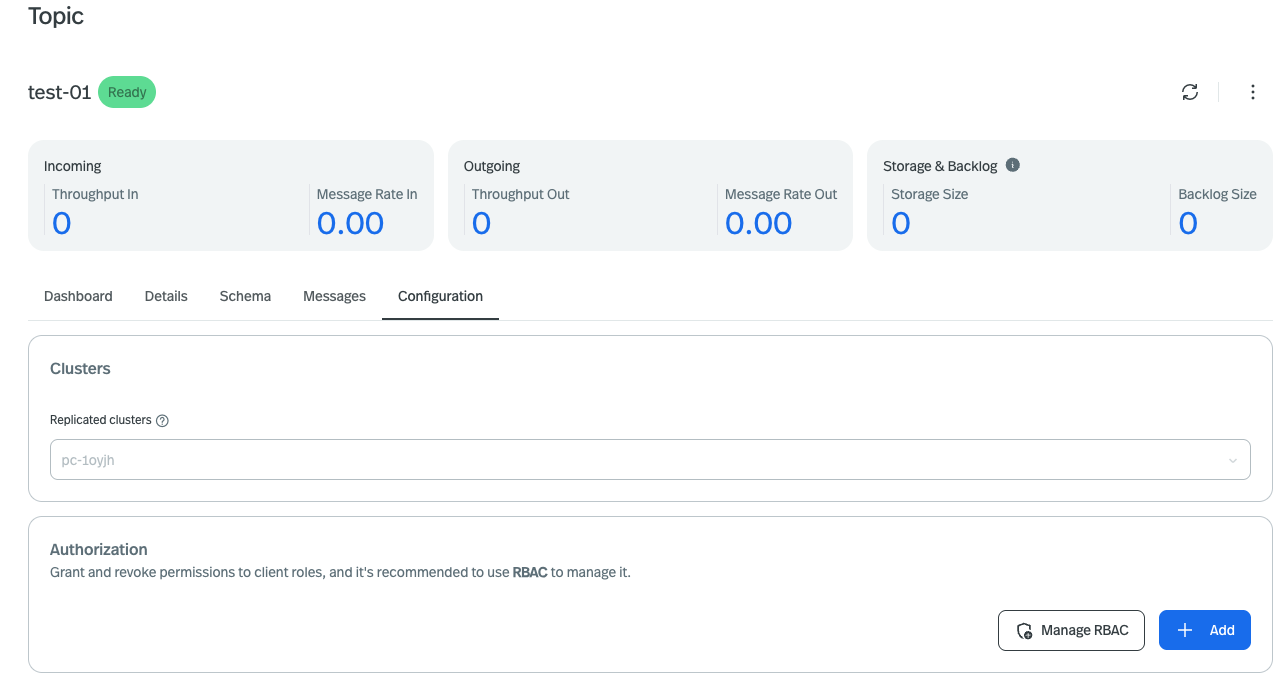 4. There you can see the sections for replicate clusters, authorization and different policies
### View topic statistics
You can find the latest statistics for a topic and its connected producers and consumers on StreamNative Console, for example, whether the topic has received messages, whether there's a backlog, and so on.
To view the statistics of a topic, follow these steps.
1. On the left navigation pane, under **Resources**, click **Topics**.
2. Click the link of the topic name.
3. Near the refresh there are 3 vertical dots where you can choose to see the **stats**.
4. To view the latest stats to monitor your cluster in real time, click the symbol **THREE VERTICAL DOTS** and choose **stats**.
## Delete topics
To delete a topic, follow these steps.
1. On the left navigation pane, under **Resources**, click **Topics**.
2. Hover over the topic name. And a **delete symbol** will appear at the end of the line.
3. Click over it.
4. A dialog box displays asking, *Are you sure you want to delete this?*
5. Enter the topic name and then click **Confirm**.
## Related content
* Learn more information about managing topics using Pulsar Admin API, see [Managing Topics](https://pulsar.apache.org/docs/admin-api-topics/).
4. There you can see the sections for replicate clusters, authorization and different policies
### View topic statistics
You can find the latest statistics for a topic and its connected producers and consumers on StreamNative Console, for example, whether the topic has received messages, whether there's a backlog, and so on.
To view the statistics of a topic, follow these steps.
1. On the left navigation pane, under **Resources**, click **Topics**.
2. Click the link of the topic name.
3. Near the refresh there are 3 vertical dots where you can choose to see the **stats**.
4. To view the latest stats to monitor your cluster in real time, click the symbol **THREE VERTICAL DOTS** and choose **stats**.
## Delete topics
To delete a topic, follow these steps.
1. On the left navigation pane, under **Resources**, click **Topics**.
2. Hover over the topic name. And a **delete symbol** will appear at the end of the line.
3. Click over it.
4. A dialog box displays asking, *Are you sure you want to delete this?*
5. Enter the topic name and then click **Confirm**.
## Related content
* Learn more information about managing topics using Pulsar Admin API, see [Managing Topics](https://pulsar.apache.org/docs/admin-api-topics/).