> ## Documentation Index
> Fetch the complete documentation index at: https://docs.streamnative.io/llms.txt
> Use this file to discover all available pages before exploring further.
# Unity Catalog for Delta Lake on AWS
This guide describes how to prepare a Databricks Unity Catalog for use with StreamNative Ursa as a Delta Lake catalog on AWS.
## Prerequisites
* An AWS account with permissions to create S3 buckets and IAM roles
* A Databricks account with permissions to create workspaces
## 1. Create a Databricks Workspace
> Skip this step if you already have the Databricks Workspace
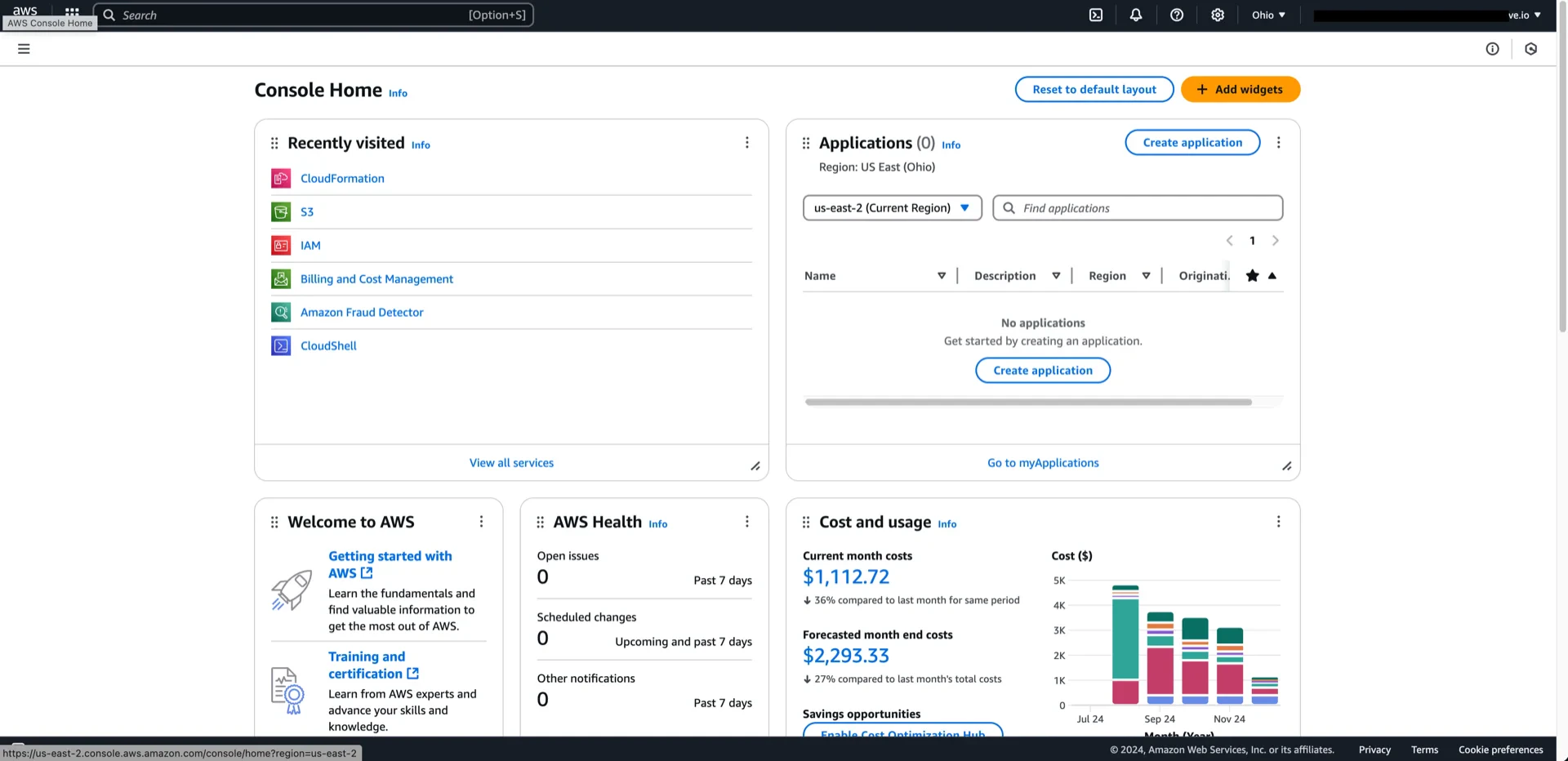
In the Databricks account console, create a new workspace. The workspace creation flow uses an AWS CloudFormation stack, so you must be logged into AWS in the same browser session.
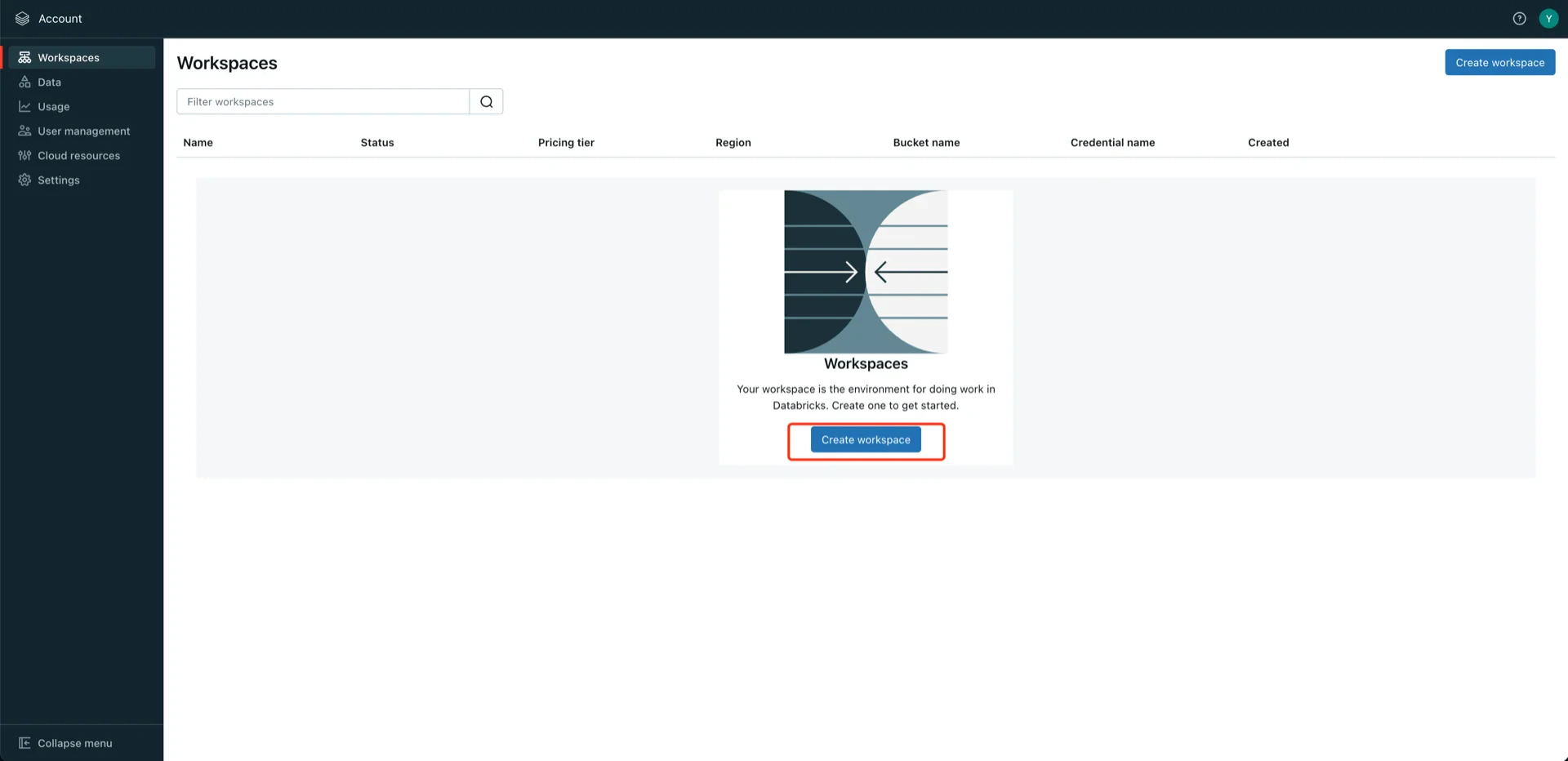
 Click **Create workspace**.
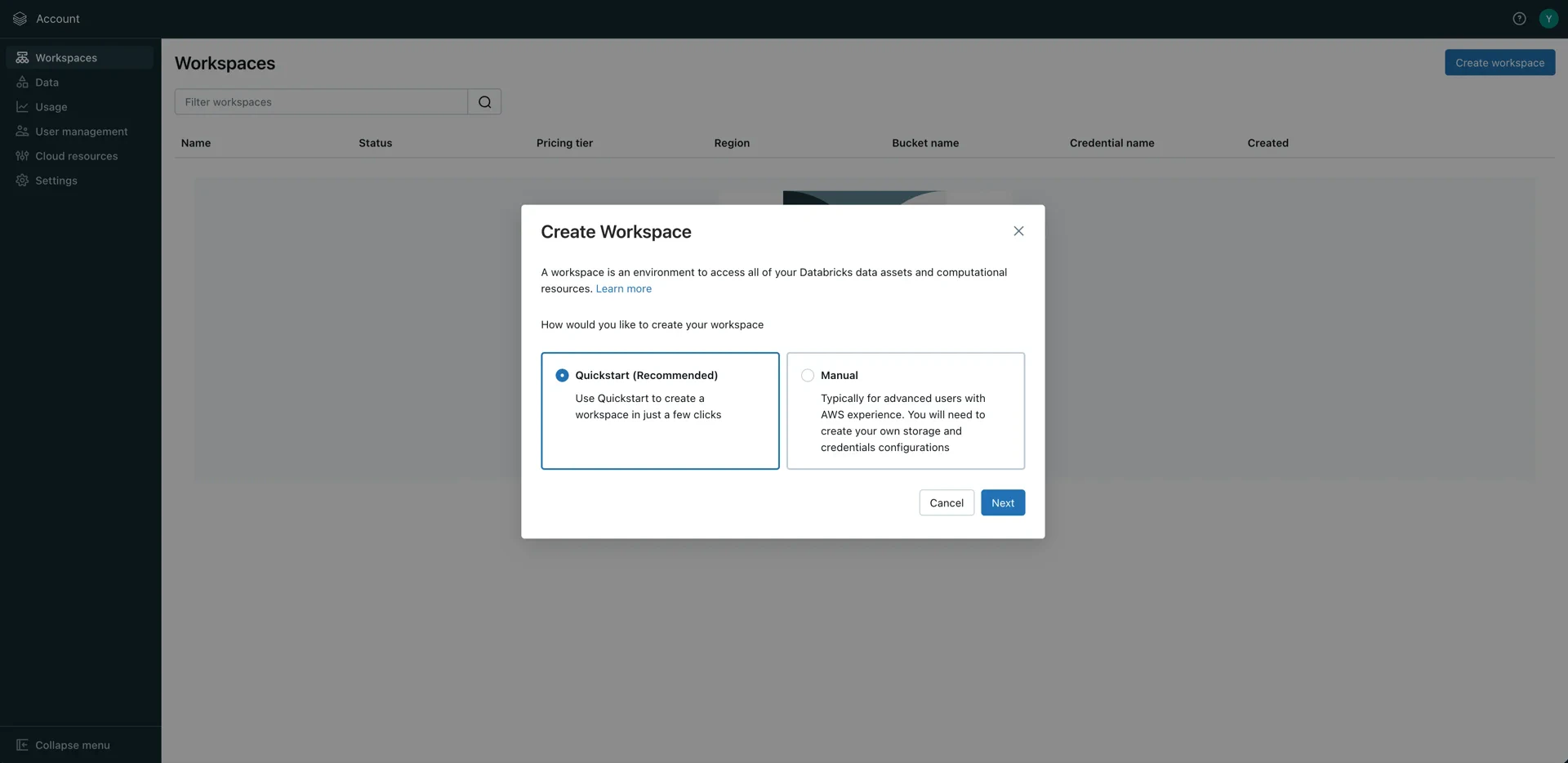
 Choose **Quickstart**.
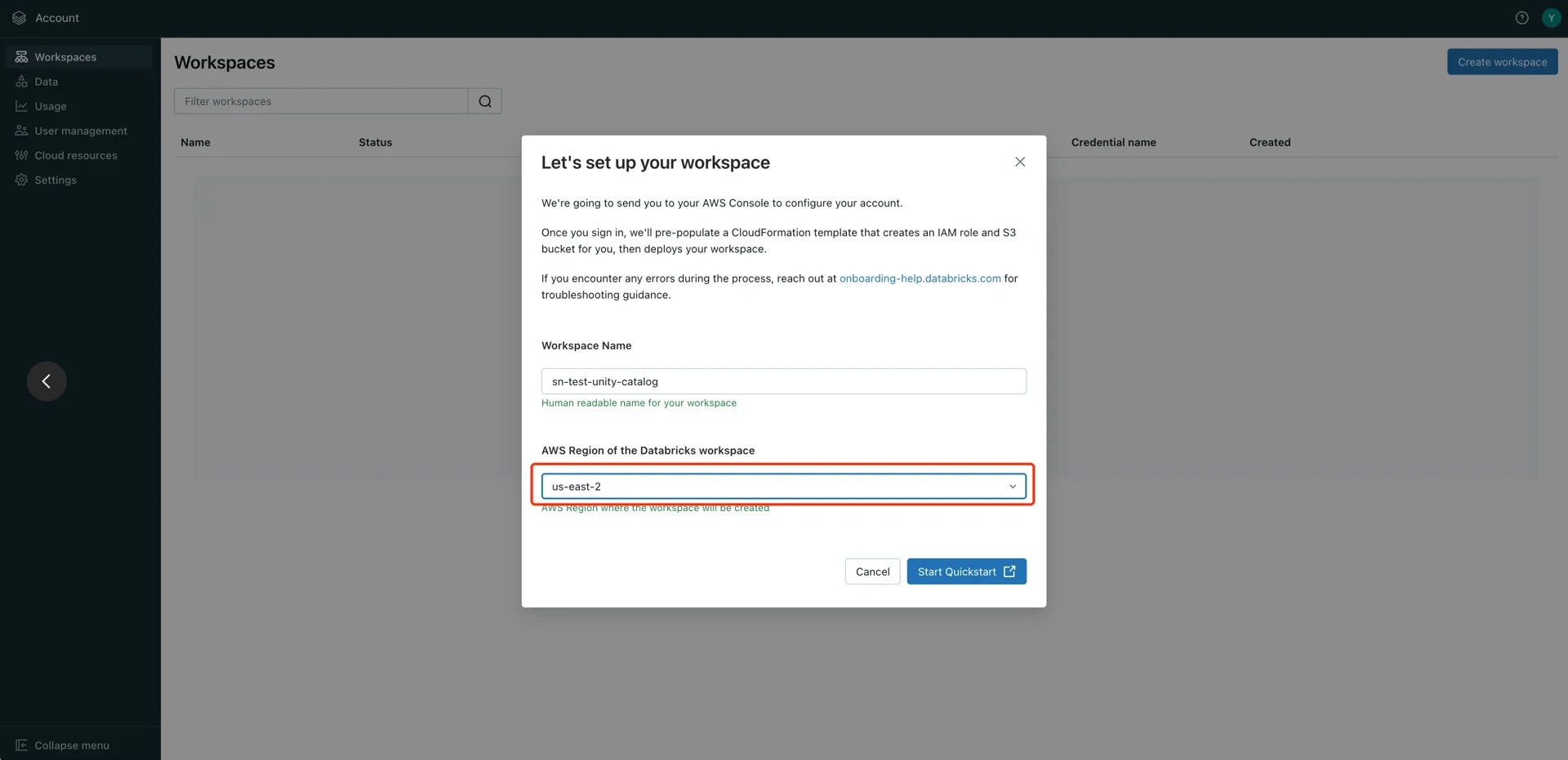
 Enter a workspace name and select the AWS region in which your S3 bucket resides (for example, `us-east-2`). Click **Start Quickstart**.
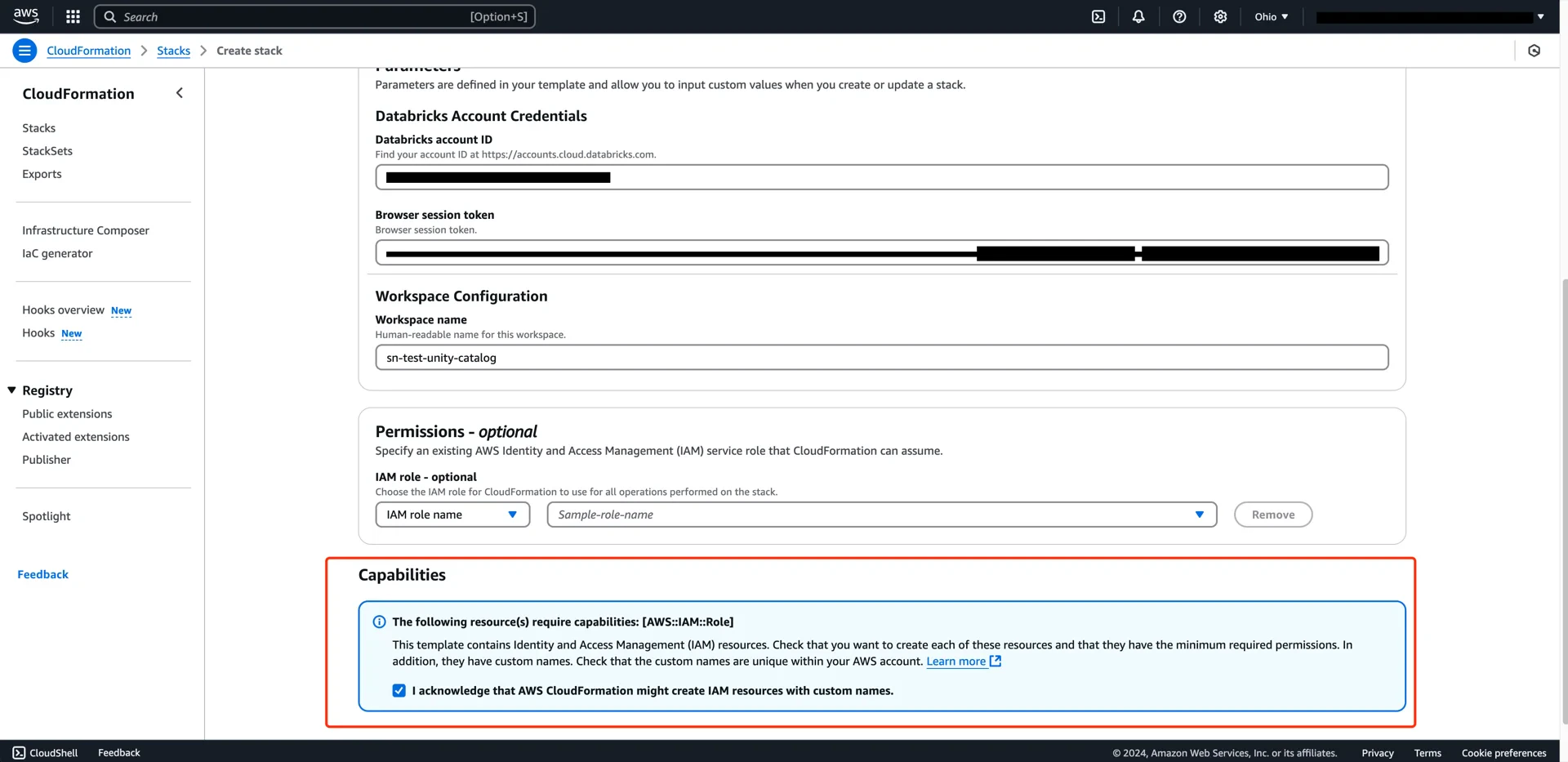
 In the AWS console, acknowledge the IAM resource creation and click **Create Stack**.
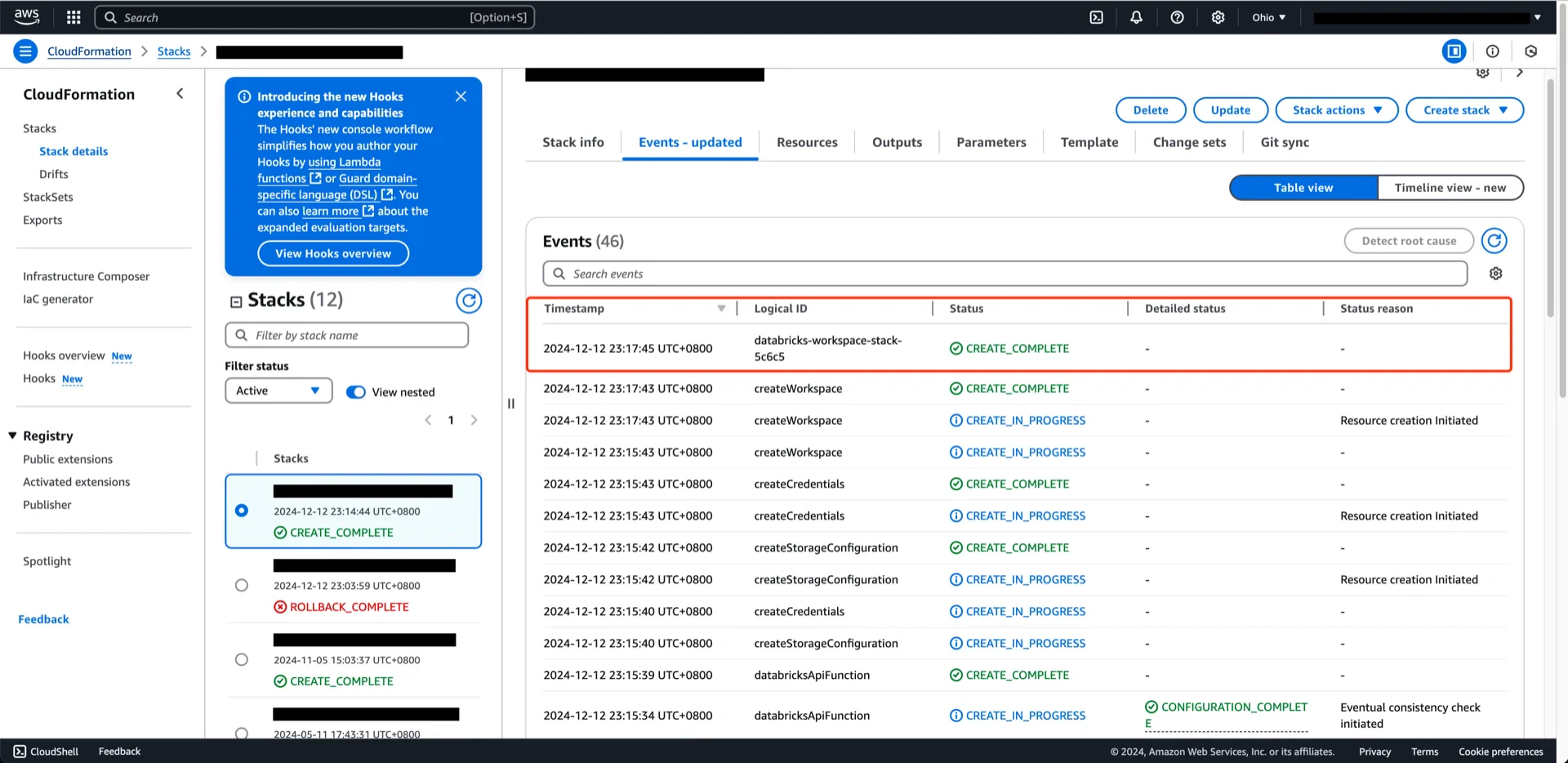
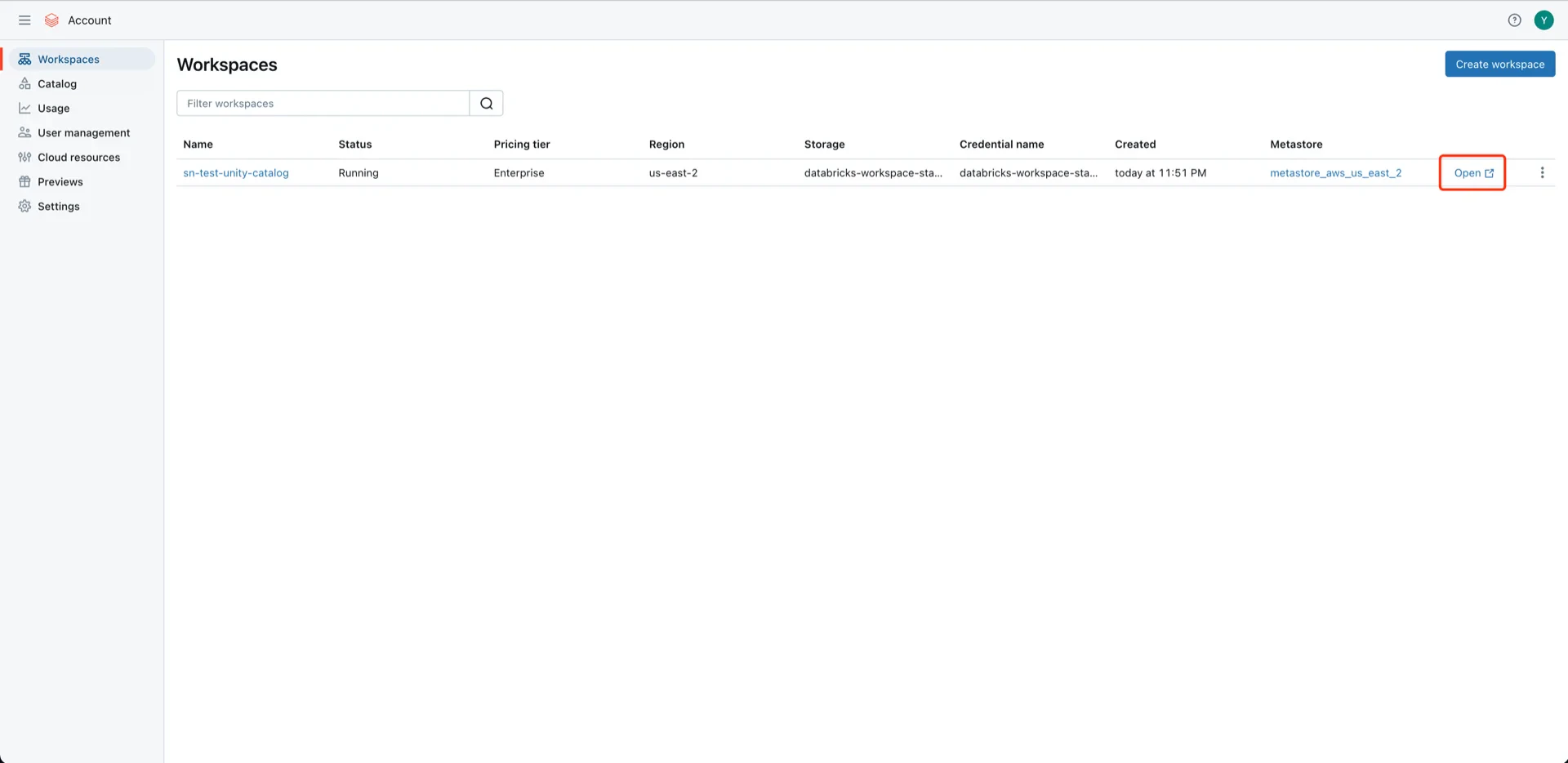
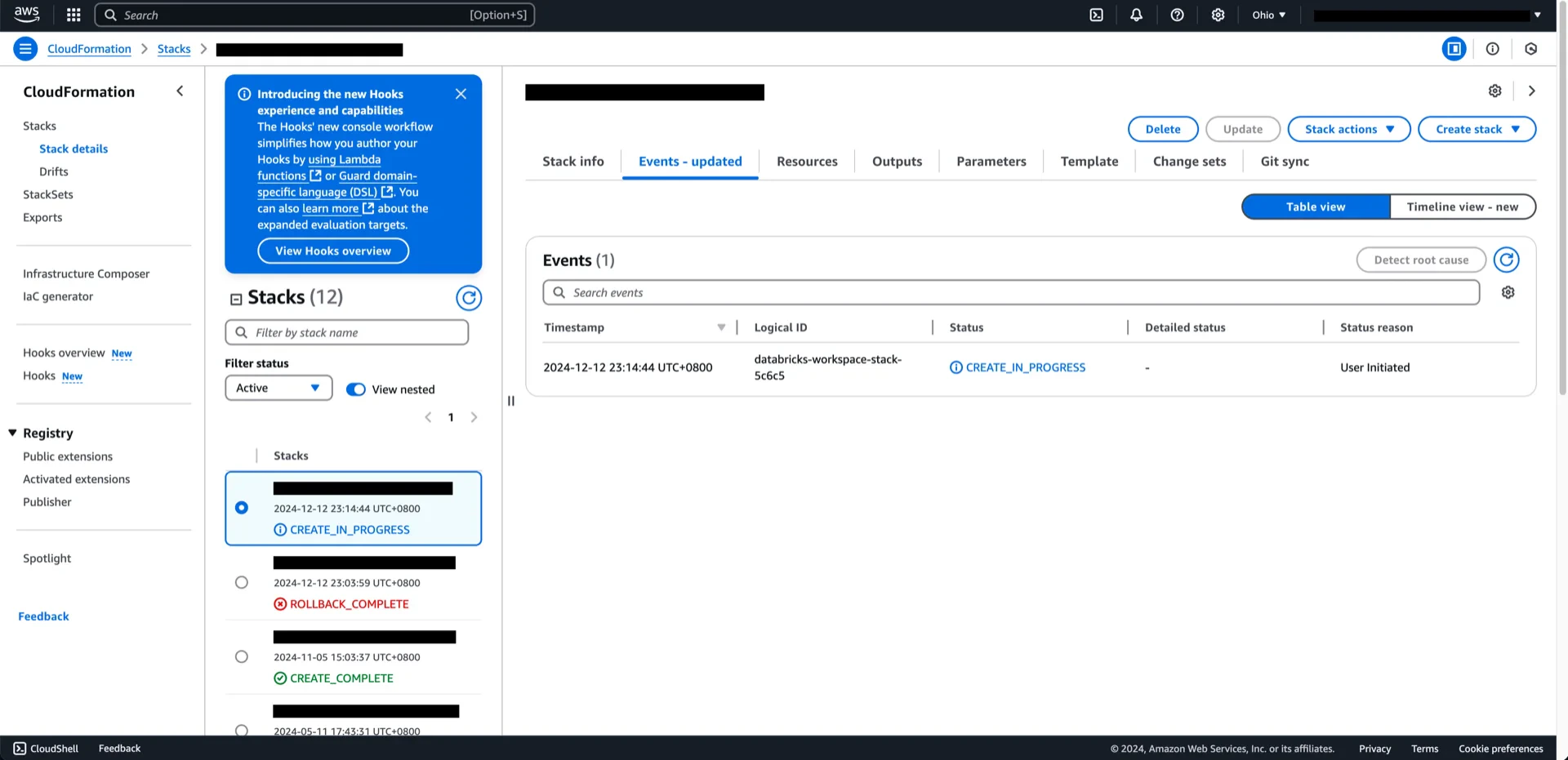 When the stack reaches `CREATE_COMPLETE`, return to the Databricks console and open the workspace.
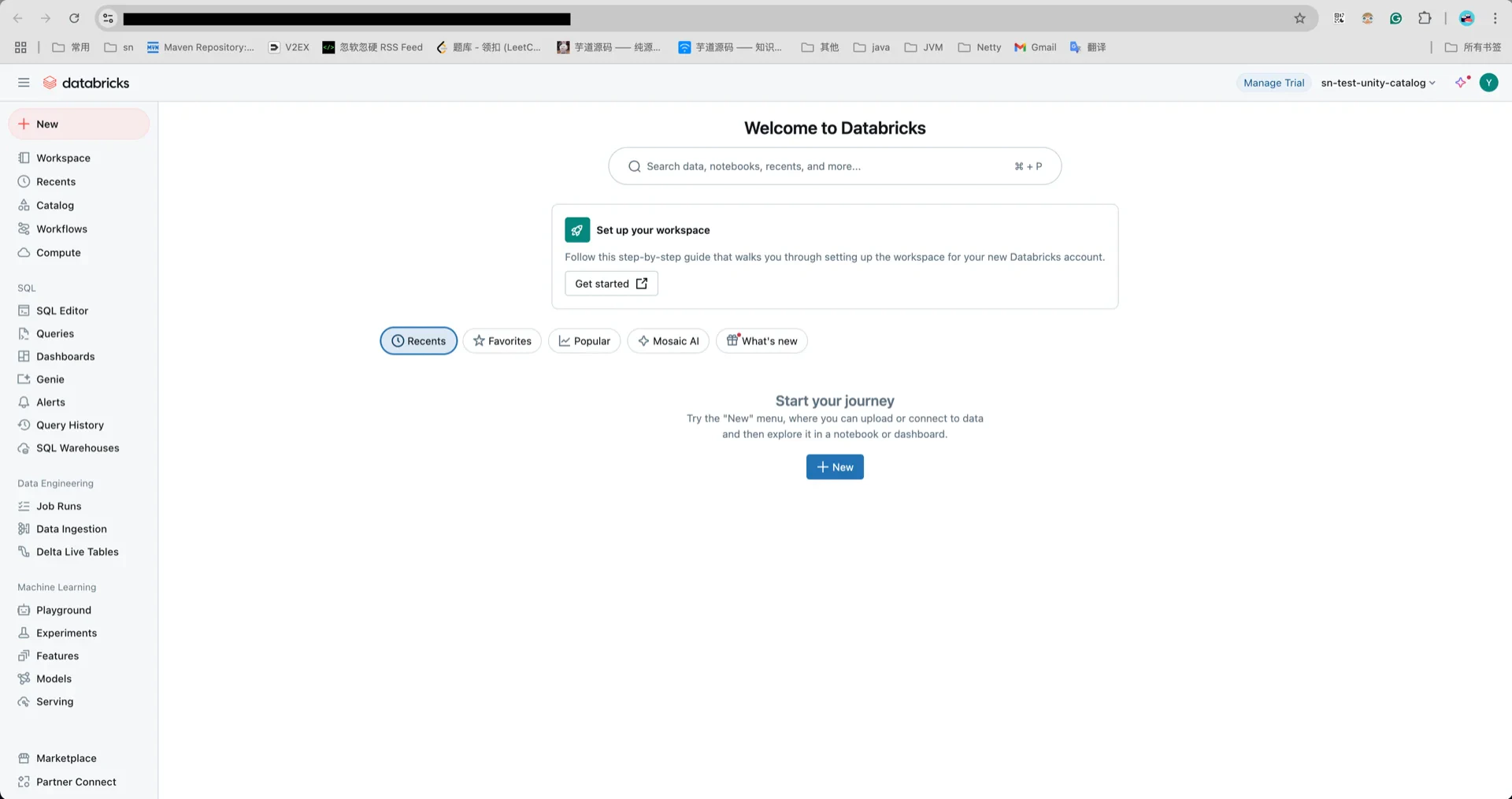 ## 2. (Recommend) Generate an OAuth2 Service Principal
If you prefer OAuth2 over a personal access token, create a service principal:
Navigate to **Developer -> Identity and access -> Service principals -> Manage**.
## 2. (Recommend) Generate an OAuth2 Service Principal
If you prefer OAuth2 over a personal access token, create a service principal:
Navigate to **Developer -> Identity and access -> Service principals -> Manage**.
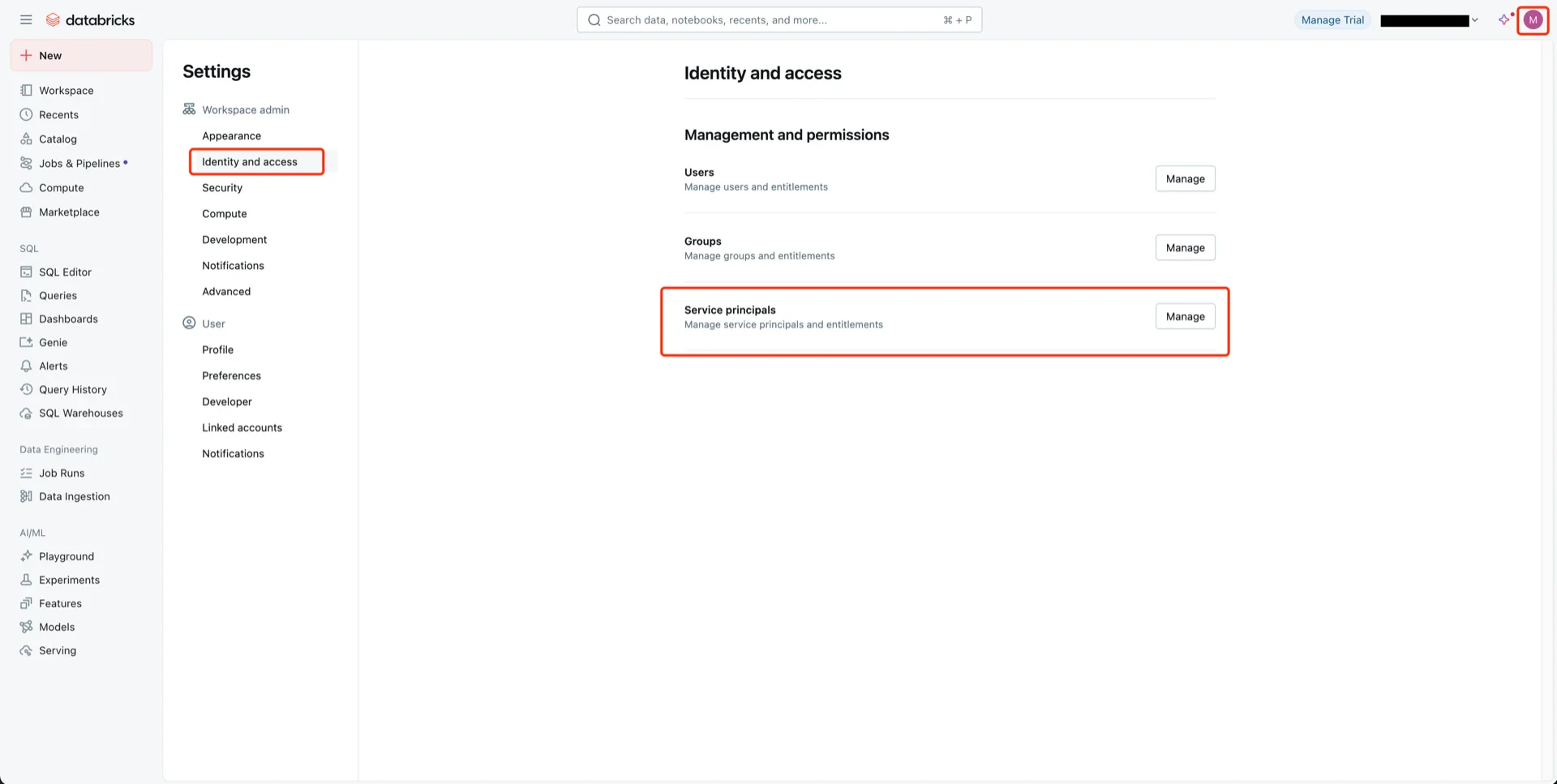 Click **Add service principal -> Add new**, give it a name, and click **Add**.
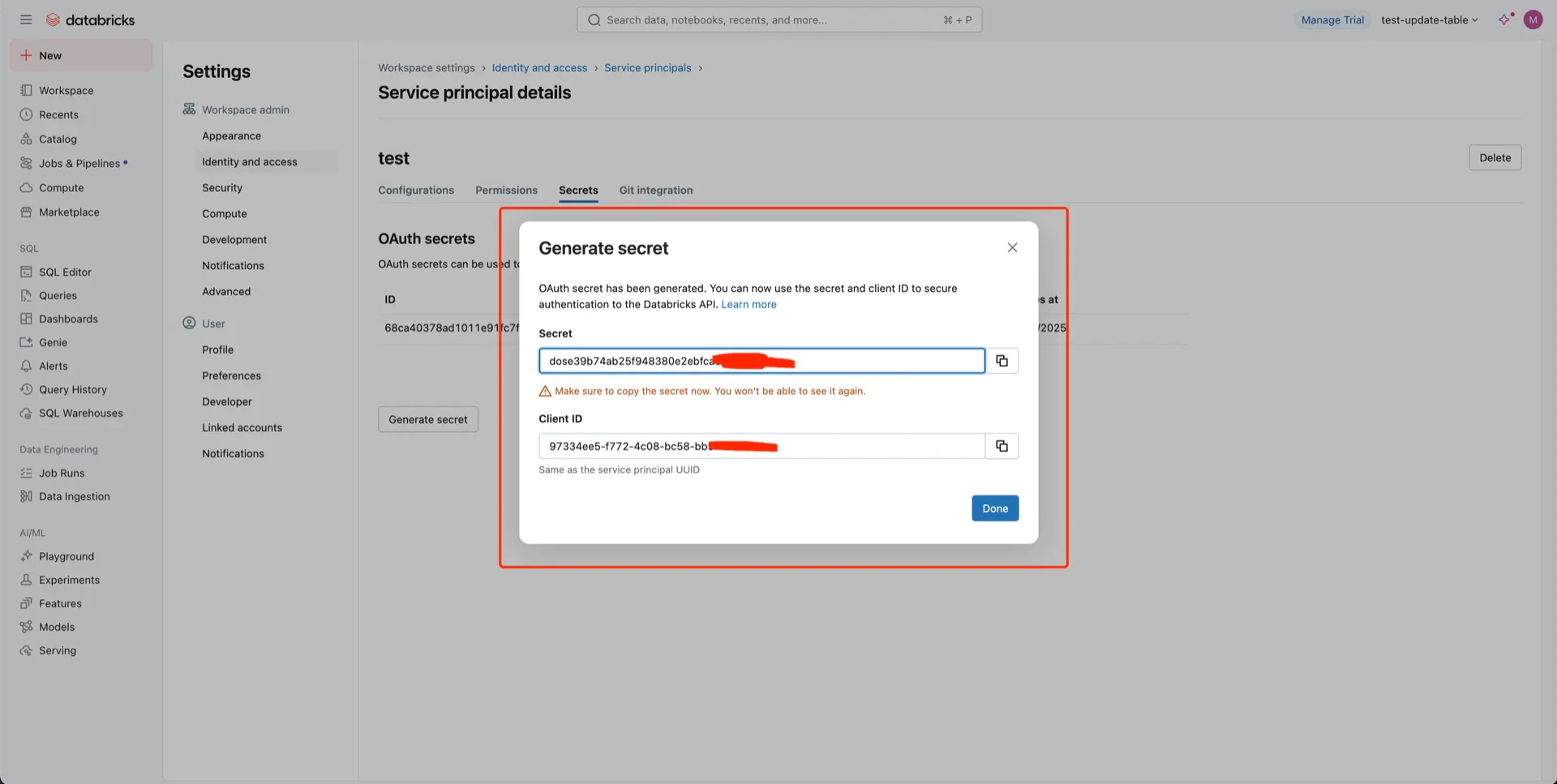
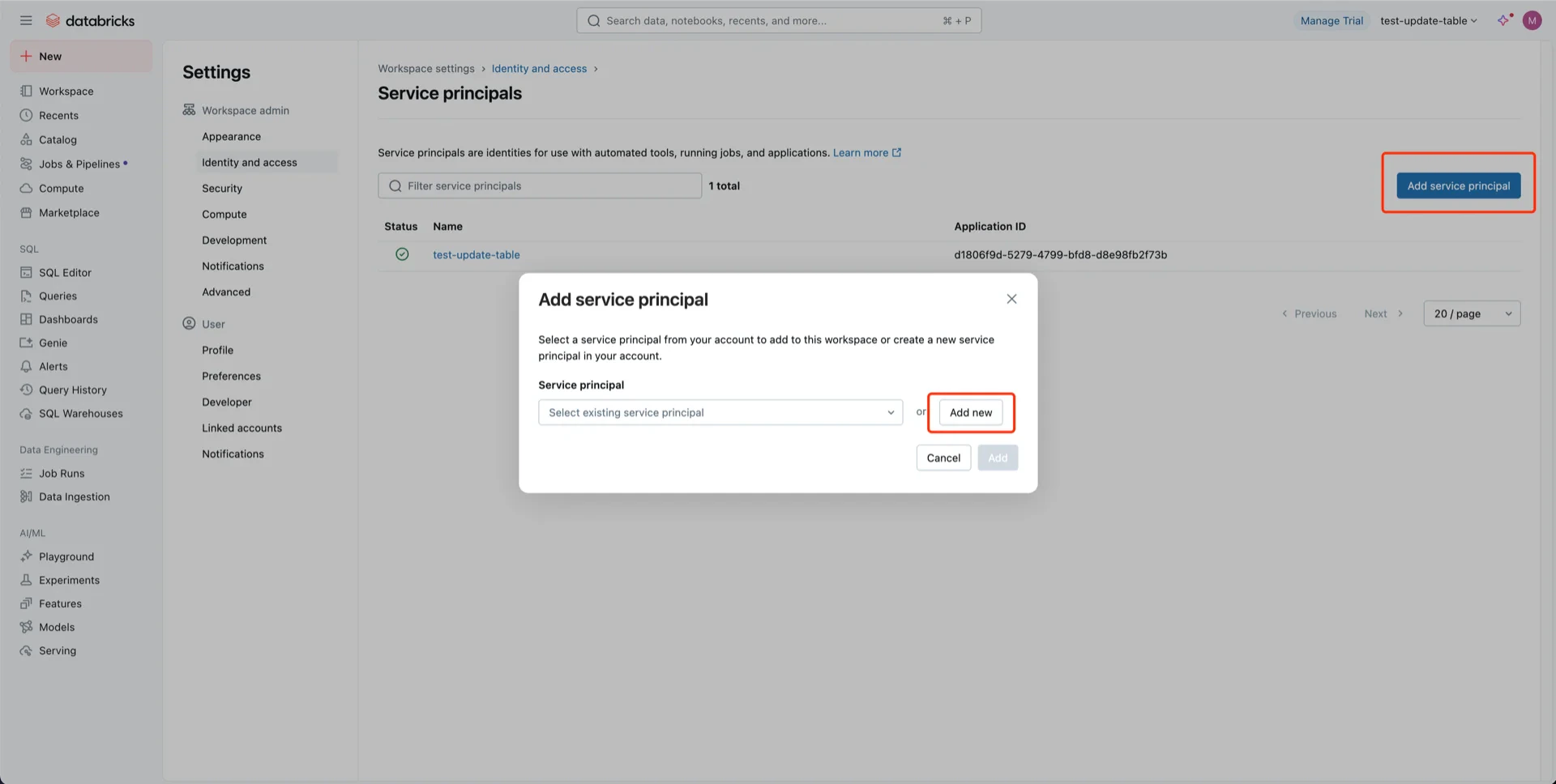 Open the service principal, click **Secrets -> Generate secret**, choose an expiration period, and **Generate**.
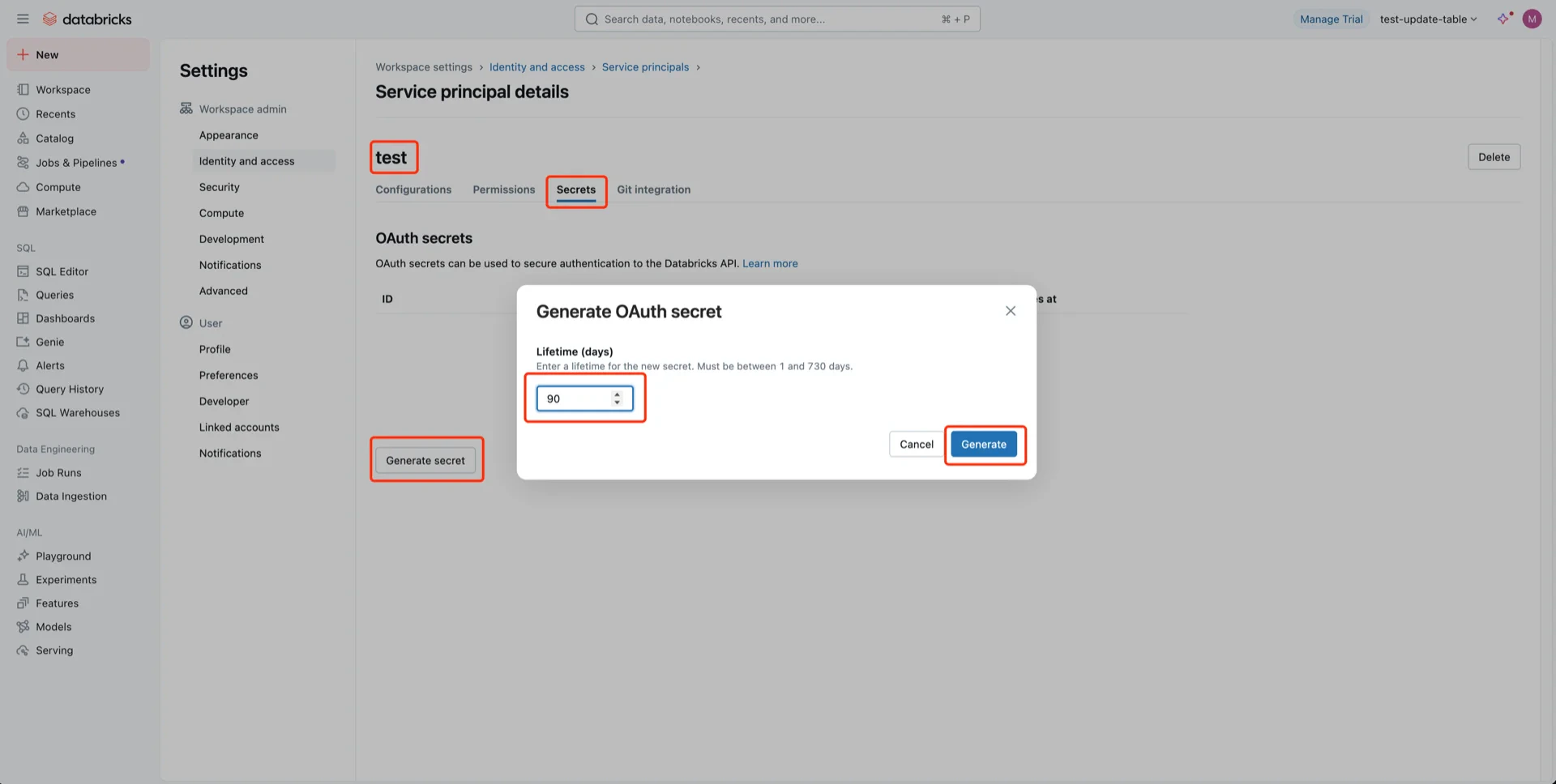 Record the **Client ID** and **Client Secret** -- the secret cannot be retrieved later.
 ## 3. (Alternative) Generate a User Token
A Databricks user token can be used by StreamNative Ursa to authenticate against Unity Catalog.
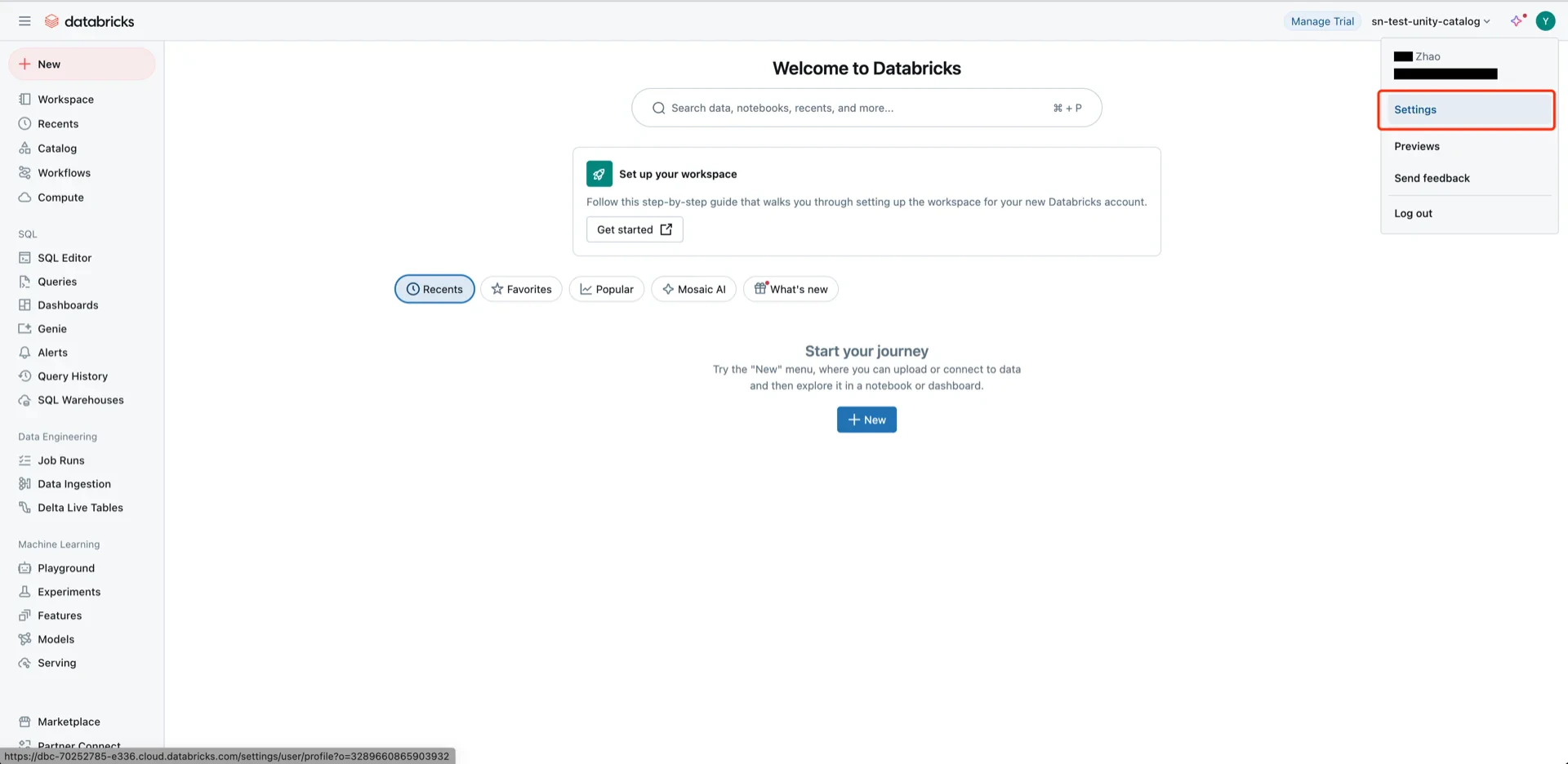
Open **User Settings**.
## 3. (Alternative) Generate a User Token
A Databricks user token can be used by StreamNative Ursa to authenticate against Unity Catalog.
Open **User Settings**.
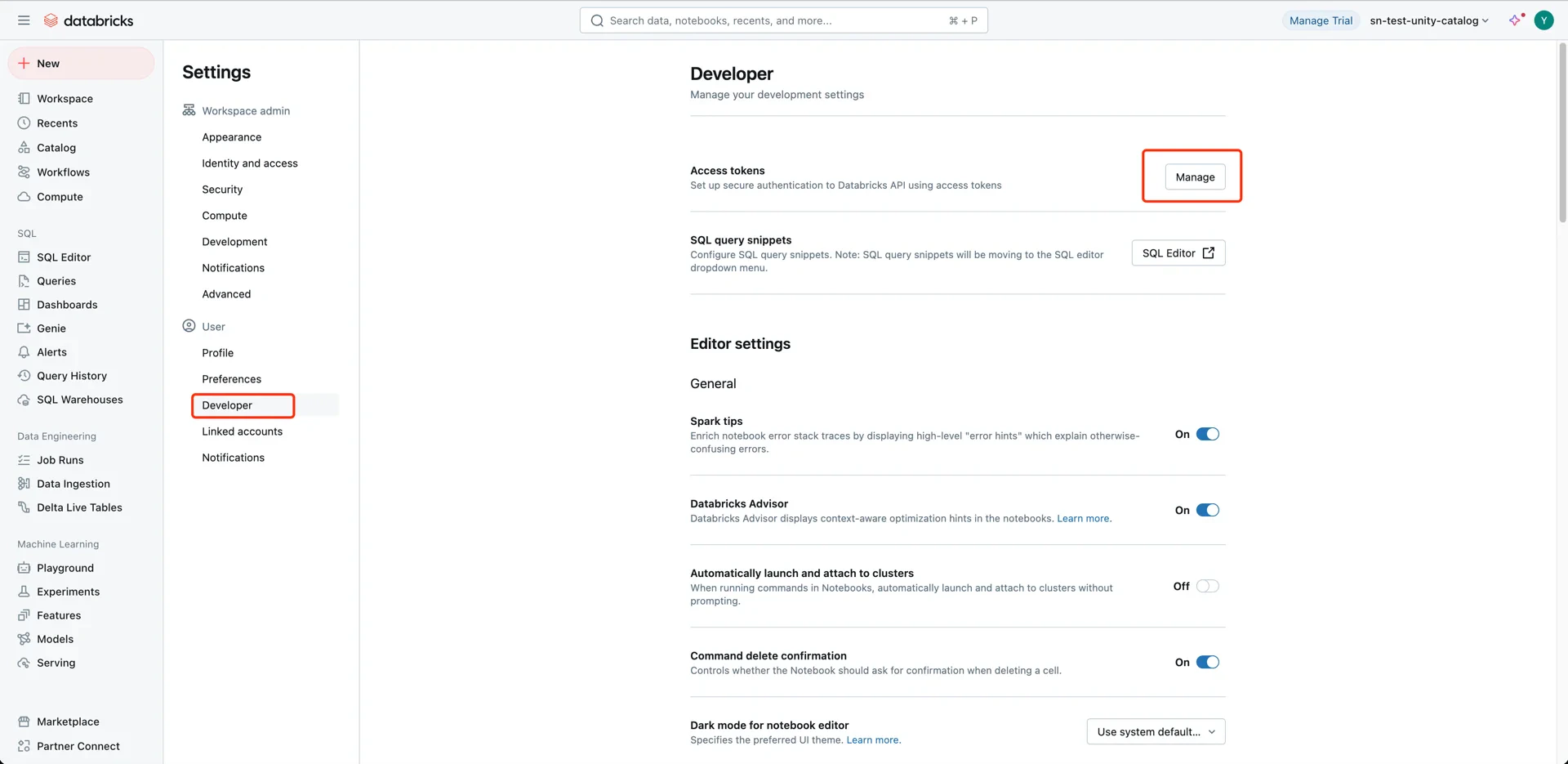
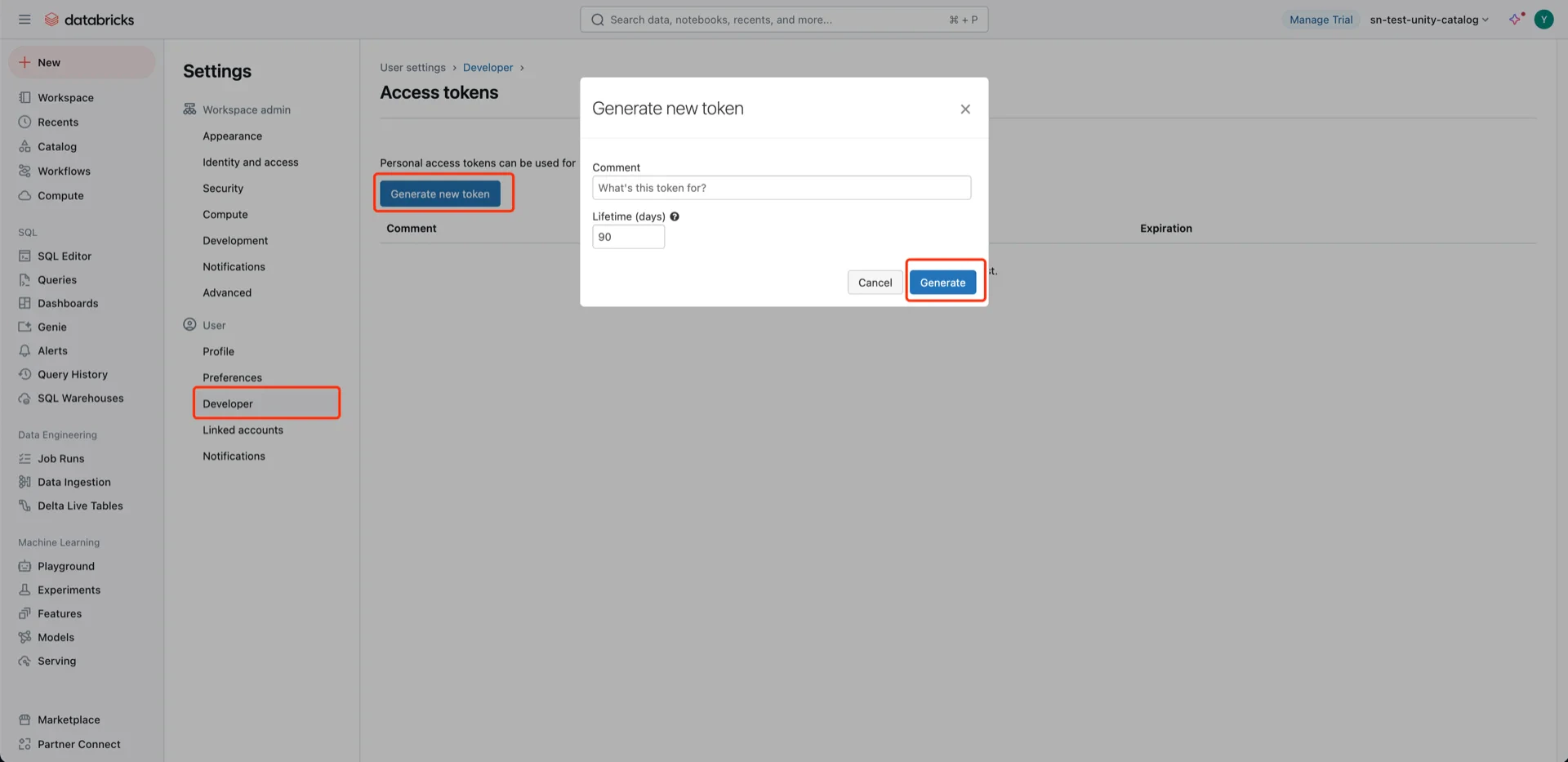
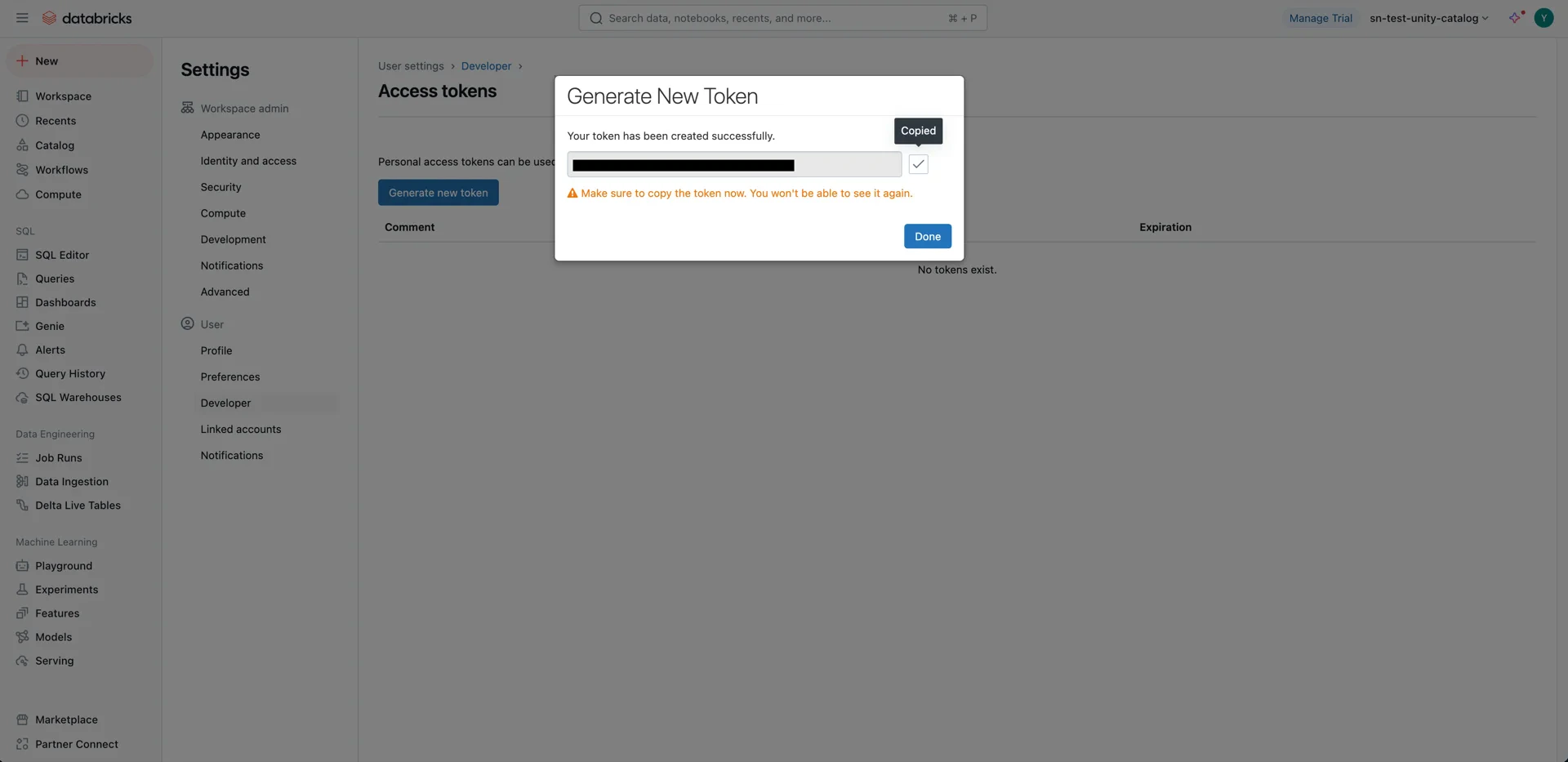
 Navigate to **Developer -> Access tokens -> Manage** and generate a new token. Record the token value -- it cannot be retrieved later.
 ## 4. Configure Unity Catalog Access
Navigate to **Catalog -> Settings -> Metastore**.
## 4. Configure Unity Catalog Access
Navigate to **Catalog -> Settings -> Metastore**.
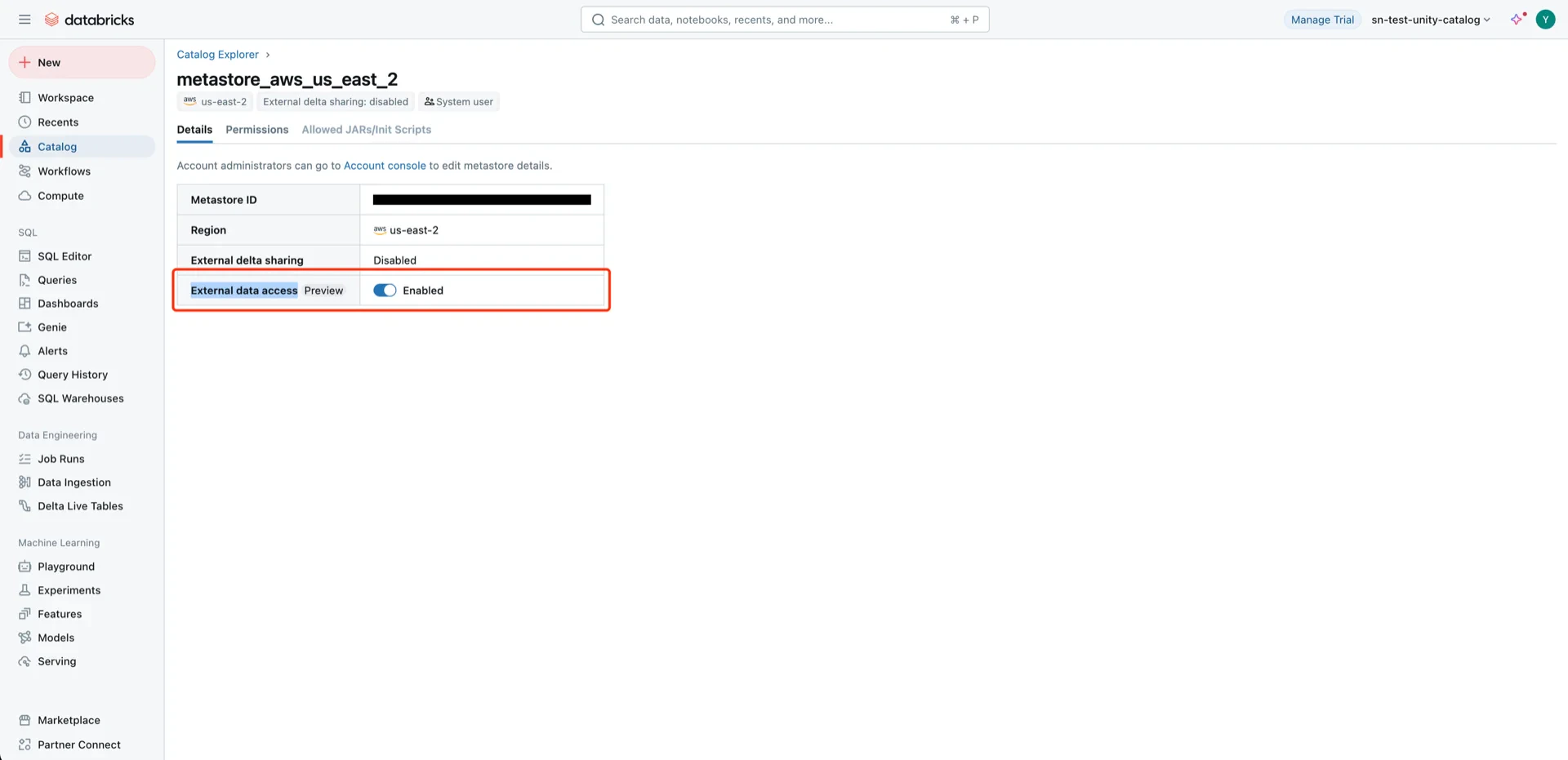
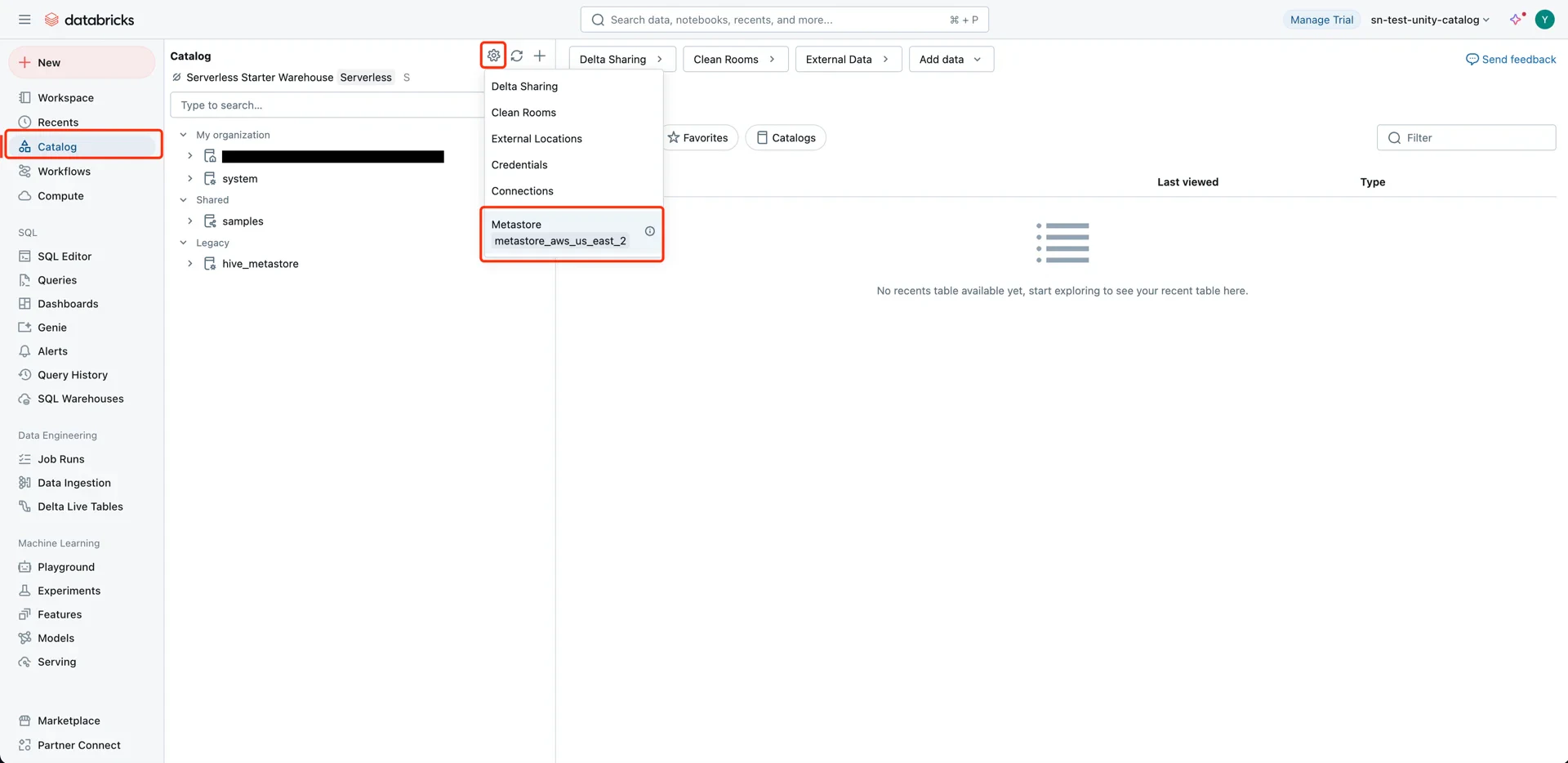 Enable **External data access** on the metastore.
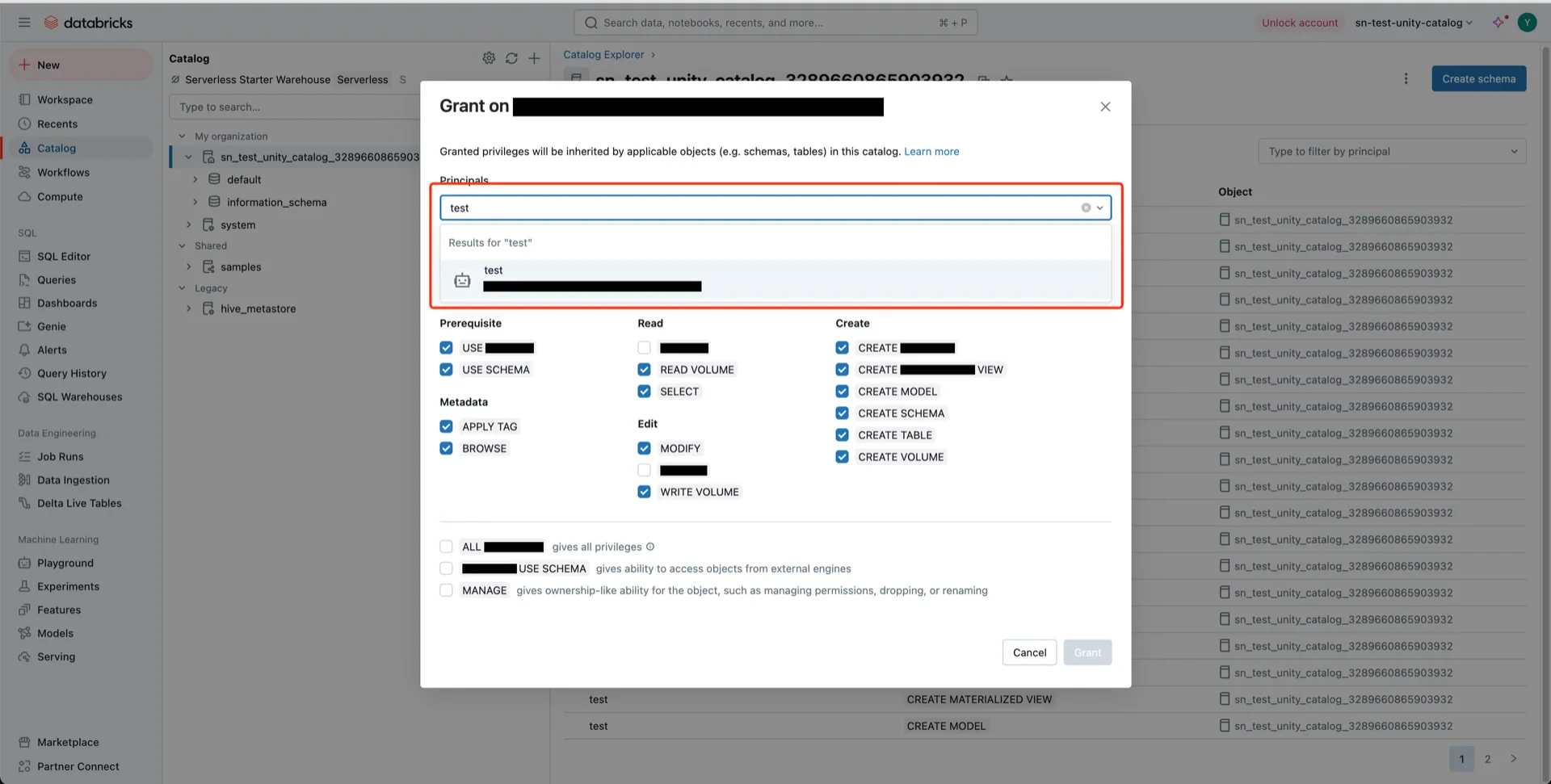
 Grant privileges on the catalog with the following settings:
* **Principal:** All accounts (or the specific user/service principal)
* **Privilege presets:** Data Editor (selects related privileges automatically)
* **EXTERNAL USE SCHEMA:** Enabled
Grant privileges on the catalog with the following settings:
* **Principal:** All accounts (or the specific user/service principal)
* **Privilege presets:** Data Editor (selects related privileges automatically)
* **EXTERNAL USE SCHEMA:** Enabled
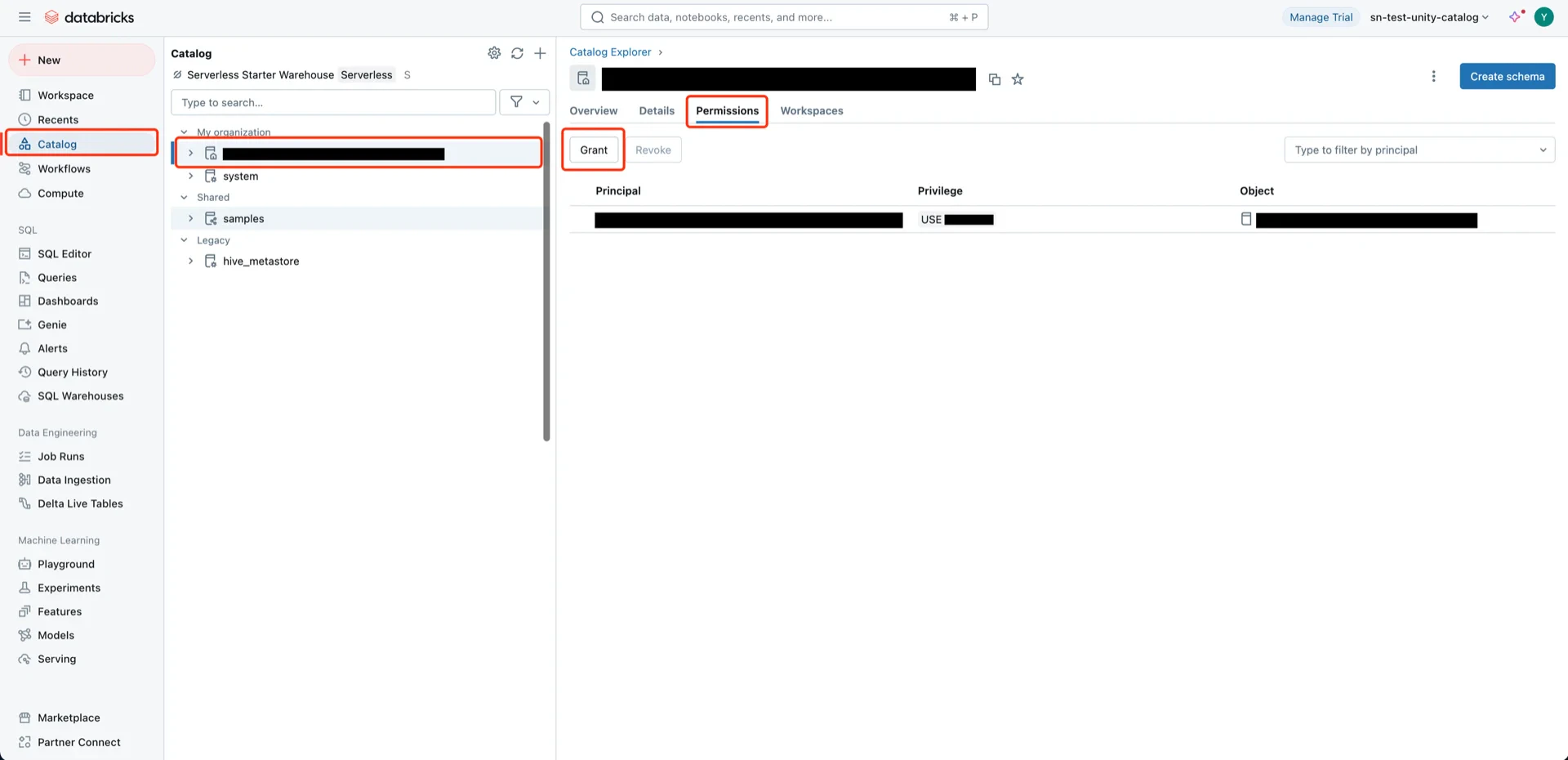
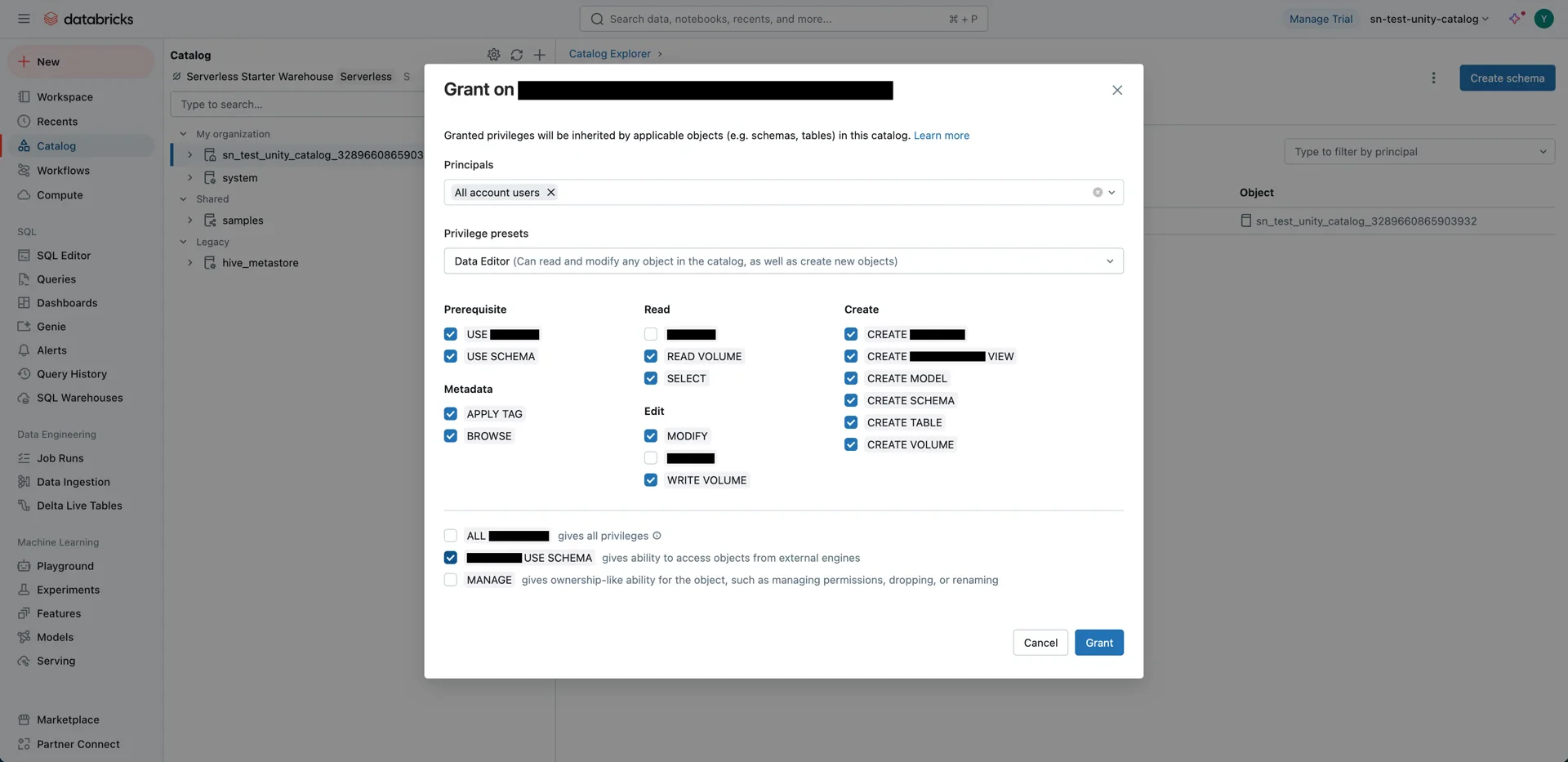 If you use OAuth2 authentication, set the **Principal** to the service principal name created in step 3.
 ## 5. Create an S3 Bucket
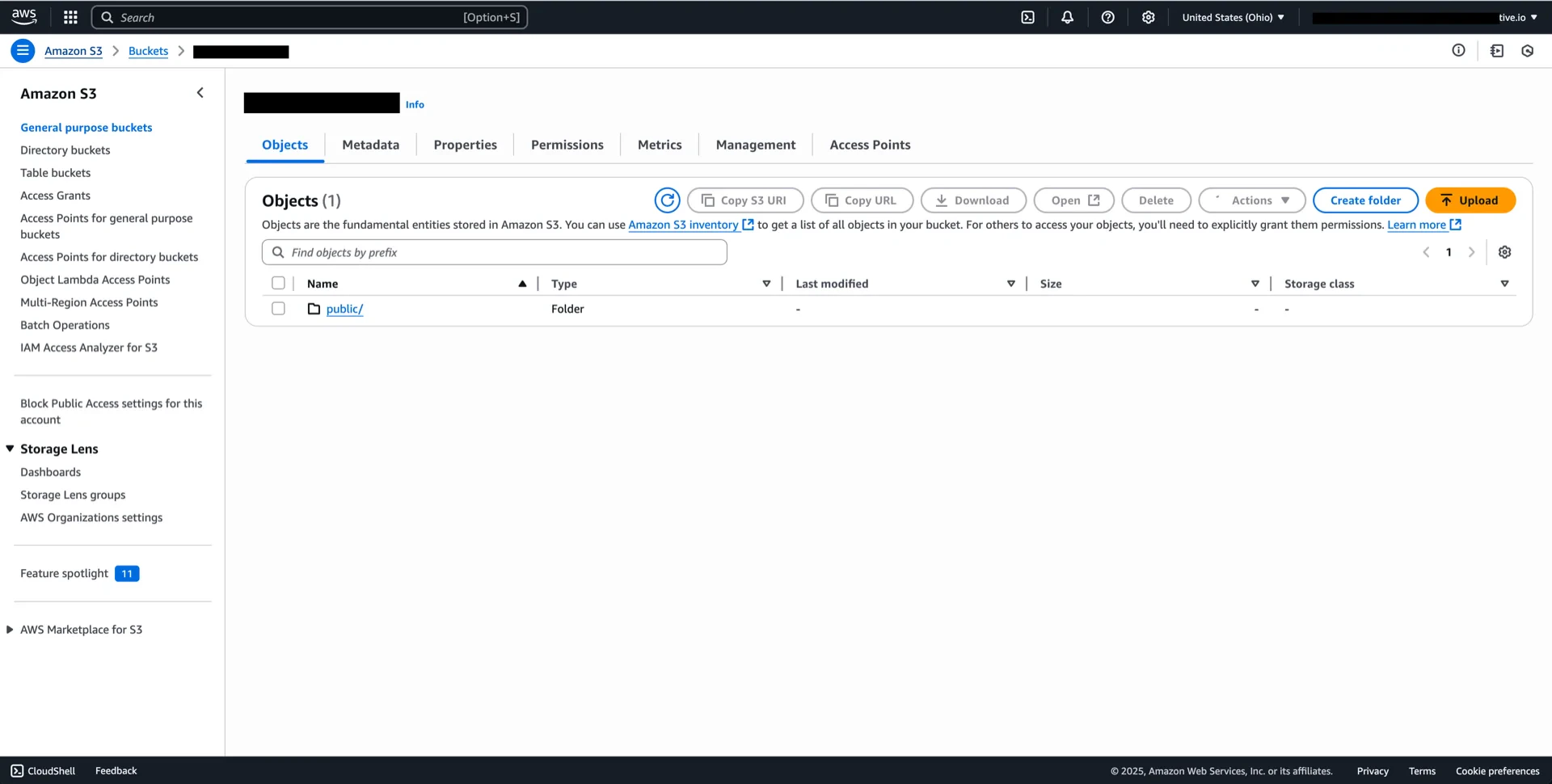
In your AWS account, create an S3 bucket for the Unity Catalog managed location (for example, `delta-unity-catalog-bucket`).
## 5. Create an S3 Bucket
In your AWS account, create an S3 bucket for the Unity Catalog managed location (for example, `delta-unity-catalog-bucket`).
 ## 6. Create an IAM Policy
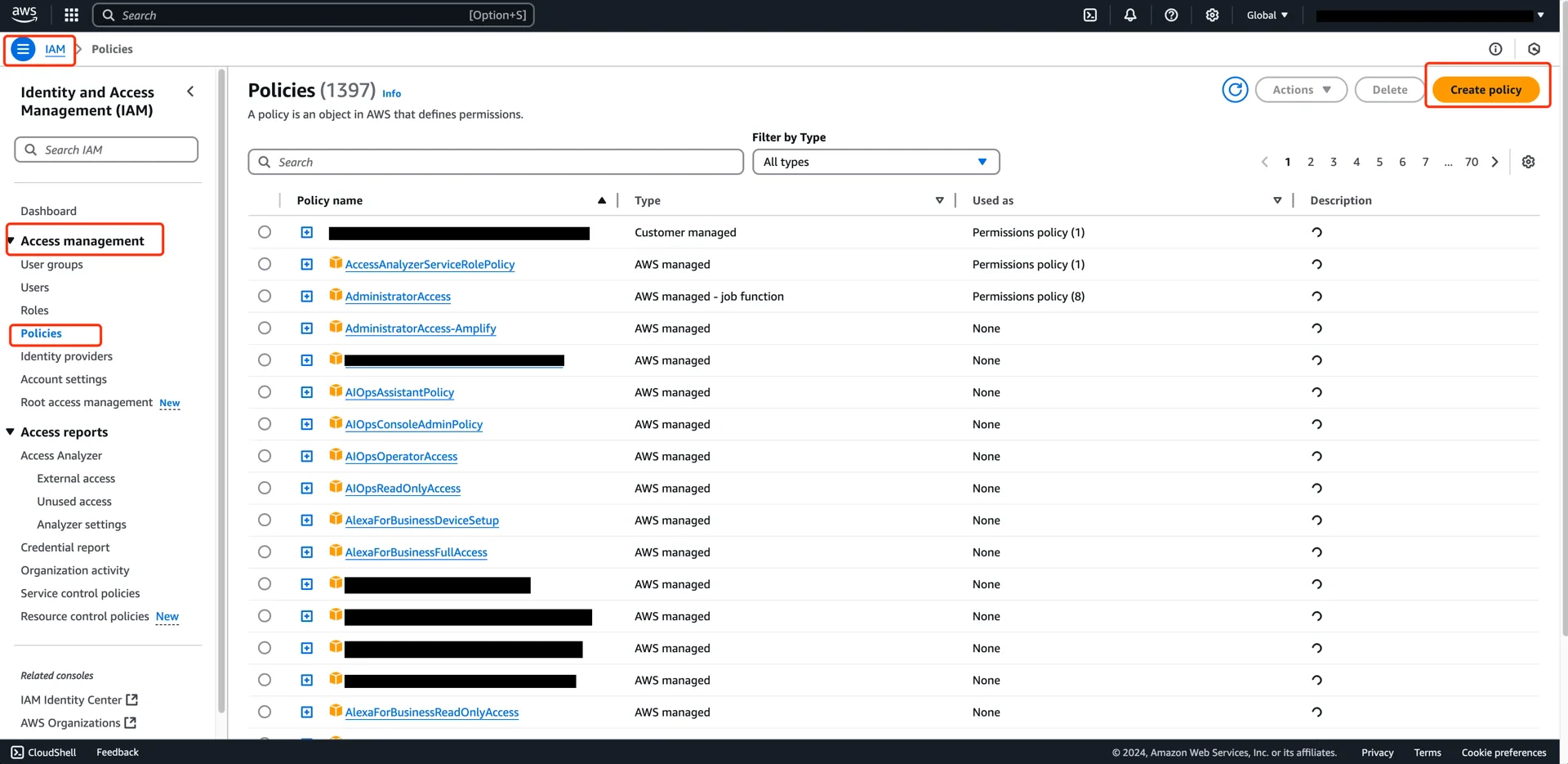
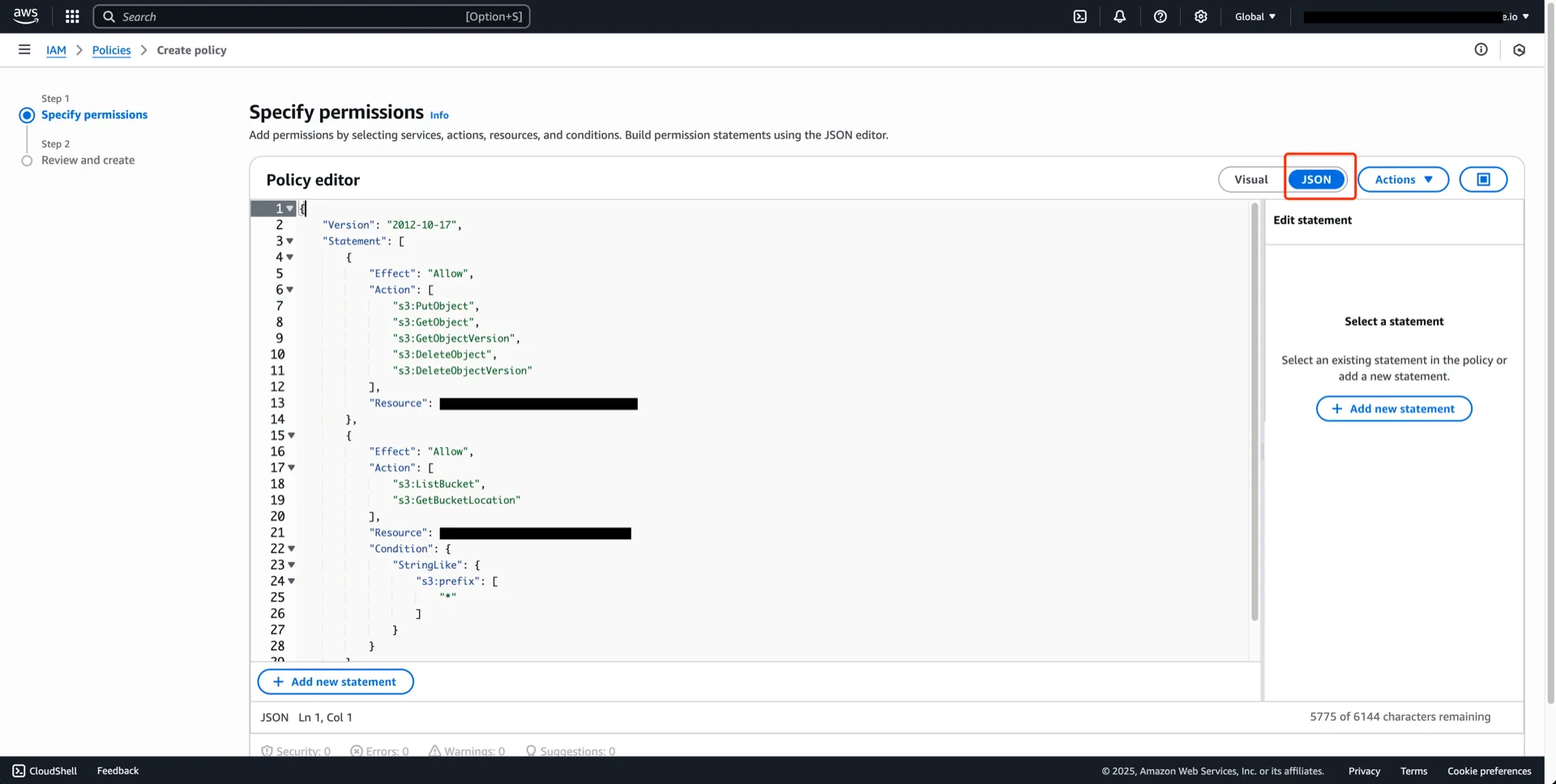
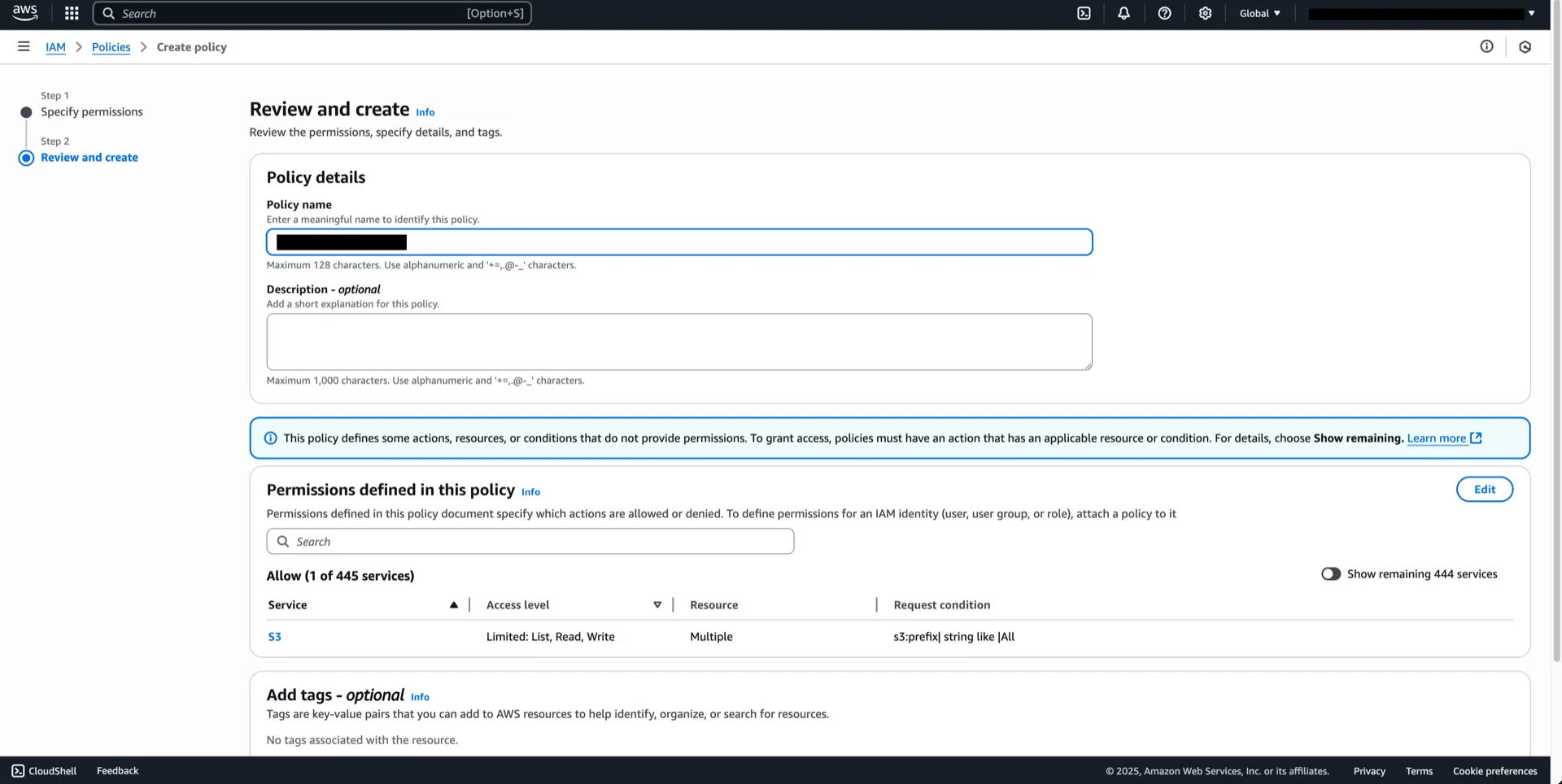
Navigate to **AWS IAM -> Policies -> Create policy**, choose JSON, and paste the following (replace ``):
```json theme={null}
{
"Version": "2012-10-17",
"Statement": [
{
"Effect": "Allow",
"Action": [
"s3:PutObject",
"s3:GetObject",
"s3:GetObjectVersion",
"s3:DeleteObject",
"s3:DeleteObjectVersion"
],
"Resource": "arn:aws:s3:::/*"
},
{
"Effect": "Allow",
"Action": [
"s3:ListBucket",
"s3:GetBucketLocation"
],
"Resource": "arn:aws:s3:::",
"Condition": {
"StringLike": {
"s3:prefix": ["*"]
}
}
}
]
}
```
## 6. Create an IAM Policy
Navigate to **AWS IAM -> Policies -> Create policy**, choose JSON, and paste the following (replace ``):
```json theme={null}
{
"Version": "2012-10-17",
"Statement": [
{
"Effect": "Allow",
"Action": [
"s3:PutObject",
"s3:GetObject",
"s3:GetObjectVersion",
"s3:DeleteObject",
"s3:DeleteObjectVersion"
],
"Resource": "arn:aws:s3:::/*"
},
{
"Effect": "Allow",
"Action": [
"s3:ListBucket",
"s3:GetBucketLocation"
],
"Resource": "arn:aws:s3:::",
"Condition": {
"StringLike": {
"s3:prefix": ["*"]
}
}
}
]
}
```
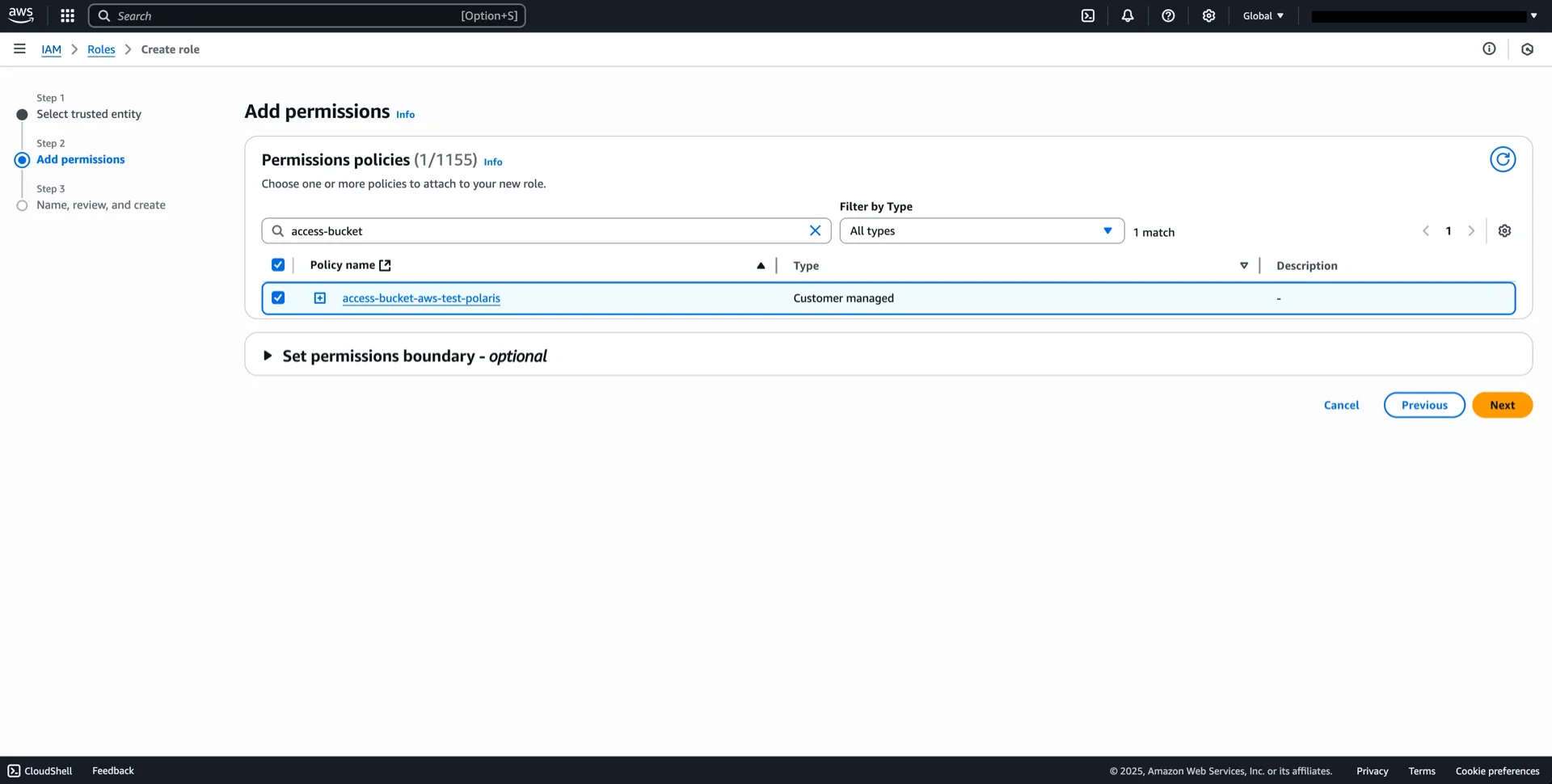
 ## 7. Create an IAM Role
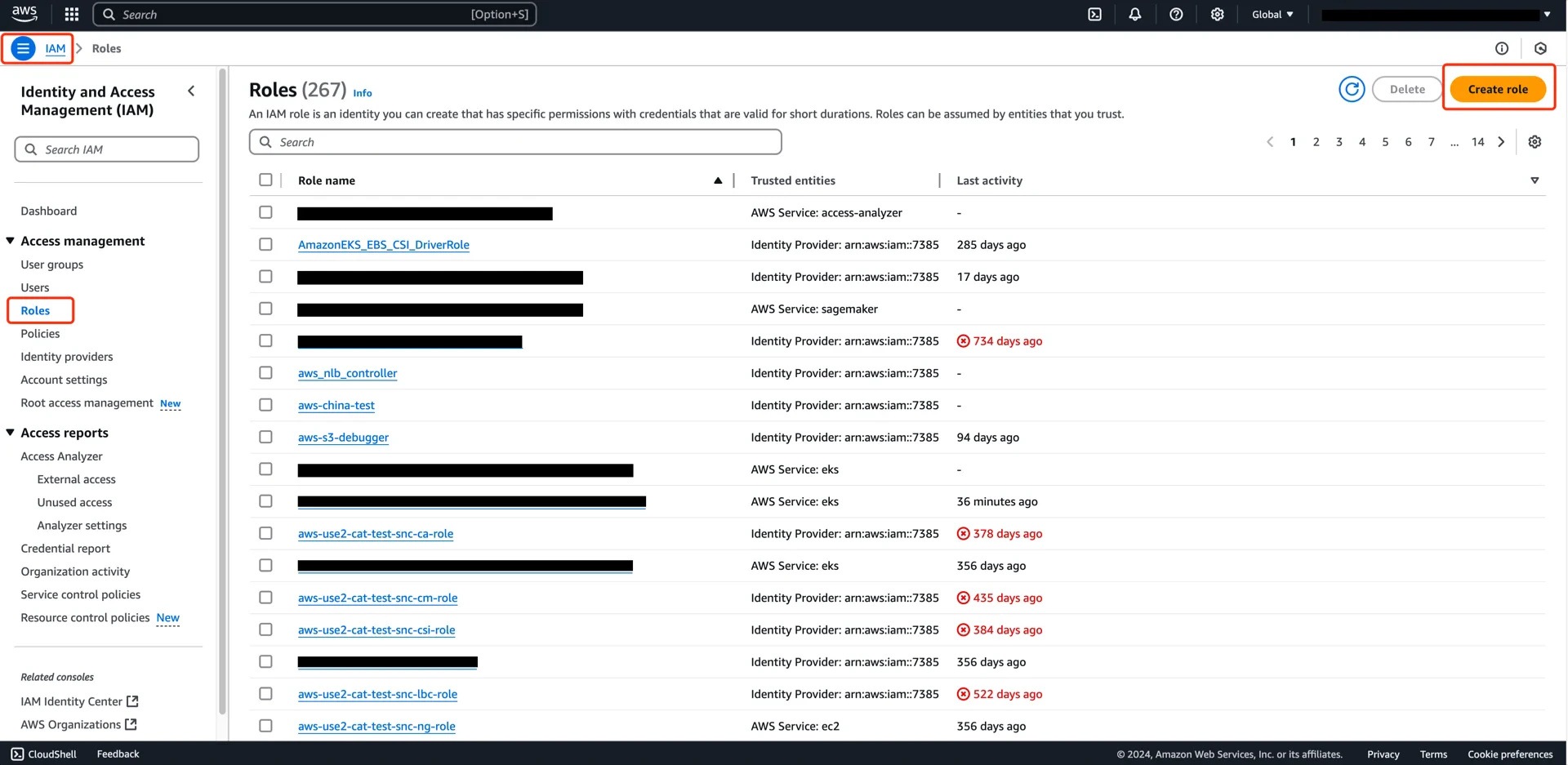
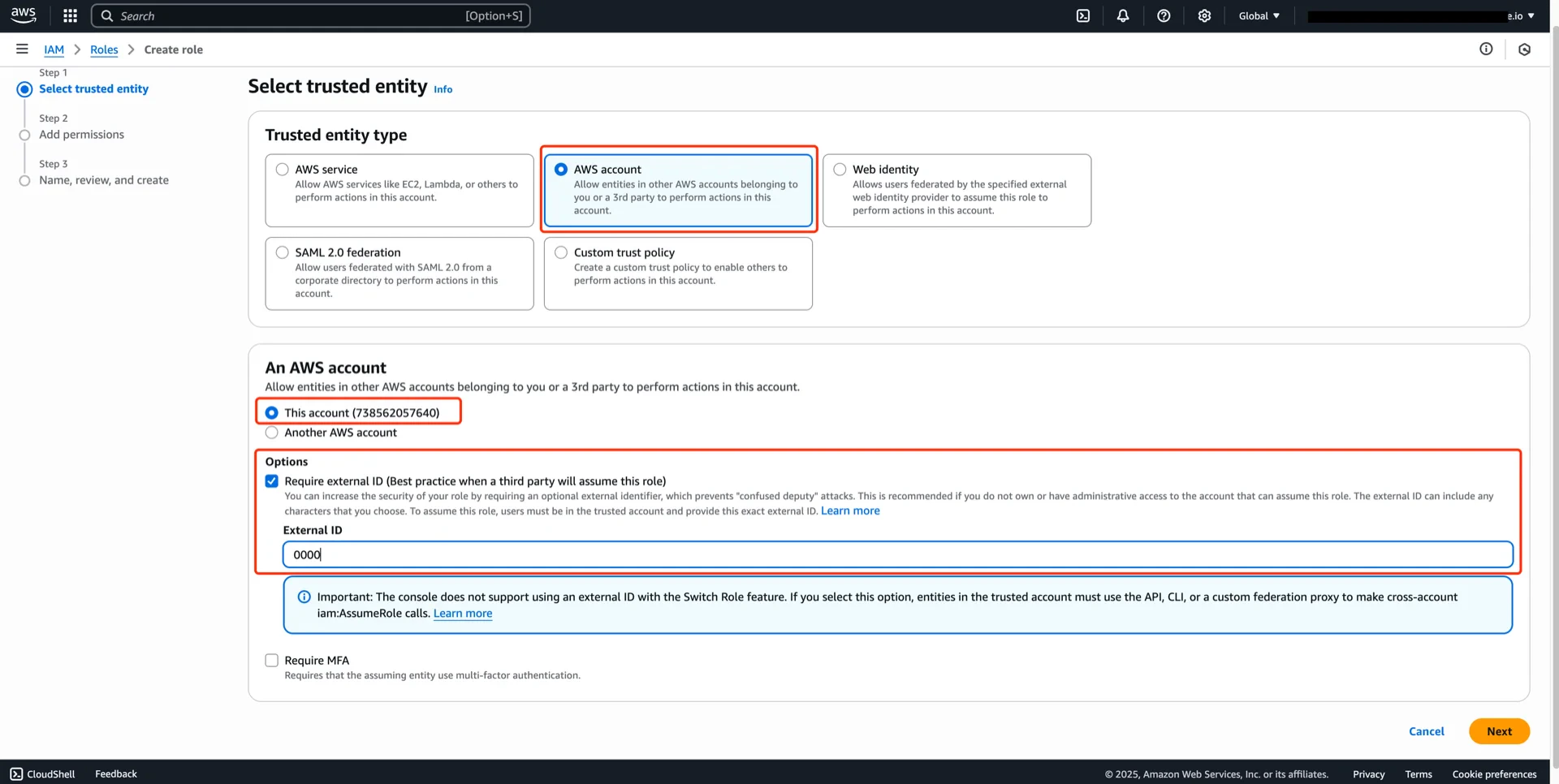
Navigate to **AWS IAM -> Roles -> Create role** and configure:
* **Trusted entity type:** AWS account
* **An AWS account:** This account
* **Enable External ID** with placeholder value `0000` (will be updated in step 9)
## 7. Create an IAM Role
Navigate to **AWS IAM -> Roles -> Create role** and configure:
* **Trusted entity type:** AWS account
* **An AWS account:** This account
* **Enable External ID** with placeholder value `0000` (will be updated in step 9)
 Attach the policy from step 6.
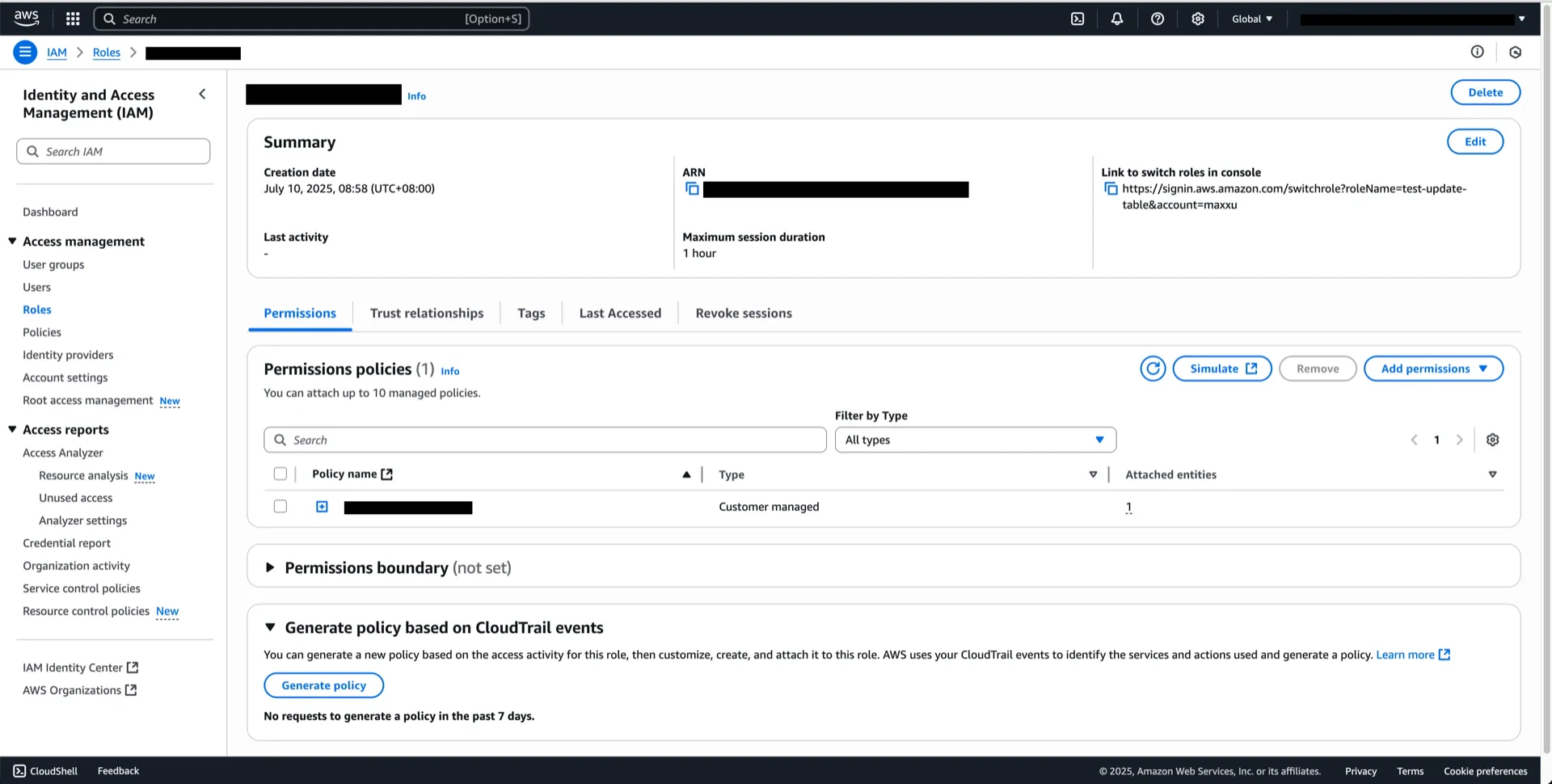
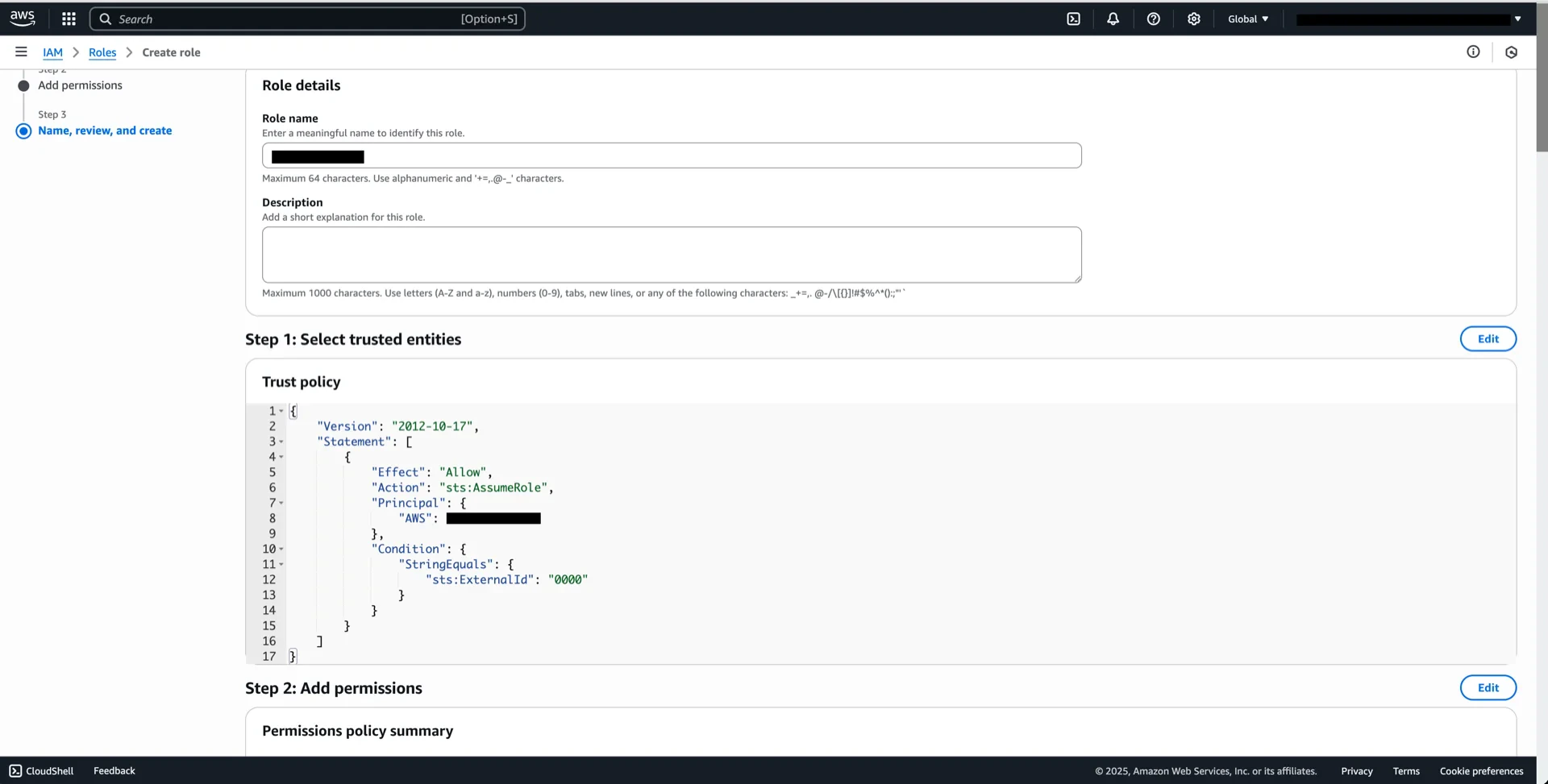 Record the role ARN (for example, `arn:aws:iam:::role/`).
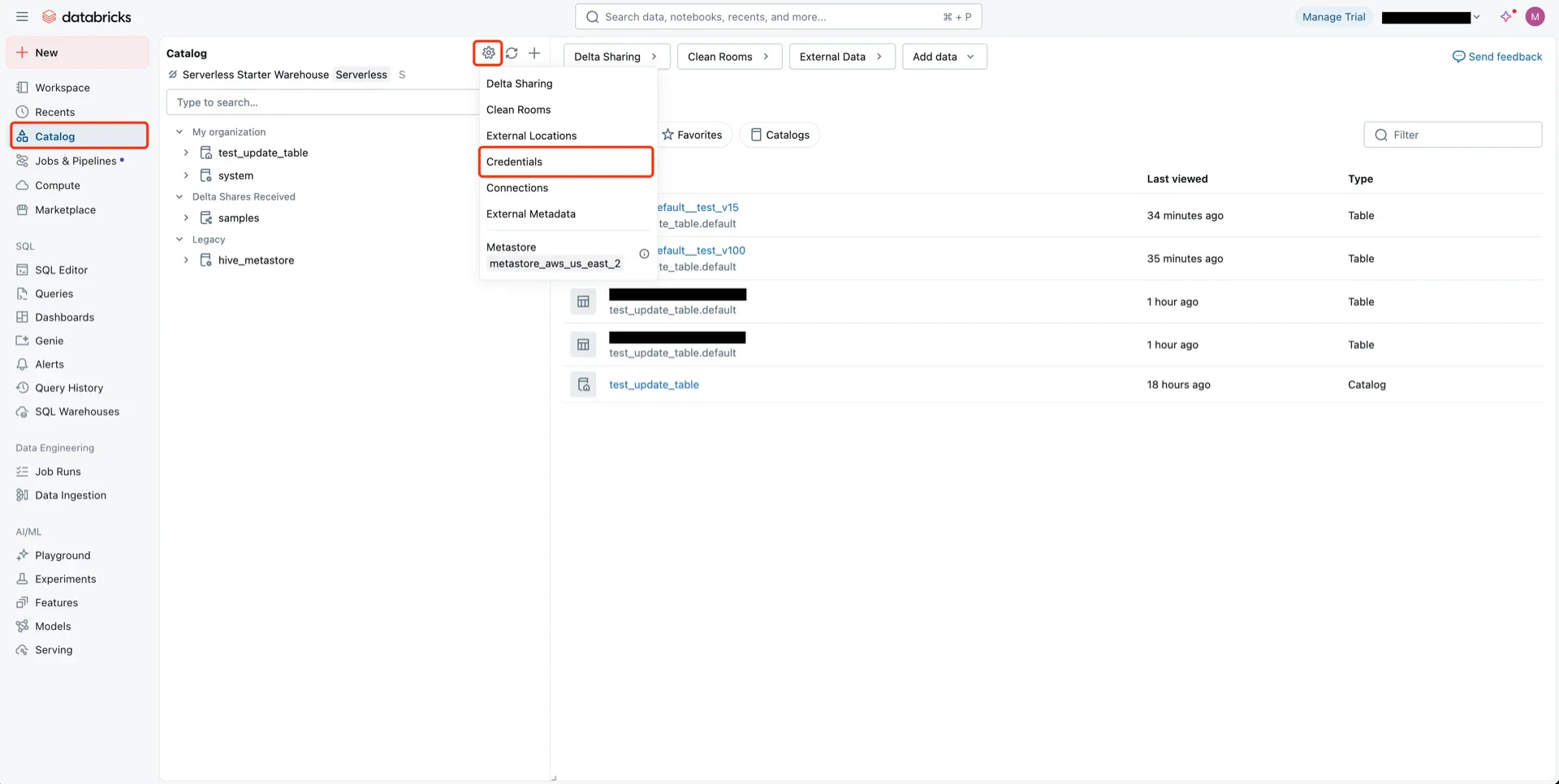
 ## 8. Create a Storage Credential in Unity Catalog
Navigate to **Catalog -> Settings -> Credentials**.
## 8. Create a Storage Credential in Unity Catalog
Navigate to **Catalog -> Settings -> Credentials**.
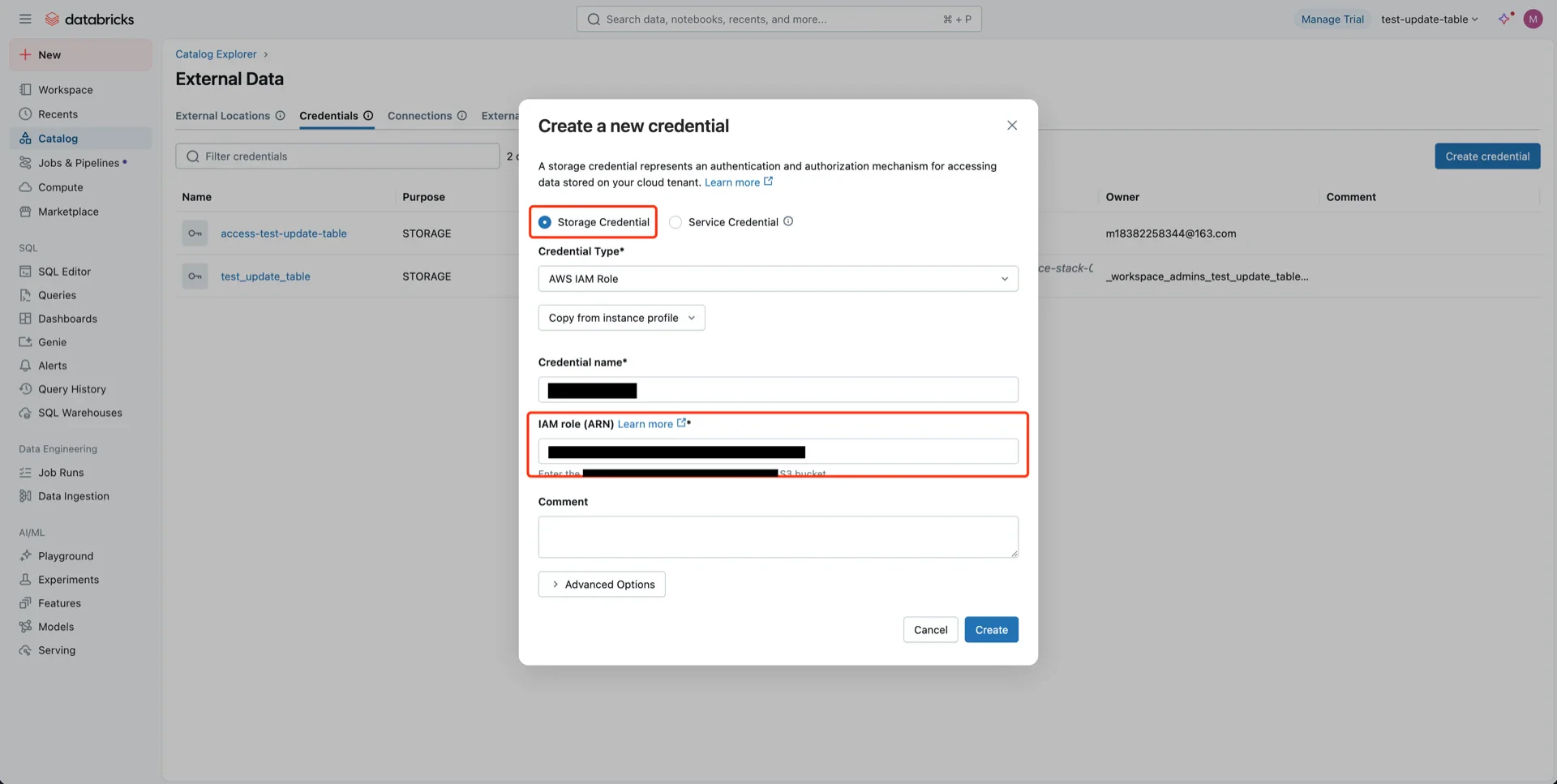
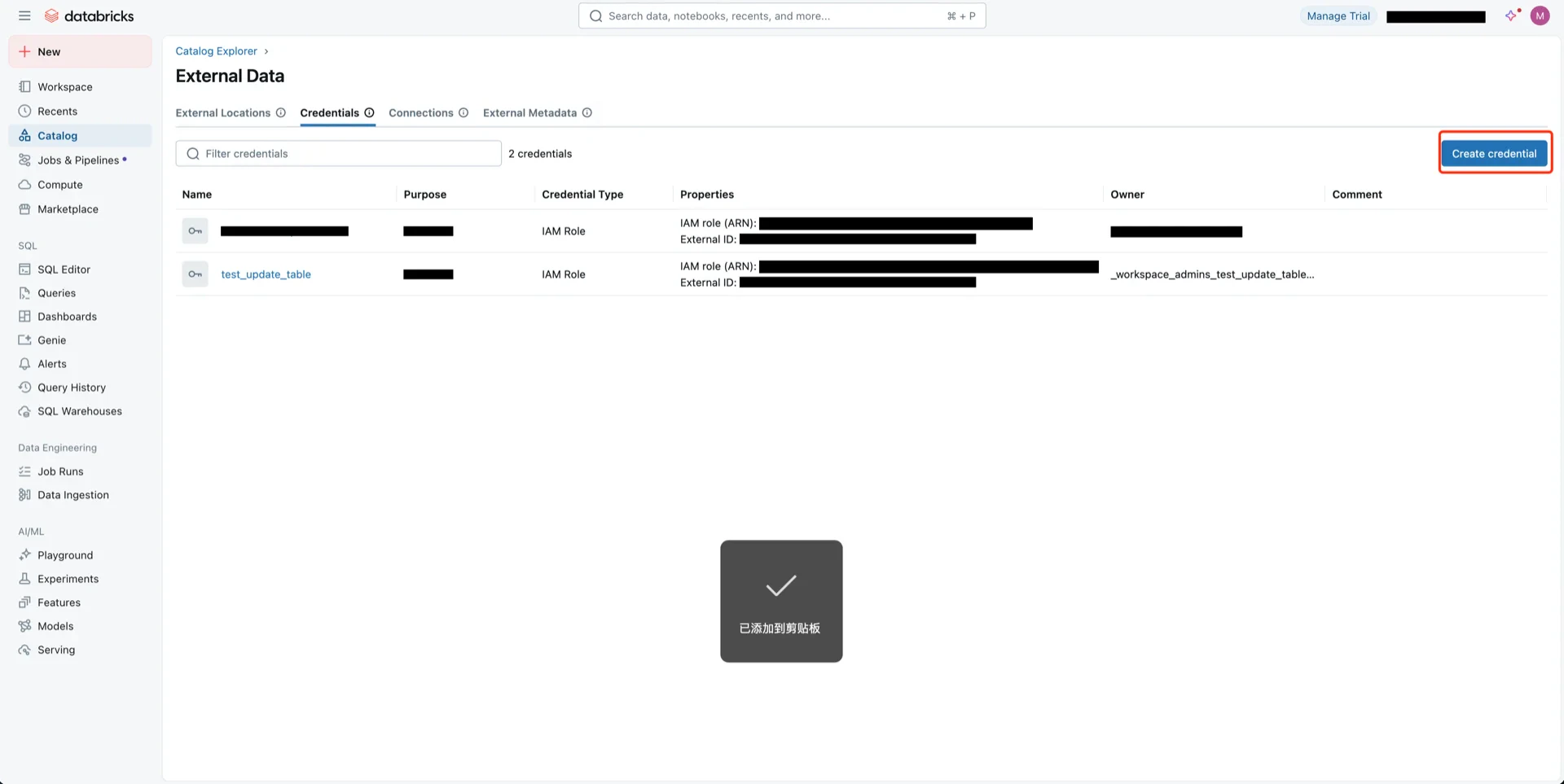 Configure with:
* **Credential:** Storage Credential
* **Type:** AWS IAM Role
* **Name:** any name
* **Role ARN:** the ARN recorded in step 7
Configure with:
* **Credential:** Storage Credential
* **Type:** AWS IAM Role
* **Name:** any name
* **Role ARN:** the ARN recorded in step 7
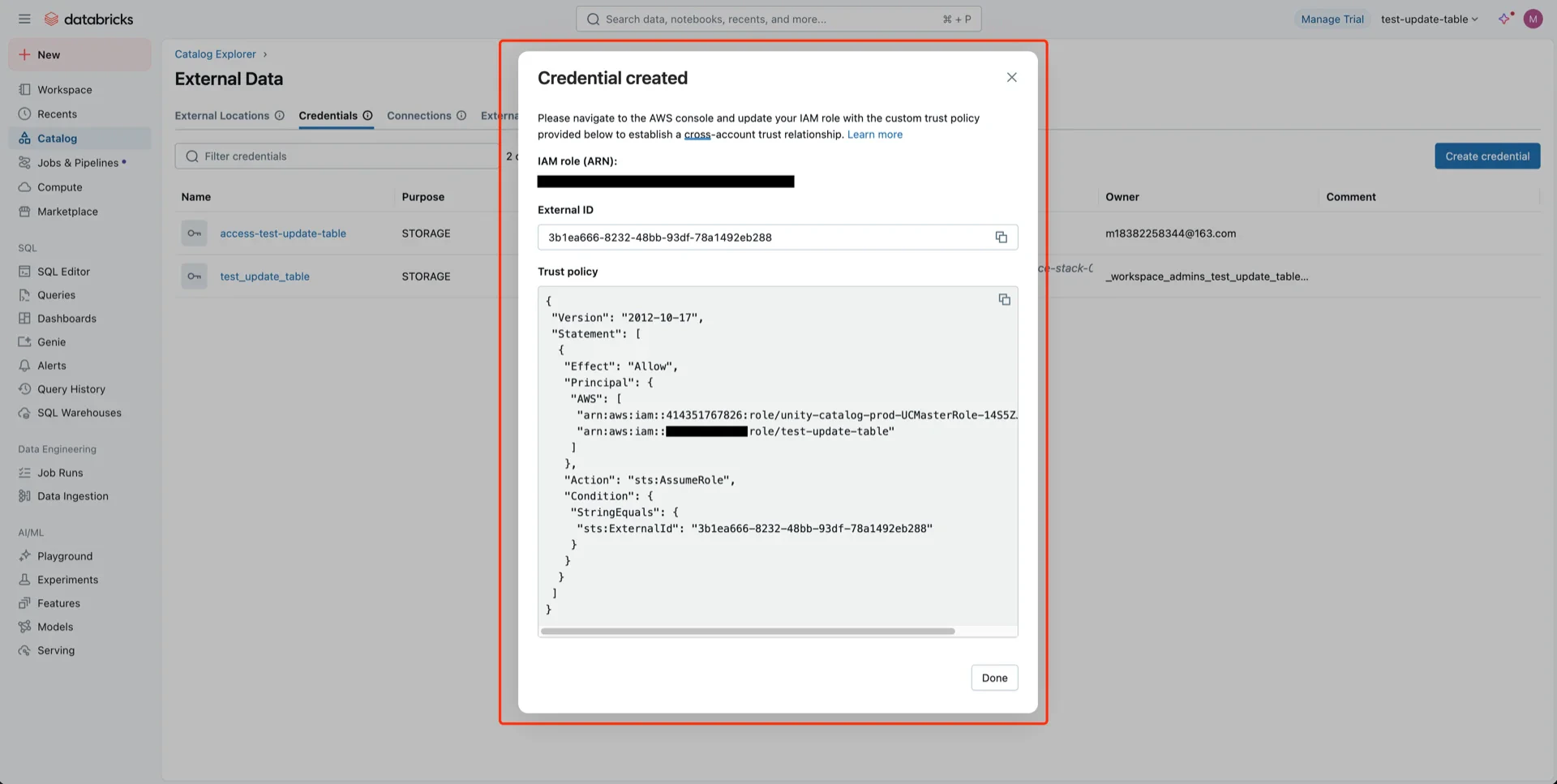
 Databricks generates a trust relationship policy. Copy it.
 ## 9. Update the IAM Role Trust Policy
Return to the AWS IAM console, open the role created in step 7, and replace the trust policy with the one generated by Databricks.
## 9. Update the IAM Role Trust Policy
Return to the AWS IAM console, open the role created in step 7, and replace the trust policy with the one generated by Databricks.
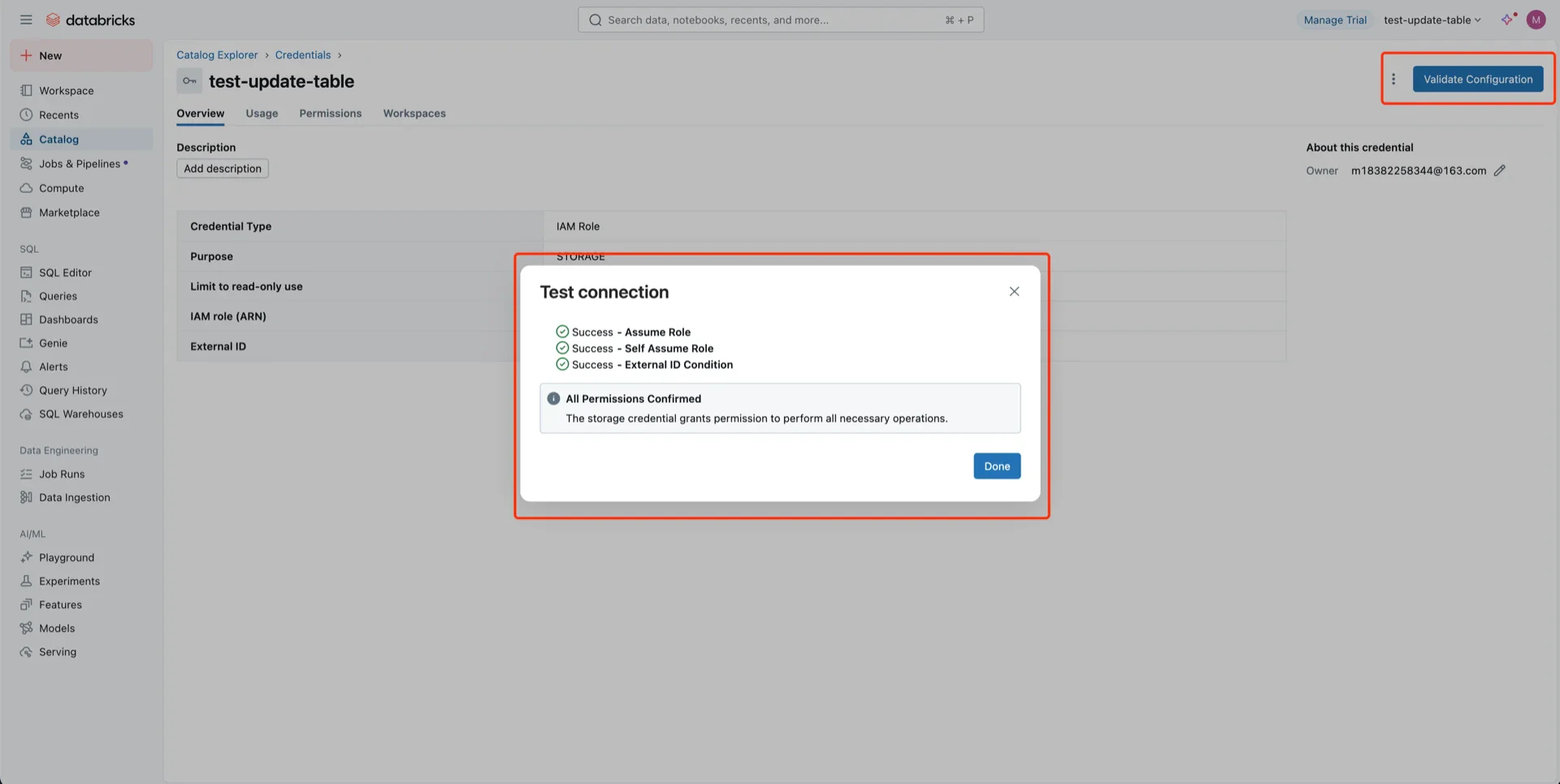
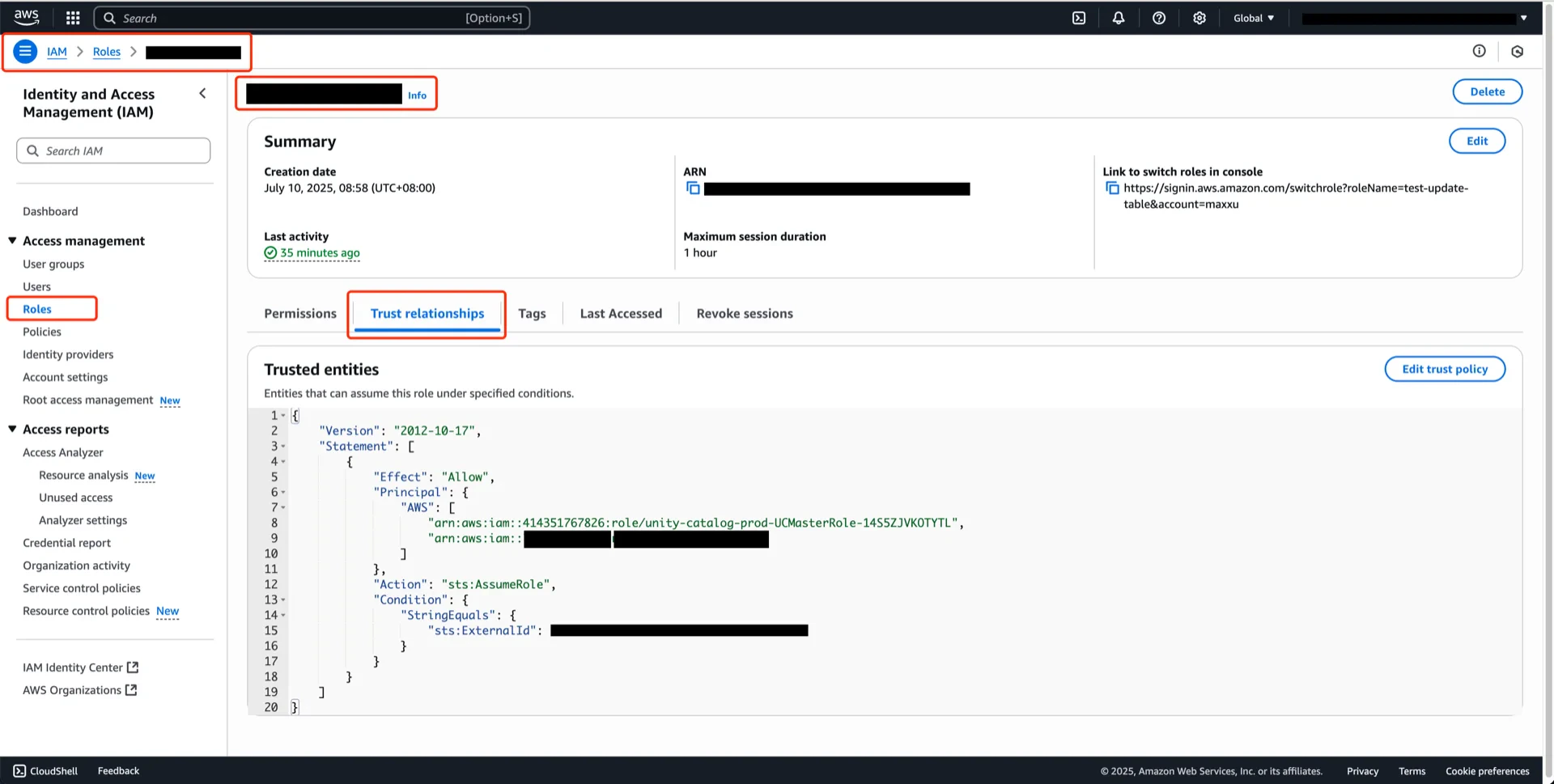 Click **Validate** in the Unity Catalog console to verify the credential.
 ## 10. Create an External Location
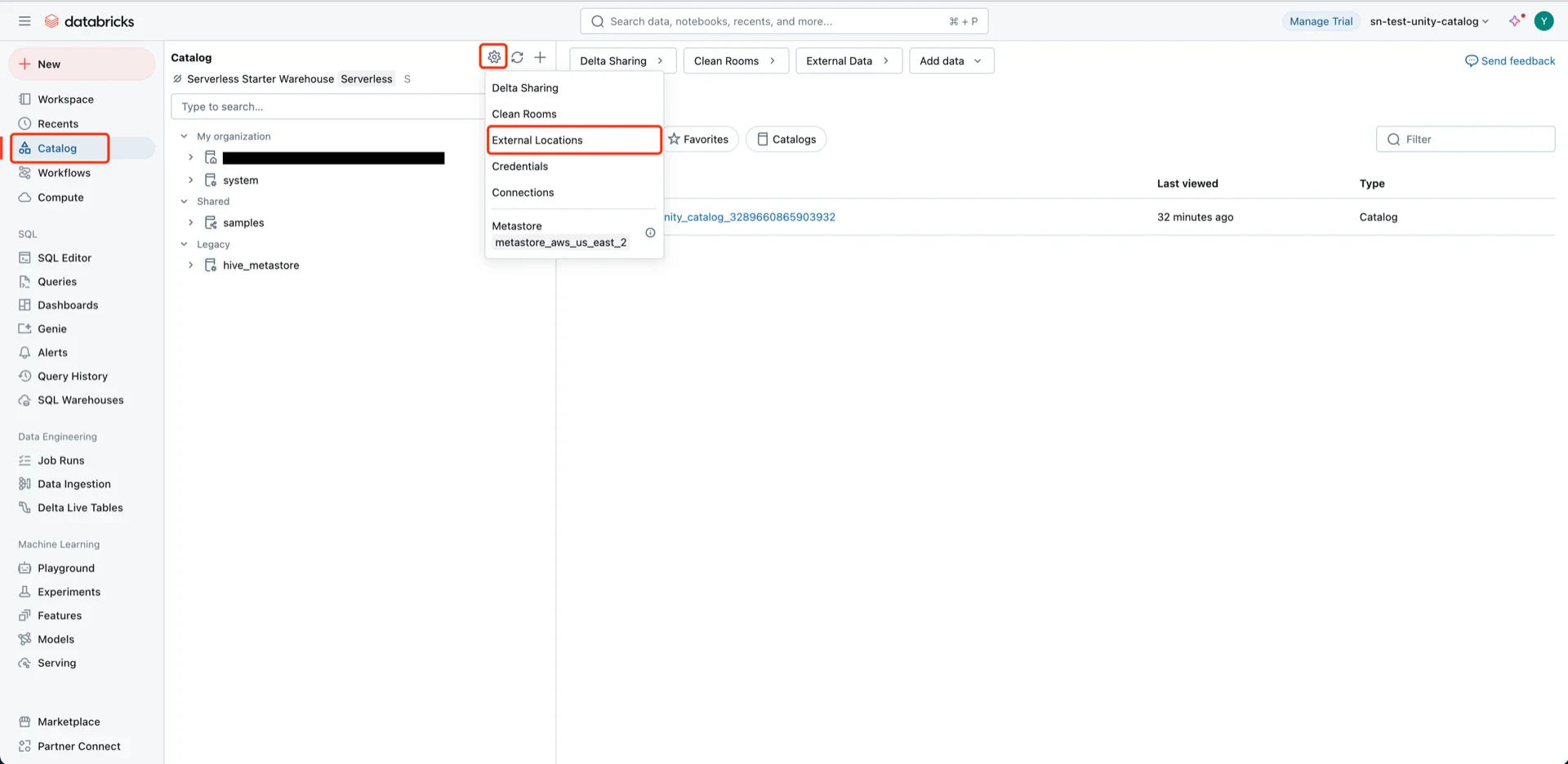
Navigate to **Catalog -> Settings -> External Locations**.
## 10. Create an External Location
Navigate to **Catalog -> Settings -> External Locations**.
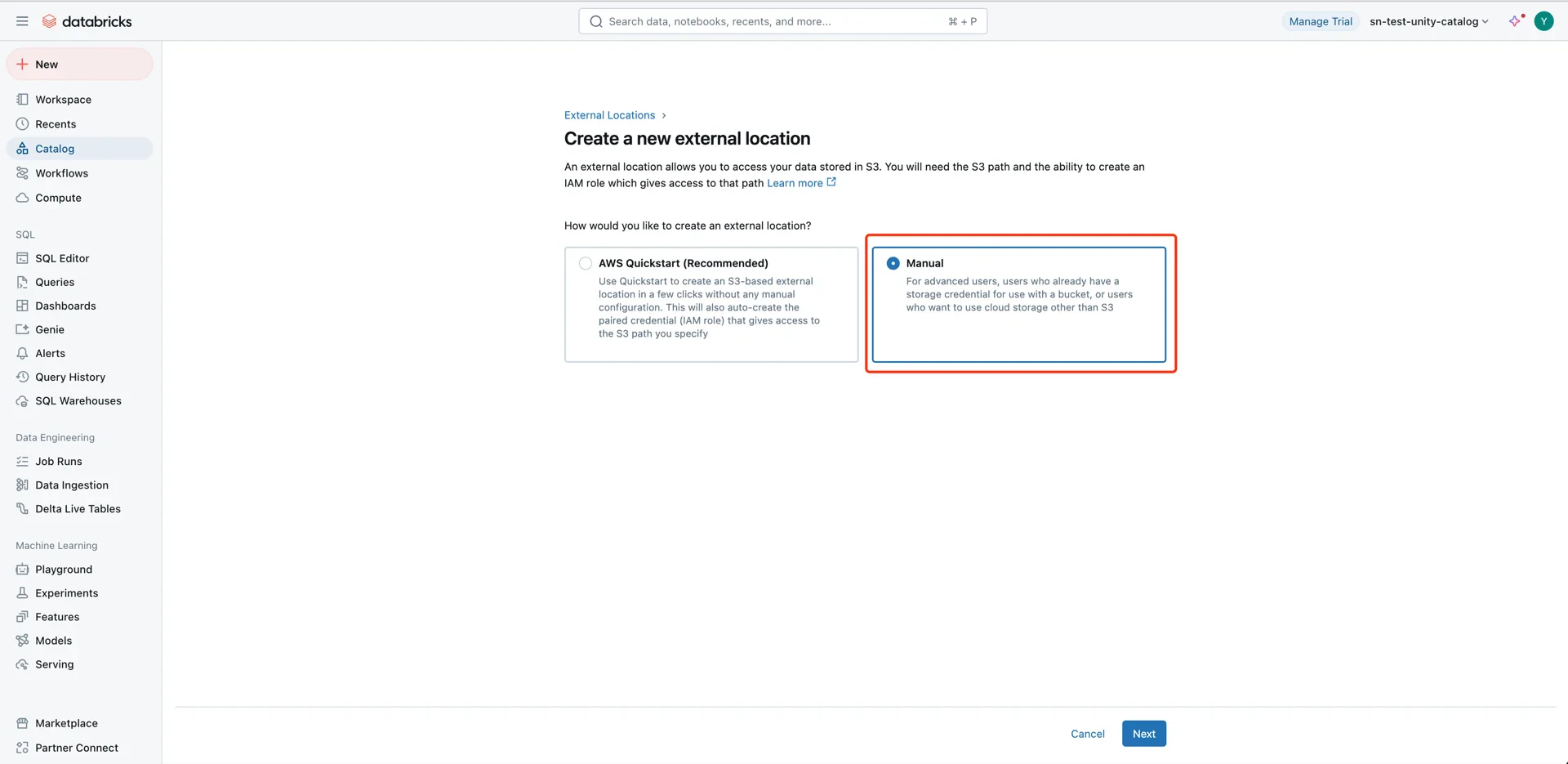
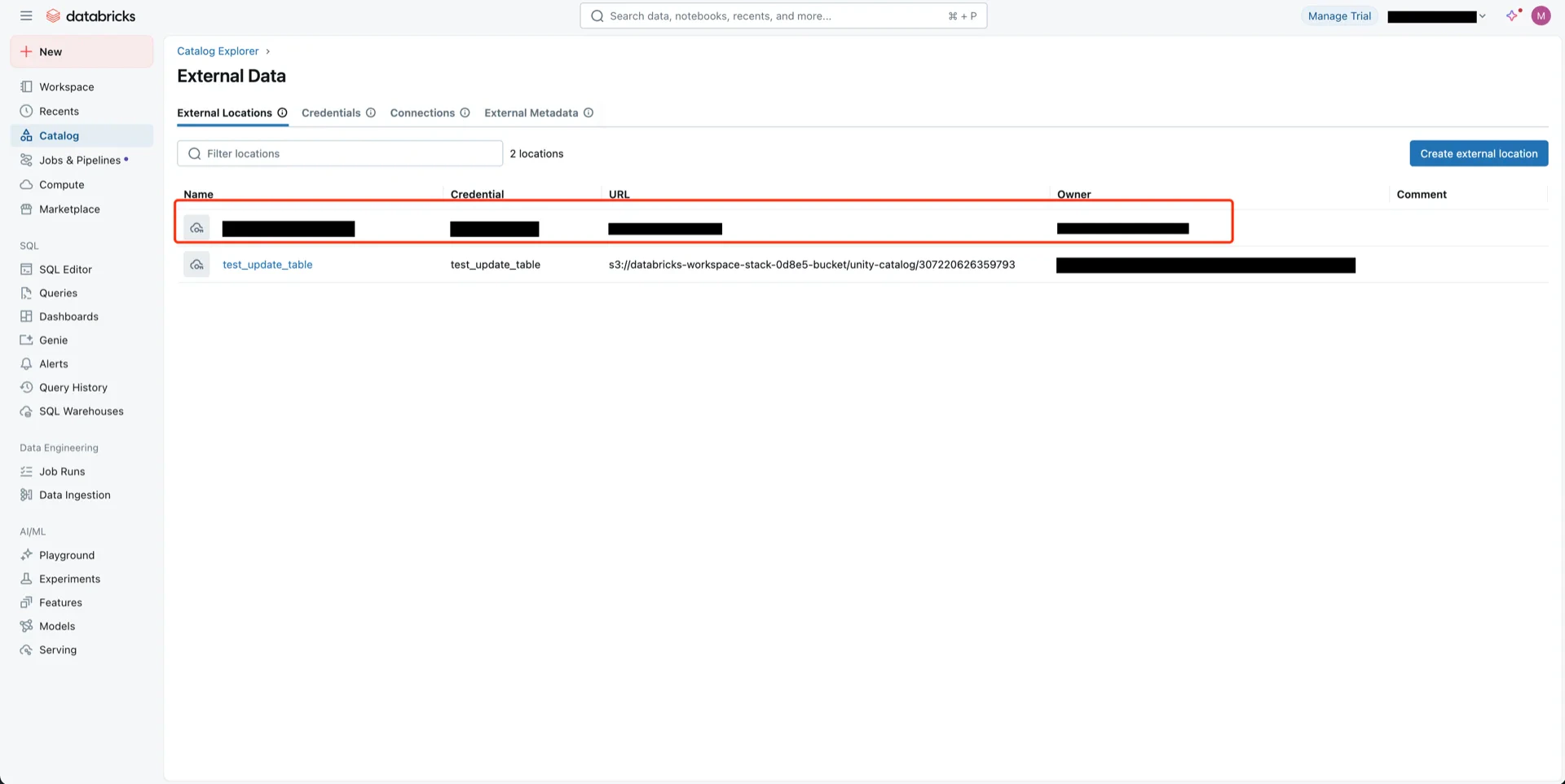
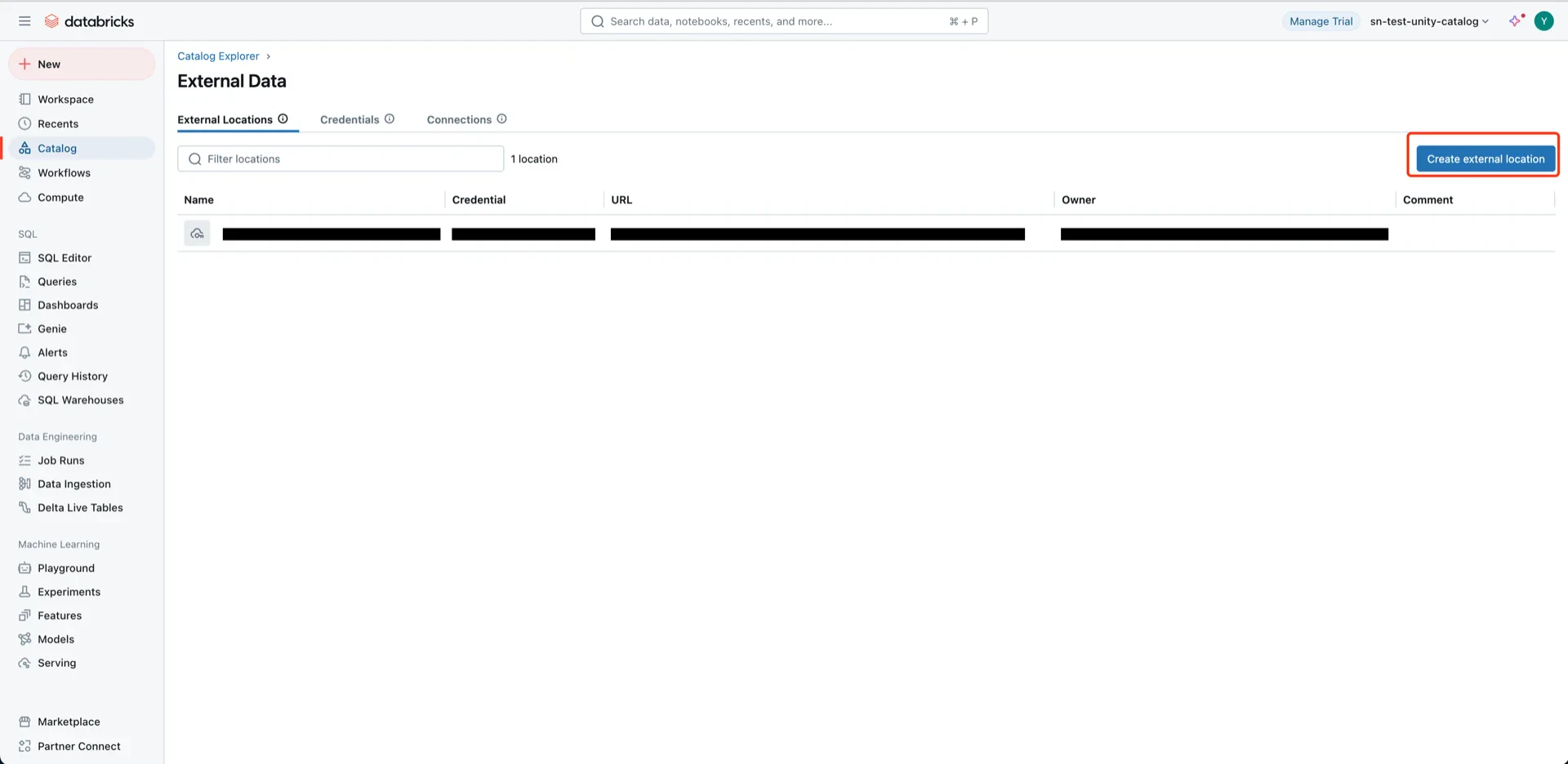 Choose **Manual** (the AWS Quickstart creates a new bucket).
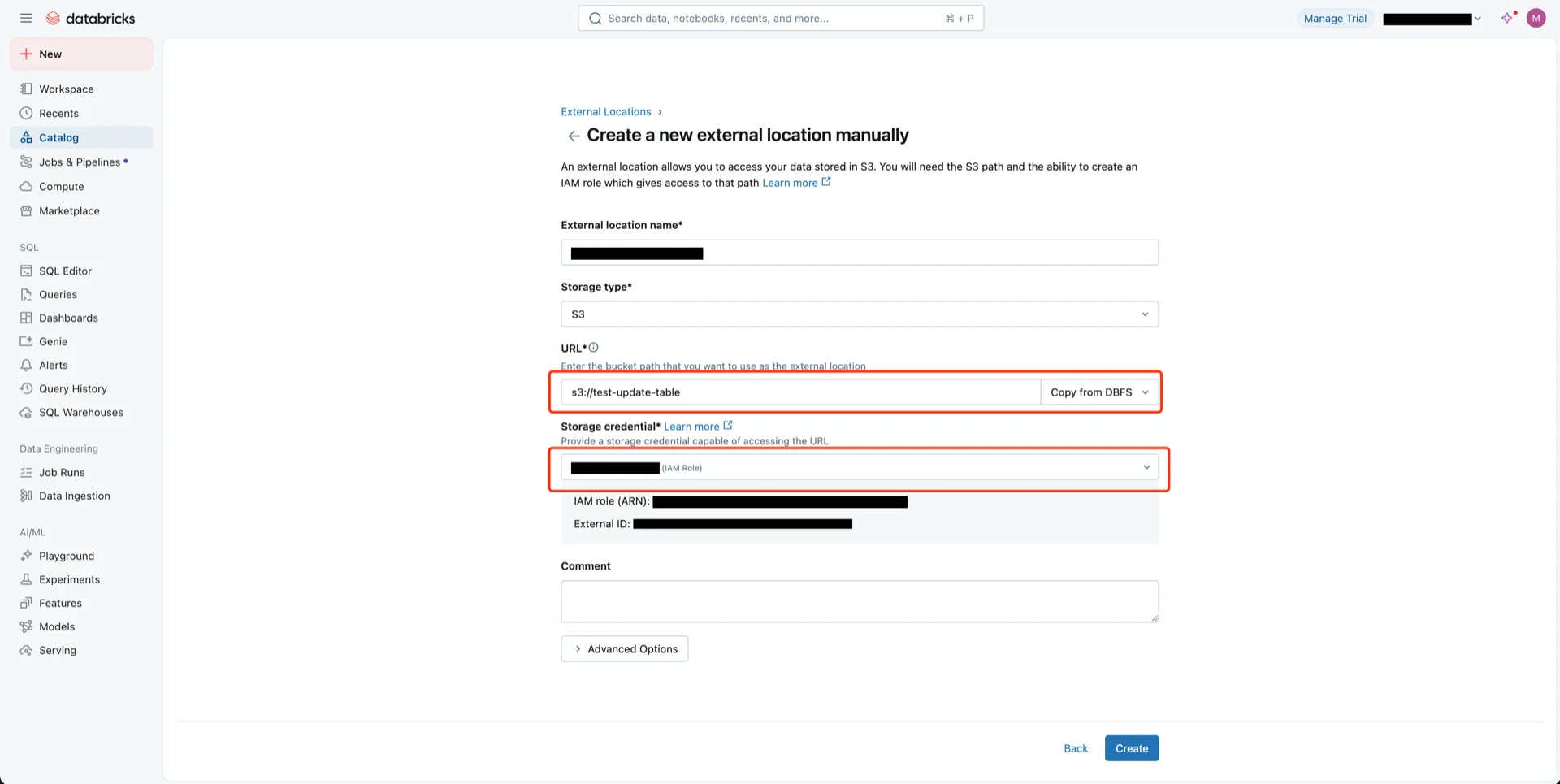
 Configure:
* **External location name:** any name
* **URL:** `s3://`
* **Storage credential:** the credential from step 8
Configure:
* **External location name:** any name
* **URL:** `s3://`
* **Storage credential:** the credential from step 8
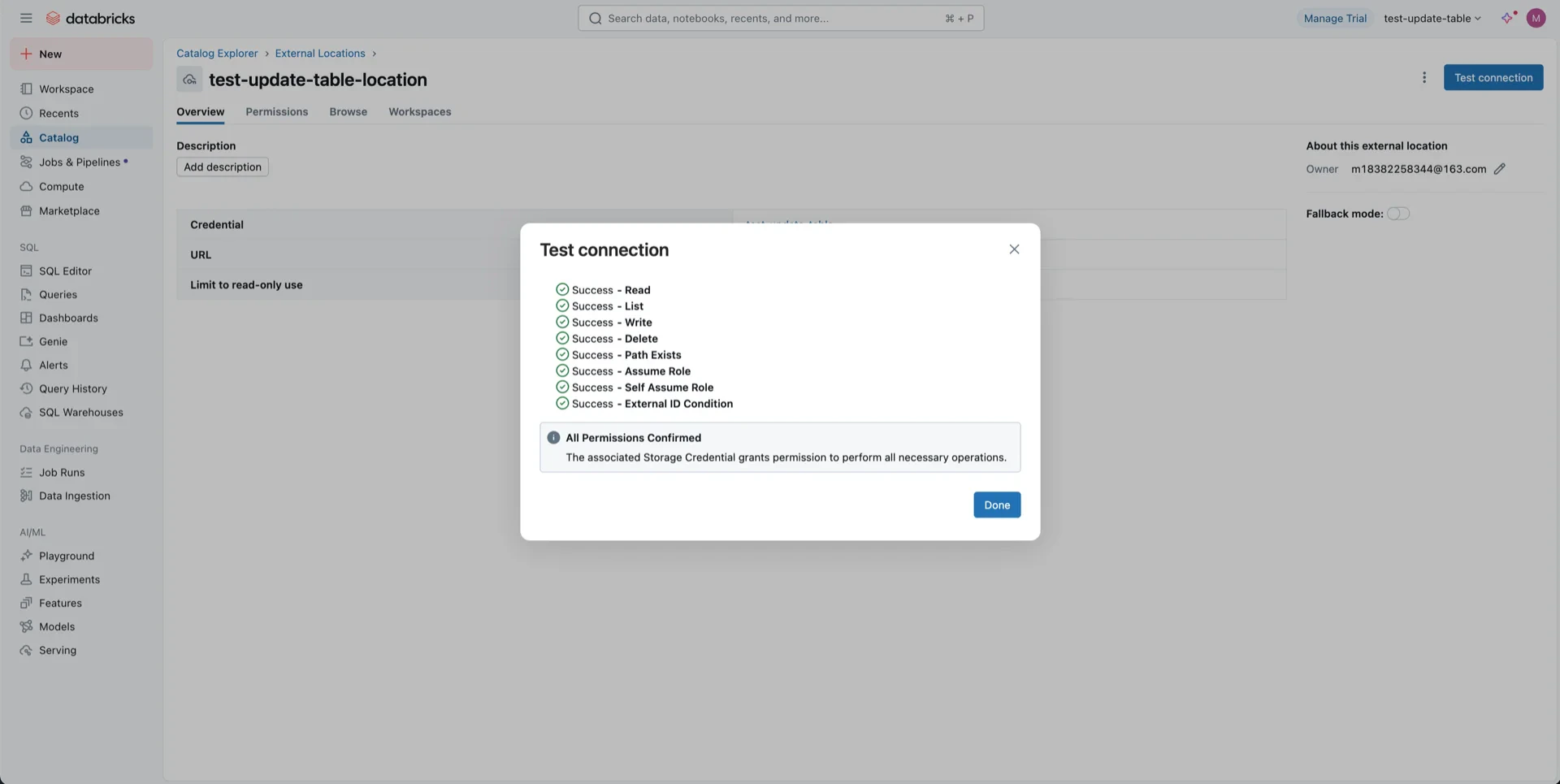
 After creation, click **Test connection** to verify access.
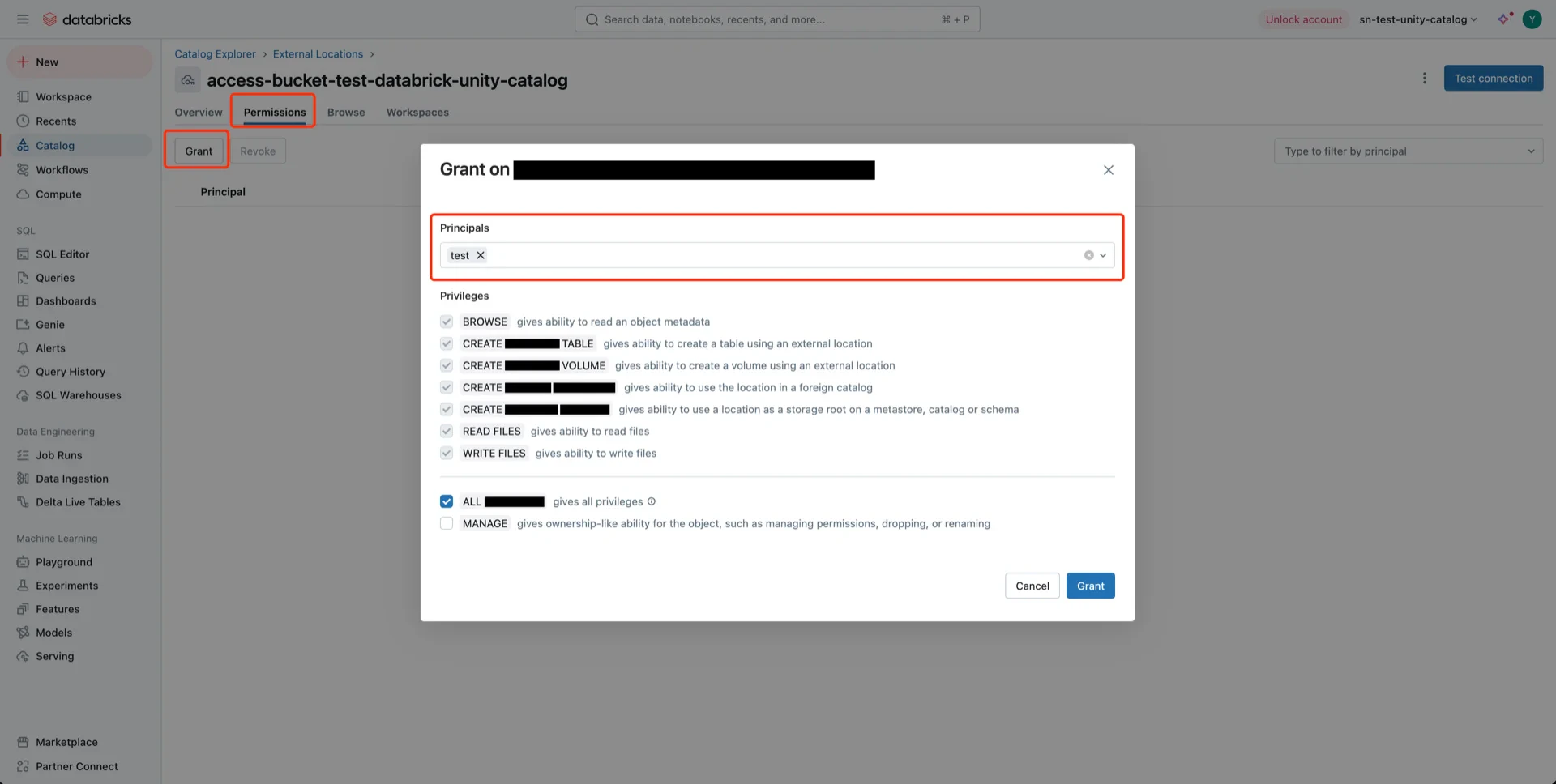
 If you use OAuth2, grant **ALL PRIVILEGES** on the external location to the service principal:
 ## 11. Create the Catalog
In Databricks, create a new catalog and bind it to the external location created in step 10.
## 11. Create the Catalog
In Databricks, create a new catalog and bind it to the external location created in step 10.
 ## Catalog Information Summary
When the steps above are complete, collect the following values for the StreamNative Ursa compaction service:
| Value | Description |
| --------------------------------------------------- | ------------------------------------------------------------------------ |
| `unityCatalogUri` | Databricks workspace URL (e.g., `https://dbc-xxxx.cloud.databricks.com`) |
| `unityCatalogName` | The Unity Catalog name created in step 11 |
| `unityCatalogToken` | Personal access token from step 2, **or** |
| `unityCatalogClientId` / `unityCatalogClientSecret` | OAuth2 credentials from step 3 |
For the next steps, see [Register Lakehouse Catalogs](/cloud/lakehouse/catalogs/register-catalog).
## Catalog Information Summary
When the steps above are complete, collect the following values for the StreamNative Ursa compaction service:
| Value | Description |
| --------------------------------------------------- | ------------------------------------------------------------------------ |
| `unityCatalogUri` | Databricks workspace URL (e.g., `https://dbc-xxxx.cloud.databricks.com`) |
| `unityCatalogName` | The Unity Catalog name created in step 11 |
| `unityCatalogToken` | Personal access token from step 2, **or** |
| `unityCatalogClientId` / `unityCatalogClientSecret` | OAuth2 credentials from step 3 |
For the next steps, see [Register Lakehouse Catalogs](/cloud/lakehouse/catalogs/register-catalog).