> ## Documentation Index
> Fetch the complete documentation index at: https://docs.streamnative.io/llms.txt
> Use this file to discover all available pages before exploring further.
# Manage BYOC Instances on StreamNative Cloud
## Prerequisites
Before creating a BYOC instance and clusters, you need to prepare for the BYOC infrastructure. See [BYOC Overview](/cloud/clusters/byoc/byoc-overview) for more information.
After you have prepared the BYOC infrastructure, you can create a BYOC instance and clusters.
# Create an instance
When creating an instance, you need to make a choice of cloud provider.
Please make sure you have created a cloud environment before creating a BYOC instance.
In the UI, you will create a **Dedicated** instance and a cluster within the instance.
1. Navigate to the [**Organization Dashboard**](/cloud/get-started/cloud-console#organization-dashboard).
2. Click **Instances** on the left navigation pane to go to the **Instances** page.
3. Click **+ New Instance** button to start the instance creation process.
4. On the **Choose the deployment type for your instance** page, click **Deploy BYOC** to start the instance creation process. If you see the dialog "Cloud Environment required", you need to create a cloud environment first. After creating the cloud environment, return to step 1 to create the instance.
5. On the **Instance Configuration** page, enter the **Instance Name** and select the **Cloud Provider**.
| Item | Description |
| ---------------- | ------------------------------------------------------------------------------------------------------------------------------------------------------------------------------------------------- |
| Instance Name | Enter a name for the instance. An instance name starts with a lowercase letter, contains any combination of lowercase letters (a-z), numbers (0-9), and hyphens (-), and must be 4-40 characters. |
| Cloud Connection | Select the cloud connection |
6. Click **Cluster Location** to enter the cluster details.
## **Cluster Configuration**
The configuration steps may vary based on the cluster profile selection. Please follow the instructions specific to the selected cluster profile outlined below.
### **Create Latency Optimized Cluster**
Follow the details listed below to create a cluster based on **Latency Optimized Profile**.
#### **Cluster Details**
Enter the **Cluster Name**, select the **Cloud Environment** from the dropdown list, select **Latency Optimized Cost Profile**, select **Availability Zone**, then click **Lakehouse Table**.
| Item | Description |
| ----------------- | ---------------------------------------------------------------------------------------------------------------------------------------------------------------------------------------------- |
| Cluster Name | Enter a name for the cluster. A cluster name starts with a lowercase letter, contains any combination of lowercase letters (a-z), numbers (0-9), and hyphens (-), and must be 4-10 characters. |
| Cloud Environment | Select the cloud environment from the dropdown list. |
| Cluster Profile | Select Latency Optimized Cluster profile |
| Availability Zone | Select **Single AZ** to deploy the instance across single availability zone or **Multiple AZ** for Multiple Availability Zone |
#### **Lakehouse Tables**
You can optionally enable Lakehouse table by selecting a **Catalog Provider**, selecting a **registered catalog from dropdown**, and optionally applying the setting to all topics.
#### **Cluster Operations**
On the **Cluster Operation** page:
1. Select the **Release Channel**: **LTS** or **Rapid**. Please note that **Rapid** channel is required for running **Cost Optimized Cluster**.
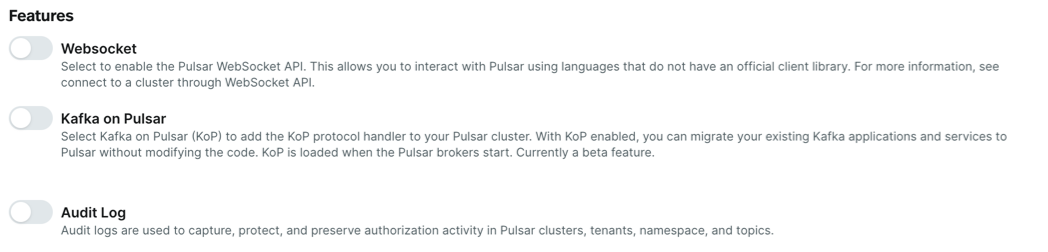
2. (Optional) Enable or disable the **Features** you want on your cluster. You can enable or disable these features at any time by editing your cluster after it has been created.
 3. (Optional) If you have a Enterprise or Production support plan, you can customize the maintenance window for the cluster. Otherwise, you can skip this step.
4. (Optional) Expand the **Add optional custom configurations** section to specify optional custom configuration parameters.
5. Click **Cluster Size**.
### **Create Cost Optimized Cluster**
Follow the details listed below to create a cluster based on **Cost Optimized Profile**.
#### **Cluster Details**
Enter the **Cluster Name**, select the **Cloud Environment** from the dropdown list, select **Availability Zone**, then click **Lakehouse Storage Configuration**.
| Item | Description |
| ----------------- | ---------------------------------------------------------------------------------------------------------------------------------------------------------------------------------------------- |
| Cluster Name | Enter a name for the cluster. A cluster name starts with a lowercase letter, contains any combination of lowercase letters (a-z), numbers (0-9), and hyphens (-), and must be 4-10 characters. |
| Cloud Environment | Select the cloud environment from the dropdown list. |
| Cluster Profile | Select Cost Optimized Profile. |
| Availability Zone | Select **Single AZ** to deploy the instance across single availability zone or **Multiple AZ** for Multiple Availability Zone |
#### **Lakehouse Tables**
1. Select the **Storage Location**: **Use Your Own Bucket** or **Use Existing BYOC Bucket**.
* For the **Use Your Own Bucket** option, enter following details
* **AWS role ARN**
* **Region**
* **Bucket name**
* **Bucket path**
* **Confirm that StreamNative has been granted the necessary permissions to access your bucket.**
* For the **Use Existing BYOC Bucket**, the bucket is created by BYOC Cloud environment.
2. Select **Catalog integration** : Enable or Disable
* **Enable Catalog integration**
* **Lakehouse tables** :
* **Managed Table**
* **Select catalog provider**
* **Databricks Unity Catalog** - Select a registered catalog from the dropdown. To register a catalog first, see [Register a catalog](/cloud/lakehouse/catalogs/register-catalog).
* **Snowflake Open Catalog** - Select a registered catalog from the dropdown. To register a catalog first, see [Register a catalog](/cloud/lakehouse/catalogs/register-catalog).
* **External Table**
* **Select catalog provider**
* **Snowflake Open Catalog** - Select a registered catalog from the dropdown. To register a catalog first, see [Register a catalog](/cloud/lakehouse/catalogs/register-catalog).
* **Amazon S3 Tables** - Select a registered catalog from the dropdown. To register a catalog first, see [Register a catalog](/cloud/lakehouse/catalogs/register-catalog).
* **Disable Catalog integration**
* **Storage table format**
* **Delta Lake** : This option allows you to write topics data as Delta Tables
* **Apache Iceberg** : This option allows you write topics data as Iceberg tables.
3. Click **Cluster Size**.
4. On the **Cluster Size** page:
* Use the slider to adjust the throughput according to your needs.
* In the **Advanced** section, you can manually configure the number of brokers, bookies, and their corresponding resources.
* Note that bookies configuration is only required for **Latency Optimized Clusters**. For **Cost Optimized Clusters**, bookie configuration is not needed.
The estimated **Monthly base cost** for your cluster configuration is displayed in the right navigation pane.
5. Click **Finish** to start the cluster creation process.
The cluster page appears, showing the cluster creation process. Depending on the chosen cloud provider and other settings, it might take 10-15 minutes to provision a dedicated cluster. Once the cluster is ready, the page will show **Cluster Provisioned successfully** and you can click **Go To The Dashboard** to access the **Cluster Dashboard** page.
You can define the **BYOC** or **BYOC Pro** Instance in a Terraform configuration file as below:
```hcl theme={null}
resource "streamnative_pulsar_instance" "test-instance" {
organization = ""
name = ""
availability_mode = "regional"
pool_name = ""
pool_namespace = ""
type = "byoc" # or "byoc-pro"
engine = "classic" # or "ursa"
}
```
* `organization`: The organization ID. Replace `` with the actual organization ID.
* `name`: The name of the BYOC instance. Replace `` with the actual name.
* `availability_mode`: The availability mode of the instance. Currently, only `regional` is supported.
* `pool_name`: The name of the cloud connection that runs the **BYOC** or **BYOC Pro** instance.
* `pool_namespace`: The organization ID where the cloud connection is created.
* `type`: The type of the instance. It can be either `byoc` or `byoc-pro`. Note that a **BYOC** instance can only be created in a **BYOC** pool (cloud environment), and a **BYOC Pro** instance can only be created in a **BYOC Pro** pool (cloud environment).
* `engine`: The data streaming engine for the instance. It can be either `classic` or `ursa`.
See [PulsarInstance](https://registry.terraform.io/providers/streamnative/streamnative/latest/docs/resources/pulsar_instance) for more information.
After you defined the instance, you can continue to define the **Cluster** resource. See [work with clusters](/cloud/clusters/manage-clusters/cluster) for more information.
## Manage instances
To view instances created for an organization, follow these steps.
1. In the upper-right corner of the StreamNative Cloud Console, click your Profile and select **Organizations**.
2. Click the name of the organization you want to check.
3. Select **Instances** from the left navigation pane.
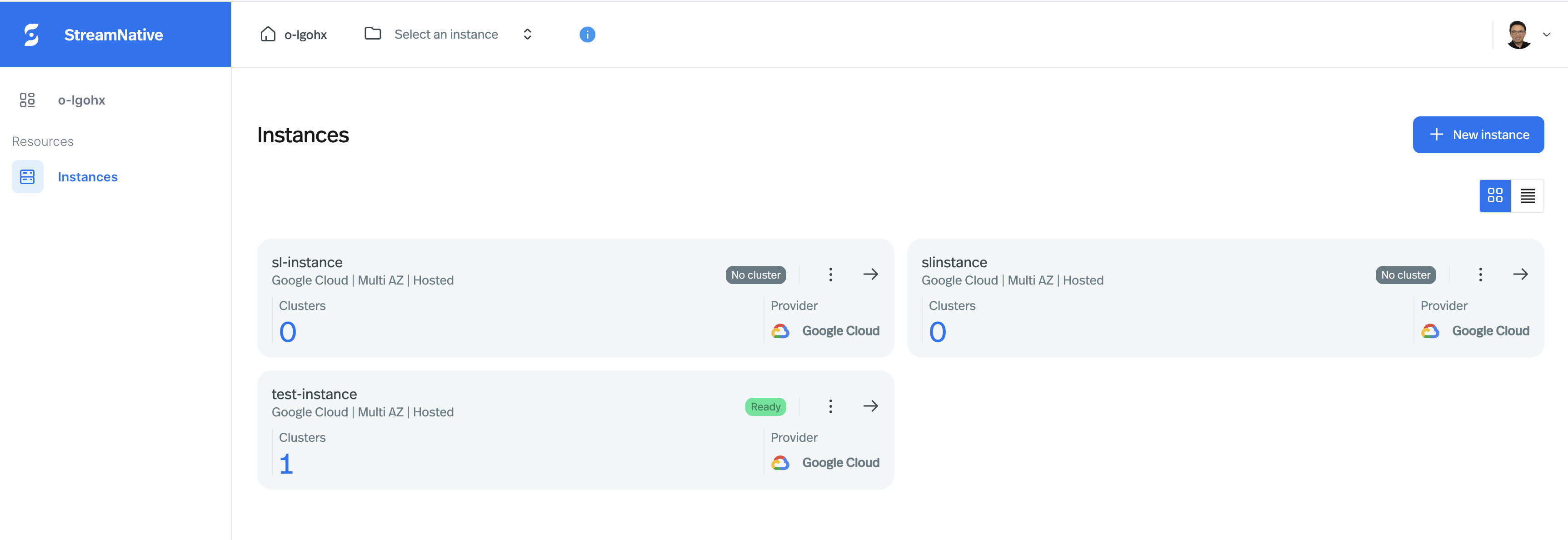
4. On the **Instances** page, you should able to see the list of instances available for the organization. In each **Instance Card**, you are able to see **Instance Name**, **Status**, **Cloud Provider**, **Number of Clusters**, and etc. You can also click the right arrow icon to go the **Instance Dashboard** page.
3. (Optional) If you have a Enterprise or Production support plan, you can customize the maintenance window for the cluster. Otherwise, you can skip this step.
4. (Optional) Expand the **Add optional custom configurations** section to specify optional custom configuration parameters.
5. Click **Cluster Size**.
### **Create Cost Optimized Cluster**
Follow the details listed below to create a cluster based on **Cost Optimized Profile**.
#### **Cluster Details**
Enter the **Cluster Name**, select the **Cloud Environment** from the dropdown list, select **Availability Zone**, then click **Lakehouse Storage Configuration**.
| Item | Description |
| ----------------- | ---------------------------------------------------------------------------------------------------------------------------------------------------------------------------------------------- |
| Cluster Name | Enter a name for the cluster. A cluster name starts with a lowercase letter, contains any combination of lowercase letters (a-z), numbers (0-9), and hyphens (-), and must be 4-10 characters. |
| Cloud Environment | Select the cloud environment from the dropdown list. |
| Cluster Profile | Select Cost Optimized Profile. |
| Availability Zone | Select **Single AZ** to deploy the instance across single availability zone or **Multiple AZ** for Multiple Availability Zone |
#### **Lakehouse Tables**
1. Select the **Storage Location**: **Use Your Own Bucket** or **Use Existing BYOC Bucket**.
* For the **Use Your Own Bucket** option, enter following details
* **AWS role ARN**
* **Region**
* **Bucket name**
* **Bucket path**
* **Confirm that StreamNative has been granted the necessary permissions to access your bucket.**
* For the **Use Existing BYOC Bucket**, the bucket is created by BYOC Cloud environment.
2. Select **Catalog integration** : Enable or Disable
* **Enable Catalog integration**
* **Lakehouse tables** :
* **Managed Table**
* **Select catalog provider**
* **Databricks Unity Catalog** - Select a registered catalog from the dropdown. To register a catalog first, see [Register a catalog](/cloud/lakehouse/catalogs/register-catalog).
* **Snowflake Open Catalog** - Select a registered catalog from the dropdown. To register a catalog first, see [Register a catalog](/cloud/lakehouse/catalogs/register-catalog).
* **External Table**
* **Select catalog provider**
* **Snowflake Open Catalog** - Select a registered catalog from the dropdown. To register a catalog first, see [Register a catalog](/cloud/lakehouse/catalogs/register-catalog).
* **Amazon S3 Tables** - Select a registered catalog from the dropdown. To register a catalog first, see [Register a catalog](/cloud/lakehouse/catalogs/register-catalog).
* **Disable Catalog integration**
* **Storage table format**
* **Delta Lake** : This option allows you to write topics data as Delta Tables
* **Apache Iceberg** : This option allows you write topics data as Iceberg tables.
3. Click **Cluster Size**.
4. On the **Cluster Size** page:
* Use the slider to adjust the throughput according to your needs.
* In the **Advanced** section, you can manually configure the number of brokers, bookies, and their corresponding resources.
* Note that bookies configuration is only required for **Latency Optimized Clusters**. For **Cost Optimized Clusters**, bookie configuration is not needed.
The estimated **Monthly base cost** for your cluster configuration is displayed in the right navigation pane.
5. Click **Finish** to start the cluster creation process.
The cluster page appears, showing the cluster creation process. Depending on the chosen cloud provider and other settings, it might take 10-15 minutes to provision a dedicated cluster. Once the cluster is ready, the page will show **Cluster Provisioned successfully** and you can click **Go To The Dashboard** to access the **Cluster Dashboard** page.
You can define the **BYOC** or **BYOC Pro** Instance in a Terraform configuration file as below:
```hcl theme={null}
resource "streamnative_pulsar_instance" "test-instance" {
organization = ""
name = ""
availability_mode = "regional"
pool_name = ""
pool_namespace = ""
type = "byoc" # or "byoc-pro"
engine = "classic" # or "ursa"
}
```
* `organization`: The organization ID. Replace `` with the actual organization ID.
* `name`: The name of the BYOC instance. Replace `` with the actual name.
* `availability_mode`: The availability mode of the instance. Currently, only `regional` is supported.
* `pool_name`: The name of the cloud connection that runs the **BYOC** or **BYOC Pro** instance.
* `pool_namespace`: The organization ID where the cloud connection is created.
* `type`: The type of the instance. It can be either `byoc` or `byoc-pro`. Note that a **BYOC** instance can only be created in a **BYOC** pool (cloud environment), and a **BYOC Pro** instance can only be created in a **BYOC Pro** pool (cloud environment).
* `engine`: The data streaming engine for the instance. It can be either `classic` or `ursa`.
See [PulsarInstance](https://registry.terraform.io/providers/streamnative/streamnative/latest/docs/resources/pulsar_instance) for more information.
After you defined the instance, you can continue to define the **Cluster** resource. See [work with clusters](/cloud/clusters/manage-clusters/cluster) for more information.
## Manage instances
To view instances created for an organization, follow these steps.
1. In the upper-right corner of the StreamNative Cloud Console, click your Profile and select **Organizations**.
2. Click the name of the organization you want to check.
3. Select **Instances** from the left navigation pane.
4. On the **Instances** page, you should able to see the list of instances available for the organization. In each **Instance Card**, you are able to see **Instance Name**, **Status**, **Cloud Provider**, **Number of Clusters**, and etc. You can also click the right arrow icon to go the **Instance Dashboard** page.
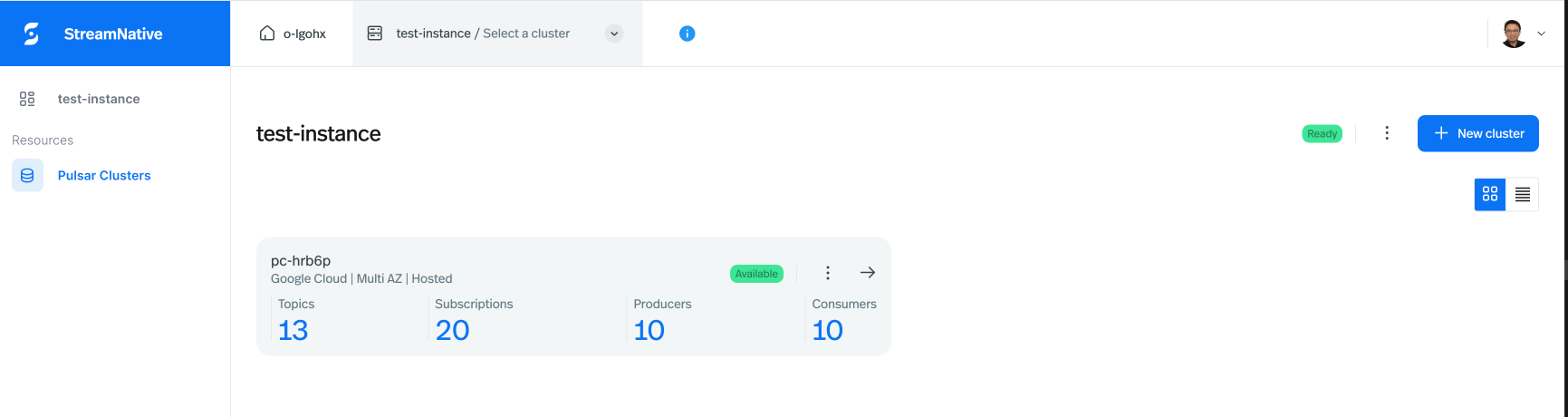
 5. On the **Instance Dashboard** page, you are able to see the list of clusters available for the instance. In each **Cluster Card**, you are able to see **Cluster Name**, **Status**, **Number of Topics**, **Number of Subscriptions**, **Number of Producers**, **Number of Consumers**, and etc. You can also click the right arrow icon to go the **Cluster Dashboard** page.
 To list of the all instances available for an organization, run the following command:
```bash theme={null}
snctl get pulsarinstances -O
```
If you want to get more details about an instance, you can run the following command:
```bash theme={null}
snctl get pulsarinstance -O
```
You should be able to get the details of the instance.
```yaml theme={null}
spec:
auth:
apikey: {}
availabilityMode: regional
poolRef:
name: shared-gcp
namespace: streamnative
type: serverless
status:
auth:
oauth2:
audience: urn:sn:pulsar::
issuerURL: https://auth.streamnative.cloud/
type: oauth2
conditions:
- lastTransitionTime: '2024-11-29T21:34:08Z'
message: a payment method is not required because discount is active
reason: HasActiveDiscount
status: 'True'
type: SubscriptionReady
- lastTransitionTime: '2024-11-29T21:34:08Z'
reason: Created
status: 'True'
type: ResourceServerReady
- lastTransitionTime: '2024-11-29T21:34:09Z'
reason: Created
status: 'True'
type: ServiceAccountReady
- lastTransitionTime: '2024-11-29T21:34:10Z'
reason: AllConditionStatusTrue
status: 'True'
type: Ready
```
* `status.auth.oauth2.audience`: The audience of the Pulsar instance. It will be used for the [Oauth2 authentication](/cloud/security/authentication/service-accounts/use-oauth/oauth-overview).
* `status.auth.oauth2.issuerURL`: The oauth2 issuer URL of the Pulsar instance. It will be used for the [Oauth2 authentication](/cloud/security/authentication/service-accounts/use-oauth/oauth-overview).
* In the `conditions` section, you can see the status of the instance. If all conditions are `True`, the instance is ready.
If you want to get more details about an instance, you can define a data source in the Terraform configuration file.
```hcl theme={null}
data "streamnative_pulsar_instance" "test-instance" {
organization = ""
name = ""
}
```
You should be able to get the details of the instance.
* `id`: The ID of the instance.
* `availability_mode`: The availability mode of the instance. Currently, only `regional` is supported.
* `oauth2_audience`: The audience of the Pulsar instance. It will be used for the [Oauth2 authentication](/cloud/security/authentication/service-accounts/use-oauth/oauth-overview).
* `oauth2_issuer_url`: The oauth2 issuer URL of the Pulsar instance. It will be used for the [Oauth2 authentication](/cloud/security/authentication/service-accounts/use-oauth/oauth-overview).
* `pool_name`: The name of the infrastructure pool that runs the **Serverless** instance. Currently it only supports Google Cloud (`shared-gcp`).
* `pool_namespace`: The namespace of the infrastructure pool (`streamnative`).
* `ready`: The status of the instance. If the Pulsar instance is ready, it is `True`.
You can checkout [PulsarInstance](https://registry.terraform.io/providers/streamnative/streamnative/latest/docs/data-sources/pulsar_instance) for more information.
## Delete an instance
You cannot delete an instance if there are resources associated with the instance.
1. Navigate to the **Instances** page.
2. Click the ellipsis at the top right corner of the instance card that you want to delete, and then click **Delete**.
3. In the **Delete instance** dialog, enter the instance name and then click **Confirm**.
There are two ways to delete an instance.
* Delete the instance by the instance name.
```bash theme={null}
snctl delete pulsarinstance
```
* Delete the instance by the instance manifest file `instance.yaml`.
```bash theme={null}
snctl delete -f instance.yaml
```
Remove the instance resource from the Terraform configuration file and run `terraform apply` to delete the instance.
## Next steps
* [Work with clusters](/cloud/clusters/manage-clusters/cluster)
## Related topics
* Check other types of instances:
* [Serverless Instances](/cloud/clusters/manage-instances/manage-serverless-instances)
* [Dedicated Instances](/cloud/clusters/manage-instances/manage-dedicated-instances)
To list of the all instances available for an organization, run the following command:
```bash theme={null}
snctl get pulsarinstances -O
```
If you want to get more details about an instance, you can run the following command:
```bash theme={null}
snctl get pulsarinstance -O
```
You should be able to get the details of the instance.
```yaml theme={null}
spec:
auth:
apikey: {}
availabilityMode: regional
poolRef:
name: shared-gcp
namespace: streamnative
type: serverless
status:
auth:
oauth2:
audience: urn:sn:pulsar::
issuerURL: https://auth.streamnative.cloud/
type: oauth2
conditions:
- lastTransitionTime: '2024-11-29T21:34:08Z'
message: a payment method is not required because discount is active
reason: HasActiveDiscount
status: 'True'
type: SubscriptionReady
- lastTransitionTime: '2024-11-29T21:34:08Z'
reason: Created
status: 'True'
type: ResourceServerReady
- lastTransitionTime: '2024-11-29T21:34:09Z'
reason: Created
status: 'True'
type: ServiceAccountReady
- lastTransitionTime: '2024-11-29T21:34:10Z'
reason: AllConditionStatusTrue
status: 'True'
type: Ready
```
* `status.auth.oauth2.audience`: The audience of the Pulsar instance. It will be used for the [Oauth2 authentication](/cloud/security/authentication/service-accounts/use-oauth/oauth-overview).
* `status.auth.oauth2.issuerURL`: The oauth2 issuer URL of the Pulsar instance. It will be used for the [Oauth2 authentication](/cloud/security/authentication/service-accounts/use-oauth/oauth-overview).
* In the `conditions` section, you can see the status of the instance. If all conditions are `True`, the instance is ready.
If you want to get more details about an instance, you can define a data source in the Terraform configuration file.
```hcl theme={null}
data "streamnative_pulsar_instance" "test-instance" {
organization = ""
name = ""
}
```
You should be able to get the details of the instance.
* `id`: The ID of the instance.
* `availability_mode`: The availability mode of the instance. Currently, only `regional` is supported.
* `oauth2_audience`: The audience of the Pulsar instance. It will be used for the [Oauth2 authentication](/cloud/security/authentication/service-accounts/use-oauth/oauth-overview).
* `oauth2_issuer_url`: The oauth2 issuer URL of the Pulsar instance. It will be used for the [Oauth2 authentication](/cloud/security/authentication/service-accounts/use-oauth/oauth-overview).
* `pool_name`: The name of the infrastructure pool that runs the **Serverless** instance. Currently it only supports Google Cloud (`shared-gcp`).
* `pool_namespace`: The namespace of the infrastructure pool (`streamnative`).
* `ready`: The status of the instance. If the Pulsar instance is ready, it is `True`.
You can checkout [PulsarInstance](https://registry.terraform.io/providers/streamnative/streamnative/latest/docs/data-sources/pulsar_instance) for more information.
## Delete an instance
You cannot delete an instance if there are resources associated with the instance.
1. Navigate to the **Instances** page.
2. Click the ellipsis at the top right corner of the instance card that you want to delete, and then click **Delete**.
3. In the **Delete instance** dialog, enter the instance name and then click **Confirm**.
There are two ways to delete an instance.
* Delete the instance by the instance name.
```bash theme={null}
snctl delete pulsarinstance
```
* Delete the instance by the instance manifest file `instance.yaml`.
```bash theme={null}
snctl delete -f instance.yaml
```
Remove the instance resource from the Terraform configuration file and run `terraform apply` to delete the instance.
## Next steps
* [Work with clusters](/cloud/clusters/manage-clusters/cluster)
## Related topics
* Check other types of instances:
* [Serverless Instances](/cloud/clusters/manage-instances/manage-serverless-instances)
* [Dedicated Instances](/cloud/clusters/manage-instances/manage-dedicated-instances)