> ## Documentation Index
> Fetch the complete documentation index at: https://docs.streamnative.io/llms.txt
> Use this file to discover all available pages before exploring further.
# Set up Custom Domain for BYOC on AWS
This document outlines the DNS configuration options available in StreamNative BYOC Pro, including how to set up a custom domain for use in a BYOC (Bring Your Own Cloud) deployment.
Custom domains are available in BYOC Pro. Please [contact us](https://streamnative.io/contact) if you are interested in BYOC Pro.
## Domain options
StreamNative BYOC Pro offers two domain configurations: *Custom Domains* and *StreamNative Managed Domains*.
* **Custom Domains**: You delegate a DNS zone to the AWS account used for BYOC deployment. All service endpoints are created under this domain.
* **StreamNative Managed Domains**: StreamNative uses a domain within the `snio.cloud` domain, assigning a subzone specific to your cloud account.
For both types of domains, StreamNative utilizes the Kubernetes services like [external-dns](https://github.com/kubernetes-sigs/external-dns) and [cert-manager](https://cert-manager.io/) to managed DNS settings and TLS certificates.
Below is a diagram illustrating the domain options in BYOC:
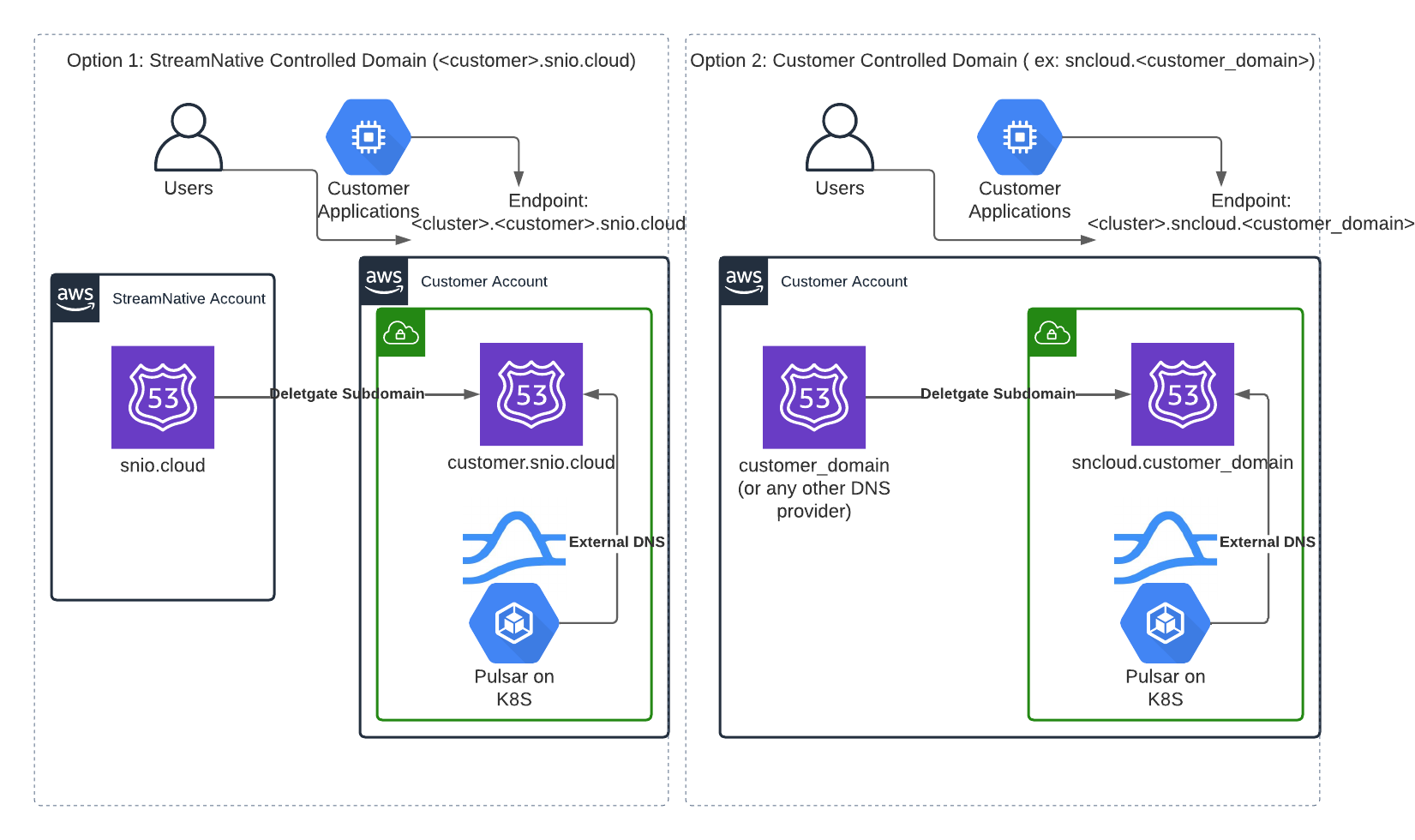 * The diagram uses `sncloud.` as an example of a custom domain.
* You decide the domain name to delegate to StreamNative.
### Custom domains
With a custom domain, DNS names and TLS certificates for StreamNative clusters reside under a domain that you control. StreamNative requires a dedicated AWS Route53 zone for these domains to ensure that only necessary DNS records are modified. This allows AWS policies to be restricted specifically to this zone. This zone needs to be public to enable the generation of TLS certificates from Let's Encrypt.
### StreamNative managed domains
For managed domains, StreamNative sets up and manages a Route53 zone in your AWS account under the `snio.cloud` domain, based on your organization ID (e.g., `o-12345.snio.cloud`). StreamNative then delegates management of this subdomain.
Due to AWS IAM limitations, when using StreamNative-managed domains, the [AWS Access Module](/cloud/clusters/byoc/grant-vendor-access/byoc-on-aws/byoc-aws-access) must first be provisioned with the route53 zone argument set as a wildcard (`*`). Once the zone is created and its ID is known, it can be restricted to that specific zone ID.
## Create a zone for a custom domain
StreamNative requires a dedicated Route53 zone. This section explains how to delegate a subzone from an existing domain, assuming you are using Route53 as your DNS provider.
For details about how to delegate a subzone, see your DNS provider docs.
### Create a subzone via delegation
The typical approach is to create a subdomain and delegate it from the parent domain.
* If your parent domain is on Route53, refer to the [Route53 documentation](https://aws.amazon.com/premiumsupport/knowledge-center/create-subdomain-route-53/).
* If your parent domain is **not** on Route53, follow the general instructions in this [AWS document](https://docs.aws.amazon.com/Route53/latest/DeveloperGuide/CreatingNewSubdomain.html).
### Register a new domain
If you prefer to register a new domain through Route53, consult the [AWS documentation](https://docs.aws.amazon.com/Route53/latest/DeveloperGuide/domain-register.html).
### Validate the zone
After creating and delegating the zone, it's crucial to validate it.
Command line tools, such as `dig`, allow for directly querying DNS records and ensuring that the `NS` records have propagated.
This example assumes that you have created a subzone `sncloud.myco.com`, and that had NS records from route53 of:
* ns-1654.awsdns-14.co.uk.
* ns-1513.awsdns-61.org.
* ns-449.awsdns-56.com.
* ns-755.awsdns-30.net.
After creating the NS record from the parent domain, the `dig NS sncloud.myco.com` should return a response like:
```
$ dig NS sncloud.myco.com
; <<>> DiG 9.18.1-1ubuntu1.3-Ubuntu <<>> NS sncloud.myco.com
;; global options: +cmd
;; Got answer:
;; ->>HEADER<<- opcode: QUERY, status: NOERROR, id: 41380
;; flags: qr rd ra; QUERY: 1, ANSWER: 4, AUTHORITY: 0, ADDITIONAL: 9
;; OPT PSEUDOSECTION:
; EDNS: version: 0, flags:; udp: 65494
;; QUESTION SECTION:
;sncloud.myco.com. IN NS
;; ANSWER SECTION:
sncloud.myco.com. 172800 IN NS ns-449.awsdns-56.com.
sncloud.myco.com. 172800 IN NS ns-755.awsdns-30.net.
sncloud.myco.com. 172800 IN NS ns-1513.awsdns-61.org.
sncloud.myco.com. 172800 IN NS ns-1654.awsdns-14.co.uk.
;; Query time: 251 msec
;; SERVER: 127.0.0.53#53(127.0.0.53) (UDP)
;; WHEN: Fri Feb 10 15:47:36 MST 2023
;; MSG SIZE rcvd: 367
```
You can see that the `ANSWER SECTION` has 4 records that match the 4 NS records above.
Another option is to use a tool like [DNS NS Lookup Checker](https://dnschecker.org/ns-lookup.php) to lookup records. However, this may take longer to validate.
### Provide the zone ID
After you complete the validation, you can use the zone ID to configure `hosted_zone_allowed_ids` in [StreamNative's Vendor Access Module](/cloud/clusters/byoc/grant-vendor-access/byoc-on-aws/byoc-aws-access). The format of the ID should be similar to `ZXXXXXXXXXXXXXXXXXXXXX` (the letter `Z` followed by 21 digits or uppercase letters).
* The diagram uses `sncloud.` as an example of a custom domain.
* You decide the domain name to delegate to StreamNative.
### Custom domains
With a custom domain, DNS names and TLS certificates for StreamNative clusters reside under a domain that you control. StreamNative requires a dedicated AWS Route53 zone for these domains to ensure that only necessary DNS records are modified. This allows AWS policies to be restricted specifically to this zone. This zone needs to be public to enable the generation of TLS certificates from Let's Encrypt.
### StreamNative managed domains
For managed domains, StreamNative sets up and manages a Route53 zone in your AWS account under the `snio.cloud` domain, based on your organization ID (e.g., `o-12345.snio.cloud`). StreamNative then delegates management of this subdomain.
Due to AWS IAM limitations, when using StreamNative-managed domains, the [AWS Access Module](/cloud/clusters/byoc/grant-vendor-access/byoc-on-aws/byoc-aws-access) must first be provisioned with the route53 zone argument set as a wildcard (`*`). Once the zone is created and its ID is known, it can be restricted to that specific zone ID.
## Create a zone for a custom domain
StreamNative requires a dedicated Route53 zone. This section explains how to delegate a subzone from an existing domain, assuming you are using Route53 as your DNS provider.
For details about how to delegate a subzone, see your DNS provider docs.
### Create a subzone via delegation
The typical approach is to create a subdomain and delegate it from the parent domain.
* If your parent domain is on Route53, refer to the [Route53 documentation](https://aws.amazon.com/premiumsupport/knowledge-center/create-subdomain-route-53/).
* If your parent domain is **not** on Route53, follow the general instructions in this [AWS document](https://docs.aws.amazon.com/Route53/latest/DeveloperGuide/CreatingNewSubdomain.html).
### Register a new domain
If you prefer to register a new domain through Route53, consult the [AWS documentation](https://docs.aws.amazon.com/Route53/latest/DeveloperGuide/domain-register.html).
### Validate the zone
After creating and delegating the zone, it's crucial to validate it.
Command line tools, such as `dig`, allow for directly querying DNS records and ensuring that the `NS` records have propagated.
This example assumes that you have created a subzone `sncloud.myco.com`, and that had NS records from route53 of:
* ns-1654.awsdns-14.co.uk.
* ns-1513.awsdns-61.org.
* ns-449.awsdns-56.com.
* ns-755.awsdns-30.net.
After creating the NS record from the parent domain, the `dig NS sncloud.myco.com` should return a response like:
```
$ dig NS sncloud.myco.com
; <<>> DiG 9.18.1-1ubuntu1.3-Ubuntu <<>> NS sncloud.myco.com
;; global options: +cmd
;; Got answer:
;; ->>HEADER<<- opcode: QUERY, status: NOERROR, id: 41380
;; flags: qr rd ra; QUERY: 1, ANSWER: 4, AUTHORITY: 0, ADDITIONAL: 9
;; OPT PSEUDOSECTION:
; EDNS: version: 0, flags:; udp: 65494
;; QUESTION SECTION:
;sncloud.myco.com. IN NS
;; ANSWER SECTION:
sncloud.myco.com. 172800 IN NS ns-449.awsdns-56.com.
sncloud.myco.com. 172800 IN NS ns-755.awsdns-30.net.
sncloud.myco.com. 172800 IN NS ns-1513.awsdns-61.org.
sncloud.myco.com. 172800 IN NS ns-1654.awsdns-14.co.uk.
;; Query time: 251 msec
;; SERVER: 127.0.0.53#53(127.0.0.53) (UDP)
;; WHEN: Fri Feb 10 15:47:36 MST 2023
;; MSG SIZE rcvd: 367
```
You can see that the `ANSWER SECTION` has 4 records that match the 4 NS records above.
Another option is to use a tool like [DNS NS Lookup Checker](https://dnschecker.org/ns-lookup.php) to lookup records. However, this may take longer to validate.
### Provide the zone ID
After you complete the validation, you can use the zone ID to configure `hosted_zone_allowed_ids` in [StreamNative's Vendor Access Module](/cloud/clusters/byoc/grant-vendor-access/byoc-on-aws/byoc-aws-access). The format of the ID should be similar to `ZXXXXXXXXXXXXXXXXXXXXX` (the letter `Z` followed by 21 digits or uppercase letters).