> ## Documentation Index
> Fetch the complete documentation index at: https://docs.streamnative.io/llms.txt
> Use this file to discover all available pages before exploring further.
# Manage Cloud Environments on StreamNative Cloud
This document assumes that you have already created a **Cloud Connection** allowing StreamNative to connect to your cloud account. If you have not yet done so, please [create a Cloud Connection](/cloud/clusters/byoc/create-cloud-connection) first, and then return to this page to continue setting up your Cloud Environment.
A **Cloud Connection** provisions a **Pool** that enables you to deploy BYOC instances. Within that Pool, you can create **Cloud Environments**, which provision **Pool Members** in your designated cloud region. After creating a Cloud Environment, you can [create an Instance](/cloud/clusters/manage-instances/instance) and then [create a cluster](/cloud/clusters/manage-clusters/cluster) within that instance.
## Plan a Cloud Environment
Before you start provisioning a cloud environment, you need to plan for the required information. The information you need to provide depends on your cloud provider. Here is a summary of the required information:
### Region
Select the region where the **Cloud Environment** will be created.
For Azure, the region is the resource group name, please ensure that you have created it as the [doc](/cloud/clusters/byoc/grant-vendor-access/byoc-on-azure/byoc-azure-access#step-6-create-a-resource-group) describes.
### VPC
Choose between using a StreamNative-managed VPC or your own VPC (aka `Bring Your Own Network`, or `BYON`).
#### StreamNative-managed VPC
If you decide to use a StreamNative-managed VPC, you need to provide the **CIDR** value for the VPC. Below are the recommended default CIDR values for each cloud provider:
* AWS
* Default VPC CIDR: `10.60.0.0/16` (must between `/16` and `/28`), but we suggest using `/16` to `/18`, otherwise there will not be enough IP addresses.
* The subnet CIDR will be calculated by VPC CIDR.
* GCP
* Default VPC CIDR: `10.0.0.0/16`
* Secondary ranges for pods and services:
* Pods: `192.168.0.0/16`
* Services: `192.168.64.0/18`
* Azure
* Default VPC CIDR: `10.70.0.0/16`
* Default Subnet CIDR: `10.70.0.0/24`
#### Bring You Own Network (BYON)
This feature is available in BYOC Pro. Please [contact us](https://streamnative.io/contact) if you are interested in BYOC Pro.
If you decide to use your own VPC, please make sure that the VPC meets the following requirements:
* The VPC must be tagged with `Vendor=StreamNative` on both VPC and subnets.
* For private subnets, tag them with `Type=private`.
* For public subnets, tag them with `Type=public`.
No special tags are required.
No special tags are required.
If you don't tag the VPC and subnets with the required tags, the Cloud Environment provisioning will fail as we don't have the permission to access the VPC and subnets.
### Bring Your Own DNS
This feature is available in BYOC Pro. Please [contact us](https://streamnative.io/contact) if you are interested in BYOC Pro.
By default, all the clusters will have a StreamNative-generated DNS record. If you want to use your own DNS, you need to provide the **DNS Zone ID** for a public hosted zone.
### Default Gateway
Select the endpoint type for the default gateway. A gateway exposes service endpoints externally and can be either **public** or **private**. If you select **private**, you must provide allowed IDs for creating privatelink services. The allowed IDs are the account IDs that you want to grant access to the private endpoints.
## Create a Cloud Environment
After you have planned all the required information, you can then provision a cloud environment through [Cloud Console](/cloud/get-started/cloud-console), [`snctl`](/tools/cli/snctl/snctl-overview), or StreamNative's Terraform provider.
**Tutorial**
You can watch the video of creating a cloud environment using Cloud Console UI:
[](https://www.youtube.com/watch?v=ubRcgeOhHKw\&list=PL7-BmxsE3q4W5QnrusLyYt9_HbX4R7vEN\&index=3)
**Step-by-step guide**
1. In the upper-right corner of Cloud Console, click your user profile, and in the dropdown menu, click **Cloud Environments**.
2. On the **Cloud Environments** page, click the **+ Create** button and select **Create environment**.
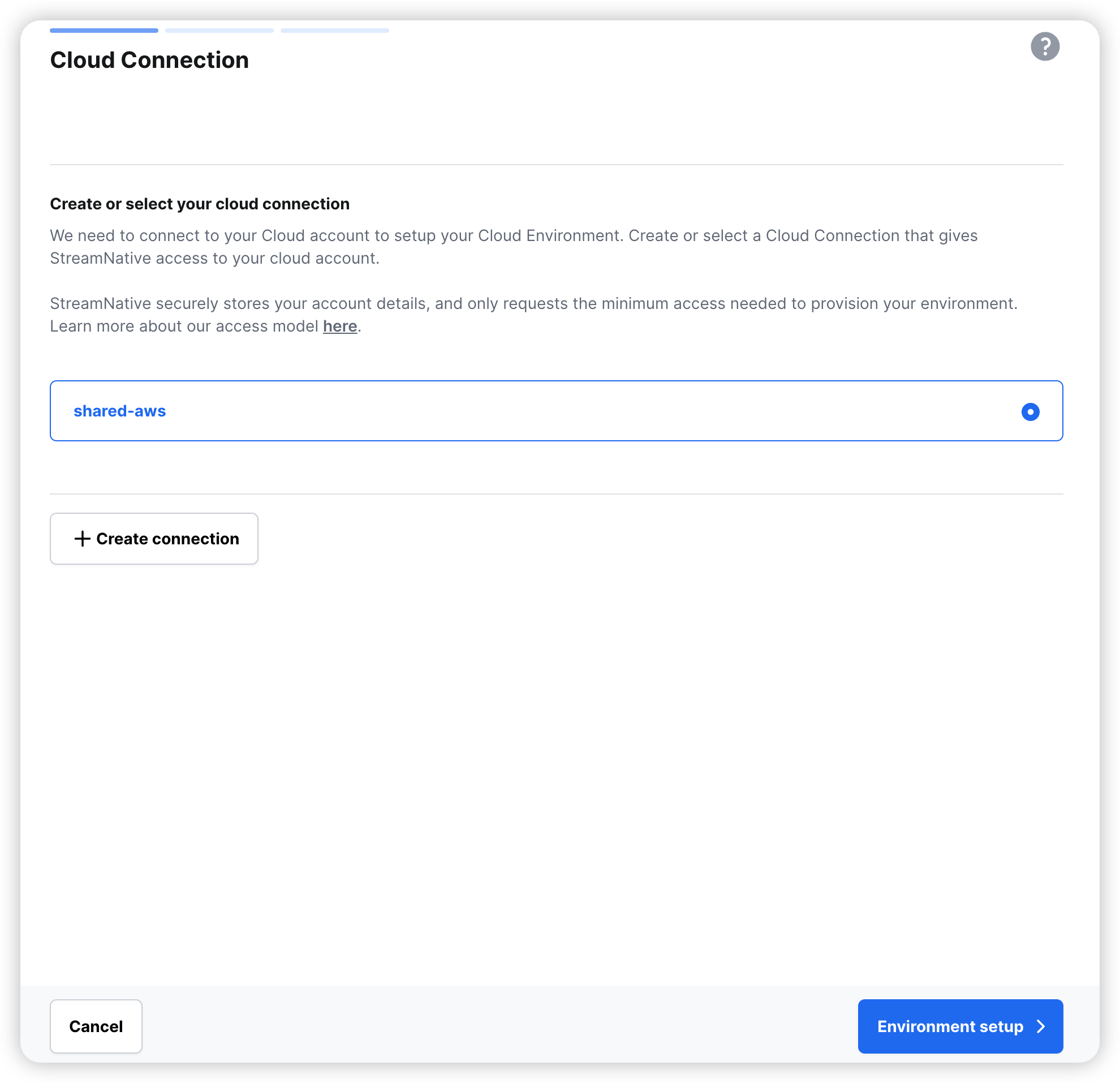
3. On the **Cloud Connection** page, select the cloud connection you want to use, then click **Environment setup**.
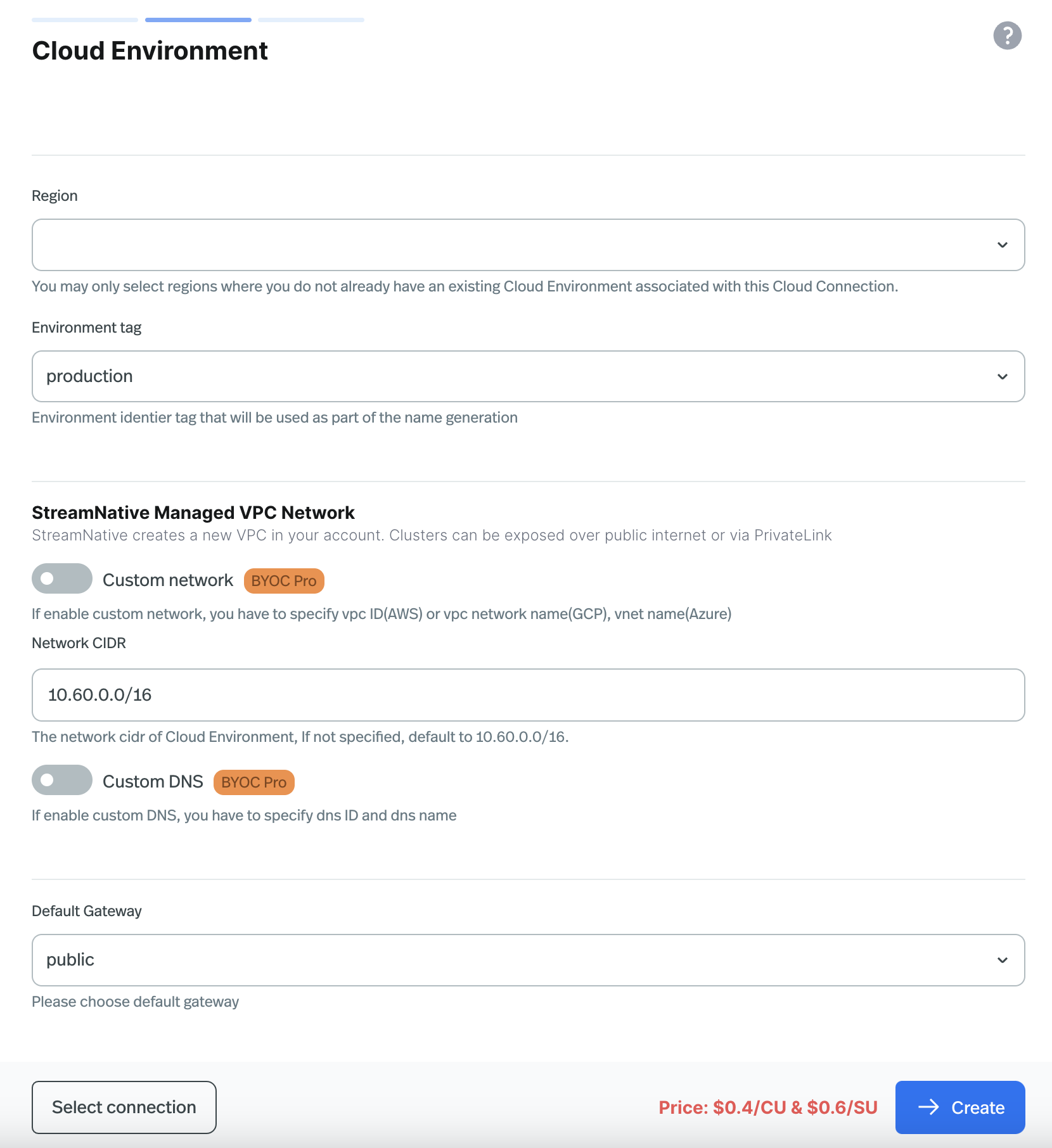
4. On the **Cloud Environment** page, fill out the required information based on what you have planned in the previous step.
1. **Region**: Select the region where the Cloud Environment will be created.
2. **Environment tag**: Select a tag for the Cloud Environment. This tag will be used for generating the name for the Cloud Environment.
3. **VPC** \[BYOC Pro Feature]:
* **StreamNative-managed VPC**: Provide the **Network CIDR** value for the VPC.
* **Custom Network**: Provide the **Network Id** value of your VPC.
* **AWS**: The **Network Id** is the VPC ID.
* **GCP**: The **Network Id** is the Network Name.
* **Azure**: The **Network Id** is the VNet Name.
4. **Custom DNS** \[BYOC Pro Feature]:
If you want to use your own DNS, check **Custom DNS** checkbox and provide the **DNS ID** and **DNS name** of your DNS zone.
5. Select the CloudConnection, then click **Environment setup**.
 6. Specify the region and other configurations, then click **Create**.
 **Tutorial**
You can also watch the video of creating a cloud environment using `snctl`:
[](https://www.youtube.com/watch?v=ETr2EvKTht8\&list=PL7-BmxsE3q4W5QnrusLyYt9_HbX4R7vEN\&index=5)
**Step-by-step guide**
To create a Cloud Environment using snctl, use `snctl create cloudenvironment`. Usage:
```bash theme={null}
snctl create cloudenvironment \
--cloud-connection-name CLOUD_CONNECTION_NAME \
--region REGION
```
| Flag | Description |
| ----------------------------- | --------------------------------------------------------------------------------------------------------------------------------------------------------------------- |
| --cloud-connection-name | Required. The name of cloud connection name. |
| --region | Required. The region of Cloud Environment. For Azure, it's the resource group name |
| --zone | Optional. The zone of Cloud Environment. It will be zonal if this is configured. |
| --network-cidr | Optional. The network cidr of StreamNative-managed VPC. Cannot be specified if `network-id` is specified. |
| --subnet-cidr | Optional. The subnet cidr of StreamNative-managed VPC. Only required for Azure environments when `cidr` is specified. |
| --network-id | Optional. The network id of your existing VPC. Specify it when you want to use your own VPC. Cannot be specified if `cidr` is specified. **This is BYOC Pro feature** |
| --dns-id | Optional. The dns id of your existing DNS zone. Specify it when you want to use your own DNS. **This is BYOC Pro feature** |
| --dns-name | Optional. The dns name of your existing DNS zone. Specify it when you want to use your own DNS. **This is BYOC Pro feature** |
| --default-gateway-access | Optional. The access type of Pulsar endpoint. It can be `public` or `private`. Default to `public`. |
| --default-gateway-allowed-ids | Optional. The allowed ids of the default gateway, only can be set when `--default-gateway-access` is `private`. |
| --environment-type | Optional. The environment type, can be dev, test, staging, production, poc, qa, acc. Default to production. |
**Basic Examples**
```bash theme={null}
snctl create cloudenvionment --cloud-connection-name CLOUD_CONNECTION_NAME \
--region REGION \
-n ORG_NAME
```
* `CLOUD_CONNECTION_NAME`: The name of the cloud connection.
* `REGION`: The region where the Cloud Environment will be created.
* `ORG_NAME`: The name of the organization.
```bash theme={null}
snctl create cloudenvironment --cloud-connection-name CLOUD_CONNECTION_NAME \
--region REGION \
-n ORG_NAME
```
* `CLOUD_CONNECTION_NAME`: The name of the cloud connection.
* `REGION`: The region where the Cloud Environment will be created.
* `ORG_NAME`: The name of the organization.
```bash theme={null}
snctl create cloudenvionment --cloud-connection-name CLOUD_CONNECTION_NAME \
--region REGION \
-n ORG_NAME
```
* `CLOUD_CONNECTION_NAME`: The name of the cloud connection.
* `REGION`: The region where the Cloud Environment will be created.
* `ORG_NAME`: The name of the organization.
**Cloud Environment with a Default Private Gateway Examples**
Below are examples of creating a cloud environment with a default private gateway.
```bash theme={null}
snctl create cloudenvionment \
--cloud-connection-name CLOUD_CONNECTION_NAME \
--region REGION \
--default-gateway-access private \
--default-gateway-allowed-ids AWS_ACCOUNT_ID_1,AWS_ACCOUNT_ID_2 \
-n ORG_NAME
```
* `CLOUD_CONNECTION_NAME`: The name of the cloud connection.
* `REGION`: The region where the Cloud Environment will be created.
* `ORG_NAME`: The name of the organization.
* `AWS_ACCOUNT_ID_1,AWS_ACCOUNT_ID_2`: The AWS account IDs that are allowed to establish privatelink connections to the clusters.
```bash theme={null}
snctl create cloudenvionment \
--cloud-connection-name CLOUD_CONNECTION_NAME \
--region REGION \
--default-gateway-access private \
--default-gateway-allowed-ids GCP_PROJECT_ID_1,GCP_PROJECT_ID_2 \
-n ORG_NAME
```
* `CLOUD_CONNECTION_NAME`: The name of the cloud connection.
* `REGION`: The region where the Cloud Environment will be created.
* `ORG_NAME`: The name of the organization.
* `GCP_PROJECT_ID_1,GCP_PROJECT_ID_2`: The GCP project IDs that are allowed to establish private service connect connections to the clusters.
```bash theme={null}
snctl create cloudenvionment \
--cloud-connection-name CLOUD_CONNECTION_NAME \
--region REGION \
--default-gateway-access private \
--default-gateway-allowed-ids AZURE_SUBSCRIPTION_ID_1,AZURE_SUBSCRIPTION_ID_2 \
-n ORG_NAME
```
* `CLOUD_CONNECTION_NAME`: The name of the cloud connection.
* `REGION`: The region where the Cloud Environment will be created.
* `ORG_NAME`: The name of the organization.
* `AZURE_SUBSCRIPTION_ID_1,AZURE_SUBSCRIPTION_ID_2`: The Azure subscription IDs that are allowed to establish privatelink connections to the clusters.
**BYO-Network & BYO-DNS Examples**
```bash theme={null}
snctl create cloudenvionment \
--cloud-connection-name CLOUD_CONNECTION_NAME \
--region REGION \
--network-id NETWORK_ID \
--dns-id DNS_ID \
--dns-name DNS_NAME \
-n ORG_NAME
```
* `CLOUD_CONNECTION_NAME`: The name of the cloud connection.
* `REGION`: The region where the Cloud Environment will be created.
* `NETWORK_ID`: The ID of your existing VPC (i.e. `vpc-0123456789abcdef0`).
* `DNS_ID`: The ID of your existing DNS zone (i.e. `Z08392741KXNBH5WMR9PQ`).
* `DNS_NAME`: The name of your existing DNS zone (i.e. `byod.aws.example.com`).
* `ORG_NAME`: The name of the organization.
```bash theme={null}
snctl create cloudenvionment \
--cloud-connection-name CLOUD_CONNECTION_NAME \
--region REGION \
--network-id NETWORK_ID \
--dns-id DNS_ID \
--dns-name DNS_NAME \
-n ORG_NAME
```
* `CLOUD_CONNECTION_NAME`: The name of the cloud connection.
* `REGION`: The region where the Cloud Environment will be created.
* `NETWORK_ID`: The name of your existing VPC network (i.e. `my-vpc-network`).
* `DNS_ID`: The name of your existing DNS zone (i.e. `my-dns-zone`).
* `DNS_NAME`: The name of your existing DNS zone (i.e. `byod.gcp.example.com`).
* `ORG_NAME`: The name of the organization.
```bash theme={null}
snctl create cloudenvionment \
--cloud-connection-name CLOUD_CONNECTION_NAME \
--region REGION \
--network-id NETWORK_ID \
--dns-id DNS_ID \
--dns-name DNS_NAME \
-n ORG_NAME
```
* `CLOUD_CONNECTION_NAME`: The name of the cloud connection.
* `REGION`: The region where the Cloud Environment will be created.
* `NETWORK_ID`: The ID of your existing VPC (i.e. `rg-eastus-vnet`).
* `DNS_ID`: The ID of your existing DNS zone (i.e. `/subscriptions/947a12b8-3649-8271-945c-8912f534a19d/resourceGroups/eastus/providers/Microsoft.Network/dnszones/byod.test.azure.example.com`).
* `DNS_NAME`: The name of your existing DNS zone (i.e. `byod.test.azure.example.com`).
* `ORG_NAME`: The name of the organization.
**Manifest file**
Alternatively, you can prepare a manifest file `cloudenvironment.yaml` to define a cloud environment, and then use `snctl` to create the cloud environment:
```yaml theme={null}
apiVersion: cloud.streamnative.io/v1alpha1
kind: CloudEnvironment
metadata:
namespace: ORG_NAME
spec:
cloudConnectionName: CLOUD_CONNECTION_NAME
defaultGateway:
access: public
dns:
id: DNS_ID
name: DNS_NAME
network:
id: NETWORK_ID
region: REGION
```
* Replace `CLOUD_CONNECTION_NAME` with the name of the cloud connection.
* Replace `REGION` with the region where the Cloud Environment will be created.
* Replace `ORG_NAME` with the name of the organization.
* Replace `DNS_ID` with the ID of your existing DNS zone (i.e. `Z08392741KXNBH5WMR9PQ`).
* Replace `DNS_NAME` with the name of your existing DNS zone (i.e. `byod.aws.example.com`).
* Replace `NETWORK_ID` with the ID of your existing VPC (i.e. `vpc-0123456789abcdef0`).
Then you can create the cloud environment by running `snctl create -f cloudenvironment.yaml`.
The name of the cloud environment will be generated automatically based on the cloud connection name, region, and environment tag. You can use `snctl get cloudenvironment` to find the name of the cloud environment you just created.
Then you can use `snctl get cloudenvironment ` to get the details of the cloud environment. If a Cloud Environment is successfully provisioned, all the conditions should be `True`.
**Tutorial**
You can also watch the video of creating a cloud environment using Terraform:
[](https://www.youtube.com/watch?v=J7S7A_1Tshc\&list=PL7-BmxsE3q4W5QnrusLyYt9_HbX4R7vEN\&index=4)
**Step-by-step guide**
To create a Cloud Environment with terraform:
1. Prepare `main.tf` to define the cloud environment.
2. Run `terraform init` to initialize the terraform project.
3. Run `terraform plan` to review the changes.
4. Run `terraform apply` to create the cloud environment.
For additional details, please refer to our [Terraform module documentation on Cloud Environments](https://registry.terraform.io/providers/streamnative/streamnative/latest/docs/resources/cloud_environment).
**Cloud Environment Schema**
| Field | Type | Description |
| --------------------------------- | -------------------------------------------------- | ---------------------------------------------------------------------- |
| organization, required | String | The organization name |
| cloud\_connection\_name, required | String | Name of the cloud connection |
| region, required | String | The cloud region in which this environment will be created |
| zone, optional | String | The zone of Cloud Environment. It will be zonal if this is configured. |
| network | List of Object | see 'network schema' below for nested schema |
| network schema | cidr (String), id (String) | cidr and id cannot be specified together |
| default\_gateway, optional | List of Object | see 'default\_gateway schema' below for nested schema |
| default\_gateway schema | access (String), private\_service (List of Object) | see 'private\_service schema' for nested schema |
| private\_service schema | allowed\_ids (List of String) | |
| dns, optional | List of Object | see 'dns schema' below for nested schema |
| dns schema | id (String), name (String) | The ID and name of an existing DNS zone |
| environment\_tag, optional | String | Tag to identify the environment (e.g. "production", "staging") |
| timeouts | List of Object | see 'timeouts schema' below for nested schema |
| timeouts schema | create (String), delete (String), update (String) | Timeouts for create/delete/update operations |
**Basic Examples**
```json theme={null}
module "sn_managed_cloud" {
source = "github.com/streamnative/terraform-managed-cloud//modules/aws/vendor-access?ref=v3.23.0"
external_id = "YOUR_ORG_ID"
}
resource "streamnative_cloud_connection" "shared_aws" {
depends_on = [ module.sn_managed_cloud ]
organization = "YOUR_ORG_ID"
name = "YOUR_CLOUD_CONNECTION_NAME"
type = "aws"
aws {
account_id = "YOUR_AWS_ACCOUNT_ID"
}
}
resource "streamnative_cloud_environment" "aws_usw1_production" {
depends_on = [ streamnative_cloud_connection.shared_aws ]
organization = "YOUR_ORG_ID"
region = "YOUR_REGION"
cloud_connection_name = "YOUR_CLOUD_CONNECTION_NAME"
network {
cidr = "YOUR_NETWORK_CIDR"
}
}
```
* Replace `YOUR_ORG_ID` with the name of the organization.
* Replace `YOUR_REGION` with the region where the Cloud Environment will be created.
* Replace `YOUR_CLOUD_CONNECTION_NAME` with the name of the cloud connection.
* Replace `YOUR_NETWORK_CIDR` with the CIDR value for the VPC (i.e. `10.60.0.0/16`).
```json theme={null}
provider "google" {
project = "YOUR_GCP_PROJECT_ID"
}
module "sn_managed_cloud" {
source = "github.com/streamnative/terraform-managed-cloud//modules/gcp/vendor-access?ref=v3.23.0"
project = "YOUR_GCP_PROJECT_ID"
streamnative_org_id = "YOUR_ORG_ID"
}
resource "streamnative_cloud_connection" "shared_gcp" {
depends_on = [ module.sn_managed_cloud ]
organization = "YOUR_ORG_ID"
name = "YOUR_CLOUD_CONNECTION_NAME"
type = "gcp"
gcp {
project_id = "YOUR_GCP_PROJECT_ID"
}
}
resource "streamnative_cloud_environment" "gcp_usw1_production" {
depends_on = [ streamnative_cloud_connection.shared_gcp ]
organization = "orgname"
region = "YOUR_REGION"
cloud_connection_name = "YOUR_CLOUD_CONNECTION_NAME"
network {
cidr = "YOUR_NETWORK_CIDR"
}
}
```
* Replace `YOUR_ORG_ID` with the name of the organization.
* Replace `YOUR_REGION` with the region where the Cloud Environment will be created (i.e. `us-west1`).
* Replace `YOUR_CLOUD_CONNECTION_NAME` with the name of the cloud connection.
* Replace `YOUR_NETWORK_CIDR` with the CIDR value for the VPC (i.e. `10.0.0.0/16`).
```json theme={null}
resource "streamnative_cloud_environment" "azure_eastus_production" {
organization = "YOUR_ORG_ID"
region = "YOUR_REGION"
cloud_connection_name = "YOUR_CLOUD_CONNECTION_NAME"
network {
cidr = "YOUR_NETWORK_CIDR"
subnet_cidr = "YOUR_SUBNET_CIDR"
}
}
```
* Replace `YOUR_ORG_ID` with the name of the organization.
* Replace `YOUR_REGION` with the region where the Cloud Environment will be created (i.e. `rg-eastus`).
* Replace `YOUR_CLOUD_CONNECTION_NAME` with the name of the cloud connection.
* Replace `YOUR_NETWORK_CIDR` with the CIDR value for the VPC (i.e. `10.70.0.0/16`).
* Replace `YOUR_SUBNET_CIDR` with the CIDR value for the subnet (i.e. `10.70.0.0/24`).
**BYO-Network & BYO-DNS Examples**
This example shows how to create a cloud environment using your own network and DNS.
```hcl theme={null}
terraform {
required_providers {
streamnative = {
source = "streamnative/streamnative"
version = "v0.7.0"
}
}
}
resource "streamnative_cloud_environment" "example" {
organization = "YOUR_ORG_ID"
region = "YOUR_REGION"
cloud_connection_name = "YOUR_CLOUD_CONNECTION_NAME"
environment_type = "YOUR_ENVIRONMENT_TYPE"
network {
id = "YOUR_NETWORK_ID"
}
dns {
id = "YOUR_DNS_ID"
name = "YOUR_DNS_NAME"
}
}
```
* Replace `YOUR_ORG_ID` with the name of the organization.
* Replace `YOUR_REGION` with the region where the Cloud Environment will be created.
* Replace `YOUR_CLOUD_CONNECTION_NAME` with the name of the cloud connection.
* Replace `YOUR_ENVIRONMENT_TYPE` with the type of the environment.
* Replace `YOUR_NETWORK_ID` with the ID of your existing VPC.
* Replace `YOUR_DNS_ID` with the ID of your existing DNS zone.
* Replace `YOUR_DNS_NAME` with the name of your existing DNS zone.
## Monitoring the Provisioning Process
Creating a Cloud Environment through Terraform does not immediately create the Cloud Environment, but rather kicks off a process that creates it. Provisioning a Cloud Environment takes approximately 40 minutes. You will receive an email notification when the Cloud Environment is ready or if there are any issues.
At the same time, if you want to monitor the provisioning process, you can use `snctl`.
```bash theme={null}
snctl describe -O orgname cloudenvironment CLOUD_ENVIRONMENT_NAME
```
* Replace `CLOUD_ENVIRONMENT_NAME` with the name of the cloud environment.
Once `snctl describe` returns a `status` of `True` and a `type` of `Ready` your Cloud Environment has been provisioned, and you can create a Pulsar Cluster within it.
If this command returns an error state, you can try to gather more detailed information about the error with (the `-o yaml` flag outputs the full resource details in YAML format):
```bash theme={null}
snctl get -o yaml -O orgname cloudenvironment CLOUD_ENVIRONMENT_NAME
```
If the error persists please [reach out to the StreamNative support team](https://support.streamnative.io/hc/en-us/requests/new).
## Update a Cloud Environment
It is generally not recommended to update a Cloud Environment once it has been created. If you need to update a Cloud Environment, please reach out to [StreamNative support team](https://support.streamnative.io/hc/en-us/requests/new) to discuss your requirements.
## Delete a Cloud Environment
Deleting a Cloud Environment is an irreversible action. Please exercise caution when performing this operation.
1. In the upper-right corner of Cloud Console, click your user profile, and in the dropdown menu, click **Cloud Environments**.
2. On the **Cloud Environments** page, find the cloud environment you want to delete, and click the ellipsis (**...**) on the right side of the row, and then click **Delete**.
3. On the **Delete cloud environment** page, enter the name of the cloud environment, and click **Confirm**.
You can delete a cloud environment using `snctl`:
```bash theme={null}
snctl delete cloudenvironment CLOUD_ENVIRONMENT_NAME
```
* Replace `CLOUD_ENVIRONMENT_NAME` with the name of the cloud environment.
Alternatively, if you have the manifest file of the cloud environment, you can delete the cloud environment by running:
```bash theme={null}
snctl delete -f cloudenvironment.yaml
```
You can remove the cloud environment from your terraform code and run `terraform apply` to delete the cloud environment.
## Next steps
After setting up one or more Cloud Environments, you can proceed to create StreamNative [instances](/cloud/clusters/manage-instances/instance) and [clusters](/cloud/clusters/manage-clusters/cluster) within those environments.
**Tutorial**
You can also watch the video of creating a cloud environment using `snctl`:
[](https://www.youtube.com/watch?v=ETr2EvKTht8\&list=PL7-BmxsE3q4W5QnrusLyYt9_HbX4R7vEN\&index=5)
**Step-by-step guide**
To create a Cloud Environment using snctl, use `snctl create cloudenvironment`. Usage:
```bash theme={null}
snctl create cloudenvironment \
--cloud-connection-name CLOUD_CONNECTION_NAME \
--region REGION
```
| Flag | Description |
| ----------------------------- | --------------------------------------------------------------------------------------------------------------------------------------------------------------------- |
| --cloud-connection-name | Required. The name of cloud connection name. |
| --region | Required. The region of Cloud Environment. For Azure, it's the resource group name |
| --zone | Optional. The zone of Cloud Environment. It will be zonal if this is configured. |
| --network-cidr | Optional. The network cidr of StreamNative-managed VPC. Cannot be specified if `network-id` is specified. |
| --subnet-cidr | Optional. The subnet cidr of StreamNative-managed VPC. Only required for Azure environments when `cidr` is specified. |
| --network-id | Optional. The network id of your existing VPC. Specify it when you want to use your own VPC. Cannot be specified if `cidr` is specified. **This is BYOC Pro feature** |
| --dns-id | Optional. The dns id of your existing DNS zone. Specify it when you want to use your own DNS. **This is BYOC Pro feature** |
| --dns-name | Optional. The dns name of your existing DNS zone. Specify it when you want to use your own DNS. **This is BYOC Pro feature** |
| --default-gateway-access | Optional. The access type of Pulsar endpoint. It can be `public` or `private`. Default to `public`. |
| --default-gateway-allowed-ids | Optional. The allowed ids of the default gateway, only can be set when `--default-gateway-access` is `private`. |
| --environment-type | Optional. The environment type, can be dev, test, staging, production, poc, qa, acc. Default to production. |
**Basic Examples**
```bash theme={null}
snctl create cloudenvionment --cloud-connection-name CLOUD_CONNECTION_NAME \
--region REGION \
-n ORG_NAME
```
* `CLOUD_CONNECTION_NAME`: The name of the cloud connection.
* `REGION`: The region where the Cloud Environment will be created.
* `ORG_NAME`: The name of the organization.
```bash theme={null}
snctl create cloudenvironment --cloud-connection-name CLOUD_CONNECTION_NAME \
--region REGION \
-n ORG_NAME
```
* `CLOUD_CONNECTION_NAME`: The name of the cloud connection.
* `REGION`: The region where the Cloud Environment will be created.
* `ORG_NAME`: The name of the organization.
```bash theme={null}
snctl create cloudenvionment --cloud-connection-name CLOUD_CONNECTION_NAME \
--region REGION \
-n ORG_NAME
```
* `CLOUD_CONNECTION_NAME`: The name of the cloud connection.
* `REGION`: The region where the Cloud Environment will be created.
* `ORG_NAME`: The name of the organization.
**Cloud Environment with a Default Private Gateway Examples**
Below are examples of creating a cloud environment with a default private gateway.
```bash theme={null}
snctl create cloudenvionment \
--cloud-connection-name CLOUD_CONNECTION_NAME \
--region REGION \
--default-gateway-access private \
--default-gateway-allowed-ids AWS_ACCOUNT_ID_1,AWS_ACCOUNT_ID_2 \
-n ORG_NAME
```
* `CLOUD_CONNECTION_NAME`: The name of the cloud connection.
* `REGION`: The region where the Cloud Environment will be created.
* `ORG_NAME`: The name of the organization.
* `AWS_ACCOUNT_ID_1,AWS_ACCOUNT_ID_2`: The AWS account IDs that are allowed to establish privatelink connections to the clusters.
```bash theme={null}
snctl create cloudenvionment \
--cloud-connection-name CLOUD_CONNECTION_NAME \
--region REGION \
--default-gateway-access private \
--default-gateway-allowed-ids GCP_PROJECT_ID_1,GCP_PROJECT_ID_2 \
-n ORG_NAME
```
* `CLOUD_CONNECTION_NAME`: The name of the cloud connection.
* `REGION`: The region where the Cloud Environment will be created.
* `ORG_NAME`: The name of the organization.
* `GCP_PROJECT_ID_1,GCP_PROJECT_ID_2`: The GCP project IDs that are allowed to establish private service connect connections to the clusters.
```bash theme={null}
snctl create cloudenvionment \
--cloud-connection-name CLOUD_CONNECTION_NAME \
--region REGION \
--default-gateway-access private \
--default-gateway-allowed-ids AZURE_SUBSCRIPTION_ID_1,AZURE_SUBSCRIPTION_ID_2 \
-n ORG_NAME
```
* `CLOUD_CONNECTION_NAME`: The name of the cloud connection.
* `REGION`: The region where the Cloud Environment will be created.
* `ORG_NAME`: The name of the organization.
* `AZURE_SUBSCRIPTION_ID_1,AZURE_SUBSCRIPTION_ID_2`: The Azure subscription IDs that are allowed to establish privatelink connections to the clusters.
**BYO-Network & BYO-DNS Examples**
```bash theme={null}
snctl create cloudenvionment \
--cloud-connection-name CLOUD_CONNECTION_NAME \
--region REGION \
--network-id NETWORK_ID \
--dns-id DNS_ID \
--dns-name DNS_NAME \
-n ORG_NAME
```
* `CLOUD_CONNECTION_NAME`: The name of the cloud connection.
* `REGION`: The region where the Cloud Environment will be created.
* `NETWORK_ID`: The ID of your existing VPC (i.e. `vpc-0123456789abcdef0`).
* `DNS_ID`: The ID of your existing DNS zone (i.e. `Z08392741KXNBH5WMR9PQ`).
* `DNS_NAME`: The name of your existing DNS zone (i.e. `byod.aws.example.com`).
* `ORG_NAME`: The name of the organization.
```bash theme={null}
snctl create cloudenvionment \
--cloud-connection-name CLOUD_CONNECTION_NAME \
--region REGION \
--network-id NETWORK_ID \
--dns-id DNS_ID \
--dns-name DNS_NAME \
-n ORG_NAME
```
* `CLOUD_CONNECTION_NAME`: The name of the cloud connection.
* `REGION`: The region where the Cloud Environment will be created.
* `NETWORK_ID`: The name of your existing VPC network (i.e. `my-vpc-network`).
* `DNS_ID`: The name of your existing DNS zone (i.e. `my-dns-zone`).
* `DNS_NAME`: The name of your existing DNS zone (i.e. `byod.gcp.example.com`).
* `ORG_NAME`: The name of the organization.
```bash theme={null}
snctl create cloudenvionment \
--cloud-connection-name CLOUD_CONNECTION_NAME \
--region REGION \
--network-id NETWORK_ID \
--dns-id DNS_ID \
--dns-name DNS_NAME \
-n ORG_NAME
```
* `CLOUD_CONNECTION_NAME`: The name of the cloud connection.
* `REGION`: The region where the Cloud Environment will be created.
* `NETWORK_ID`: The ID of your existing VPC (i.e. `rg-eastus-vnet`).
* `DNS_ID`: The ID of your existing DNS zone (i.e. `/subscriptions/947a12b8-3649-8271-945c-8912f534a19d/resourceGroups/eastus/providers/Microsoft.Network/dnszones/byod.test.azure.example.com`).
* `DNS_NAME`: The name of your existing DNS zone (i.e. `byod.test.azure.example.com`).
* `ORG_NAME`: The name of the organization.
**Manifest file**
Alternatively, you can prepare a manifest file `cloudenvironment.yaml` to define a cloud environment, and then use `snctl` to create the cloud environment:
```yaml theme={null}
apiVersion: cloud.streamnative.io/v1alpha1
kind: CloudEnvironment
metadata:
namespace: ORG_NAME
spec:
cloudConnectionName: CLOUD_CONNECTION_NAME
defaultGateway:
access: public
dns:
id: DNS_ID
name: DNS_NAME
network:
id: NETWORK_ID
region: REGION
```
* Replace `CLOUD_CONNECTION_NAME` with the name of the cloud connection.
* Replace `REGION` with the region where the Cloud Environment will be created.
* Replace `ORG_NAME` with the name of the organization.
* Replace `DNS_ID` with the ID of your existing DNS zone (i.e. `Z08392741KXNBH5WMR9PQ`).
* Replace `DNS_NAME` with the name of your existing DNS zone (i.e. `byod.aws.example.com`).
* Replace `NETWORK_ID` with the ID of your existing VPC (i.e. `vpc-0123456789abcdef0`).
Then you can create the cloud environment by running `snctl create -f cloudenvironment.yaml`.
The name of the cloud environment will be generated automatically based on the cloud connection name, region, and environment tag. You can use `snctl get cloudenvironment` to find the name of the cloud environment you just created.
Then you can use `snctl get cloudenvironment ` to get the details of the cloud environment. If a Cloud Environment is successfully provisioned, all the conditions should be `True`.
**Tutorial**
You can also watch the video of creating a cloud environment using Terraform:
[](https://www.youtube.com/watch?v=J7S7A_1Tshc\&list=PL7-BmxsE3q4W5QnrusLyYt9_HbX4R7vEN\&index=4)
**Step-by-step guide**
To create a Cloud Environment with terraform:
1. Prepare `main.tf` to define the cloud environment.
2. Run `terraform init` to initialize the terraform project.
3. Run `terraform plan` to review the changes.
4. Run `terraform apply` to create the cloud environment.
For additional details, please refer to our [Terraform module documentation on Cloud Environments](https://registry.terraform.io/providers/streamnative/streamnative/latest/docs/resources/cloud_environment).
**Cloud Environment Schema**
| Field | Type | Description |
| --------------------------------- | -------------------------------------------------- | ---------------------------------------------------------------------- |
| organization, required | String | The organization name |
| cloud\_connection\_name, required | String | Name of the cloud connection |
| region, required | String | The cloud region in which this environment will be created |
| zone, optional | String | The zone of Cloud Environment. It will be zonal if this is configured. |
| network | List of Object | see 'network schema' below for nested schema |
| network schema | cidr (String), id (String) | cidr and id cannot be specified together |
| default\_gateway, optional | List of Object | see 'default\_gateway schema' below for nested schema |
| default\_gateway schema | access (String), private\_service (List of Object) | see 'private\_service schema' for nested schema |
| private\_service schema | allowed\_ids (List of String) | |
| dns, optional | List of Object | see 'dns schema' below for nested schema |
| dns schema | id (String), name (String) | The ID and name of an existing DNS zone |
| environment\_tag, optional | String | Tag to identify the environment (e.g. "production", "staging") |
| timeouts | List of Object | see 'timeouts schema' below for nested schema |
| timeouts schema | create (String), delete (String), update (String) | Timeouts for create/delete/update operations |
**Basic Examples**
```json theme={null}
module "sn_managed_cloud" {
source = "github.com/streamnative/terraform-managed-cloud//modules/aws/vendor-access?ref=v3.23.0"
external_id = "YOUR_ORG_ID"
}
resource "streamnative_cloud_connection" "shared_aws" {
depends_on = [ module.sn_managed_cloud ]
organization = "YOUR_ORG_ID"
name = "YOUR_CLOUD_CONNECTION_NAME"
type = "aws"
aws {
account_id = "YOUR_AWS_ACCOUNT_ID"
}
}
resource "streamnative_cloud_environment" "aws_usw1_production" {
depends_on = [ streamnative_cloud_connection.shared_aws ]
organization = "YOUR_ORG_ID"
region = "YOUR_REGION"
cloud_connection_name = "YOUR_CLOUD_CONNECTION_NAME"
network {
cidr = "YOUR_NETWORK_CIDR"
}
}
```
* Replace `YOUR_ORG_ID` with the name of the organization.
* Replace `YOUR_REGION` with the region where the Cloud Environment will be created.
* Replace `YOUR_CLOUD_CONNECTION_NAME` with the name of the cloud connection.
* Replace `YOUR_NETWORK_CIDR` with the CIDR value for the VPC (i.e. `10.60.0.0/16`).
```json theme={null}
provider "google" {
project = "YOUR_GCP_PROJECT_ID"
}
module "sn_managed_cloud" {
source = "github.com/streamnative/terraform-managed-cloud//modules/gcp/vendor-access?ref=v3.23.0"
project = "YOUR_GCP_PROJECT_ID"
streamnative_org_id = "YOUR_ORG_ID"
}
resource "streamnative_cloud_connection" "shared_gcp" {
depends_on = [ module.sn_managed_cloud ]
organization = "YOUR_ORG_ID"
name = "YOUR_CLOUD_CONNECTION_NAME"
type = "gcp"
gcp {
project_id = "YOUR_GCP_PROJECT_ID"
}
}
resource "streamnative_cloud_environment" "gcp_usw1_production" {
depends_on = [ streamnative_cloud_connection.shared_gcp ]
organization = "orgname"
region = "YOUR_REGION"
cloud_connection_name = "YOUR_CLOUD_CONNECTION_NAME"
network {
cidr = "YOUR_NETWORK_CIDR"
}
}
```
* Replace `YOUR_ORG_ID` with the name of the organization.
* Replace `YOUR_REGION` with the region where the Cloud Environment will be created (i.e. `us-west1`).
* Replace `YOUR_CLOUD_CONNECTION_NAME` with the name of the cloud connection.
* Replace `YOUR_NETWORK_CIDR` with the CIDR value for the VPC (i.e. `10.0.0.0/16`).
```json theme={null}
resource "streamnative_cloud_environment" "azure_eastus_production" {
organization = "YOUR_ORG_ID"
region = "YOUR_REGION"
cloud_connection_name = "YOUR_CLOUD_CONNECTION_NAME"
network {
cidr = "YOUR_NETWORK_CIDR"
subnet_cidr = "YOUR_SUBNET_CIDR"
}
}
```
* Replace `YOUR_ORG_ID` with the name of the organization.
* Replace `YOUR_REGION` with the region where the Cloud Environment will be created (i.e. `rg-eastus`).
* Replace `YOUR_CLOUD_CONNECTION_NAME` with the name of the cloud connection.
* Replace `YOUR_NETWORK_CIDR` with the CIDR value for the VPC (i.e. `10.70.0.0/16`).
* Replace `YOUR_SUBNET_CIDR` with the CIDR value for the subnet (i.e. `10.70.0.0/24`).
**BYO-Network & BYO-DNS Examples**
This example shows how to create a cloud environment using your own network and DNS.
```hcl theme={null}
terraform {
required_providers {
streamnative = {
source = "streamnative/streamnative"
version = "v0.7.0"
}
}
}
resource "streamnative_cloud_environment" "example" {
organization = "YOUR_ORG_ID"
region = "YOUR_REGION"
cloud_connection_name = "YOUR_CLOUD_CONNECTION_NAME"
environment_type = "YOUR_ENVIRONMENT_TYPE"
network {
id = "YOUR_NETWORK_ID"
}
dns {
id = "YOUR_DNS_ID"
name = "YOUR_DNS_NAME"
}
}
```
* Replace `YOUR_ORG_ID` with the name of the organization.
* Replace `YOUR_REGION` with the region where the Cloud Environment will be created.
* Replace `YOUR_CLOUD_CONNECTION_NAME` with the name of the cloud connection.
* Replace `YOUR_ENVIRONMENT_TYPE` with the type of the environment.
* Replace `YOUR_NETWORK_ID` with the ID of your existing VPC.
* Replace `YOUR_DNS_ID` with the ID of your existing DNS zone.
* Replace `YOUR_DNS_NAME` with the name of your existing DNS zone.
## Monitoring the Provisioning Process
Creating a Cloud Environment through Terraform does not immediately create the Cloud Environment, but rather kicks off a process that creates it. Provisioning a Cloud Environment takes approximately 40 minutes. You will receive an email notification when the Cloud Environment is ready or if there are any issues.
At the same time, if you want to monitor the provisioning process, you can use `snctl`.
```bash theme={null}
snctl describe -O orgname cloudenvironment CLOUD_ENVIRONMENT_NAME
```
* Replace `CLOUD_ENVIRONMENT_NAME` with the name of the cloud environment.
Once `snctl describe` returns a `status` of `True` and a `type` of `Ready` your Cloud Environment has been provisioned, and you can create a Pulsar Cluster within it.
If this command returns an error state, you can try to gather more detailed information about the error with (the `-o yaml` flag outputs the full resource details in YAML format):
```bash theme={null}
snctl get -o yaml -O orgname cloudenvironment CLOUD_ENVIRONMENT_NAME
```
If the error persists please [reach out to the StreamNative support team](https://support.streamnative.io/hc/en-us/requests/new).
## Update a Cloud Environment
It is generally not recommended to update a Cloud Environment once it has been created. If you need to update a Cloud Environment, please reach out to [StreamNative support team](https://support.streamnative.io/hc/en-us/requests/new) to discuss your requirements.
## Delete a Cloud Environment
Deleting a Cloud Environment is an irreversible action. Please exercise caution when performing this operation.
1. In the upper-right corner of Cloud Console, click your user profile, and in the dropdown menu, click **Cloud Environments**.
2. On the **Cloud Environments** page, find the cloud environment you want to delete, and click the ellipsis (**...**) on the right side of the row, and then click **Delete**.
3. On the **Delete cloud environment** page, enter the name of the cloud environment, and click **Confirm**.
You can delete a cloud environment using `snctl`:
```bash theme={null}
snctl delete cloudenvironment CLOUD_ENVIRONMENT_NAME
```
* Replace `CLOUD_ENVIRONMENT_NAME` with the name of the cloud environment.
Alternatively, if you have the manifest file of the cloud environment, you can delete the cloud environment by running:
```bash theme={null}
snctl delete -f cloudenvironment.yaml
```
You can remove the cloud environment from your terraform code and run `terraform apply` to delete the cloud environment.
## Next steps
After setting up one or more Cloud Environments, you can proceed to create StreamNative [instances](/cloud/clusters/manage-instances/instance) and [clusters](/cloud/clusters/manage-clusters/cluster) within those environments.