> ## Documentation Index
> Fetch the complete documentation index at: https://docs.streamnative.io/llms.txt
> Use this file to discover all available pages before exploring further.
# Manage Cloud Connections on StreamNative Cloud
This document assumes that you have already run the [Vendor Access Module](https://github.com/streamnative/terraform-managed-cloud) for your respective cloud provider. StreamNative will not be able to connect to your cloud account until you have done so. If you have not yet done so, please run the Vendor Access Module for your cloud provider using the instructions provided ([AWS](/cloud/clusters/byoc/grant-vendor-access/byoc-on-aws/byoc-aws-access), [Azure](/cloud/clusters/byoc/grant-vendor-access/byoc-on-azure/byoc-azure-access), and [GCP](/cloud/clusters/byoc/grant-vendor-access/byoc-on-gcp/byoc-gcp-access)), and then return to this page to continue setting up your Cloud Connection.
Cloud Connections allow StreamNative to connect to your AWS, GCP, or Azure account, and provision your Cloud Environment so that it can run Pulsar Clusters. You can create a Cloud Connection from [Cloud Console UI](/cloud/get-started/cloud-console), [`snctl`](/tools/cli/snctl/snctl-overview), or StreamNative's terraform provider.
## Create a Cloud Connection
A **Cloud Connection** represents a connection between StreamNative Cloud and your cloud account. It contains the necessary account information for StreamNative to access your cloud account but doesn't contain any credentials. StreamNative Cloud uses **assume role** to access your cloud account. To ensure StreamNative Cloud can access your cloud account, you need to grant StreamNative Cloud permission to assume the role in your cloud account. See [BYOC Overview](/cloud/clusters/byoc/byoc-overview) for more details. When you successfully create a Cloud Connection, it provisions a **Pool** that will be used for provisioning your Cloud Environment, which you'll later use for provisioning your [Instances](/cloud/clusters/manage-instances/instance) and [Clusters](/cloud/clusters/manage-clusters/cluster).
The information you will need to provide depends on the cloud provider you are using. Here is a summary of the information you need to provide for each cloud provider:
* **AWS**: The AWS **account ID**.
* **GCP**: The GCP **project ID**.
* **Azure**: The Azure **subscription ID**, **tenant ID**, **client ID**, and **support client ID**
Once you have the information you need, you can create a Cloud Connection using one of the following methods:
**Tutorial**
You can watch the video of creating a cloud connection using Cloud Console UI:
[](https://www.youtube.com/watch?v=ubRcgeOhHKw\&list=PL7-BmxsE3q4W5QnrusLyYt9_HbX4R7vEN\&index=3)
**Step-by-step guide**
1. In the upper-right corner of Cloud Console, click your user profile, and in the dropdown menu, click **Cloud Environments**.
2. On the **Cloud Environments** page, click **Cloud Connections** tab.
3. On the **Cloud Connections** tab, click **+ New Cloud Connection** button to create a new Cloud Connection.
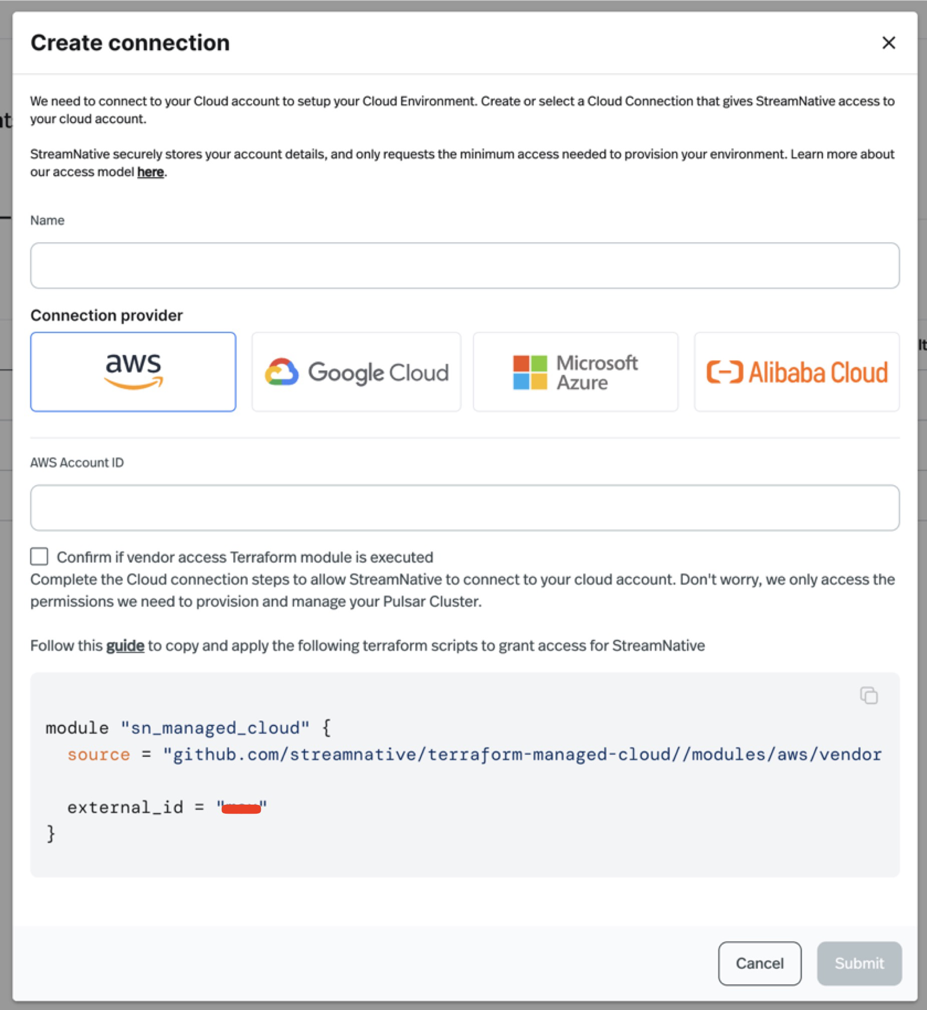 4. Enter the **name** of the Cloud Connection.
5. Select the **connection provider** of the Cloud Connection and fill out the required fields:
* **AWS**:
* **AWS Account ID**: The AWS **Account ID**
* **Google Cloud**:
* **Google Cloud Project ID**: The Google Cloud **Project ID**
* **Azure**:
* **Subscription ID**: The Azure **Subscription ID**
* **Tenant ID**: The Azure **Tenant ID**
* **Client ID**: The Azure **Client ID**
* **Support Client ID**: The Azure **Support Client ID**
6. Select **Confirm if vendor access Terraform module is executed** checkbox after you have executed the [Vendor Access Module](https://github.com/streamnative/terraform-managed-cloud) for your cloud provider.
7. Click **Submit** to create the Cloud Connection.
**Tutorial**
You can watch the video of creating a cloud connection using `snctl`:
[](https://www.youtube.com/watch?v=ETr2EvKTht8\&list=PL7-BmxsE3q4W5QnrusLyYt9_HbX4R7vEN\&index=5)
**Step-by-step guide**
To create a Cloud Connection using snctl, use `snctl create cloudconnection`. Usage:
```bash theme={null}
snctl create cloudconnection [NAME] [flags]
```
| Flag | Description |
| ------------------- | ------------------------------------------------------------ |
| --account-id | The account ID of your AWS account if `type` is `aws`. |
| --client-id | The client ID of your Azure account if `type` is `azure`. |
| -h, --help | Displays Cloud Connection help message. |
| --project-id | The project ID of your GCP project if `type` is `gcp`.. |
| --subscription-id | The subscription ID of Azure account if `type` is `azure`. |
| --support-client-id | The support client ID of Azure account if `type` is `azure`. |
| --tenant-id | The tenant ID of Azure account if `type` is `azure`. |
| --type | The type of cloud provider, one of: `aws`, `gcp` or `azure`. |
**Examples**
```bash theme={null}
snctl create cloudconnection shared-aws --type aws --account-id ACCOUNT_ID -O orgname
```
* Replace `ACCOUNT_ID` with your AWS account ID.
```bash theme={null}
snctl create cloudconnection shared-gcp --type gcp --project-id GCP_PROJECT_ID -O orgname
```
* Replace `GCP_PROJECT_ID` with your GCP project ID.
```bash theme={null}
snctl create cloudconnection shared-azure --type azure --subscription-id SUBSCRIPTION_ID --tenant-id TENANT_ID --client-id CLIENT_ID --support-client-id SUPPORT_CLIENT_ID -O orgname
```
* Replace `SUBSCRIPTION_ID` with your Azure **Subscription ID**.
* Replace `TENANT_ID` with your Azure **Tenant ID**.
* Replace `CLIENT_ID` with your Azure **Client ID**.
* Replace `SUPPORT_CLIENT_ID` with your Azure **Support Client ID**.
**Manifest file**
Alternatively, you can prepare a manifest file `cloudconnection.yaml` to define a cloud connection, and then use `snctl` to create the cloud connection:
```yaml theme={null}
apiVersion: cloud.streamnative.io/v1alpha1
kind: CloudConnection
metadata:
name: CLOUD_CONNECTION_NAME
namespace: YOUR_ORG_ID
spec:
aws:
accountId: 'ACCOUNT_ID'
type: aws
```
* Replace `CLOUD_CONNECTION_NAME` with the name of the cloud connection.
* Replace `ACCOUNT_ID` with your AWS account ID.
* Replace `YOUR_ORG_ID` with your StreamNative Cloud organization ID.
```yaml theme={null}
apiVersion: cloud.streamnative.io/v1alpha1
kind: CloudConnection
metadata:
name: CLOUD_CONNECTION_NAME
namespace: YOUR_ORG_ID
spec:
gcp:
projectId: 'GCP_PROJECT_ID'
type: gcp
```
* Replace `CLOUD_CONNECTION_NAME` with the name of the cloud connection.
* Replace `GCP_PROJECT_ID` with your GCP project ID.
* Replace `YOUR_ORG_ID` with your StreamNative Cloud organization ID.
```yaml theme={null}
apiVersion: cloud.streamnative.io/v1alpha1
kind: CloudConnection
metadata:
name: CLOUD_CONNECTION_NAME
namespace: YOUR_ORG_ID
spec:
gcp:
subscriptionId: 'SUBSCRIPTION_ID'
tenantId: 'TENANT_ID'
clientId: 'CLIENT_ID'
supportClientId: 'SUPPORT_CLIENT_ID'
type: azure
```
* Replace `CLOUD_CONNECTION_NAME` with the name of the cloud connection.
* Replace `YOUR_ORG_ID` with your StreamNative Cloud organization ID.
* Replace `SUBSCRIPTION_ID` with your Azure **Subscription ID**.
* Replace `TENANT_ID` with your Azure **Tenant ID**.
* Replace `CLIENT_ID` with your Azure **Client ID**.
* Replace `SUPPORT_CLIENT_ID` with your Azure **Support Client ID**.
Then you can create the connection using the following command:
```
snctl create -f cloudconnection.yaml
```
After creating the cloud connection, you can view its details by running `snctl get cloudconnection `. If StreamNative Cloud can successfully access your cloud account, the status `AllConditionStatusTrue` will show as `ready`.
**Tutorial**
You can watch the video of creating a cloud connection using Terraform:
[](https://www.youtube.com/watch?v=J7S7A_1Tshc\&list=PL7-BmxsE3q4W5QnrusLyYt9_HbX4R7vEN\&index=4)
**Step-by-step guide**
To create a Cloud Connection with terraform:
1. Prepare `main.tf` to define the cloud connection.
2. Run `terraform init` to initialize the terraform project.
3. Run `terraform plan` to review the changes.
4. Run `terraform apply` to create the cloud connection.
For additional details, please refer to our [Terraform module documentation on Cloud Connections](https://registry.terraform.io/providers/streamnative/streamnative/latest/docs/resources/cloud_connection).
**Cloud Connection Schema**
| Field | Type | Description |
| ---------------------- | -------------- | -------------------------------------------------------------------- |
| name, required | String | Name of the cloud connection |
| organization, required | String | The organization name |
| aws, read-only | List of Object | AWS configuration for the connection (see below for nested schema) |
| azure, read-only | List of Object | Azure configuration for the connection (see below for nested schema) |
| gcp, read-only | List of Object | GCP configuration for the connection (see below for nested schema) |
| id, read-only | String | The ID of this resource. |
| type, read-only | String | Type of cloud connection, `aws`, `gcp`, or `azure` |
| account\_id, read-only | (String) | Nested Schema for aws |
**Examples**
```hcl theme={null}
module "sn_managed_cloud" {
source = "github.com/streamnative/terraform-managed-cloud//modules/aws/vendor-access?ref=v3.23.0"
external_id = "YOUR_SNCLOUD_ORG_ID"
}
resource "streamnative_cloud_connection" "shared_aws" {
depends_on = [ module.sn_managed_cloud ]
organization = "YOUR_SNCLOUD_ORG_ID"
name = "CLOUD_CONNECTION_NAME"
type = "aws"
aws {
account_id = "ACCOUNT_ID"
}
}
```
* Replace `YOUR_SNCLOUD_ORG_ID` with your StreamNative Cloud organization ID.
* Replace `CLOUD_CONNECTION_NAME` with the name of the cloud connection.
* Replace `ACCOUNT_ID` with your AWS account ID.
```hcl theme={null}
provider "google" {
project = "YOUR_GCP_PROJECT_ID"
}
module "sn_managed_cloud" {
source = "github.com/streamnative/terraform-managed-cloud//modules/gcp/vendor-access?ref=v3.23.0"
project = "YOUR_GCP_PROJECT_ID"
streamnative_org_id = "YOUR_SNCLOUD_ORG_ID"
}
resource "streamnative_cloud_connection" "shared_gcp" {
depends_on = [ module.sn_managed_cloud ]
organization = "orgname"
name = "CLOUD_CONNECTION_NAME"
type = "gcp"
gcp {
project_id = "GCP_PROJECT_ID"
}
}
```
* Replace `YOUR_GCP_PROJECT_ID` with your GCP project ID.
* Replace `GCP_PROJECT_ID` with your GCP project ID.
* Replace `CLOUD_CONNECTION_NAME` with the name of the cloud connection.
```hcl theme={null}
resource "streamnative_cloud_connection" "shared_azure" {
organization = "orgname"
name = "CLOUD_CONNECTION_NAME"
type = "azure"
azure {
client_id = "CLIENT_ID"
subscription_id = "SUBSCRIPTION_ID"
support_client_id = "SUPPORT_CLIENT_ID"
tenant_id = "TENANT_ID"
}
}
```
* Replace `CLOUD_CONNECTION_NAME` with the name of the cloud connection.
* Replace `CLIENT_ID` with your Azure **Client ID**.
* Replace `SUBSCRIPTION_ID` with your Azure **Subscription ID**.
* Replace `SUPPORT_CLIENT_ID` with your Azure **Support Client ID**.
* Replace `TENANT_ID` with your Azure **Tenant ID**.
## Update a Cloud Connection
After a **Cloud Connection** is created, it cannot be updated. If you need to modify any information, you must delete the existing Cloud Connection and create a new one with the correct details.
## Delete a Cloud Connection
Before deleting a cloud connection, you must first delete all associated cloud environments.
Please note that deleting a cloud connection is an irreversible action. Exercise caution when performing this operation.
1. In the upper-right corner of Cloud Console, click your user profile, and in the dropdown menu, click **Cloud Environments**.
2. On the **Cloud Environments** page, click **Cloud Connections** tab.
3. On the **Cloud Connections** tab, find the cloud connection you want to delete, and click the ellipsis (**...**) on the right side of the row, and then click **Delete**.
4. On the **Delete cloud connection** page, enter the name of the cloud connection, and click **Confirm**.
You can delete a cloud connection using `snctl`:
```bash theme={null}
snctl delete cloudconnection CLOUD_CONNECTION_NAME
```
Alternatively, if you have the manifest file of the cloud connection, you can delete the cloud connection by running:
```bash theme={null}
snctl delete -f cloudconnection.yaml
```
You can remove the cloud connection from your terraform code and run `terraform apply` to delete the cloud connection.
## Next steps
After establishing a Cloud Connection, you can create one or more [Cloud Environments](/cloud/clusters/byoc/create-cloud-environment) to deploy your Pulsar clusters.
4. Enter the **name** of the Cloud Connection.
5. Select the **connection provider** of the Cloud Connection and fill out the required fields:
* **AWS**:
* **AWS Account ID**: The AWS **Account ID**
* **Google Cloud**:
* **Google Cloud Project ID**: The Google Cloud **Project ID**
* **Azure**:
* **Subscription ID**: The Azure **Subscription ID**
* **Tenant ID**: The Azure **Tenant ID**
* **Client ID**: The Azure **Client ID**
* **Support Client ID**: The Azure **Support Client ID**
6. Select **Confirm if vendor access Terraform module is executed** checkbox after you have executed the [Vendor Access Module](https://github.com/streamnative/terraform-managed-cloud) for your cloud provider.
7. Click **Submit** to create the Cloud Connection.
**Tutorial**
You can watch the video of creating a cloud connection using `snctl`:
[](https://www.youtube.com/watch?v=ETr2EvKTht8\&list=PL7-BmxsE3q4W5QnrusLyYt9_HbX4R7vEN\&index=5)
**Step-by-step guide**
To create a Cloud Connection using snctl, use `snctl create cloudconnection`. Usage:
```bash theme={null}
snctl create cloudconnection [NAME] [flags]
```
| Flag | Description |
| ------------------- | ------------------------------------------------------------ |
| --account-id | The account ID of your AWS account if `type` is `aws`. |
| --client-id | The client ID of your Azure account if `type` is `azure`. |
| -h, --help | Displays Cloud Connection help message. |
| --project-id | The project ID of your GCP project if `type` is `gcp`.. |
| --subscription-id | The subscription ID of Azure account if `type` is `azure`. |
| --support-client-id | The support client ID of Azure account if `type` is `azure`. |
| --tenant-id | The tenant ID of Azure account if `type` is `azure`. |
| --type | The type of cloud provider, one of: `aws`, `gcp` or `azure`. |
**Examples**
```bash theme={null}
snctl create cloudconnection shared-aws --type aws --account-id ACCOUNT_ID -O orgname
```
* Replace `ACCOUNT_ID` with your AWS account ID.
```bash theme={null}
snctl create cloudconnection shared-gcp --type gcp --project-id GCP_PROJECT_ID -O orgname
```
* Replace `GCP_PROJECT_ID` with your GCP project ID.
```bash theme={null}
snctl create cloudconnection shared-azure --type azure --subscription-id SUBSCRIPTION_ID --tenant-id TENANT_ID --client-id CLIENT_ID --support-client-id SUPPORT_CLIENT_ID -O orgname
```
* Replace `SUBSCRIPTION_ID` with your Azure **Subscription ID**.
* Replace `TENANT_ID` with your Azure **Tenant ID**.
* Replace `CLIENT_ID` with your Azure **Client ID**.
* Replace `SUPPORT_CLIENT_ID` with your Azure **Support Client ID**.
**Manifest file**
Alternatively, you can prepare a manifest file `cloudconnection.yaml` to define a cloud connection, and then use `snctl` to create the cloud connection:
```yaml theme={null}
apiVersion: cloud.streamnative.io/v1alpha1
kind: CloudConnection
metadata:
name: CLOUD_CONNECTION_NAME
namespace: YOUR_ORG_ID
spec:
aws:
accountId: 'ACCOUNT_ID'
type: aws
```
* Replace `CLOUD_CONNECTION_NAME` with the name of the cloud connection.
* Replace `ACCOUNT_ID` with your AWS account ID.
* Replace `YOUR_ORG_ID` with your StreamNative Cloud organization ID.
```yaml theme={null}
apiVersion: cloud.streamnative.io/v1alpha1
kind: CloudConnection
metadata:
name: CLOUD_CONNECTION_NAME
namespace: YOUR_ORG_ID
spec:
gcp:
projectId: 'GCP_PROJECT_ID'
type: gcp
```
* Replace `CLOUD_CONNECTION_NAME` with the name of the cloud connection.
* Replace `GCP_PROJECT_ID` with your GCP project ID.
* Replace `YOUR_ORG_ID` with your StreamNative Cloud organization ID.
```yaml theme={null}
apiVersion: cloud.streamnative.io/v1alpha1
kind: CloudConnection
metadata:
name: CLOUD_CONNECTION_NAME
namespace: YOUR_ORG_ID
spec:
gcp:
subscriptionId: 'SUBSCRIPTION_ID'
tenantId: 'TENANT_ID'
clientId: 'CLIENT_ID'
supportClientId: 'SUPPORT_CLIENT_ID'
type: azure
```
* Replace `CLOUD_CONNECTION_NAME` with the name of the cloud connection.
* Replace `YOUR_ORG_ID` with your StreamNative Cloud organization ID.
* Replace `SUBSCRIPTION_ID` with your Azure **Subscription ID**.
* Replace `TENANT_ID` with your Azure **Tenant ID**.
* Replace `CLIENT_ID` with your Azure **Client ID**.
* Replace `SUPPORT_CLIENT_ID` with your Azure **Support Client ID**.
Then you can create the connection using the following command:
```
snctl create -f cloudconnection.yaml
```
After creating the cloud connection, you can view its details by running `snctl get cloudconnection `. If StreamNative Cloud can successfully access your cloud account, the status `AllConditionStatusTrue` will show as `ready`.
**Tutorial**
You can watch the video of creating a cloud connection using Terraform:
[](https://www.youtube.com/watch?v=J7S7A_1Tshc\&list=PL7-BmxsE3q4W5QnrusLyYt9_HbX4R7vEN\&index=4)
**Step-by-step guide**
To create a Cloud Connection with terraform:
1. Prepare `main.tf` to define the cloud connection.
2. Run `terraform init` to initialize the terraform project.
3. Run `terraform plan` to review the changes.
4. Run `terraform apply` to create the cloud connection.
For additional details, please refer to our [Terraform module documentation on Cloud Connections](https://registry.terraform.io/providers/streamnative/streamnative/latest/docs/resources/cloud_connection).
**Cloud Connection Schema**
| Field | Type | Description |
| ---------------------- | -------------- | -------------------------------------------------------------------- |
| name, required | String | Name of the cloud connection |
| organization, required | String | The organization name |
| aws, read-only | List of Object | AWS configuration for the connection (see below for nested schema) |
| azure, read-only | List of Object | Azure configuration for the connection (see below for nested schema) |
| gcp, read-only | List of Object | GCP configuration for the connection (see below for nested schema) |
| id, read-only | String | The ID of this resource. |
| type, read-only | String | Type of cloud connection, `aws`, `gcp`, or `azure` |
| account\_id, read-only | (String) | Nested Schema for aws |
**Examples**
```hcl theme={null}
module "sn_managed_cloud" {
source = "github.com/streamnative/terraform-managed-cloud//modules/aws/vendor-access?ref=v3.23.0"
external_id = "YOUR_SNCLOUD_ORG_ID"
}
resource "streamnative_cloud_connection" "shared_aws" {
depends_on = [ module.sn_managed_cloud ]
organization = "YOUR_SNCLOUD_ORG_ID"
name = "CLOUD_CONNECTION_NAME"
type = "aws"
aws {
account_id = "ACCOUNT_ID"
}
}
```
* Replace `YOUR_SNCLOUD_ORG_ID` with your StreamNative Cloud organization ID.
* Replace `CLOUD_CONNECTION_NAME` with the name of the cloud connection.
* Replace `ACCOUNT_ID` with your AWS account ID.
```hcl theme={null}
provider "google" {
project = "YOUR_GCP_PROJECT_ID"
}
module "sn_managed_cloud" {
source = "github.com/streamnative/terraform-managed-cloud//modules/gcp/vendor-access?ref=v3.23.0"
project = "YOUR_GCP_PROJECT_ID"
streamnative_org_id = "YOUR_SNCLOUD_ORG_ID"
}
resource "streamnative_cloud_connection" "shared_gcp" {
depends_on = [ module.sn_managed_cloud ]
organization = "orgname"
name = "CLOUD_CONNECTION_NAME"
type = "gcp"
gcp {
project_id = "GCP_PROJECT_ID"
}
}
```
* Replace `YOUR_GCP_PROJECT_ID` with your GCP project ID.
* Replace `GCP_PROJECT_ID` with your GCP project ID.
* Replace `CLOUD_CONNECTION_NAME` with the name of the cloud connection.
```hcl theme={null}
resource "streamnative_cloud_connection" "shared_azure" {
organization = "orgname"
name = "CLOUD_CONNECTION_NAME"
type = "azure"
azure {
client_id = "CLIENT_ID"
subscription_id = "SUBSCRIPTION_ID"
support_client_id = "SUPPORT_CLIENT_ID"
tenant_id = "TENANT_ID"
}
}
```
* Replace `CLOUD_CONNECTION_NAME` with the name of the cloud connection.
* Replace `CLIENT_ID` with your Azure **Client ID**.
* Replace `SUBSCRIPTION_ID` with your Azure **Subscription ID**.
* Replace `SUPPORT_CLIENT_ID` with your Azure **Support Client ID**.
* Replace `TENANT_ID` with your Azure **Tenant ID**.
## Update a Cloud Connection
After a **Cloud Connection** is created, it cannot be updated. If you need to modify any information, you must delete the existing Cloud Connection and create a new one with the correct details.
## Delete a Cloud Connection
Before deleting a cloud connection, you must first delete all associated cloud environments.
Please note that deleting a cloud connection is an irreversible action. Exercise caution when performing this operation.
1. In the upper-right corner of Cloud Console, click your user profile, and in the dropdown menu, click **Cloud Environments**.
2. On the **Cloud Environments** page, click **Cloud Connections** tab.
3. On the **Cloud Connections** tab, find the cloud connection you want to delete, and click the ellipsis (**...**) on the right side of the row, and then click **Delete**.
4. On the **Delete cloud connection** page, enter the name of the cloud connection, and click **Confirm**.
You can delete a cloud connection using `snctl`:
```bash theme={null}
snctl delete cloudconnection CLOUD_CONNECTION_NAME
```
Alternatively, if you have the manifest file of the cloud connection, you can delete the cloud connection by running:
```bash theme={null}
snctl delete -f cloudconnection.yaml
```
You can remove the cloud connection from your terraform code and run `terraform apply` to delete the cloud connection.
## Next steps
After establishing a Cloud Connection, you can create one or more [Cloud Environments](/cloud/clusters/byoc/create-cloud-environment) to deploy your Pulsar clusters.