> ## Documentation Index
> Fetch the complete documentation index at: https://docs.streamnative.io/llms.txt
> Use this file to discover all available pages before exploring further.
# Connect to your cluster using Lenses
This QuickStart assumes that you have created a StreamNative cluster with the Kafka protocol enabled, created a service account, and granted the service account `produce` and `consume` permissions to a namespace for the target topic.
This document shows how to connect to your StreamNative cluster using [Lenses](https://lenses.io/) through Token authentication.
## Before you begin
* Before using an API key, verify that the service account is authorized to access the resources, such as tenants, namespaces, and topics.
* The password for different utilities as `kcat` will be equal to `token:`.
You can follow the instructions to [create an API key](/cloud/security/authentication/service-accounts/use-api-keys/api-keys-overview#using-api-keys-to-connect-to-your-cluster) for the service account you choose to use.
* [Install Lenses](https://docs.lenses.io/5.1/installation/getting-started/).
## Steps
This section describes how to connect to your StreamNative cluster and export data from your StreamNative cluster using Lenses.
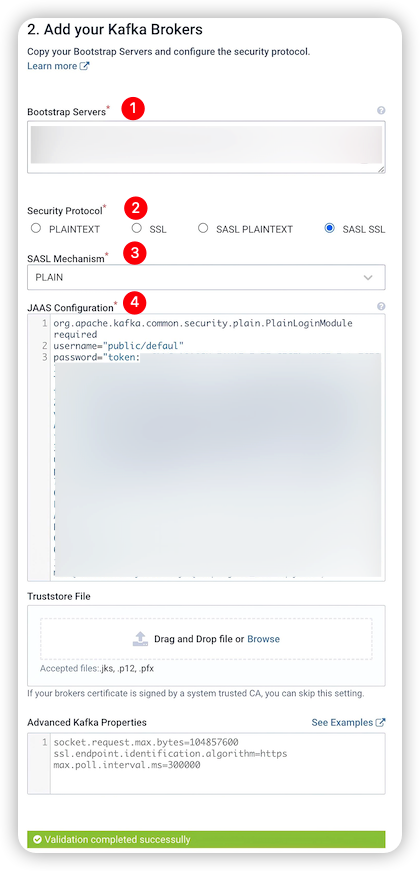
1. Go to the Lenses UI and configure your StreamNative cluster.
* \[1] Bootstrap Servers: the Kafka service URL of your StreamNative cluster.
* \[2] Security Protocol: the security protocol of your StreamNative cluster.
* \[3] SASL Mechanism: the security mechanism of your StreamNative cluster.
* \[4] JAAS Configuration
* username: the tenant and namespace name, in the format of `/`.
* password: the token of your service account, in the format of `token:`
 2. View data in the target topic.
a. On the left navigation pane of the Lenses UI, click **Explore** to navigate to the **Explore** page.
b. Select the target topic.
2. View data in the target topic.
a. On the left navigation pane of the Lenses UI, click **Explore** to navigate to the **Explore** page.
b. Select the target topic.
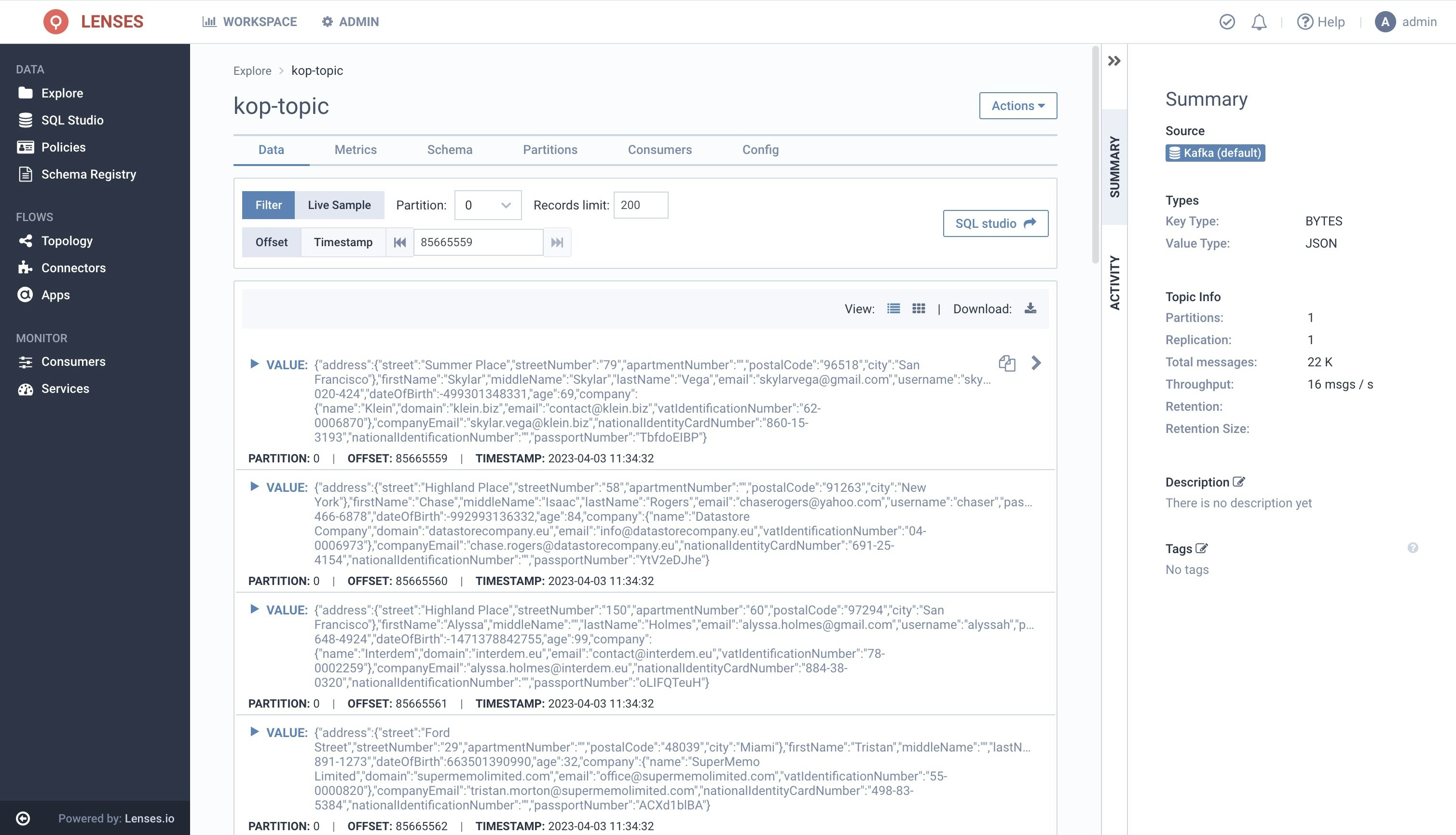 The message in the topic `kop-topic` looks like the below:
```json theme={null}
{
"value": {
"address": {
"street": "Summer Place",
"streetNumber": "79",
"apartmentNumber": "",
"postalCode": "96518",
"city": "San Francisco"
},
"firstName": "Skylar",
"middleName": "Skylar",
"lastName": "Vega",
"email": "skylarvega@gmail.com",
"username": "skylarv",
"password": "BAhSz5sB",
"sex": "FEMALE",
"telephoneNumber": "728-020-424",
"dateOfBirth": -499301348331,
"age": 69,
"company": {
"name": "Klein",
"domain": "klein.biz",
"email": "contact@klein.biz",
"vatIdentificationNumber": "62-0006870"
},
"companyEmail": "skylar.vega@klein.biz",
"nationalIdentityCardNumber": "860-15-3193",
"nationalIdentificationNumber": "",
"passportNumber": "TbfdoEIBP"
}
}
```
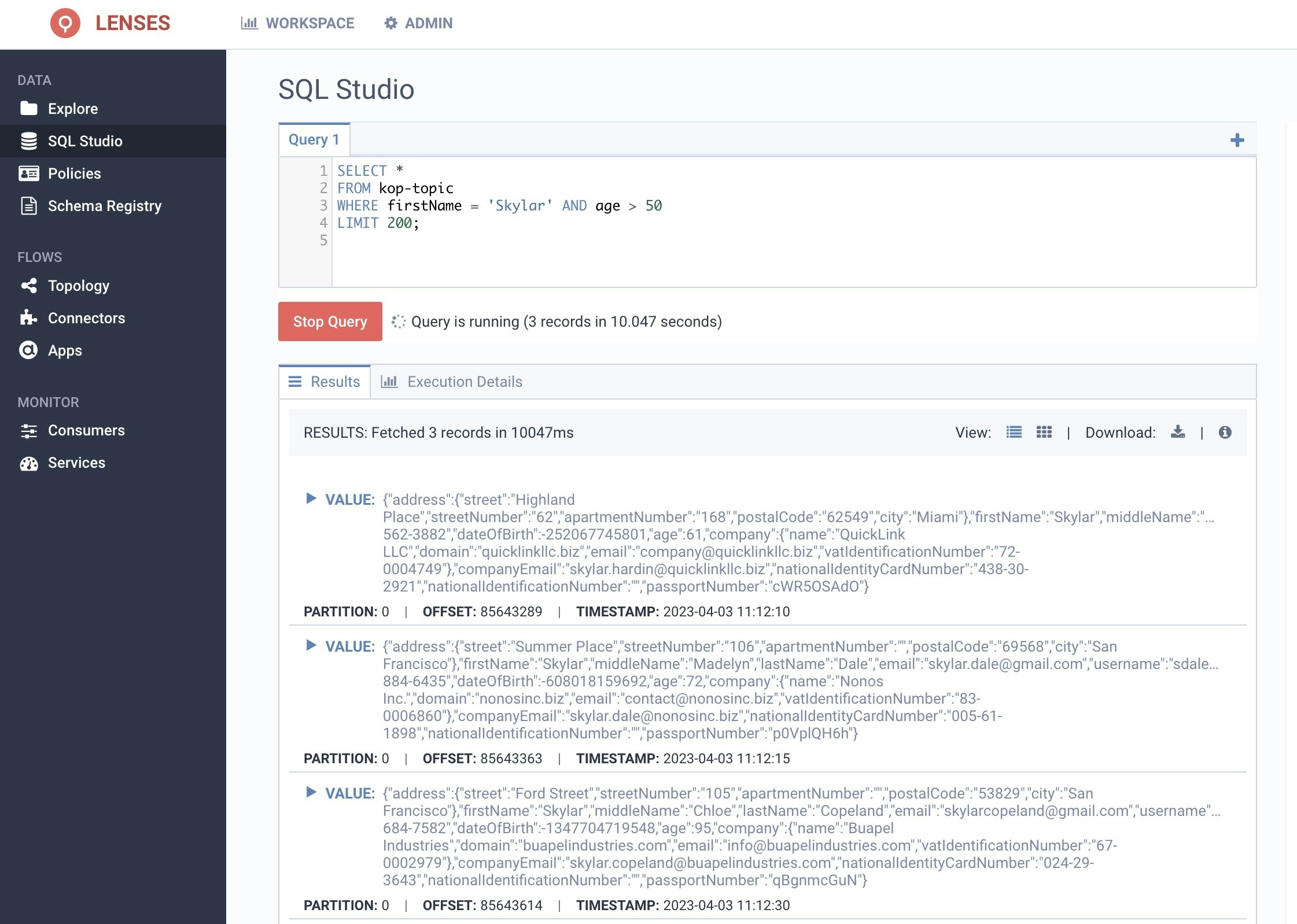
3. Query data in the target topic.
a. From the **Header Bar** menu, go to the **Dashboard** panel.
b. On the side navigation, select **SQL Studio** under the **Data** section.
The message in the topic `kop-topic` looks like the below:
```json theme={null}
{
"value": {
"address": {
"street": "Summer Place",
"streetNumber": "79",
"apartmentNumber": "",
"postalCode": "96518",
"city": "San Francisco"
},
"firstName": "Skylar",
"middleName": "Skylar",
"lastName": "Vega",
"email": "skylarvega@gmail.com",
"username": "skylarv",
"password": "BAhSz5sB",
"sex": "FEMALE",
"telephoneNumber": "728-020-424",
"dateOfBirth": -499301348331,
"age": 69,
"company": {
"name": "Klein",
"domain": "klein.biz",
"email": "contact@klein.biz",
"vatIdentificationNumber": "62-0006870"
},
"companyEmail": "skylar.vega@klein.biz",
"nationalIdentityCardNumber": "860-15-3193",
"nationalIdentificationNumber": "",
"passportNumber": "TbfdoEIBP"
}
}
```
3. Query data in the target topic.
a. From the **Header Bar** menu, go to the **Dashboard** panel.
b. On the side navigation, select **SQL Studio** under the **Data** section.