> ## Documentation Index
> Fetch the complete documentation index at: https://docs.streamnative.io/llms.txt
> Use this file to discover all available pages before exploring further.
# View Credits and Discounts
StreamNative may apply credits or discounts to your organization's account, such as welcome credits for new enterprise customers or promotional credits. These credits reduce your outstanding balance in Stripe and are reflected in your billing dashboard.
## View applied credits
To view credits applied to your organization, follow these steps.
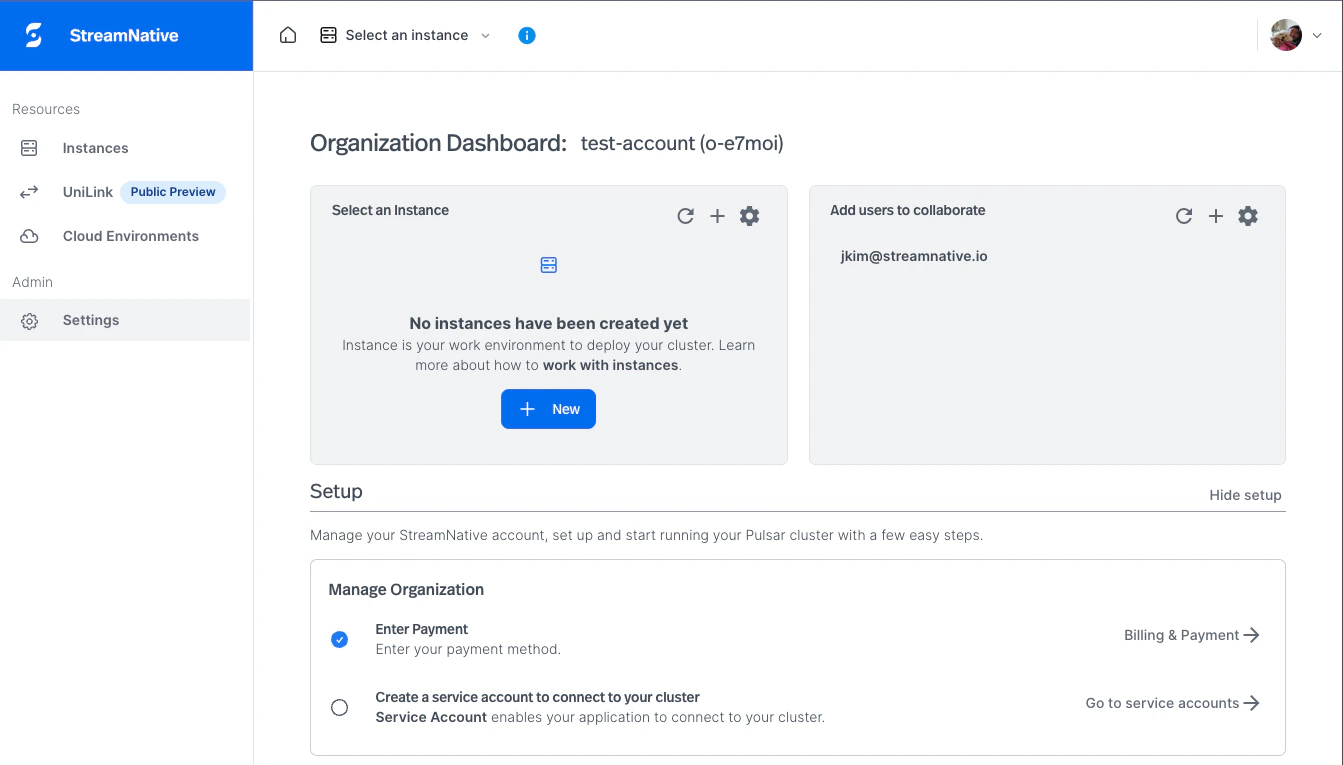
1. On the StreamNative Cloud Console home page, select **Settings** under **Admin**.
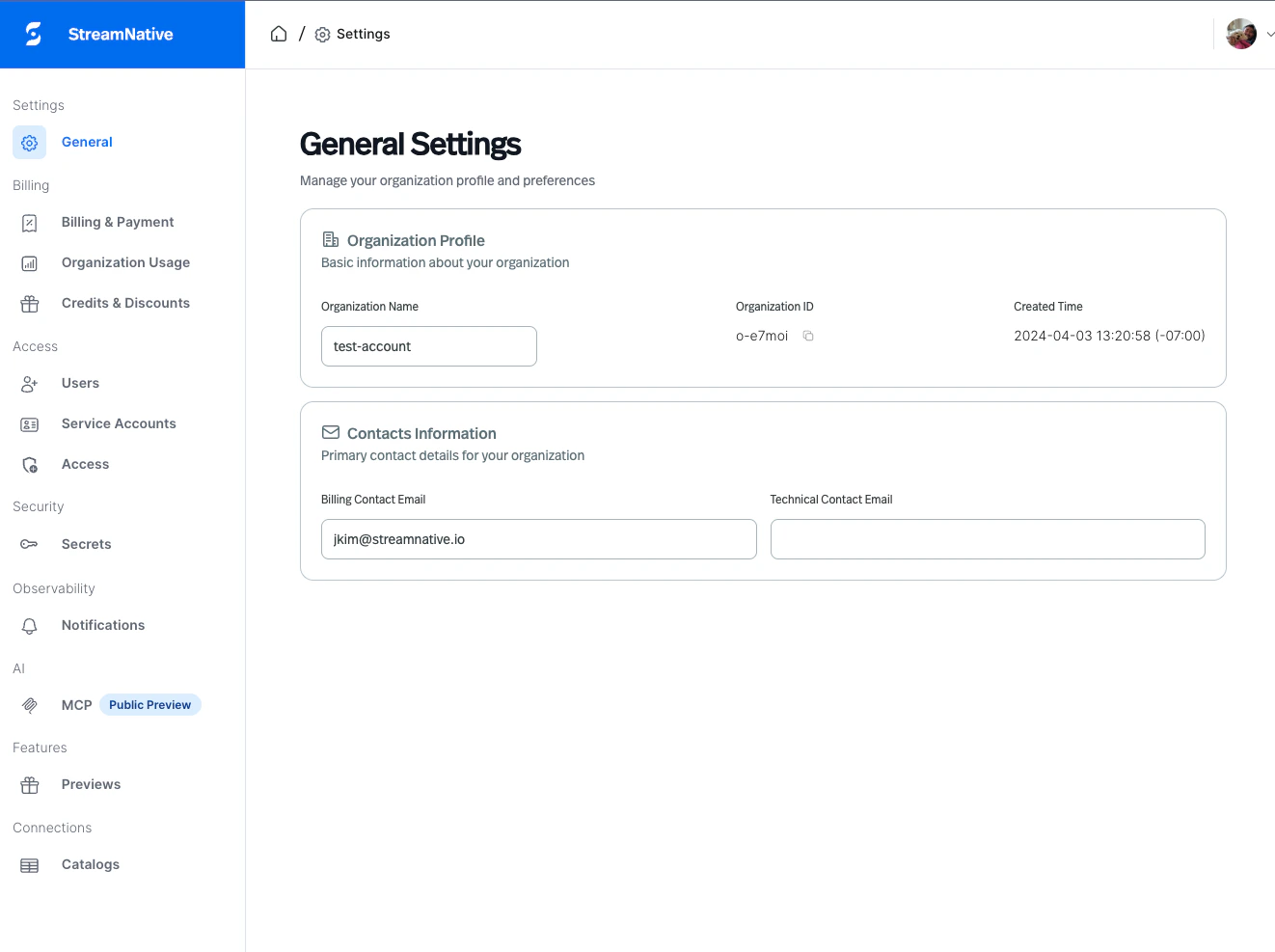
 2. On the **Settings** page, click **Credits & Discounts**.
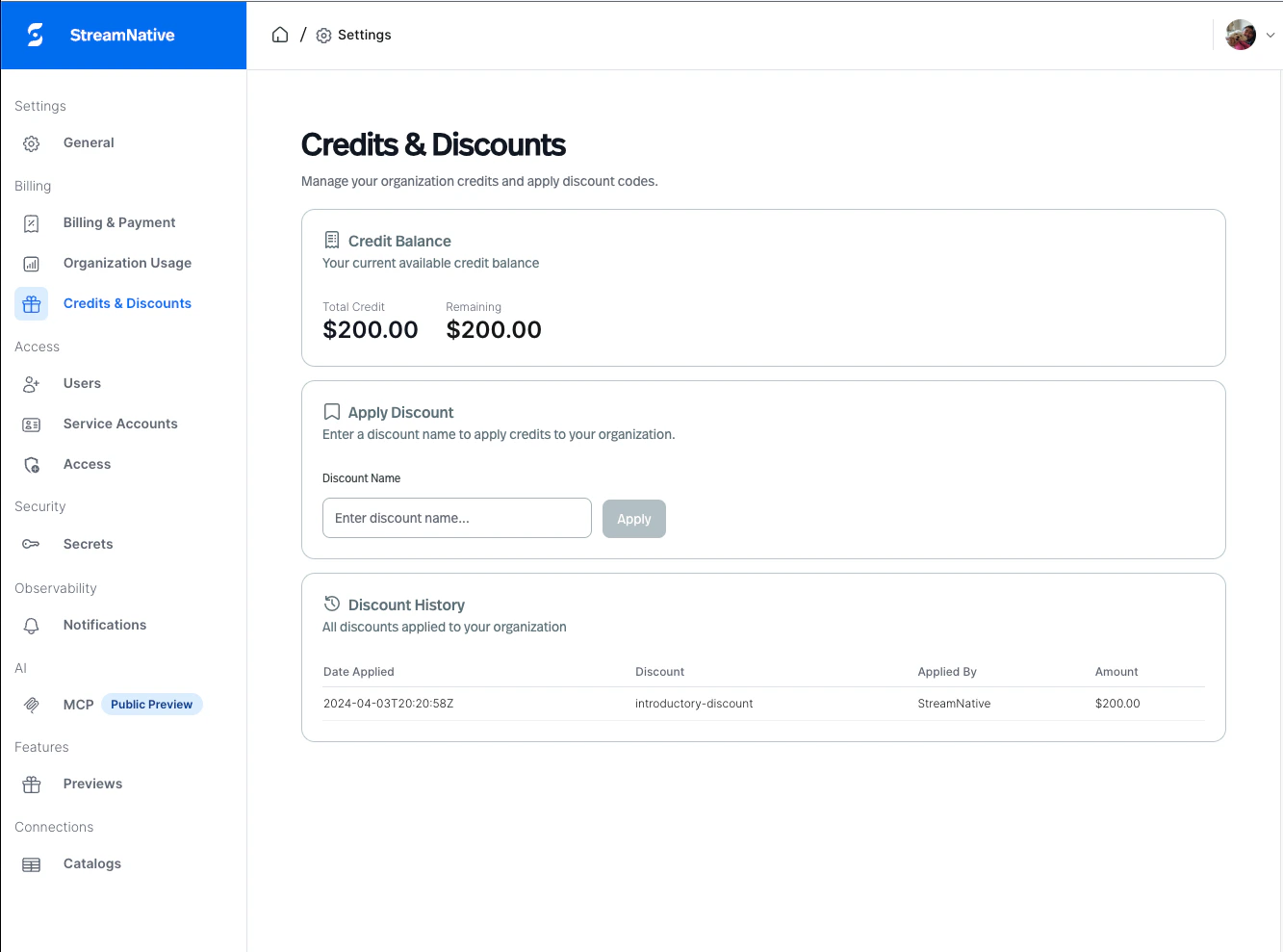
 3. The **Credits & Discounts** table lists each credit applied to your organization with the following details.
 | Column | Description |
| ----------------- | ---------------------------------------------------- |
| **Date Applied** | The date the credit was applied |
| **Discount Name** | The credit name (for example, `welcome-credit-2026`) |
| **Applied By** | The StreamNative operator who applied the credit |
| **Amount** | The credit value in USD (for example, `$500.00`) |
## How credits affect your bill
Credits are applied as a **negative balance** against your Stripe account. StreamNative deducts available credits from your outstanding charges at the end of each billing cycle before charging your payment method.
For example, if your monthly invoice is $800 and you have a $500 credit, you are charged \$300 for that billing period. Credits reduce your balance until they are fully consumed.
## Frequently asked questions
### How do I request a credit for my organization?
Contact your StreamNative account representative or [submit a support ticket](https://support.streamnative.io/hc/en-us/requests/new) to request a credit.
### Can a credit be applied more than once?
No. Each named credit can only be applied once per organization.
### Are credits refundable?
Credits are non-refundable. If a credit was applied in error, contact StreamNative support. Note that the underlying Stripe transaction must be reversed manually by the StreamNative team.
### Where can I see credits on my invoice?
Credits appear as a negative line item on your Stripe invoice. You can download your invoice from the Stripe billing portal by navigating to the **Billing & Payment** page in the StreamNative Cloud Console.
### Can credits be applied to AWS, GCP, Azure, or any other marketplace offer?
Credits and discounts are currently available for Stripe customers. For other billing channels, [contact our support team](https://support.streamnative.io/hc/en-us/requests/new) to discuss your options.
| Column | Description |
| ----------------- | ---------------------------------------------------- |
| **Date Applied** | The date the credit was applied |
| **Discount Name** | The credit name (for example, `welcome-credit-2026`) |
| **Applied By** | The StreamNative operator who applied the credit |
| **Amount** | The credit value in USD (for example, `$500.00`) |
## How credits affect your bill
Credits are applied as a **negative balance** against your Stripe account. StreamNative deducts available credits from your outstanding charges at the end of each billing cycle before charging your payment method.
For example, if your monthly invoice is $800 and you have a $500 credit, you are charged \$300 for that billing period. Credits reduce your balance until they are fully consumed.
## Frequently asked questions
### How do I request a credit for my organization?
Contact your StreamNative account representative or [submit a support ticket](https://support.streamnative.io/hc/en-us/requests/new) to request a credit.
### Can a credit be applied more than once?
No. Each named credit can only be applied once per organization.
### Are credits refundable?
Credits are non-refundable. If a credit was applied in error, contact StreamNative support. Note that the underlying Stripe transaction must be reversed manually by the StreamNative team.
### Where can I see credits on my invoice?
Credits appear as a negative line item on your Stripe invoice. You can download your invoice from the Stripe billing portal by navigating to the **Billing & Payment** page in the StreamNative Cloud Console.
### Can credits be applied to AWS, GCP, Azure, or any other marketplace offer?
Credits and discounts are currently available for Stripe customers. For other billing channels, [contact our support team](https://support.streamnative.io/hc/en-us/requests/new) to discuss your options.